What it is and what it is for#
The admin panel is the same application the employee uses, with extra menus that only some people see. There is no separate website and no separate login: you sign in with your usual account and, depending on your role, more options appear in the top bar.
Almost everything you configure here applies to a project: if your company has several, you switch project and the contents of the panel change with it. What applies to all of them (brand, modules, login points, domains and languages) is in Company settings.
The menu is grouped into three blocks:
Explore
What any employee sees: their actions, the store, the directory, the love wall.
Manage
Where content is created and maintained: people, journeys, rewards, news, surveys.
Analyze
The dashboards: participation, points, surveys, comments, logins.
Explore is seen by everyone. Manage and Analyze only appear if your account has administration permissions. If you cannot see them, your role does not include them.
How to set it up#
This block is not configured: it is the map of the panel. What you do decide is who gets in.
Who sees each block#
| Role | What they see |
|---|---|
| Employee | Only Explore. Their actions, the store, the directory and the love wall. |
| Manager | The same as the employee, plus the Approvals inbox and the tracking of their team. The Manage and Analyze menus do not appear for them, and what they see is limited to the unit they are responsible for. See The manager's panel. |
| Administrator | The three blocks in full, within their project. They can grant and remove the admin role to other people on the project. |
The manager is not a cut-down administrator: it is a different kind of access. They come in to approve what their people do and to see how their team is going, not to configure the programme. If you need someone to create content or to see the analytics for the whole project, they have to be an administrator.
The administrator role is granted and removed in Roles, and it takes effect immediately. The manager role is not assigned by hand: it belongs to whoever is the manager of an organisation or a location. See Users and access.
The top bar#
Next to the Search actions box there are four icons. They are shortcuts, not sections: all four open the Inbox as a side panel, each one filtered by a kind of pending item. The red number on the icon is how many of that kind you have pending.
| Icon | Opens the inbox on |
|---|---|
| Approvals (tray) | Your team's actions waiting for your approval. |
| Notifications (bell) | Your notifications from the last 30 days. |
| Comments to moderate (speech bubble) | Reported comments and recognitions. |
| Orders to process (box) | Store redemptions that have not been handled yet. |
Inside the inbox, Filter by type switches type and All shows everything together, in blocks, each with a Show only these link. See Inbox and Approvals and moderation.
How it is used day to day#
Explore#
An employee's panel, exactly as it is. It is useful for checking how what you have just configured looks before anyone else sees it.
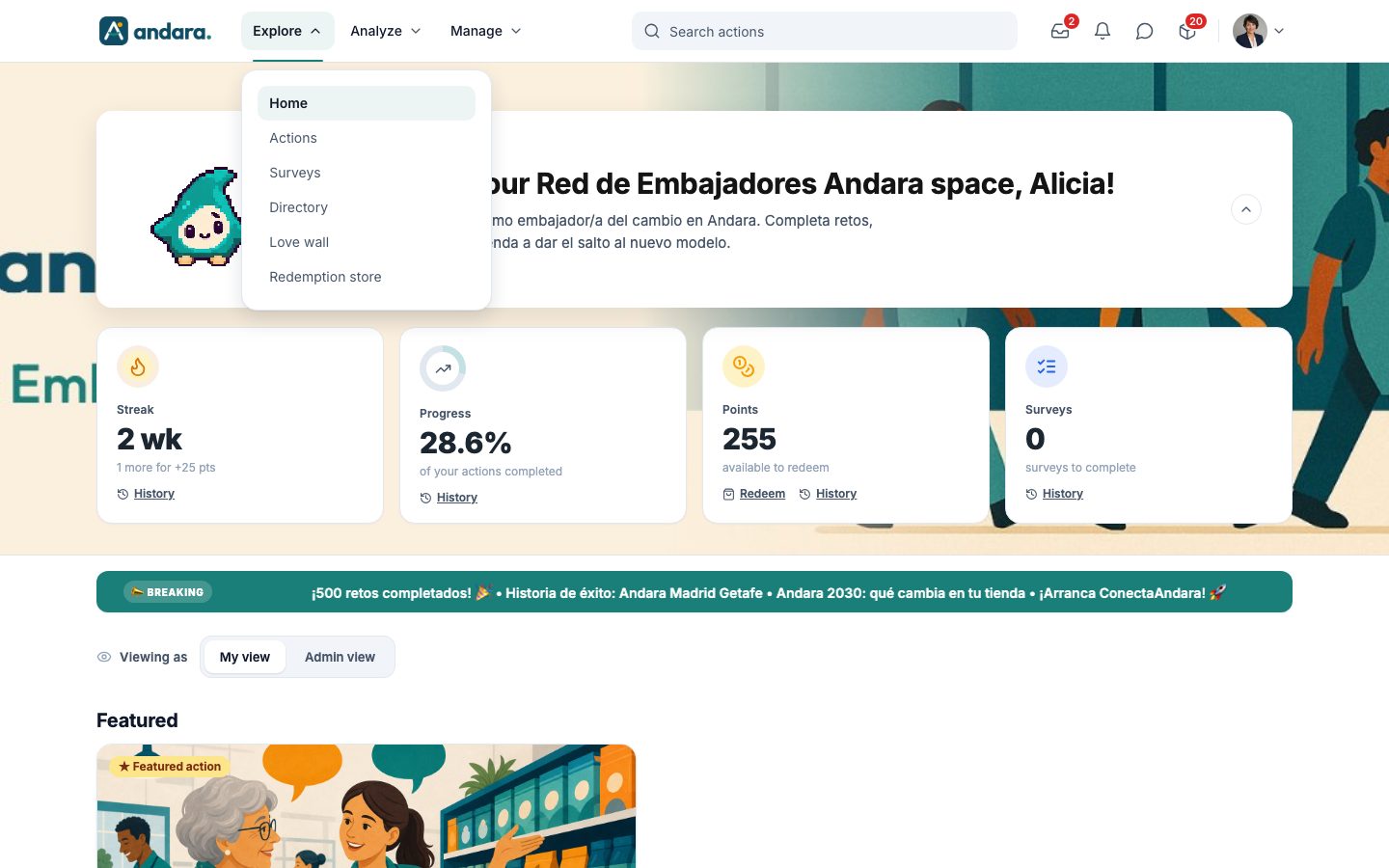
- Home — the front page, with the progress and the home cards.
- Actions — the person's actions, by journey.
- Surveys — pending surveys.
- Directory — the list of people on the project.
- Love wall — the recognition people give each other.
- Redemption store — the catalogue with the available balance.
On the home page, the Viewing as switch toggles between My view (what anyone sees) and Admin view (the programme summary).
Manage#
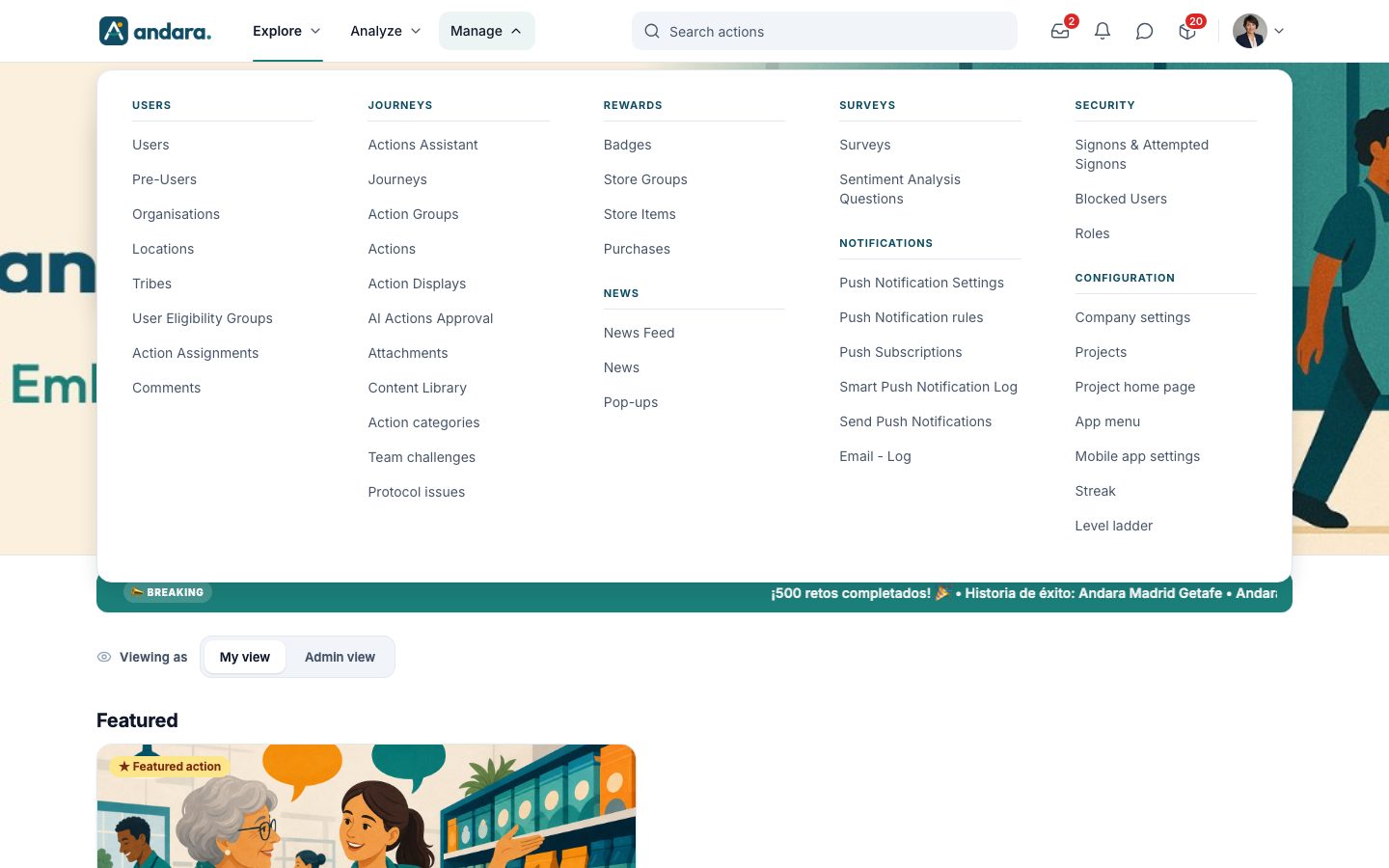
Every tab has its own page in the panel reference, with screenshots and all of its settings.
| Block | Tabs |
|---|---|
| Users | Users, Pre-Users, Organisations, Locations, Tribes, User Eligibility Groups, Action Assignments and Comments. |
| Journeys | Actions Assistant, Journeys, Action Groups, Actions, Action Displays, AI Actions Approval, Attachments, Content Library, Action categories, Team challenges and Protocol issues. |
| Rewards | Badges, Store Groups, Store Items and Purchases. |
| News | News Feed, News and Pop-ups. |
| Surveys | Surveys and Sentiment Analysis Questions. |
| Notifications | Push Notification Settings, Push Notification rules, Push Subscriptions, Smart Push Notification Log, Send Push Notifications and Email - Log. |
| Security | Signons & Attempted Signons, Blocked Users and Roles. |
| Configuration | Company settings, Projects, Project home page, App menu, Mobile app settings, Streak and Level ladder. |
The Inbox in the top bar has its own page too: Inbox.
Analyze#
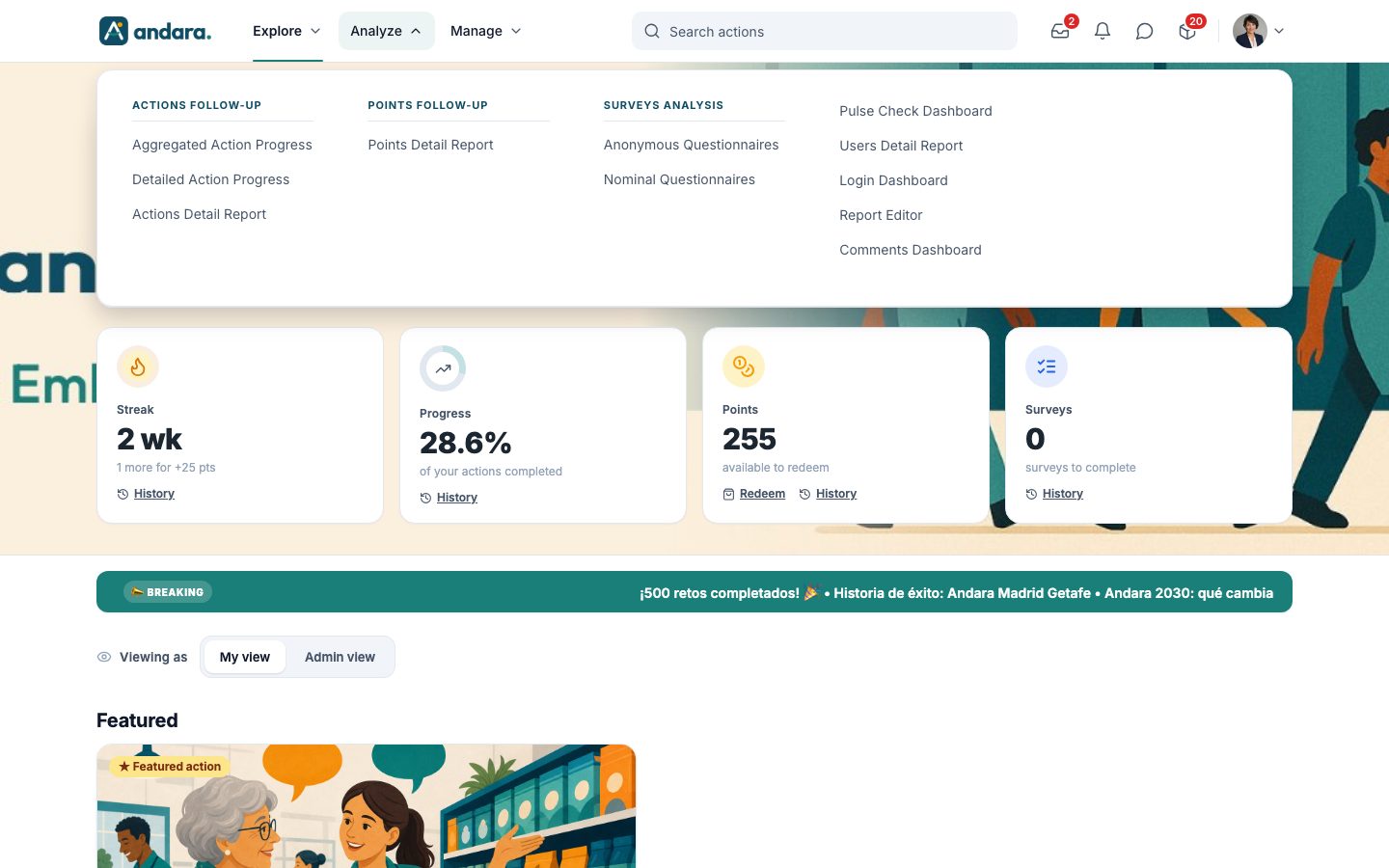
| Dashboard | What it answers |
|---|---|
| Actions Follow-up | Which actions work and which get stuck: Aggregated Action Progress, Detailed Action Progress and the Actions Detail Report. |
| Points Follow-up | How many points are handed out and what they are spent on: Points Detail Report. |
| Surveys Analysis | Survey results: Anonymous Questionnaires and Nominal Questionnaires. |
| Pulse Check Dashboard | The mood: how the team feels over time. |
| Users Detail Report | Profile by profile, what each person has done. |
| Login Dashboard | Who signs in, how often and who never has. |
| Report Editor | Custom reports you can save and export. |
| Comments Dashboard | What people are saying in action comments. |
The home page also has an Admin view with a summary of the programme.
FAQs#
I cannot see Manage or Analyze. Is it broken?
No. Those menus only appear if you have the admin role on the project you are in. Ask another administrator: they grant it in Roles.
Do administrators see all the company's projects?
No. An administrator works on the project they are in. If you manage several, you have to switch project to see the content of the other one.
Can I see the app exactly as an employee sees it?
With Explore you see the same screens, but with your data and your segmentation. To check what reaches one particular person, look at their record in Users Detail Report.
Why does a colleague see different tabs in the app?
The tabs people see in the app are decided by you in App menu, and each one has its own Who sees it. The Manage and Analyze menus depend only on the admin role, which is per project: someone can be an admin on one project and not on another.
Where do you change the colours and the logo?
In the Brand block of Company settings (Manage › Configuration). The brand belongs to the company: it applies to every project. See Branding.
Limits and warnings#
- Changes are saved with the Save button on each form or block. On screens with several blocks, such as Company settings, each block has its own: saving one does not save the others.
- Everything you do here is on real people's data. There is no test environment inside the panel: what you publish is seen.
- The Analyze dashboards are read-only. To change something you have to go to the corresponding module in Manage.