What it is for#
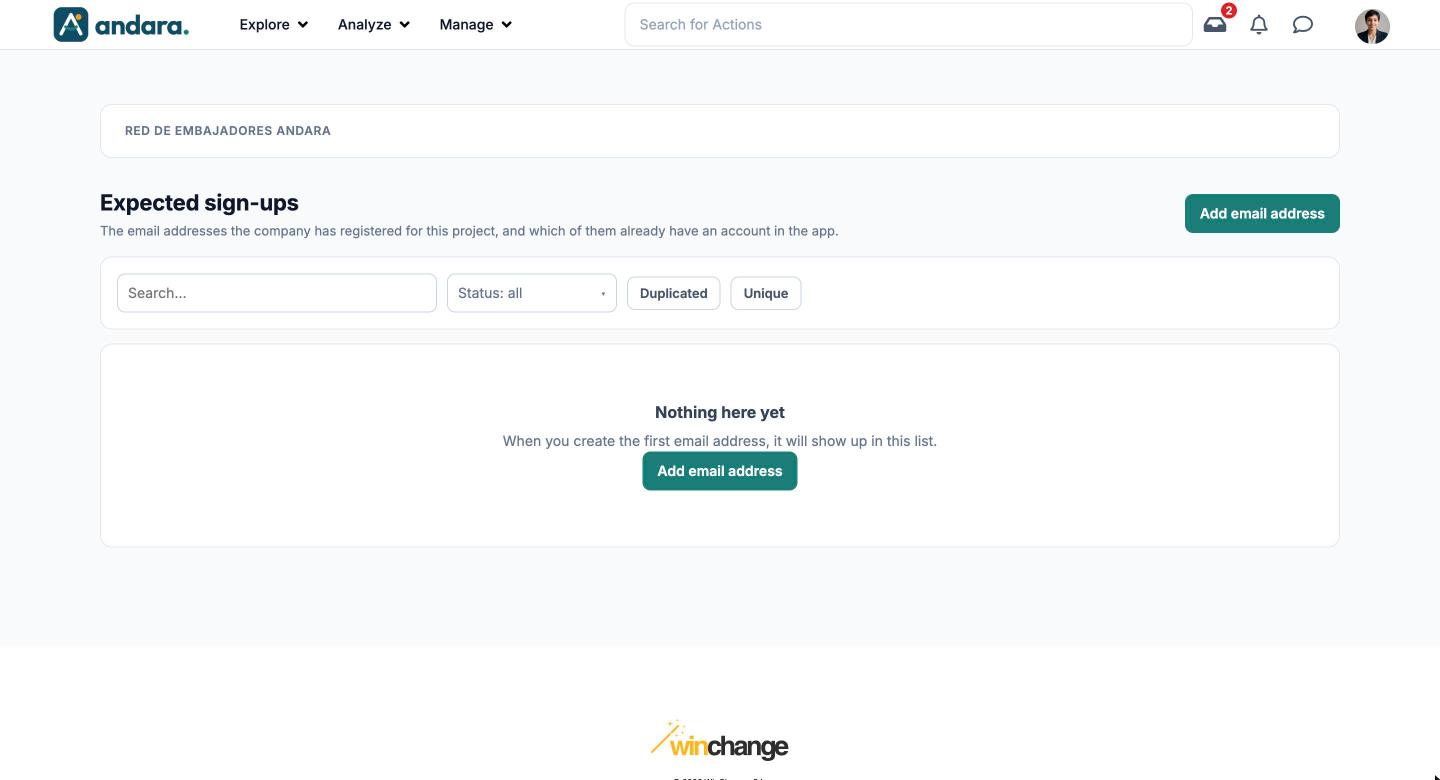
This is the list of expected sign-ups: the email addresses your company has registered for this project and, for each one, whether that person already has an account in the app. It tells you who has not signed up yet without asking anyone for a report.
The list does not create accounts or grant access on its own: the person signs up later with that same address. In the app the screen is called Expected sign-ups.
Where it is: Manage › Users › Pre-Users.
What you see#
| Element | What it shows |
|---|---|
| Search… | Filters the list as you type. |
| Status: all | Drop-down to keep only the addresses in a given status: Not signed up (the person has no account yet), Signed up (they have one), Deactivated or Empty. |
| Duplicated / Unique | Shows only the addresses that appear more than once in the list, or only those that appear once. Handy for cleaning up duplicates after a load. |
| Add email address | Opens the form to add an address to the list. It sits at the top right and, while the list is empty, also in the middle. |
| Nothing here yet | What you see while the project has no expected addresses. |
Settings#
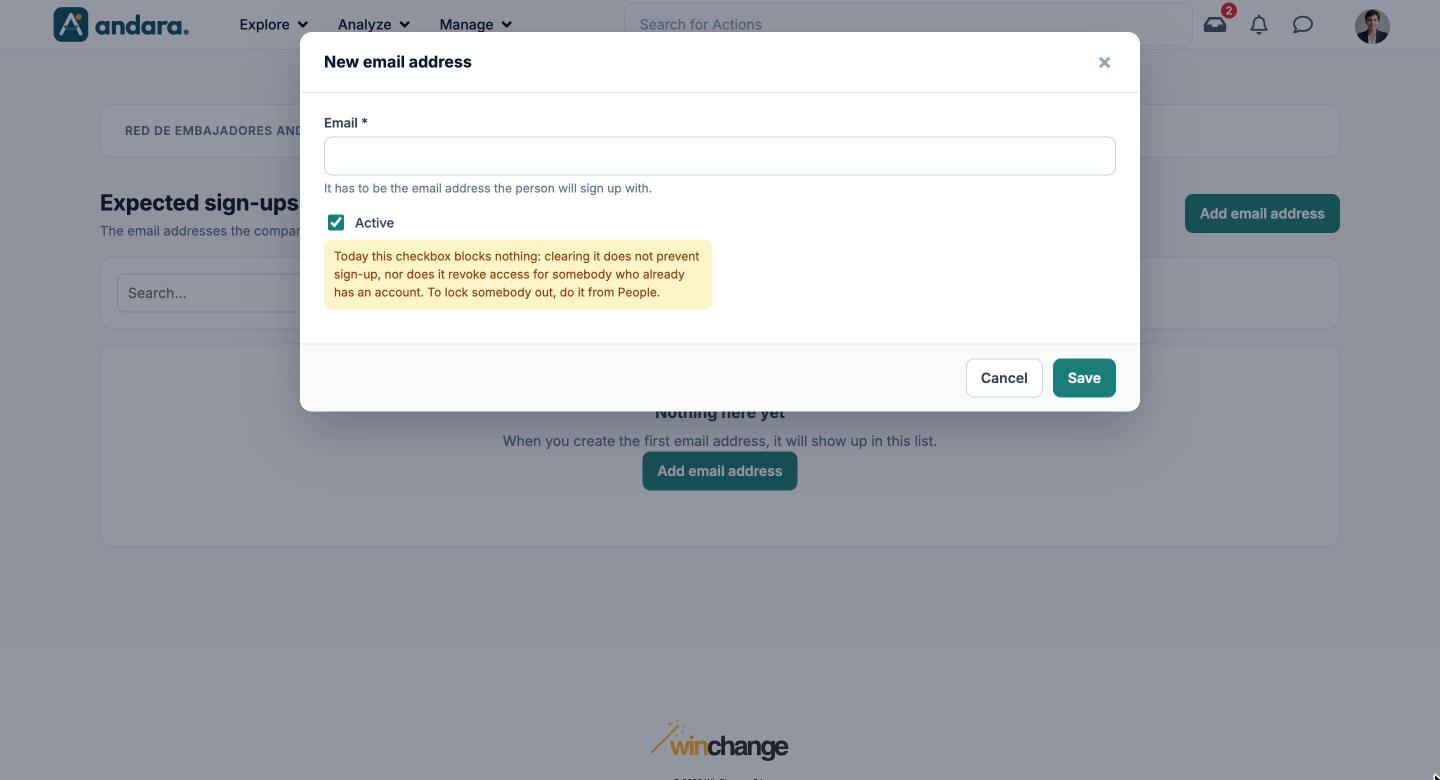
Each address is added with a very short form, New email address.
| Field | What it does | Values |
|---|---|---|
| The expected address. It has to be exactly the address the person will sign up with: if they sign up with a different one, the row is not marked as signed up. | Email. Required. | |
| Active | Today it blocks nothing: clearing it does not prevent sign-up, nor does it revoke access for somebody who already has an account. The form itself says so. | Tick box. Ticked by default. |
How to#
Add an expected address#
- 1
Open the form
Click Add email address.
- 2
Type the address
The same one the person will sign up with.
- 3
Save
Click Save. The address shows up in the list; until the person signs up, it stays as Not signed up.
See who has not signed up yet#
- 1
Filter by status
In Status, choose Not signed up.
- 2
Go through the list
These are the expected addresses that still have no account. Use Duplicated first to check there are no repeated addresses.
Things to know#
- Being on this list does not grant access. The account is created when the person signs up with that address.
- The Active tick box does not lock anyone out. To remove someone's access, do it from Users by unticking Can sign in.
- A mistyped address raises no error, but that row will never be marked as signed up. Check the ones that have been Not signed up for a while.
Related#
- Bulk onboarding and eligibility: how to prepare many people joining at once.
- Users: each person's profile once they have an account.
- Users and access: the full life cycle of an account.