What it is for#
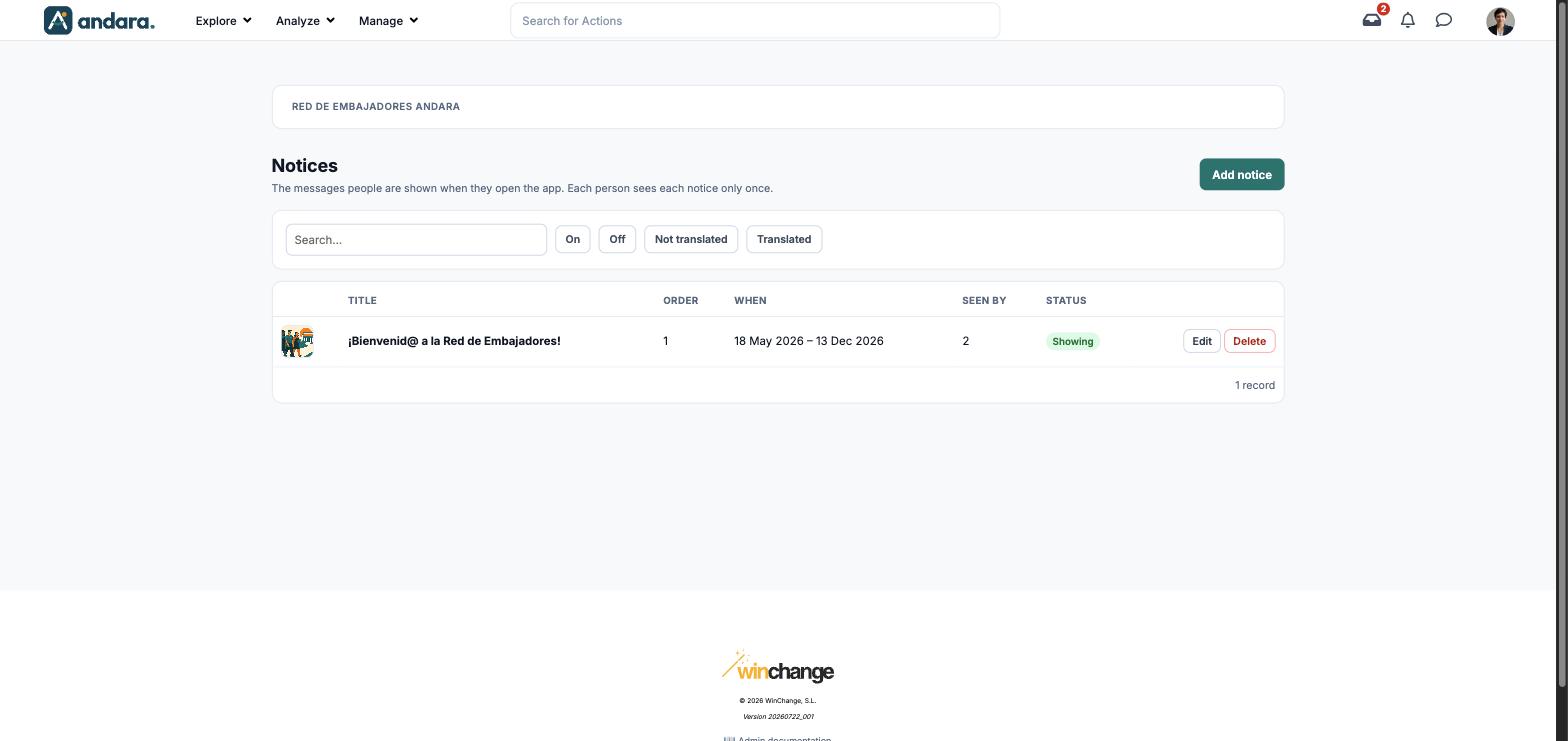
This is where you create pop-up notices: messages that appear when a person opens the app. Each person sees each notice only once. The screen is titled Notices.
They are for things that must not be missed, such as a welcome or the start of a campaign.
Where it is: Manage › News › Pop-ups.
What you see#
The name of the project you are in is shown at the top.
| Element | What it shows |
|---|---|
| Search… | Filters the list as you type. |
| On / Off | Shows only the notices that are on, or only those that are off. |
| Not translated / Translated | Splits notices by whether they have their English version. |
| Image | The notice image. |
| Title | The notice title. |
| Order | The value that orders notices when someone is due several at once. |
| When | The dates between which it is shown. |
| Seen by | How many people have already seen it. |
| Status | Showing when it is on and within its dates. |
| Edit | Opens the notice form. |
| Delete | Removes the notice. |
| Add notice | Opens a blank form. |
Settings#
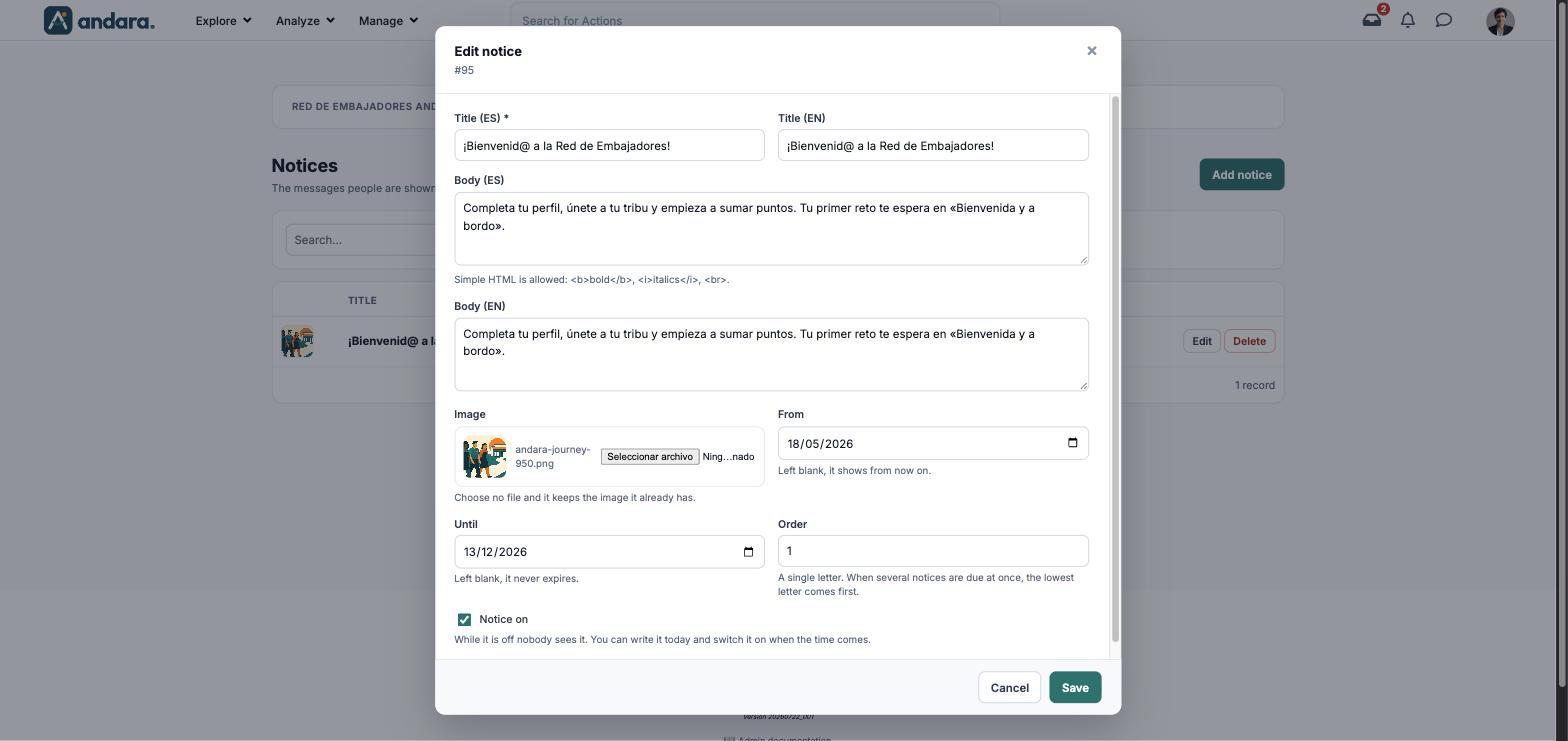
The form is the same to create (New notice) and to edit (Edit notice, with its number under the title).
| Field | What it does | Values |
|---|---|---|
| Title (ES) | The notice title in Spanish. | Text. Required. |
| Title (EN) | The title in English. | Text. |
| Body (ES) | The message in Spanish. | Text. Simple HTML is allowed: <b>bold</b>, <i>italics</i>, <br>. |
| Body (EN) | The message in English. | Text, with the same HTML. |
| Image | The notice image. Choose no file and it keeps the image it already has. | Image. |
| From | When it starts showing. Left blank, it shows from now on. | Date. |
| Until | When it stops showing. Left blank, it never expires. | Date. |
| Order | When several notices are due at once, the lowest letter comes first. | A single letter. a in a new notice. |
| Notice on | While it is off nobody sees it. You can write it today and switch it on when the time comes. | Tick box. Unticked in a new notice. |
How to#
Create a welcome notice#
- 1
Open a new form
Click Add notice.
- 2
Write the message
Fill in Title (ES) and Body (ES), their English versions, and pick the Image.
- 3
Set the dates
Choose From and, above all, Until, so it does not keep showing when it no longer applies.
- 4
Switch it on and save
Tick Notice on and click Save. In the list it turns to Showing once its date arrives.
Take a notice down#
- 1
Open it
Click Edit on its row.
- 2
Switch it off
Untick Notice on and click Save. You keep the notice and the count of who has seen it.
Things to know#
Delete removes the notice from the list. If you only want it to stop showing, switch it off: that way you keep the message and the count of who has seen it.
- Each person sees each notice only once. It does not work as a recurring reminder.
- With no Until date, the notice never expires. Give campaign notices an end date.
- A new notice starts switched off. You have to tick Notice on for it to show.
- If several are due at once, they come out by Order. Chaining notices on entry teaches people to close them without reading.
Related#
- News and communication: when to use a notice and when a news item.
- News: the app board.
- Notifications and email: push notifications.