What it is for#
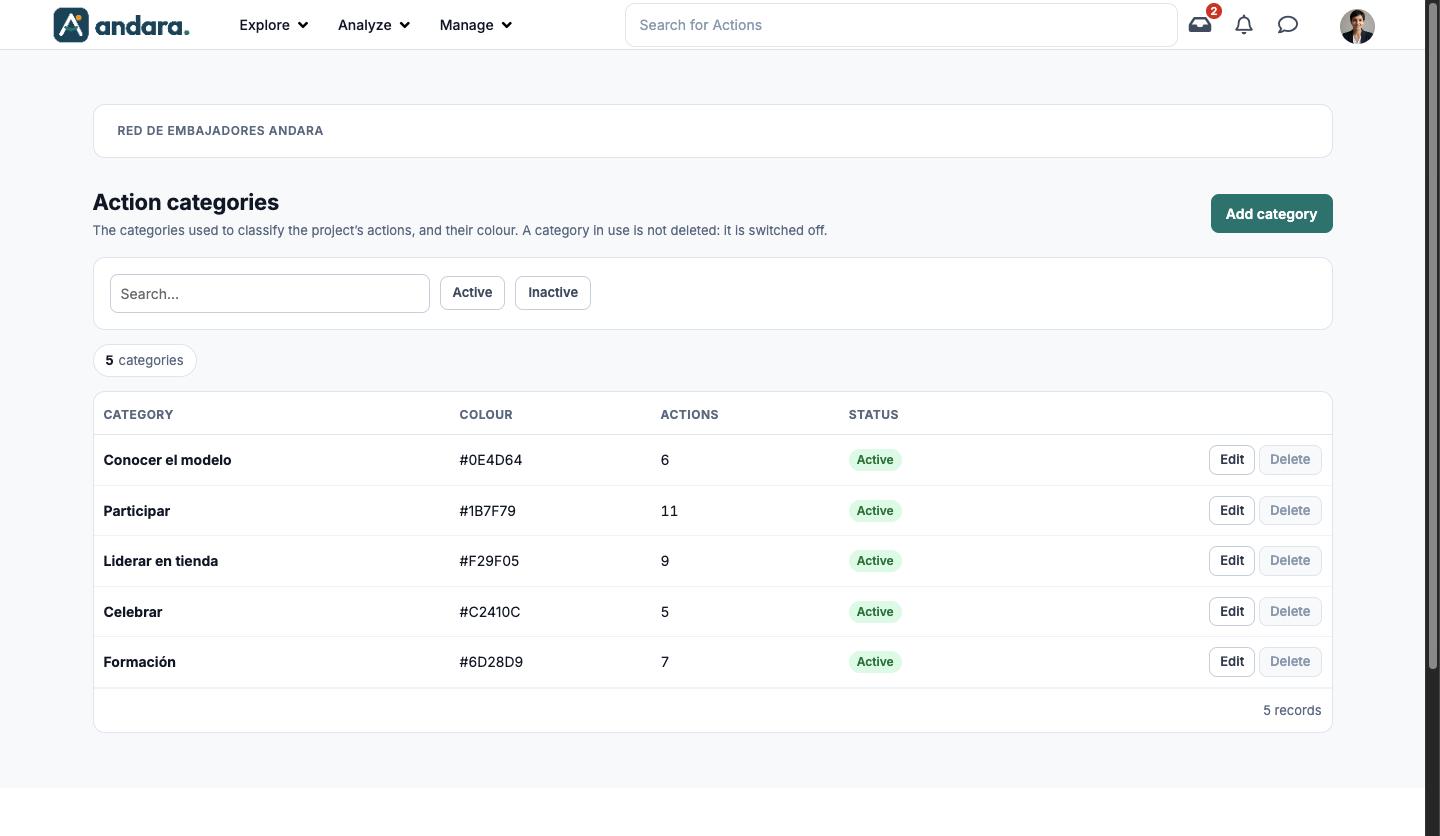
This is where you keep the categories used to classify the project's actions, each with its colour. Categories are given to each action in Actions, under Opciones avanzadas (advanced options) in step 4. Asignación.
Where it is: Manage › Journeys › Action categories.
What you see#
| Element | What it shows |
|---|---|
| Search… | Filters the list as you type. |
| Active / Inactive | Keeps only the categories that are switched on, or only those switched off. |
| N categories | How many match the current filters. |
| Category | The name. |
| Colour | The colour code. |
| Actions | How many actions have this category. |
| Status | Active or Inactive. |
| Edit | Opens the category form. |
| Delete | Deletes the category. Only enabled for categories no action uses; greyed out for the rest. |
| Add category | Opens a blank form. |
Settings#
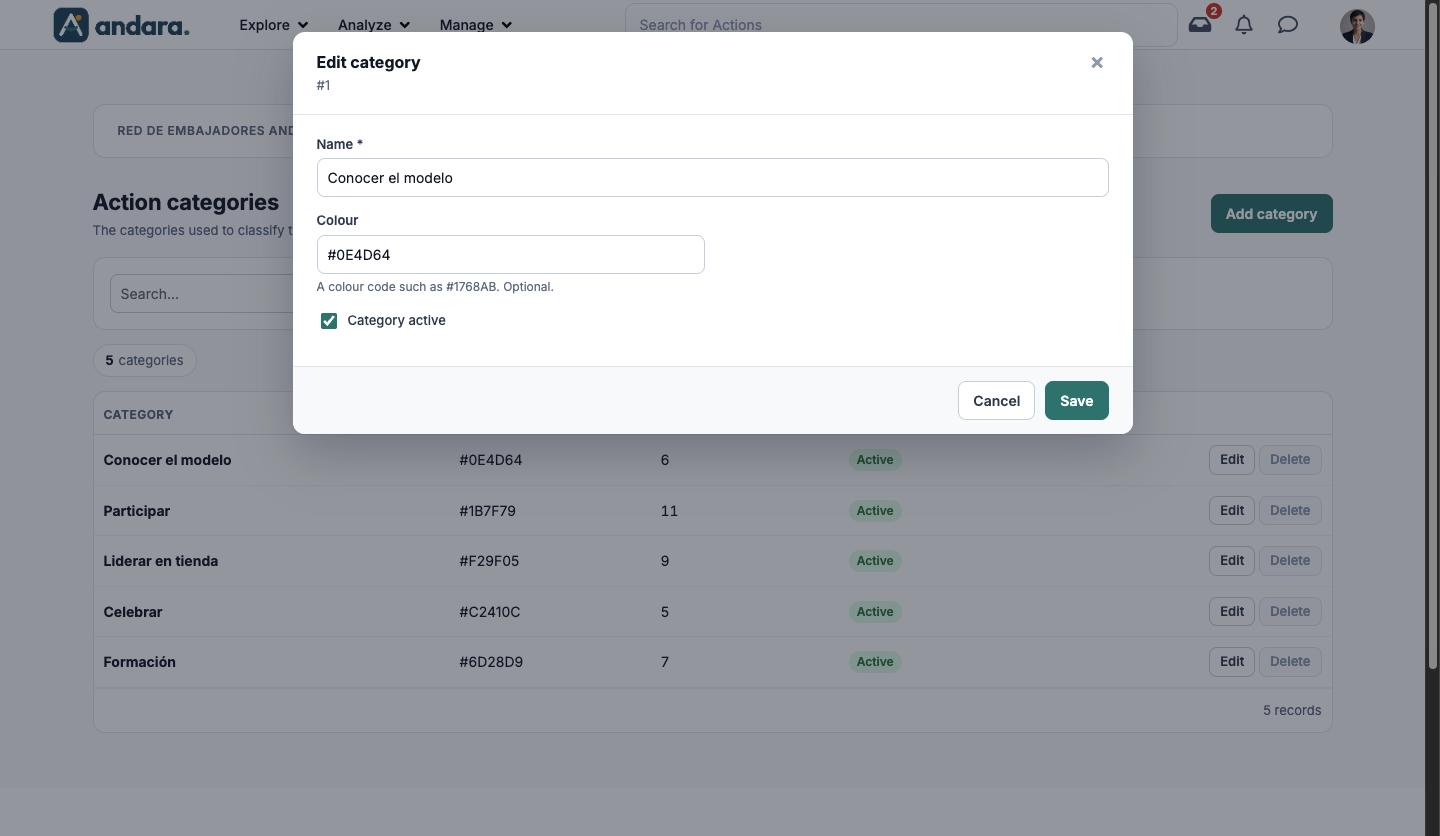
The form is the same to create (New category) and to edit (Edit category, with its number under the title).
| Field | What it does | Values |
|---|---|---|
| Name | The category name. There is only one, with no separate English version. | Text. Required. |
| Colour | The category's colour. | A colour code such as #1768AB. Optional. |
| Category active | Switches the category on or off. | Tick box. Ticked by default. |
How to#
Create a category#
- 1
Open a blank form
Click Add category.
- 2
Fill in the details
Type the Name and, if you like, a Colour.
- 3
Save
Click Save. You can now pick it in actions.
Retire a category in use#
- 1
Open it
Click Edit on its row.
- 2
Switch it off
Untick Category active and click Save.
Things to know#
- A category in use cannot be deleted: switch it off, or remove it from the actions that have it first and then delete it.
- The name is the same in both app languages.
Related#
- Actions: where categories are given.
- Action Groups: the other way of ordering actions.
- Journeys and actions.