What it is for#
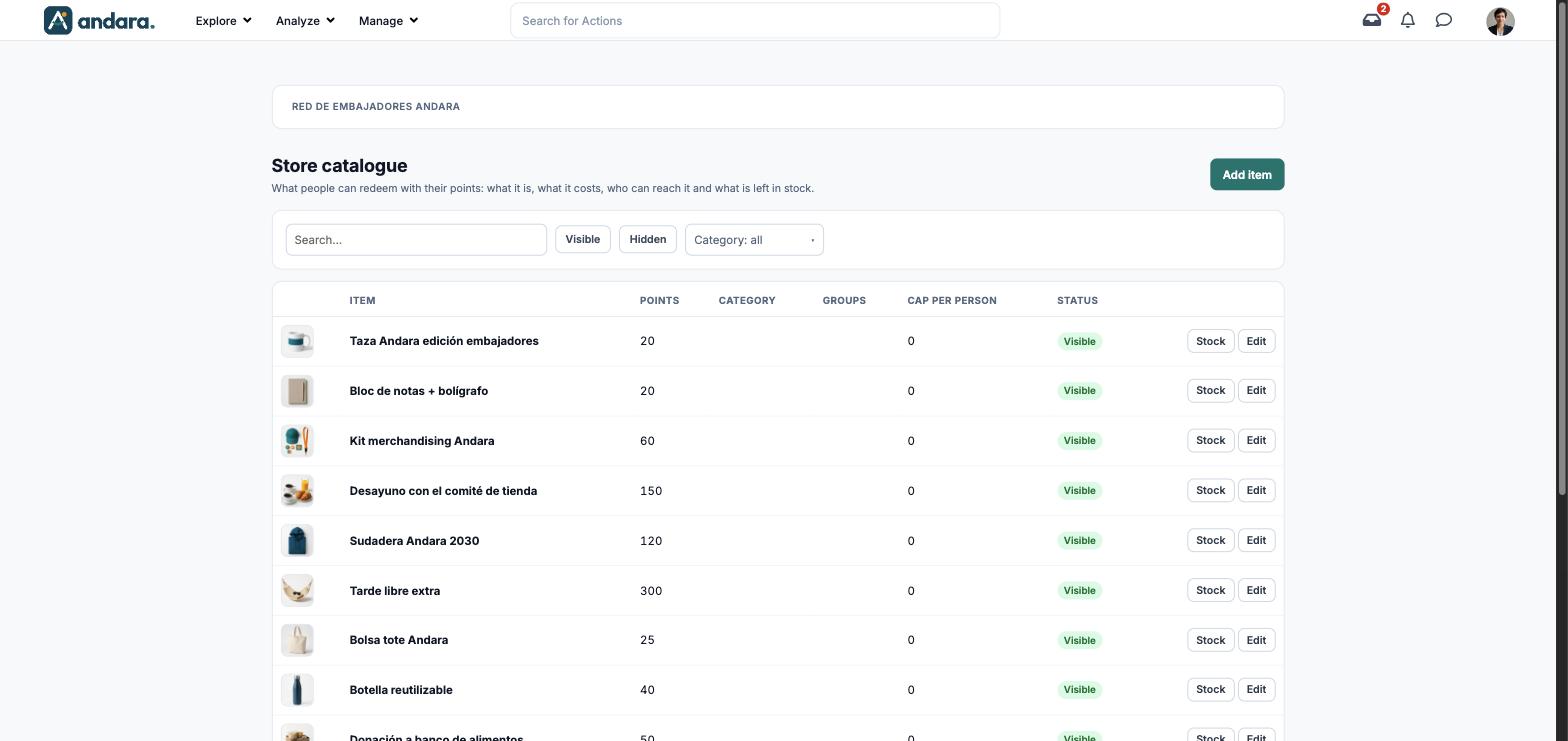
This is where you keep the catalogue of rewards people redeem with their points: what each item is, what it costs, who can reach it and how many units are left. The screen is titled Store catalogue.
Each item also has its own stock, with units coming in and going out, which you manage from the Stock button.
Where it is: Manage › Rewards › Store Items.
What you see#
The name of the project you are in is shown at the top.
| Element | What it shows |
|---|---|
| Search… | Filters the list as you type. |
| Visible / Hidden | Shows only items that can be redeemed, or only those taken out. |
| Category: all | Shows only the items in one category: Corporate gifts, Fashion, Food & Beverages, Gaming, Charities, Education, Miscelanea and Leisure & Travels. |
| Image | The item image. |
| Item | The item name. |
| Points | Its price in points. |
| Category | Its category, if it has one. |
| Groups | The store groups it has ticked. |
| Cap per person | How many times the same person can redeem it. 0 means no cap. |
| Status | Visible or hidden. |
| Stock | Opens the item's stock. |
| Edit | Opens the item form. |
| Add item | Opens a blank form. |
Settings#
Item details#
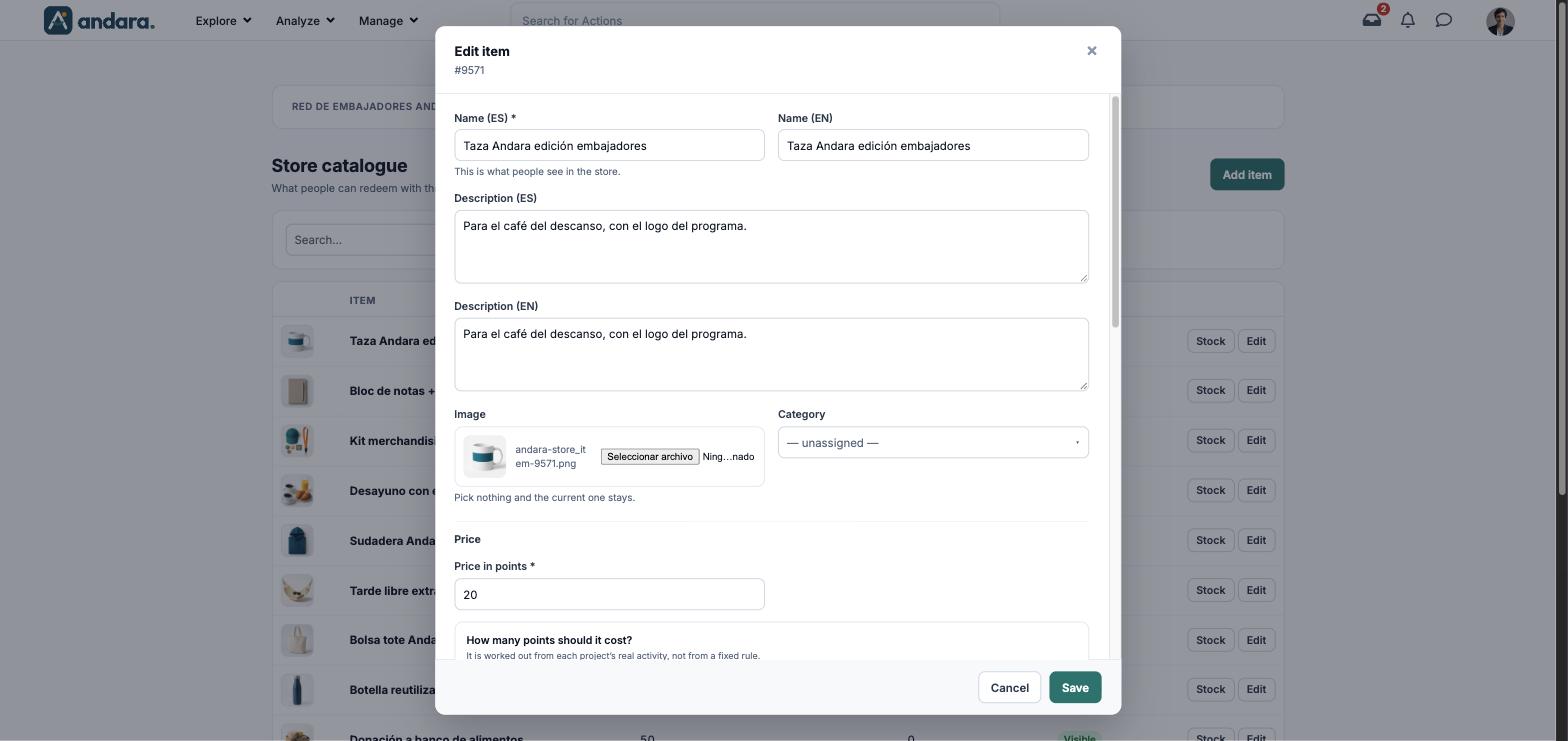
The form is the same to create (New item) and to edit (Edit item, with its number under the title).
| Field | What it does | Values |
|---|---|---|
| Name (ES) | The name people see in the store. | Text. Required. |
| Name (EN) | The name in English. | Text. |
| Description (ES) | What the reward is, in Spanish. | Free text. |
| Description (EN) | The same description in English. | Free text. |
| Image | The item photo in the store. If you pick nothing, the current one stays. | Image. |
| Category | Groups the item in the store and in this screen's filter. | Drop-down: — unassigned —, Corporate gifts, Fashion, Food & Beverages, Gaming, Charities, Education, Miscelanea, Leisure & Travels. |
Price#
| Field | What it does | Values |
|---|---|---|
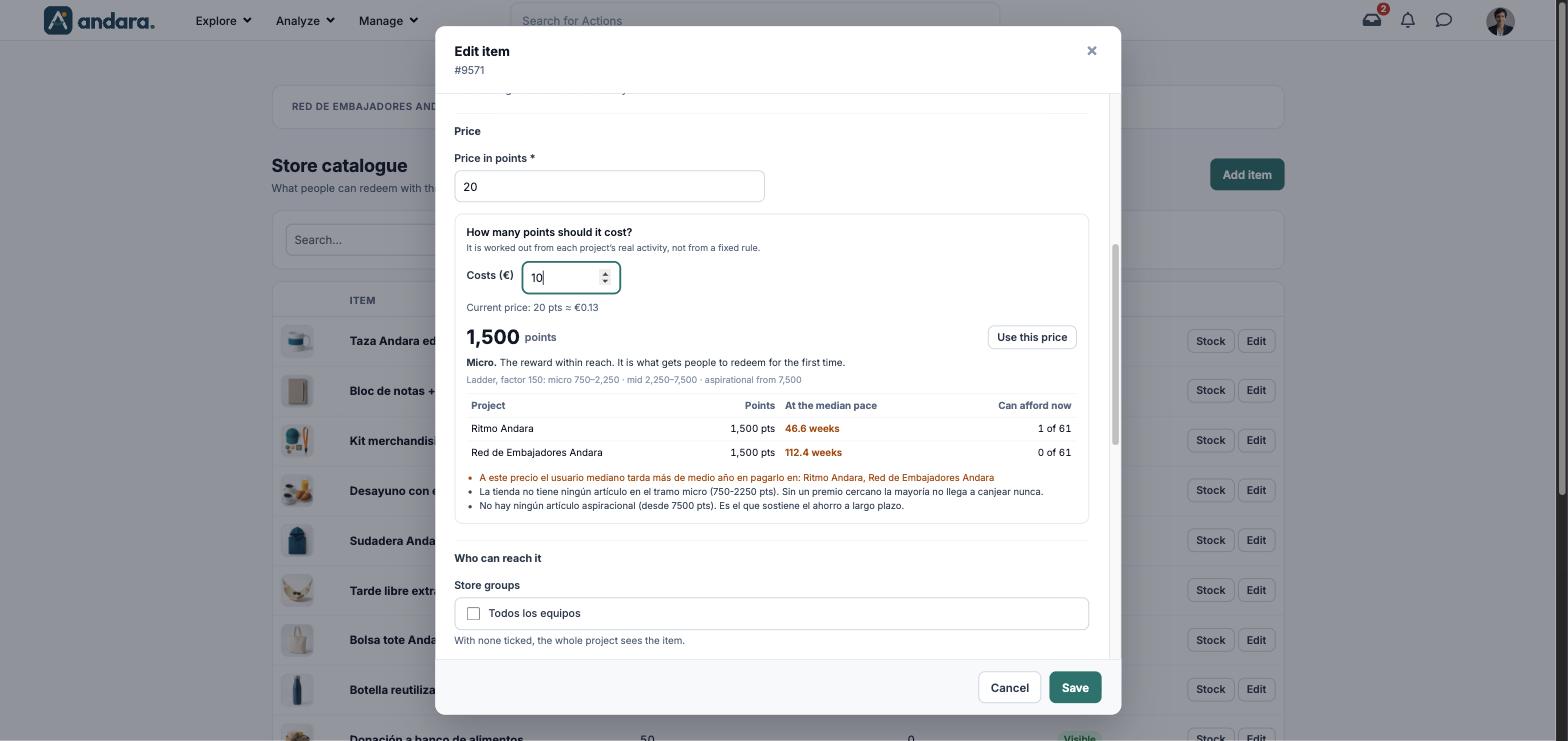
| Price in points | What it costs to redeem. | Number. Required. |
| How many points should it cost? › Costs (€) | A helper. You type what the reward costs and it suggests a price in points worked out from each project's real activity, not from a fixed rule. It shows the current price in euros, the tier it falls into (micro, mid or aspirational), how many weeks the median person would need to afford it in each project, how many people can afford it now, and warnings about the balance of the catalogue. Use this price copies the suggestion into Price in points. | Number in euros. Helper only: it is not saved. |
Who can reach it#
| Field | What it does | Values |
|---|---|---|
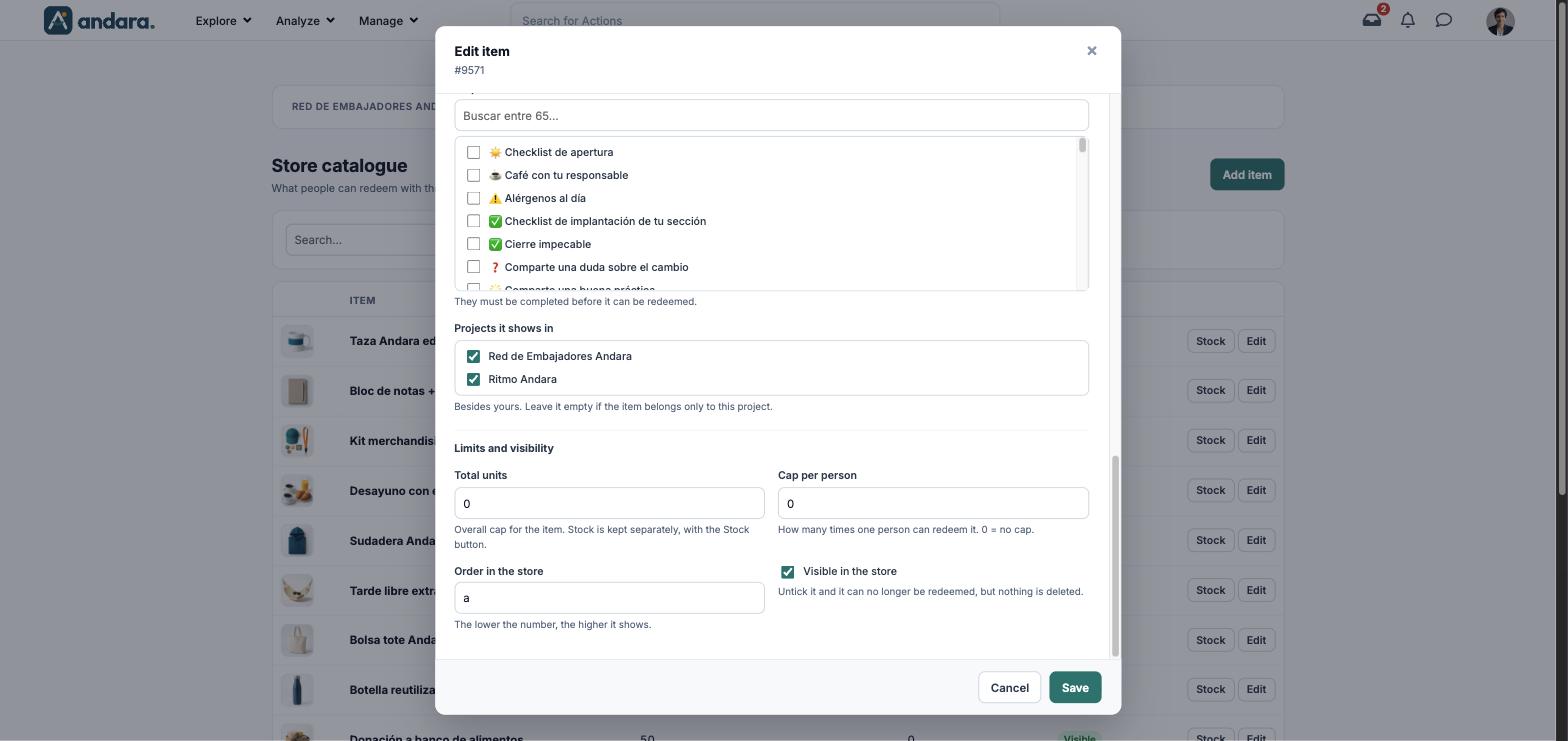
| Store groups | The groups that can see the item. With none ticked, the form says the whole project sees it. | Tick boxes with the groups in Store Groups. |
| Required actions | Actions the person must have completed before they can redeem it. | Tick boxes with the project's actions, with a search box. Several or none. |
| Projects it shows in | Other projects where the item also appears, besides yours. Leave it empty if it belongs only to this project. | Tick boxes with your company's projects. |
Limits and visibility#
| Field | What it does | Values |
|---|---|---|
| Total units | Overall cap for the item. Stock is kept separately, with the Stock button. | Number. |
| Cap per person | How many times one person can redeem it. | Number. 0 = no cap. |
| Order in the store | Its position in the store: the lower, the higher it shows. | Short text (a letter in the demo). |
| Visible in the store | Untick it and it can no longer be redeemed, but nothing is deleted. | Tick box. Ticked by default. |
Stock#
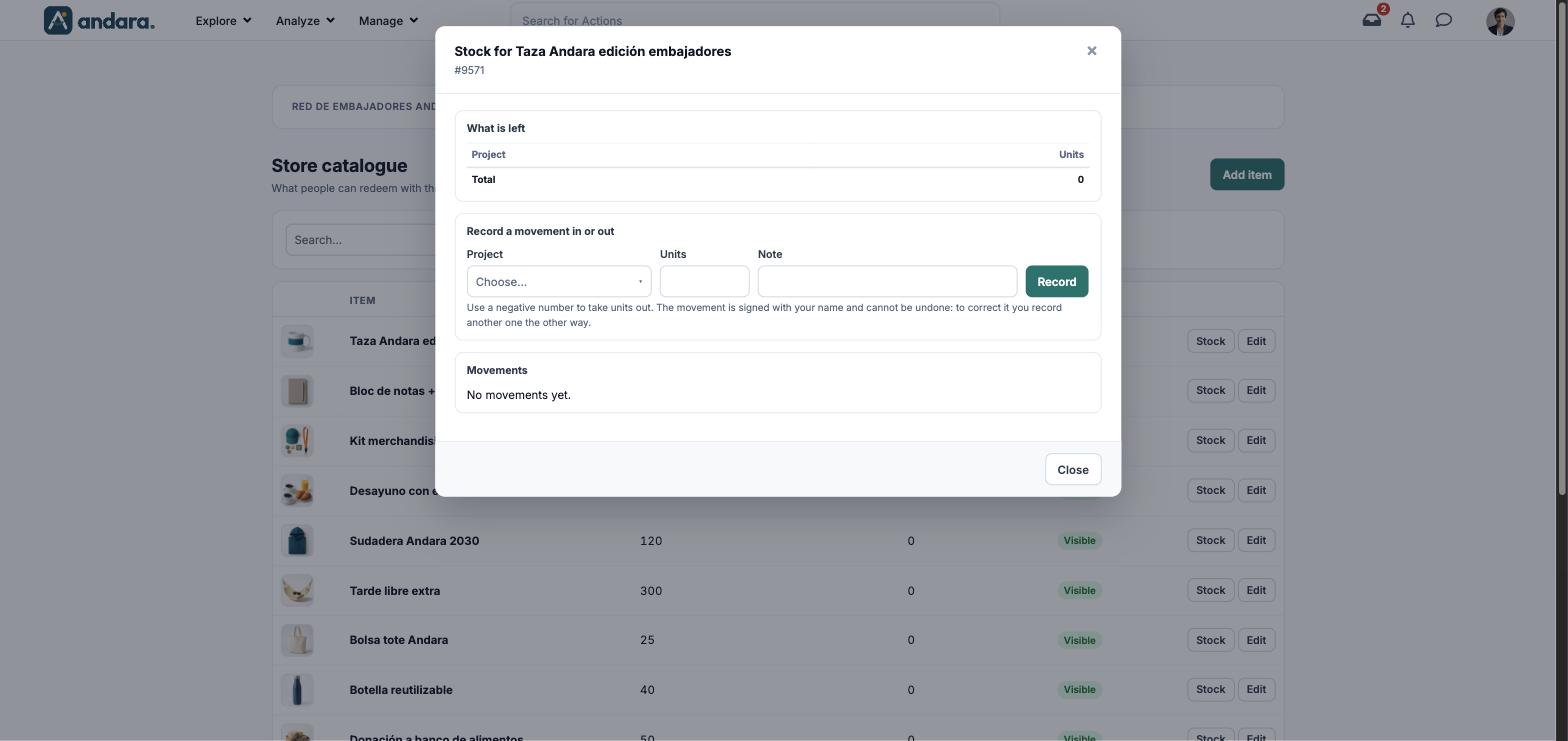
The Stock button opens Stock for “item”, with three blocks:
| Field | What it does | Values |
|---|---|---|
| What is left | Units left per project and the Total. | Read only. |
| Project | Which project the goods come in to or go out of. | Drop-down with the item's projects. Choose… by default. |
| Units | How many units come in. A negative number takes units out. | Number. |
| Note | Reason for the movement. | Free text. |
| Record | Logs the movement. It is signed with your name and cannot be undone: to correct it you record another one the other way. | Button. |
| Movements | The history of units in and out for the item. | Read only. |
How to#
Add a reward#
- 1
Open a new form
Click Add item.
- 2
Describe the reward
Type the Name (ES), its English version and the description, and pick the Image and the Category.
- 3
Set the price
Type what it costs in Costs (€) to see the suggestion and, if it works for you, click Use this price. Otherwise type the Price in points yourself.
- 4
Decide who can reach it
Tick the Store groups, any Required actions and the Projects it shows in.
- 5
Set the limits and save
Adjust Total units, Cap per person and Order in the store, and click Save.
- 6
Put units in stock
Click Stock, choose the Project, type the Units and click Record.
Correct the stock#
- 1
Open the stock
Click Stock on the item's row.
- 2
Record the opposite movement
Choose the Project, type the Units as a negative number (or positive, if units were missing), explain why in Note and click Record.
Take an item out#
- 1
Open it
Click Edit on its row.
- 2
Hide it
Untick Visible in the store and click Save. It can no longer be redeemed and nothing is deleted.
Things to know#
Stock movements cannot be undone. A mistake is corrected with another movement the other way, which is signed too.
- Total units and stock are different things. Total units is the item's cap; what is actually in stock is kept with Stock.
- There is no delete button on this screen: an item is taken out by unticking Visible in the store.
- The price helper only suggests. What gets saved is whatever is in Price in points.
- Items with no group: the form says an item with no groups ticked is seen by the whole project, but Store Groups counts them as items that never reach the store. If you want to be sure it shows, tick a group.
Related#
- Store and redemptions: how to build a catalogue that motivates.
- Store Groups: who sees each part of the catalogue.
- Purchases: what people have redeemed and its dispatch.
- Point adjustments and redemptions.