What it is for#
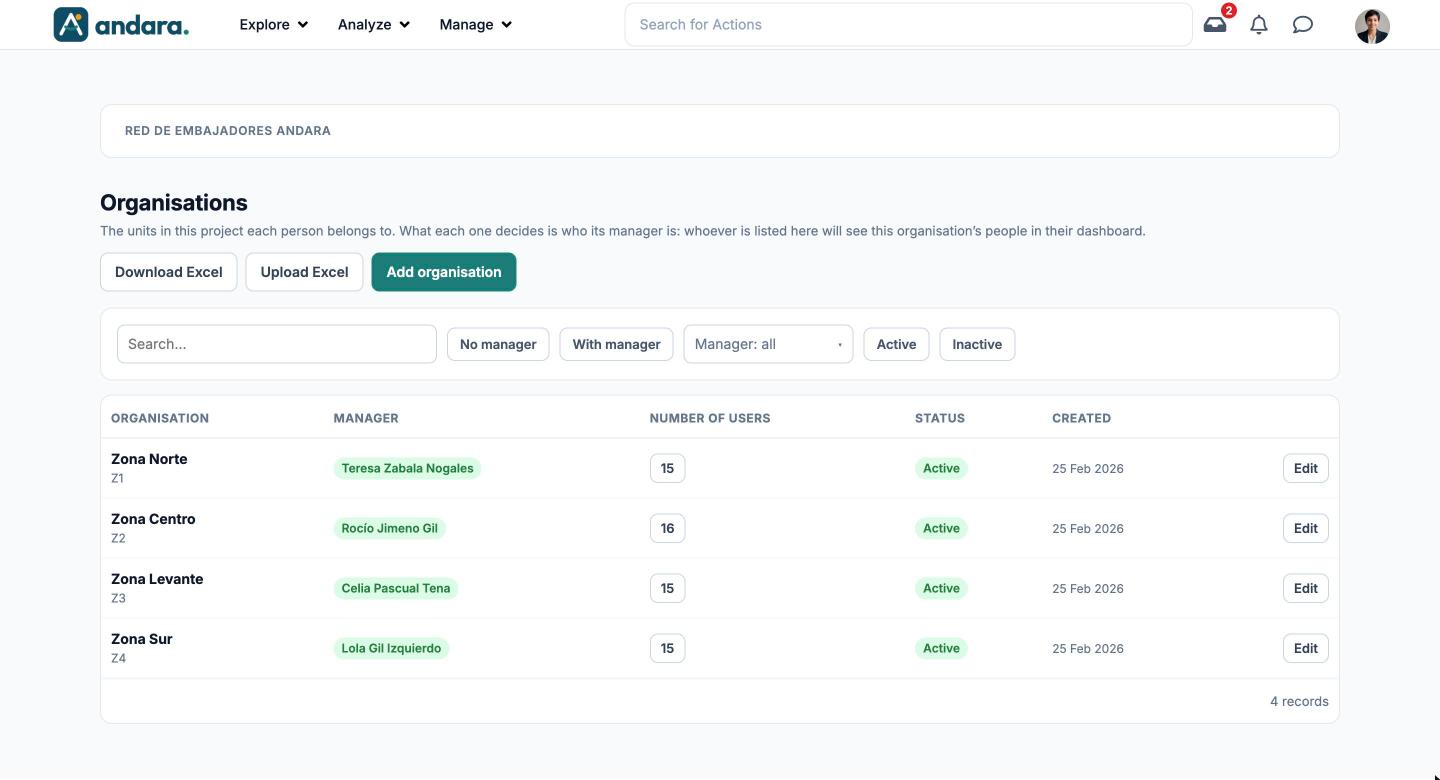
This is where you define the units of your company that each person in the project belongs to (regions, departments, areas) and who manages each one. That is exactly what an organisation decides: whoever is listed as its manager sees that organisation's people in their dashboard.
Organisations are what you pick in the Structure field of each person's profile, in Users, and they are also used to target content and reports.
Where it is: Manage › Users › Organisations.
What you see#
| Element | What it shows |
|---|---|
| Download Excel | Downloads the list of organisations as an Excel file. It is the starting point for editing them in bulk. |
| Upload Excel | Opens the upload of an Excel file with changes (see Upload Excel below). |
| Add organisation | Opens a blank form to create an organisation. |
| Search… | Filters the list as you type. |
| No manager / With manager | Shows only the organisations without a manager, or only those with one. |
| Manager: all | Drop-down to see only one manager's organisations. |
| Active / Inactive | Shows only active or only inactive organisations. |
| Organisation | Name and, underneath, the site code. |
| Manager | The person who sees these people in their dashboard. |
| Number of users | How many people belong to it. Clicking the number opens the list of those people. |
| Status | Active or Inactive. |
| Created | The date it was created. |
| Edit | Opens the organisation's form. |
People in an organisation#
Clicking the number in the Number of users column opens Users in followed by the organisation's name.
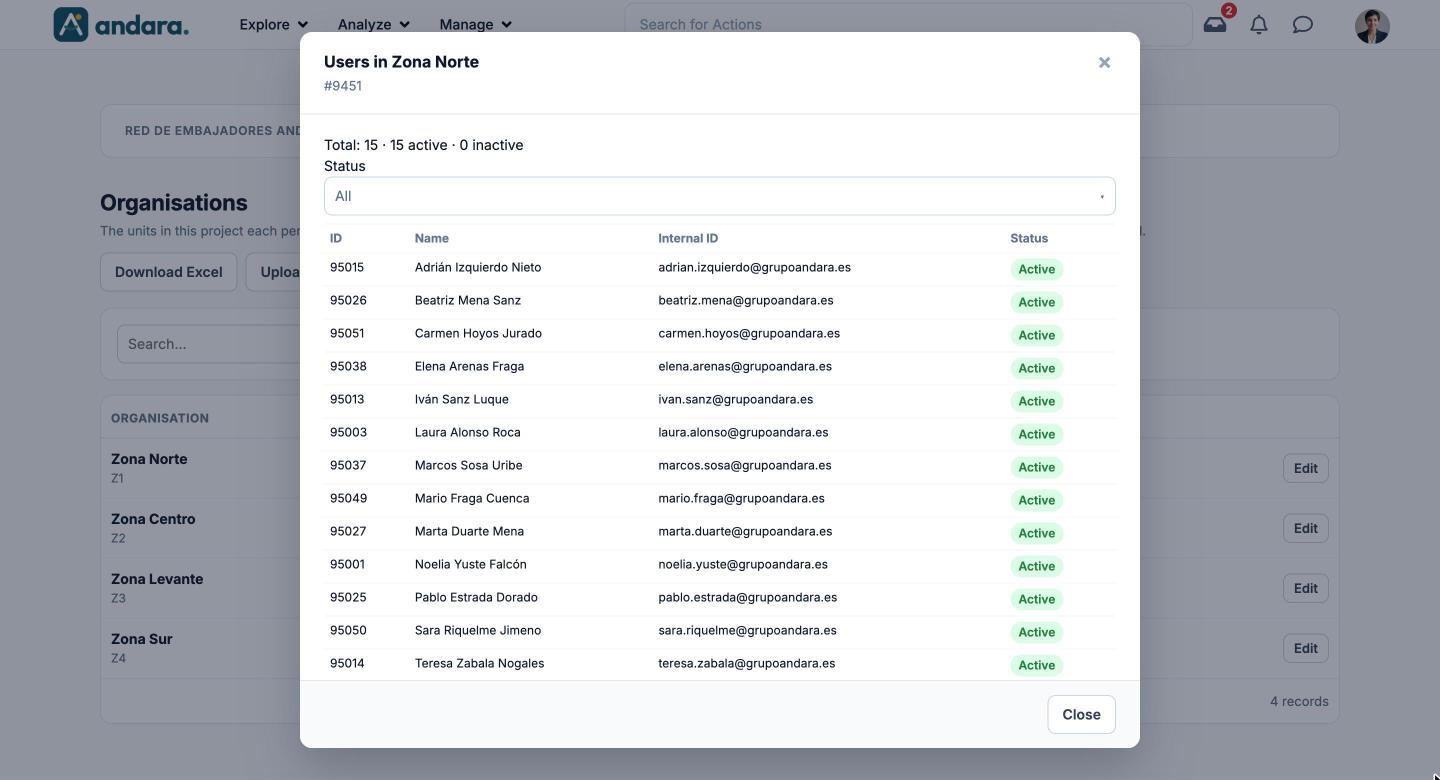
At the top you see the total, how many are active and how many inactive. The Status drop-down (All, Active, Inactive) filters the list, which shows each person's ID, Name, Internal ID and Status. It is read-only: to move someone to another organisation, edit their profile in Users.
Settings#
An organisation's form is the same to create it (New organisation) and to edit it (Edit organisation).
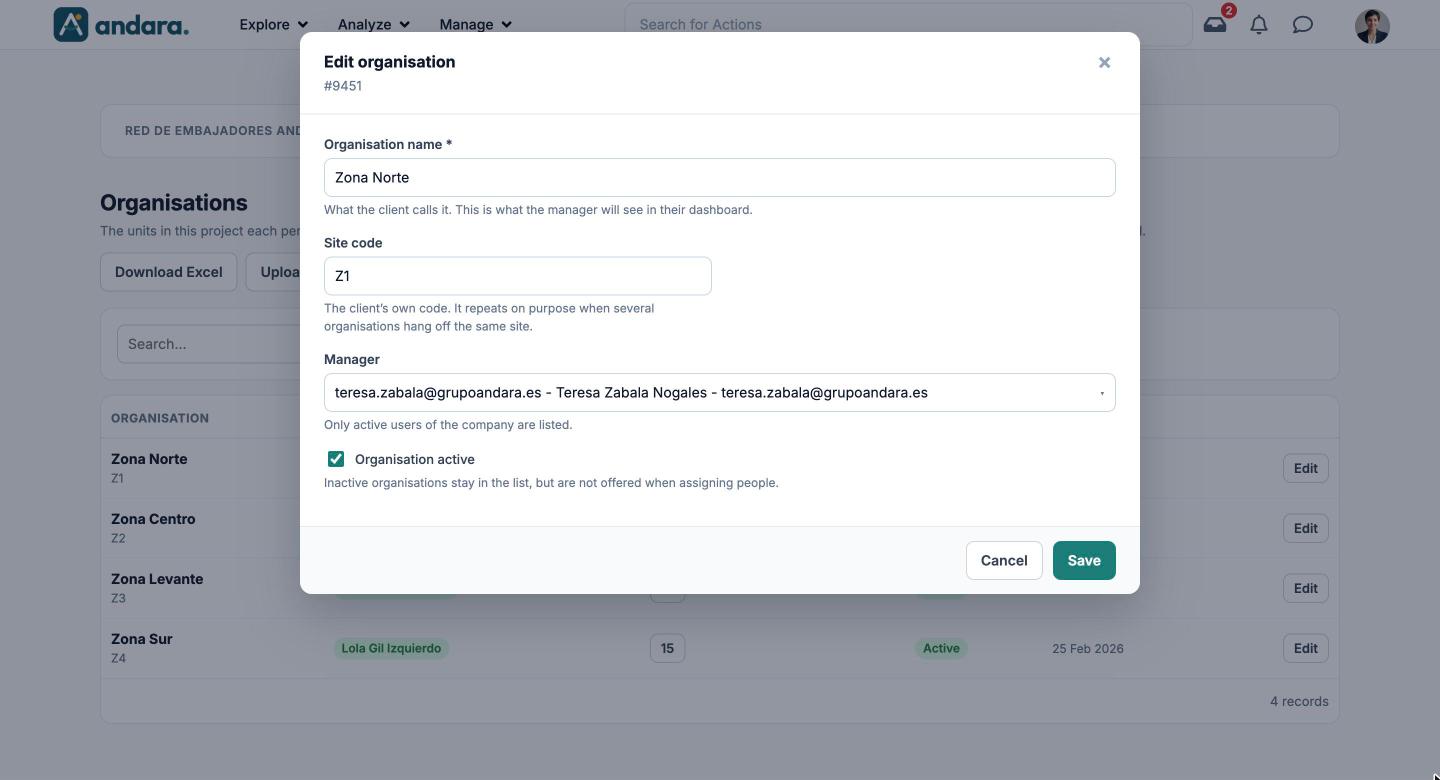
| Field | What it does | Values |
|---|---|---|
| Organisation name | What your company calls it. It is what the manager sees in their dashboard and what gets picked in each person's profile. | Text. Required. |
| Site code | Your company's own code. It repeats on purpose when several organisations hang off the same site. | Free text. |
| Manager | Who sees this organisation's people in their dashboard. With no manager, those people do not show up in anybody's dashboard, and the form warns you in yellow. | One of the company's active users, or — unassigned —. Default: — unassigned —. |
| Organisation active | Inactive organisations stay in the list, but are not offered when assigning people. | Tick box. Ticked by default. |
Upload Excel#
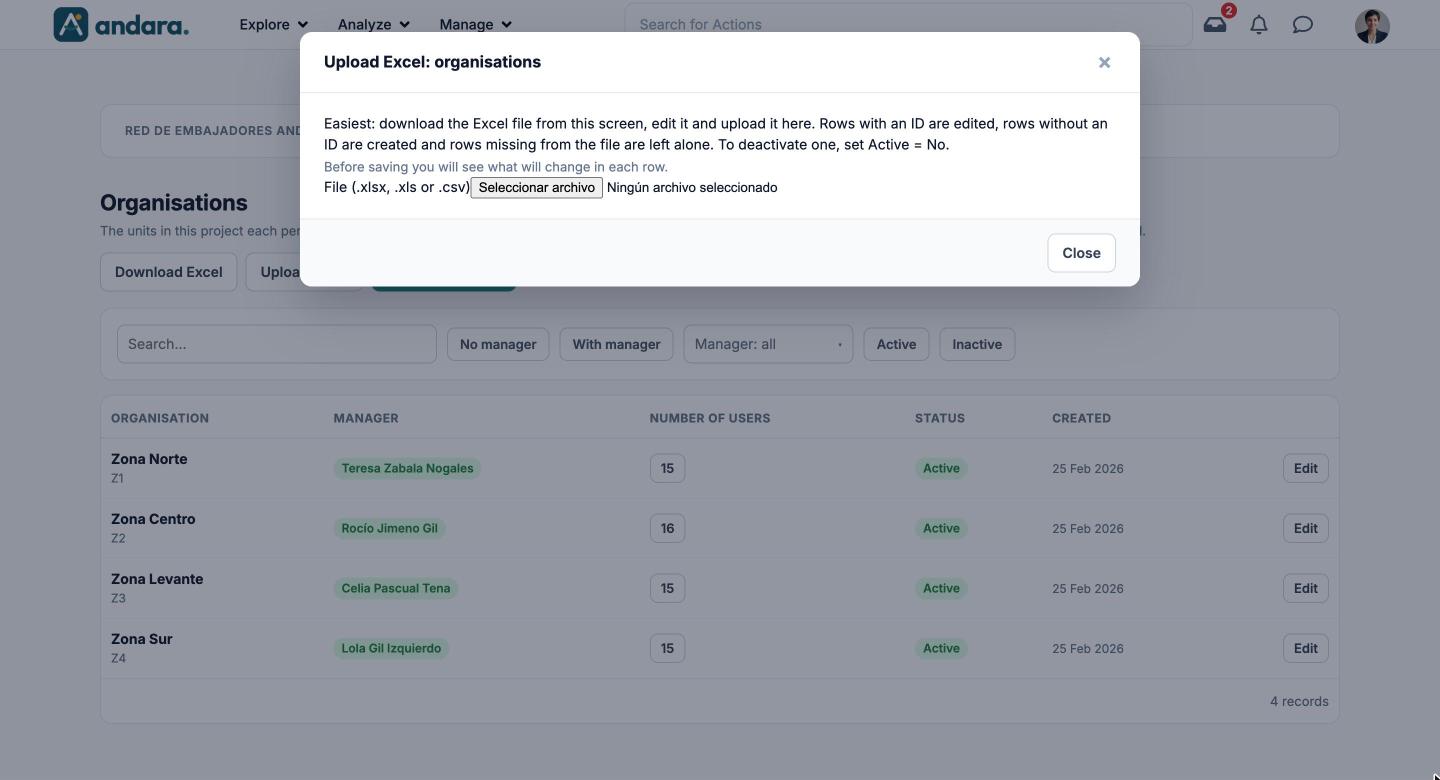
| Field | What it does | Values |
|---|---|---|
| File | The Excel file with the organisations. Rows with an ID are edited, rows without an ID are created, and organisations missing from the file are left alone. To deactivate one, set Active = No. Before saving you see what will change in each row. | .xlsx, .xls or .csv file. |
How to#
Create an organisation#
- 1
Open a blank form
Click Add organisation.
- 2
Name it and give it a code
Type the Organisation name as your company uses it and, if you have one, the Site code.
- 3
Assign the manager
Pick the person under Manager. If you leave it unassigned, this organisation's people will not show up in anybody's dashboard.
- 4
Save
Click Save. It can now be picked in each person's profile.
Edit many organisations at once#
- 1
Download the Excel file
Click Download Excel.
- 2
Edit it
Change the rows you need and add rows without an ID for new ones. To deactivate an organisation, set Active = No.
- 3
Upload it
Click Upload Excel and pick the file.
- 4
Check and save
Review what will change in each row before saving.
Deactivate an organisation#
- 1
Open its form
Click Edit on its row.
- 2
Switch it off
Untick Organisation active and click Save. It stays in the list under the Inactive filter, but is no longer offered when assigning people.
Things to know#
- An organisation with no manager leaves its people out of every dashboard. Use the No manager filter to find them.
- The manager drop-down only lists active people. If you cannot find someone, check in Users that they can sign in.
- In the Excel file, a row that is not in the file is not deleted. To remove an organisation, make it inactive.
Related#
- Users: where each person is assigned to their organisation.
- Locations: the other axis of the structure, by workplace.
- The manager's panel: what each organisation's manager sees.
- Getting started: build the structure before adding anyone.