What it is for#
This is where you read the results of non-anonymous surveys, where each answer carries the name of whoever gave it. Pick the survey and, if you want, the run and part of the workforce, then click Refresh Data.
Anonymous surveys do not show here: they are read in Anonymous Questionnaires.
Where it is: Analyze › Surveys Analysis › Nominal Questionnaires.
What you see#
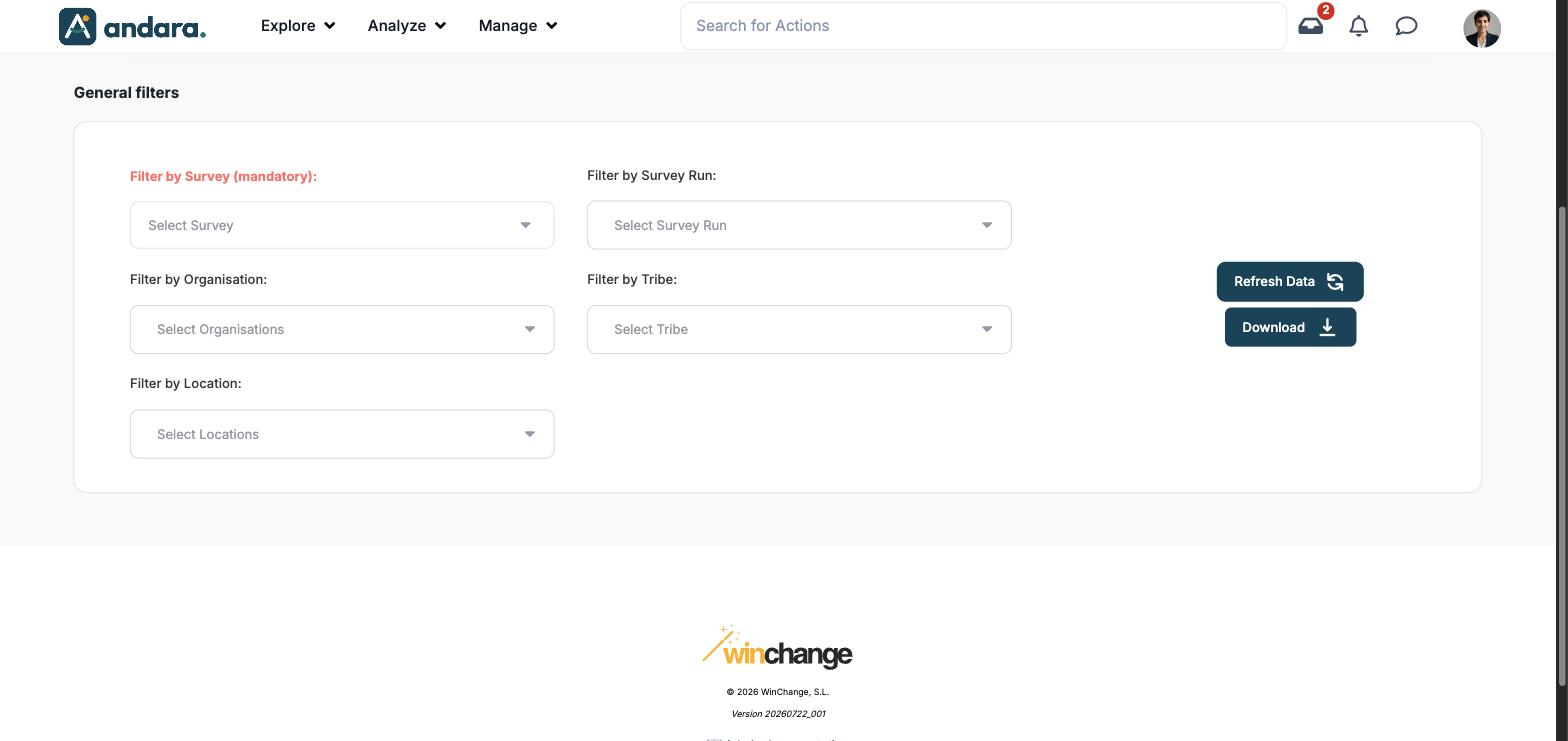
| Element | What it shows |
|---|---|
| General filters | The screen's five filters (see Filters). The survey one is in red because it is mandatory. |
| Refresh Data | Loads the results with the filters you chose. |
| Download | Downloads the results as a spreadsheet file. |
| Survey analysis | When you open the screen, a block offers to analyse the results with AI and generate a report, with the Generate report button. It warns that the data is shared anonymously with OpenAI, that the feature is in beta and that, if the report comes out hard to read, you should generate it again. It disappears when you click Refresh Data. |
The screenshots come from a project with no named surveys: the survey drop-down is empty and the screen shows no results. That is why the result blocks are not described here.
Metrics#
The screen has no metrics of its own until you pick a named survey and load the data. Without a survey, Refresh Data shows nothing.
| Metric | What it measures | How it is calculated |
|---|---|---|
| Survey results | The answers to the chosen survey. | Calculated when you click Refresh Data, with the filters applied. |
Filters#
| Filter | What it does | Values |
|---|---|---|
| Filter by Survey (mandatory) | The survey you are looking at. Without it there is nothing to see. | Drop-down with search. Only named surveys. |
| Filter by Survey Run | Keeps one launch of the survey. | Drop-down with the chosen survey's runs. |
| Filter by Organisation | Keeps the people in some units of the structure. | Drop-down with the project's organisations. |
| Filter by Tribe | Keeps the people in some tribes. | Drop-down with the tribes. |
| Filter by Location | Keeps the people in some workplaces. | Drop-down with the locations. |
How to#
See the results of a named survey#
- 1
Pick the survey
In Filter by Survey (mandatory).
- 2
Narrow it down if you want
Pick a run and, if needed, organisations, tribes or locations.
- 3
Load
Click Refresh Data.
- 4
Take it with you
Click Download to get the results in a spreadsheet.
Things to know#
- Here the answers carry names. Only ask by name what you would be willing to discuss with the person face to face. See Survey results.
- If the survey drop-down is empty, there are no named surveys in the project. Whether a survey is anonymous is decided when it is created, in Surveys.
- Generate report sends the data to an external provider (OpenAI). The screen itself warns you before doing it.
Related#
- Anonymous Questionnaires: the results without names.
- Survey results and Surveys.