What it is for#
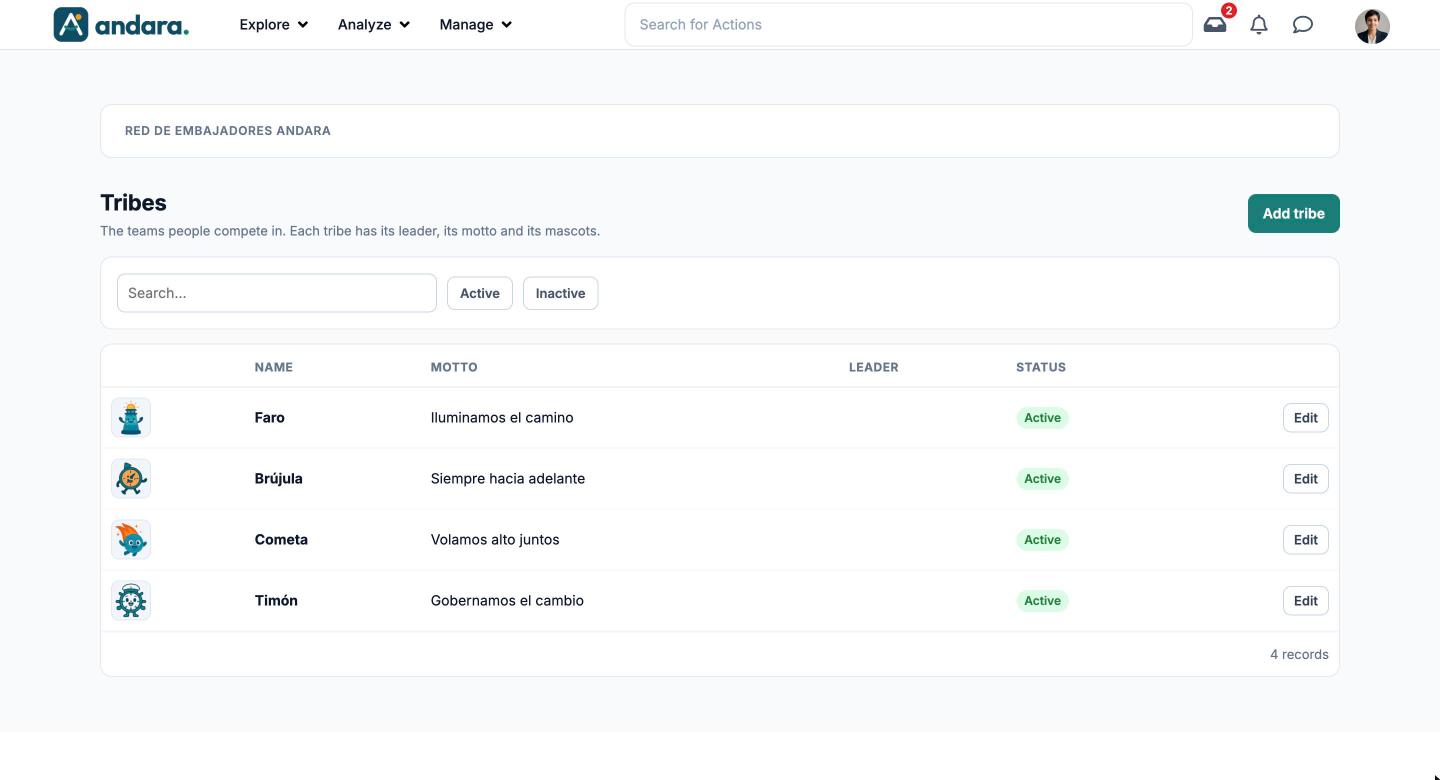
This is where you create and edit tribes: the teams people in the project compete in. Each tribe has its name, its motto, its leader, a few words from the leader and up to six mascots.
Unlike the organisation or the site, which reflect your company's real structure, the tribe is a membership decided by the programme. Each person is given their tribe in their profile, in Users.
Where it is: Manage › Users › Tribes.
What you see#
| Element | What it shows |
|---|---|
| Add tribe | Opens a blank form to create a tribe. |
| Search… | Filters the list as you type. |
| Active / Inactive | Shows only active or only inactive tribes. |
| Image | The tribe's first mascot. |
| Name | The tribe's name. |
| Motto | Its identity phrase. |
| Leader | The person who represents it. Empty if it has none. |
| Status | Active or Inactive. |
| Edit | Opens the tribe's form. |
Settings#
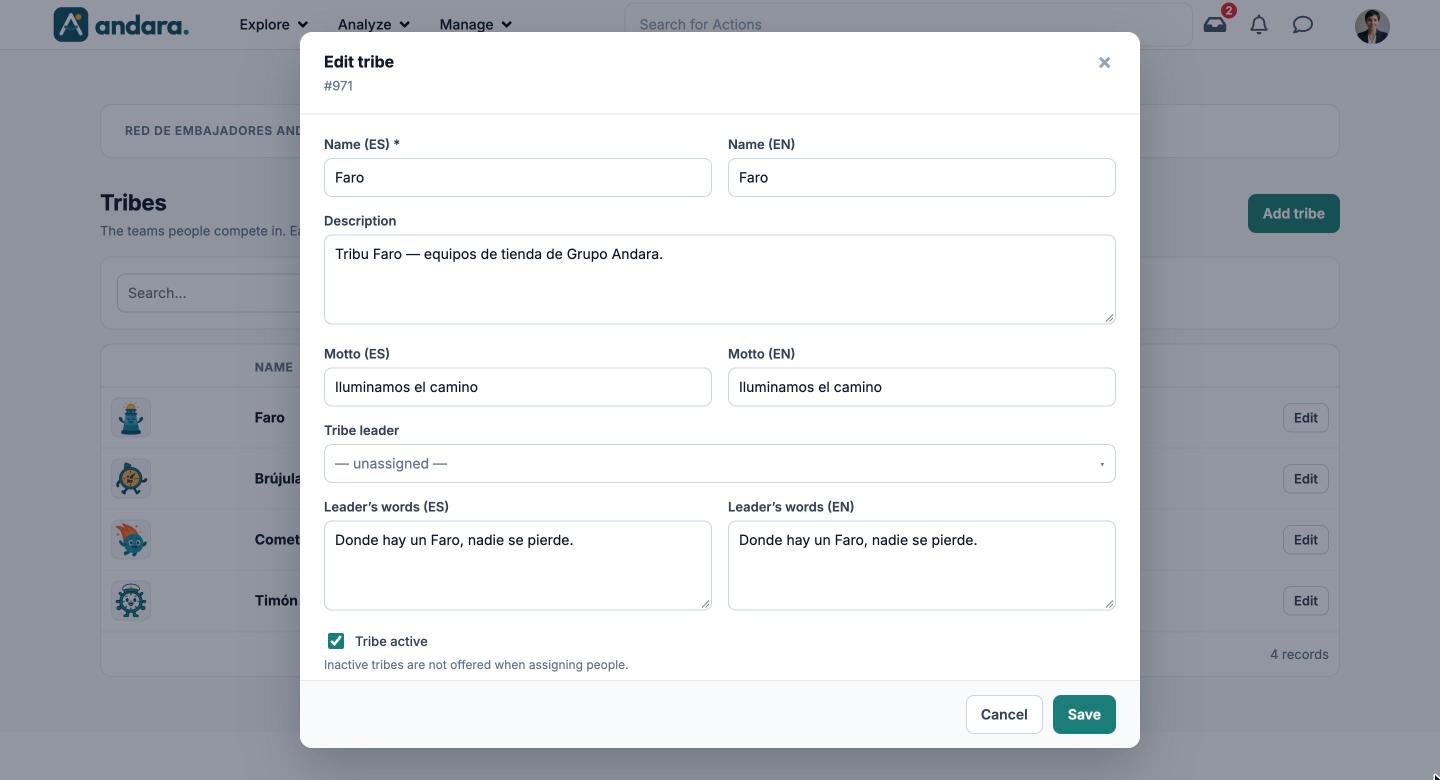
A tribe's form is the same to create it and to edit it (Edit tribe). The texts people see have one box in Spanish (ES) and another in English (EN).
Identity#
| Field | What it does | Values |
|---|---|---|
| Name (ES) | The tribe's name in Spanish. | Text. Required. |
| Name (EN) | The tribe's name in English. | Text. |
| Description | What the tribe stands for. | Free text. |
| Motto (ES) / Motto (EN) | A short identity phrase. It is shown next to the name in the list. | Text. |
| Tribe leader | The person who represents the tribe. | One of the company's people, or — unassigned —. Default: — unassigned —. |
| Leader's words (ES) / Leader's words (EN) | A message from the leader to their tribe. | Free text. |
| Tribe active | Inactive tribes are not offered when assigning people. | Tick box. Ticked by default. |
Mascots#
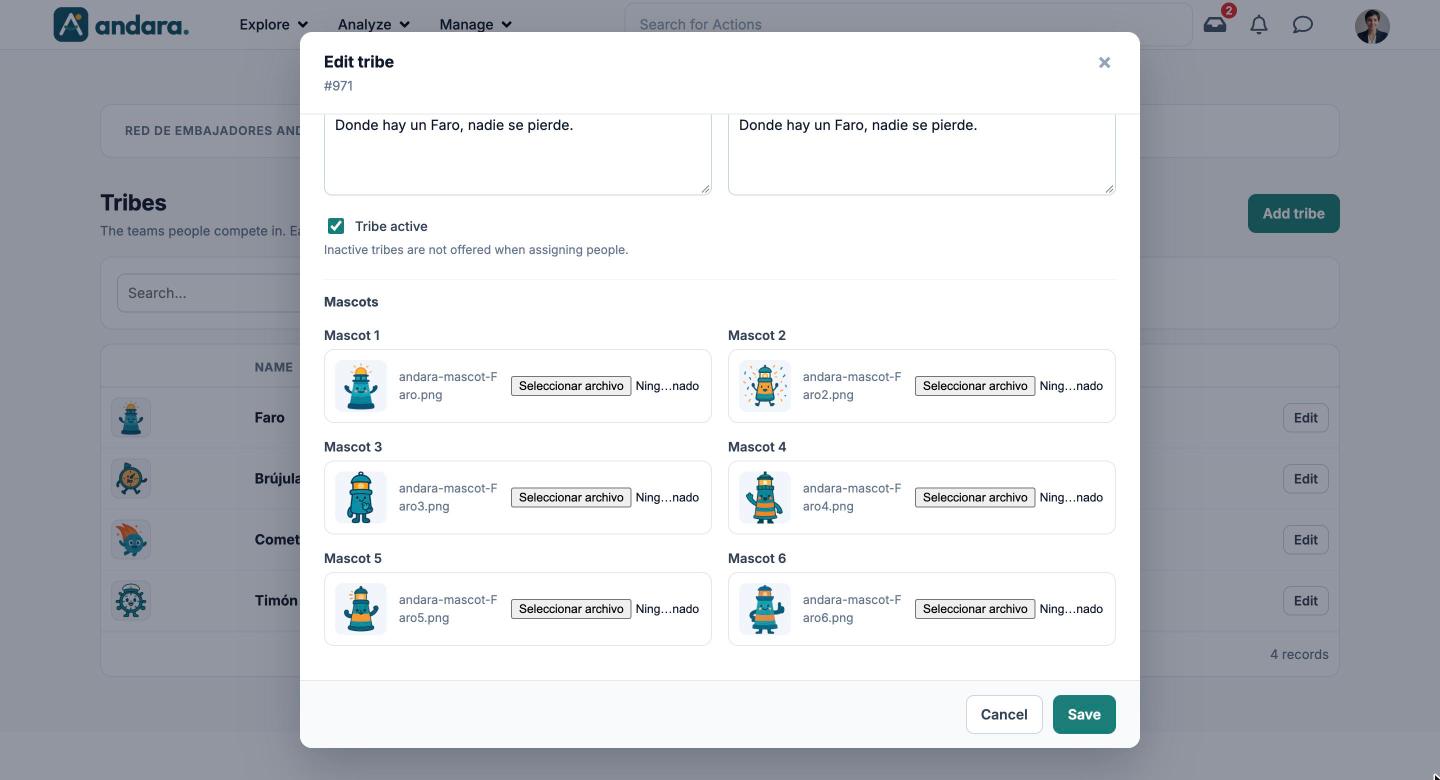
| Field | What it does | Values |
|---|---|---|
| Mascot 1 to Mascot 6 | The images that identify the tribe. Mascot 1 is the one shown in the list. Each shows the current image and its file name; use the file picker next to it to replace it. | Image. If you pick nothing, the current one stays. |
How to#
Create a tribe#
- 1
Open a blank form
Click Add tribe.
- 2
Give it an identity
Fill in Name (ES) and, if the project has people using the app in English, Name (EN). Add a Motto and a Description.
- 3
Pick a leader
Choose the person under Tribe leader and write their Leader's words.
- 4
Upload the mascots
Under Mascots, pick an image for each slot you want to use, starting with Mascot 1.
- 5
Save
Click Save. The tribe can now be picked in each person's profile.
Retire a tribe#
- 1
Open its form
Click Edit on its row.
- 2
Switch it off
Untick Tribe active and click Save. It is no longer offered when assigning people, and you see it under the Inactive filter.
Things to know#
- Every text has two versions. If the project has people using the app in English, fill in the (EN) boxes too.
- Mascot 1 is the tribe's face in the list. If you only upload one, make it that one.
- A person's tribe is not changed here but in their profile, in Users.
- Moving someone to another tribe in the middle of a competition causes arguments: better to do it between campaigns. See Tribes and leads.
Related#
- Tribes and leads: what tribes are for and how to split people up.
- Users: where each person is given their tribe.
- User Eligibility Groups: another way of grouping people, to decide what reaches them.