What it is and what it's for#
The WinChange connector (an MCP server, the standard AI assistants use to connect to other applications) lets your assistant look into the projects you administer and answer in plain language: "how is participation going this month?", "which sites are doing worst?", "which actions is nobody completing, and why?".
What the AI sees comes from the same data as the admin panel, already summarised: it has no direct access to the database or to the screens. It works with a closed set of tools, almost all of them read-only. Four of them do something: prepare drafts (journeys, action groups and actions) and send push notifications, always with the safeguards explained below. The full list, with parameters, is in Connector tools.
Server address: https://winchange.io/mcp
Test connector: https://winchange.io/mcp-sandbox. It works the same way but on the test (sandbox) environment, with your account for that environment. Add it as a separate connector with a different name (for example, WinChange (test)): that way the AI never mixes test data with real data, and it reminds you when it answers.
Who can connect it#
- Administrators only. When connecting you sign in with your WinChange account, and the connection is only created if you administer at least one project. Anyone else cannot get past the authorisation screen.
- Each person with their own account. The AI sees what the person who connected it can administer: the projects they are an administrator of in their company, and nothing else. If several people in your organisation use it, each one authorises with their own credentials.
- With your WinChange username and password. The same ones you use to sign in to the app. If you have two-step verification turned on, you will also be asked for the code.
How to connect it#
The steps are the same in every assistant: add the server address as a custom connector, the assistant takes you to the WinChange authorisation screen, you sign in, review what you are granting access to and click Autorizar (Authorise). Each assistant's menus change often; if they don't match the ones below, search its help for "custom connector" or "MCP".
In Claude#
- 1
Add the connector
In Customize › Connectors, click + Add › Add custom connector. On Team and Enterprise plans, an organisation owner adds it from Organization settings › Connectors, and then each person connects it from their list of connectors.
- 2
Enter the name and address
Give it a name (for example, WinChange) and paste
https://winchange.io/mcpas the remote MCP server URL. If Claude asks how to identify the application, choose automatic registration: WinChange registers the client on the fly and needs no client ID or secret. - 3
Connect
Click Connect. The WinChange authorisation screen opens.
- 4
Authorise
Follow the steps on the authorisation screen (below). When you click Autorizar you return to Claude with the connector active.
- 5
Use it in a conversation
With the + button in the message box › Connectors, check that WinChange is switched on and ask away.
In ChatGPT#
- 1
Turn on developer mode
Custom connectors in ChatGPT are created in Developer mode, which you switch on in your account settings. In Business or Enterprise workspaces, a workspace admin has to allow it first.
- 2
Create the app
In the apps and connectors settings, create a new one with the address
https://winchange.io/mcpand OAuth authentication. - 3
Authorise
ChatGPT takes you to the WinChange authorisation screen. When you are done, wait for it to read the list of tools.
- 4
Use it in a conversation
Choose developer mode in the + menu of the message box, select WinChange and ask. ChatGPT asks for your approval before using a tool that writes.
Any other assistant that supports remote MCP servers with OAuth authorisation works the same way: give it the address and it handles the rest.
The authorisation screen#
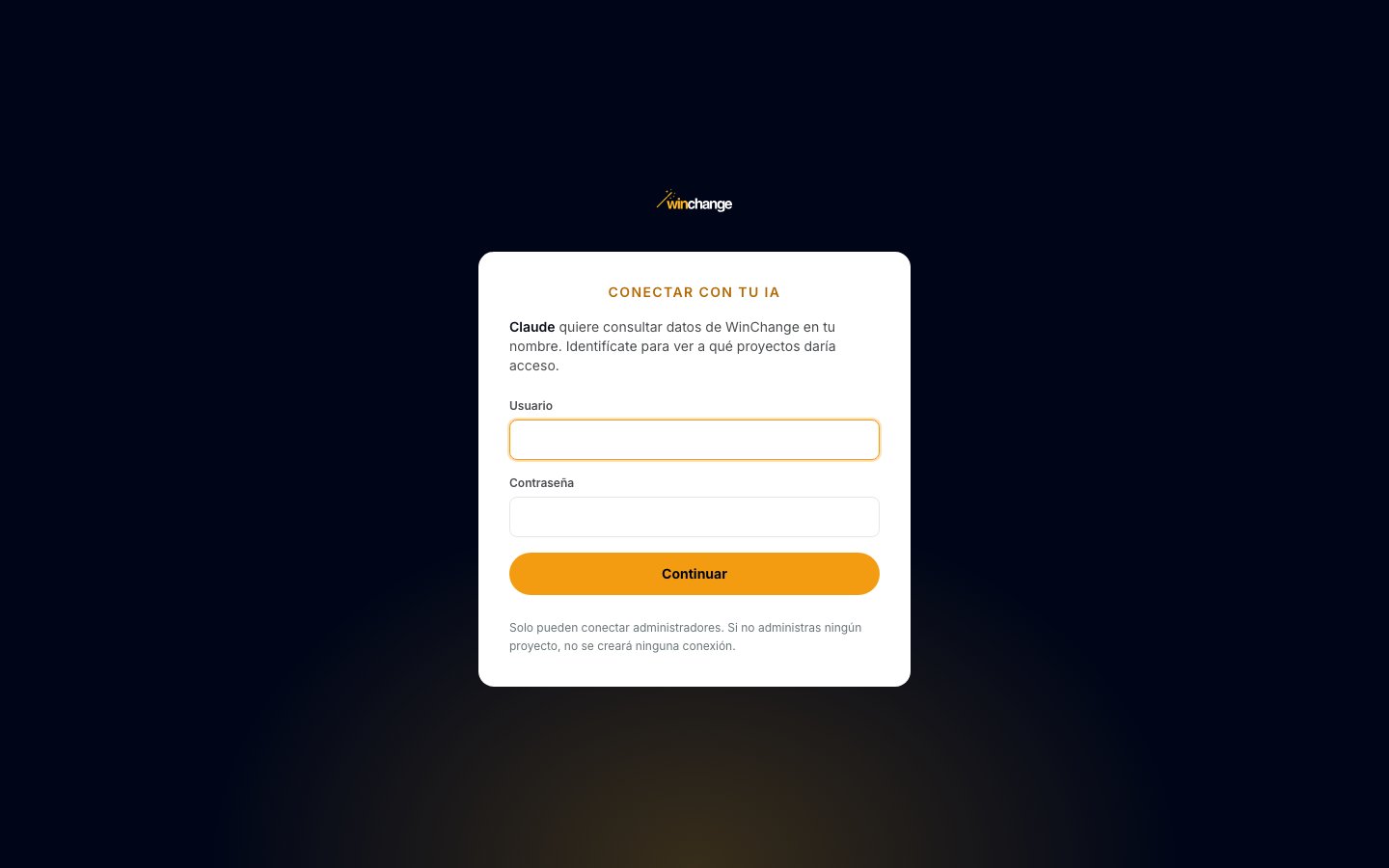
- 1
Sign in
Enter your WinChange Usuario (username) and Contraseña (password) and click Continuar (Continue). If your account has two-step verification, enter the Código de verificación (verification code) and click Verificar (Verify).
- 2
Review the projects
The screen greets you by name and lists, by name, the projects you administer. The connection covers all of them: you don't pick one. When you ask a question, name the project and the AI will look it up in that list.
- 3
Choose the permissions
Tick what this connection can do. Only the first one is ticked by default.
- 4
Authorise or cancel
Autorizar (Authorise) creates the connection and takes you back to the assistant. Cancelar (Cancel) creates nothing.
| Permission | What it allows |
|---|---|
| Consultar datos agregados del programa (view aggregate programme data) | The read-only tools: participation, sites, actions, trends, comments, points, store, content, achievements, pulse and questionnaires. Always as aggregate figures, without people's names. |
| Consultar nombres y fichas de personas (view people's names and profiles) | Lists with first and last names (who is at risk, who is overdue…) and the profile of a specific person. |
| Crear borradores de acciones, grupos e itinerarios (create draft actions, groups and journeys) | Prepare the structure of a programme as drafts. Nothing is published or assigned. |
| Preparar y enviar notificaciones tras confirmar destinatarios y texto (prepare and send notifications after confirming recipients and text) | Send push notifications to a group of people, in two steps and with your confirmation. |
The AI only sees the tools for the permissions you ticked. To change permissions, connect again.
What data the AI sees#
- Only your company and your projects. Every query is made with your identity and checked against the projects you authorised. If the AI asks for another one, it gets a refusal, not another project's data.
- Aggregate figures by default. Participation, activity, completed actions, points, store, content and achievements arrive as totals and breakdowns, not as lists of people.
- Names only with their permission, and never email addresses. With Consultar nombres y fichas de personas, the AI sees first and last name, job title, location and unit, plus each person's activity and actions. Email addresses are not included in any tool, so the AI cannot put together a mailing list. Nor can it look anyone up by name: a person's profile is opened from a list.
- Survey anonymity is preserved. Questionnaire results are only given for closed waves with at least five people, and a whole question is hidden if any of its options was chosen by fewer than five people. Free text is never returned. For pulse, the monthly index is given for closed months with at least five people, without comments, questions or breakdowns by site or area. A person's profile does not say whether they answered a survey, nor their points balance.
What the AI can do#
Four tools change something. None of them can edit or delete what already exists.
Prepare drafts#
With the create permission, the AI can build the three levels of a programme: a journey, the action groups inside it and the actions inside each group, with their text, test questions or a recurring checklist.
- Everything starts as a draft. Actions are left unpublished and without automatic assignment, just like a new action created in the panel. Journeys and groups are not visible to anyone until they contain published, assigned actions.
- The audience starts unrestricted. In WinChange that means all people in the project, not "nobody". Before publishing, decide who it is for in Asignación (assignment, step 4 of the action form).
- It is validated before saving. If something doesn't add up (a question with fewer than two answers, a correct answer that doesn't exist, a pass mark without questions, points outside 0–1,000…), the AI gets all the problems at once and nothing is created. A journey or group is not created either if its name already exists in the project.
- Who approves depends on the content. An action with a lesson and a test is approved automatically when the test is passed, and pays its points at that moment. An action without content waits for a manager's approval. A recurring checklist pays for each period completed, without review.
- It leaves a trail. Whatever is created through the connector is recorded in the audit log under your user.
To put a draft live: open the action in Actions, review the text, narrow down the recipients in Asignación, click Publicar acción (publish action) and then Ver cambios de asignación (see assignment changes) and Aplicar estos cambios (apply these changes). Anything you don't need can be archived or deleted from the panel.
Send push notifications#
With the notifications permission, the AI can notify one of the groups it can also list (people at risk, overdue, at a location, in an action…). Sending always takes two steps:
- Dry run. The AI prepares the notification and gets how many people it would reach, how many have the app installed (the rest will not receive it) and a confirmation code. Nothing is sent at this step.
- Send. Only with that code. The code expires after ten minutes and is tied to the text, group and exact recipients of the dry run: change a comma and you need a new dry run. Repeating the confirmation does not send again.
The AI is instructed to show you the dry run and wait for your "yes" before the second step. Read it: a push notification cannot be withdrawn. For the group of submissions pending approval, the notification does not go to the people who submitted but to whoever has to approve them.
How to disconnect#
- From your assistant. Remove the connector (in Claude, Customize › Connectors, connector menu › Remove; in ChatGPT, from the app's settings). The AI no longer has access.
- It expires after 30 days. After that, the AI will ask you to authorize the connector again (username, password and permissions, as the first time).
- It stops when your account changes. Your current permissions are checked on every query. If you change your password, if your account is deactivated or locked, or if you stop being an administrator of a project, the connection stops working (or stops seeing that project) on the next question.
Example questions#
- How is participation going in my project? Compare it with last week.
- Which sites have the fewest active people in the last 28 days?
- Which actions is nobody completing, and what do they have in common?
- How did September compare with August?
- How many points have we issued so far, and how much is that in euros?
- Are there redeemed rewards still waiting to be delivered?
- Who has gone longest without signing in at the Valencia site? (needs the people permission)
- Prepare an onboarding journey with three groups and a first action with a four-question test. (needs the create permission)
- Prepare a notification for people with overdue actions and show me how many it would reach. (needs the notifications permission)
Frequently asked questions#
Can the AI see projects I don't administer?
No. The connection is limited to the projects you administer in your company, and every query checks it again. If your assistant has other connectors, their answers do not come from WinChange.
Can it publish an action or assign it to everyone?
No. It only leaves unpublished drafts without automatic assignment. Publishing and assigning are done by a person in the panel.
Can it fix or delete what it has created?
No: the connector has no tools to edit or delete. If a draft comes out wrong, fix it, archive it or delete it in the panel. That's why it's worth asking it to show you the content before creating it.
Can it send emails?
No. Only push notifications, and it has no access to anyone's email address.
Are my conversations with the AI stored in WinChange?
No. WinChange only receives the tool queries. What the AI reads goes into your conversation in the assistant and is governed by that assistant's terms. Bear in mind that, with the people permission, this includes employees' names.
Limits and things to know#
- Figures may not match a panel widget to the unit. Each tool states in its answer which period it uses (7, 28 or 90 days, closed months…), and it is not always the same as the widget you have open. If you compare, compare the same period.
- Lists are paginated. A list of people or actions arrives in pages (50 rows, 100 at most). The AI knows whether there are more, but if it gives you a list, ask whether it is complete.
- Language. The tools answer in Spanish; the AI replies in the language you ask in. Names of actions, sites and rewards arrive exactly as they are in WinChange.
- Usage limit. Each connection allows up to 120 queries per minute. A normal conversation comes nowhere near it.
- The answer depends on the AI. The tools return data with notes on how to read it, but your assistant writes the answer. Before an important decision, check the figure in the panel.
Related#
- Connector tools: what each tool does and its parameters.
- Security and auditability: sign-ins, lockouts and the audit log.
- Actions: review, publish and assign the drafts.
- Send Push Notifications: push notifications from the panel.