What it is for#
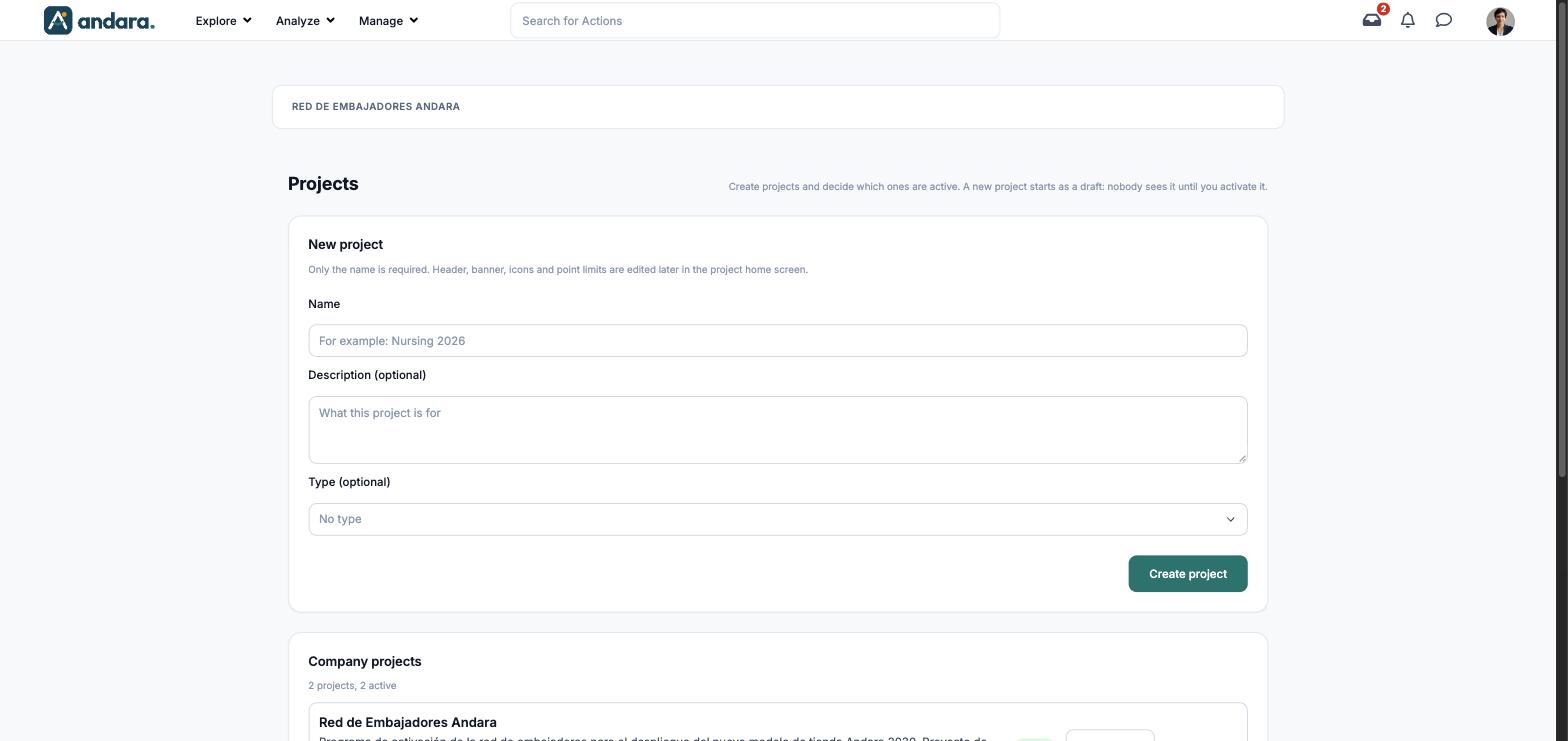
This is where you create your company's projects and decide which ones are running. A project is an initiative with its own audience, content and home page; a company can have several at once.
A new project starts as a draft: nobody sees it until you activate it. Header, banner, icons and point limits are edited afterwards in Project home page.
Where it is: Manage › Configuration › Projects.
What you see#
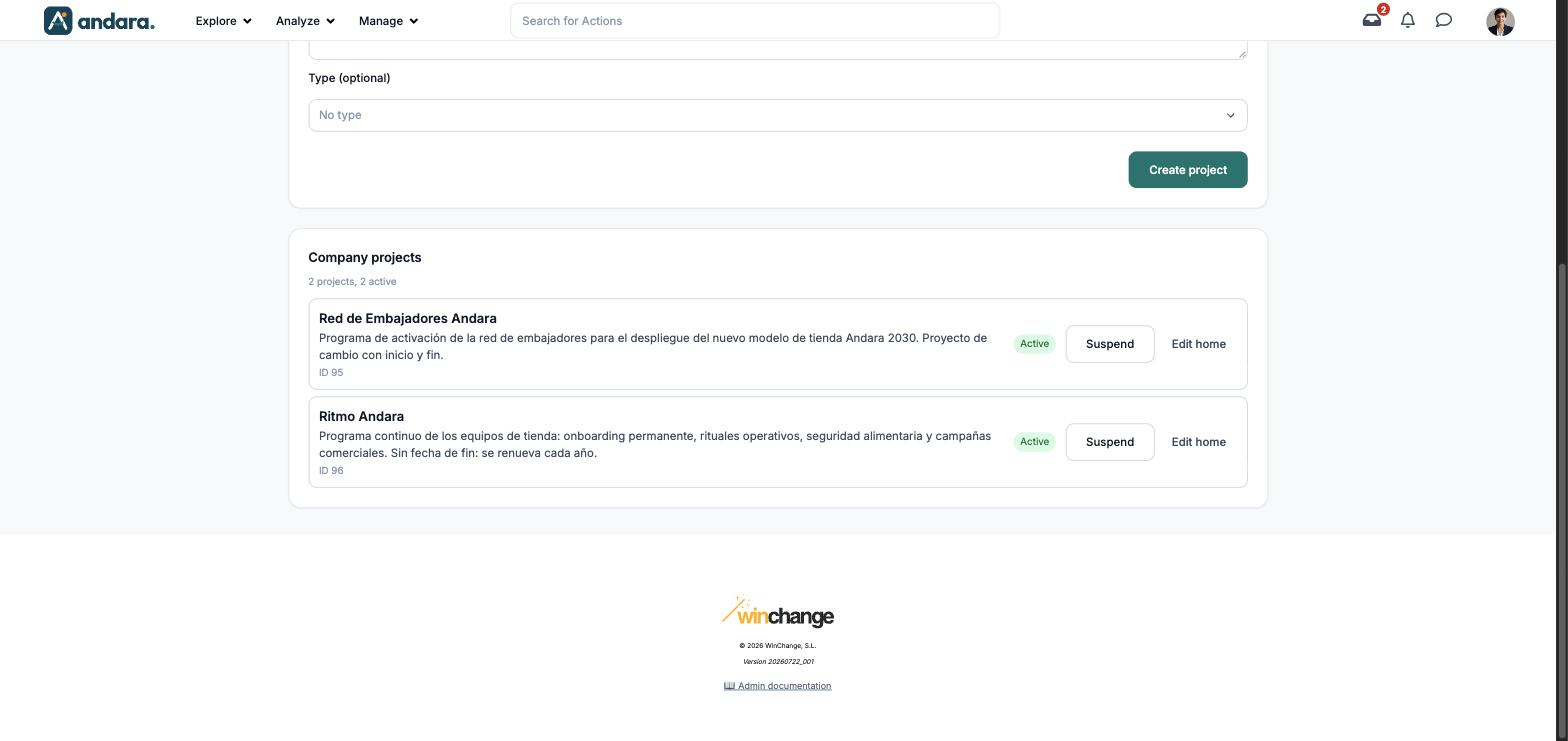
The New project form is at the top and the Company projects list below it.
| Element | What it shows |
|---|---|
| N projects, N active | How many projects the company has and how many are running. |
| Name and description | Each project, with its description below. |
| ID | The project's internal number. |
| Active | The project's status label. |
| Suspend | Takes the project out of the active ones. |
| Edit home | Takes you to Project home page. |
Settings#
New project#
Only the name is required.
| Field | What it does | Values |
|---|---|---|
| Name | What the project is called in the panel and in the app. | Text. Required. On-screen example: "Nursing 2026". |
| Description (optional) | What the project is for. Shown below the name in the list. | Free text. |
| Type (optional) | A label to classify the project. | No type (default), Workday, Agile, IA or Change. |
Created with Create project.
How to#
Launch a new project#
- 1
Create it
Type the Name, add a Description and Type if you want, and press Create project. It starts as a draft.
- 2
Prepare its home page
Press Edit home on its row and fill in texts, banner, icons and point limits in Project home page.
- 3
Activate it
When it is ready, activate it from its row in the list. Until then nobody sees it. In the demo both projects are already active, so the activate control does not appear in the screenshots.
Suspend a project#
- 1
Find it
Look it up under Company projects.
- 2
Suspend it
Press Suspend. It no longer counts among the active ones.
Things to know#
- A newly created project is invisible to everyone until you activate it.
- This screen has no edit form. Name and description are written when the project is created; what people see when they come in is edited in Project home page.
- There is no delete button: a project no longer in use is suspended.
- Edit home does not keep the project selected: on the home page you have to pick it again under Project you are editing.
Related#
- Basic concepts: what a project is and how it differs from a journey.
- Getting started: the order to set up the programme.
- Project home page and App menu: what people see when they come in.