What it is for#
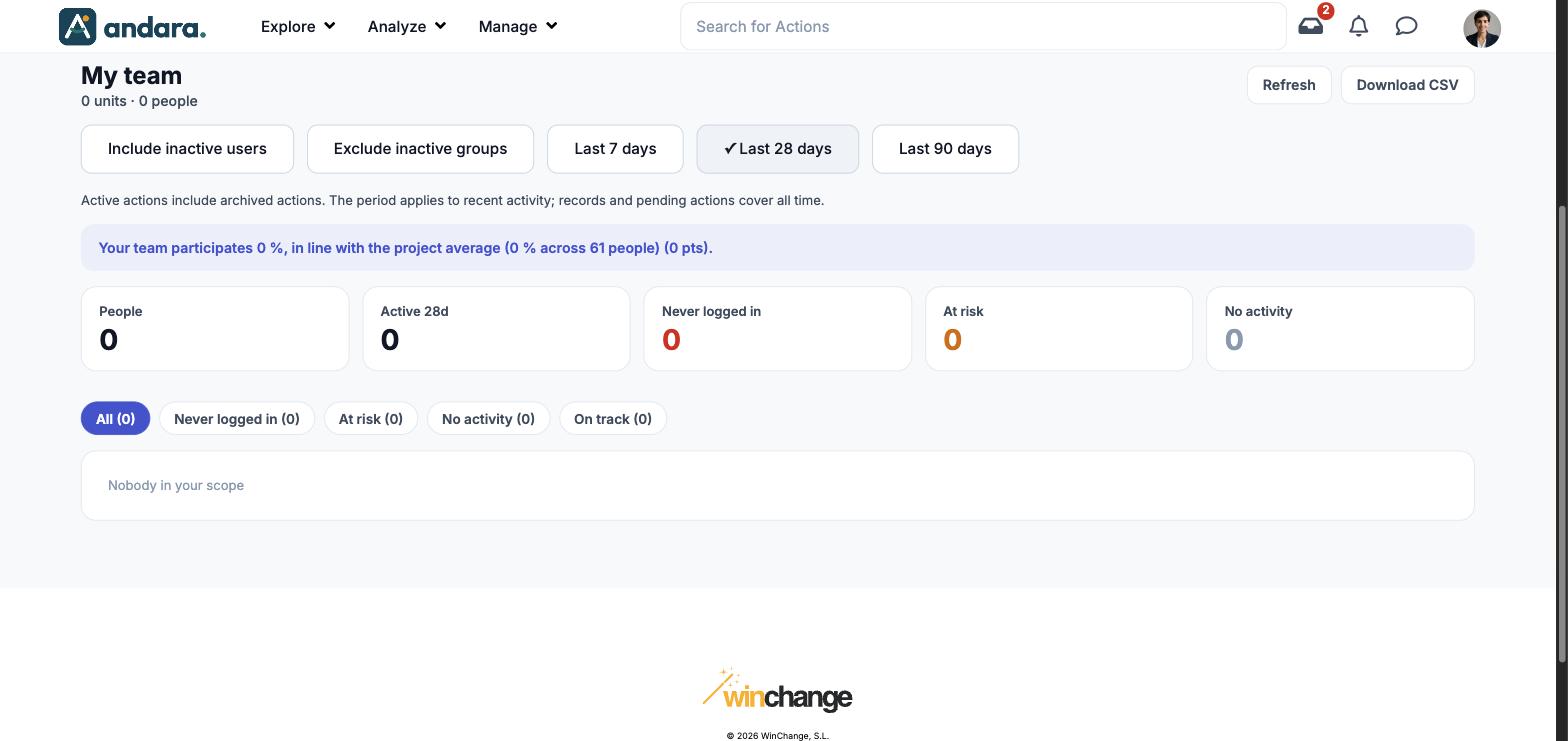
This is where a manager sees their team person by person and knows who to call. The screen counts the people in the units you look after and splits them into four situations: never signed in, at risk, signs in but does nothing, or on track.
The scope is your units. If you are not the Manager of any organisation, the screen is empty with the message Nobody in your scope, even if you are an administrator: to see the whole project, use Aggregated Action Progress.
Where it is: Analyze › Actions Follow-up › Detailed Action Progress.
What you see#
| Element | What it shows |
|---|---|
| My team | The title, with how many units you look after and how many people are in them underneath. |
| Refresh | Requests the data again with the period and toggles you picked. |
| Download CSV | Downloads the list you are looking at, with the status tab you have selected. |
| Include inactive users, Exclude inactive groups | Toggles that widen or narrow the population (see Filters). |
| Last 7 days, Last 28 days, Last 90 days | The window for recent activity. The selected one has a ✓. |
| Participation sentence | Compares your team's participation with the project average, for example "Your team participates 0 %, in line with the project average (0 % across 61 people)". |
| Cards | People, Active 28d, Never logged in, At risk and No activity (see Metrics). |
| Status tabs | All, Never logged in, At risk, No activity and On track, each with its count in brackets. They filter the roster below. |
| Roster | The list of people in your team. With no units assigned to you it shows Nobody in your scope. |
Metrics#
| Metric | What it measures | How it is calculated |
|---|---|---|
| People | The size of your team. | People assigned to the units you are the manager of. |
| Active 28d | How many people in your team have been active recently. | People with activity in the last 28 days. |
| Never logged in | Who has never opened the app. | People with no sign-in at all. |
| At risk | Who used to sign in and has stopped. | People who had signed in before and have no recent sign-ins. |
| No activity | Who signs in but completes nothing. | People with sign-ins and no actions in the period. |
| On track | Everyone else: people who sign in and do things. | Only shown as a roster tab. |
| Participation sentence | Whether your team is above, in line with or below the project. | The team's participation percentage against the project's, with the number of people in the project in brackets. |
Each person falls into one tab only, so Never logged in, At risk, No activity and On track add up to All.
Filters#
| Filter | What it does | Values |
|---|---|---|
| Include inactive users | Counts the people in your team who can no longer sign in to the app. | Toggle. Default: off. |
| Exclude inactive groups | Leaves out the actions of deactivated action groups. | Toggle. Default: off. |
| Last 7 days / 28 days / 90 days | The window for recent activity. Records and pending actions cover all time, as the note under the toggles says. | Default: Last 28 days. |
| Status tabs | Keep the people in one situation. | All, Never logged in, At risk, No activity, On track. Default: All. |
How to#
Build the list of people to call#
- 1
Load your team
Click Refresh and wait for the cards to fill in.
- 2
Pick the situation
Click the tab you want, for example Never logged in or At risk. The roster keeps only those people.
- 3
Take it with you
Click Download CSV. The file has the same selection you see on screen.
Things to know#
- The scope is the units you are the manager of. Being an administrator does not widen this screen: if you look after no unit, it shows 0 units · 0 people. Who looks after each unit is set in the Manager field of Organisations.
- The period only moves recent activity. Records and pending actions cover all time.
- The screenshots on this page come from an administrator account with no units assigned: that is why they are empty.
Related#
- The manager's panel: how this screen is used day to day.
- Aggregated Action Progress and Actions Detail Report.
- Organisations: where each unit's Manager is chosen.