What it is for#
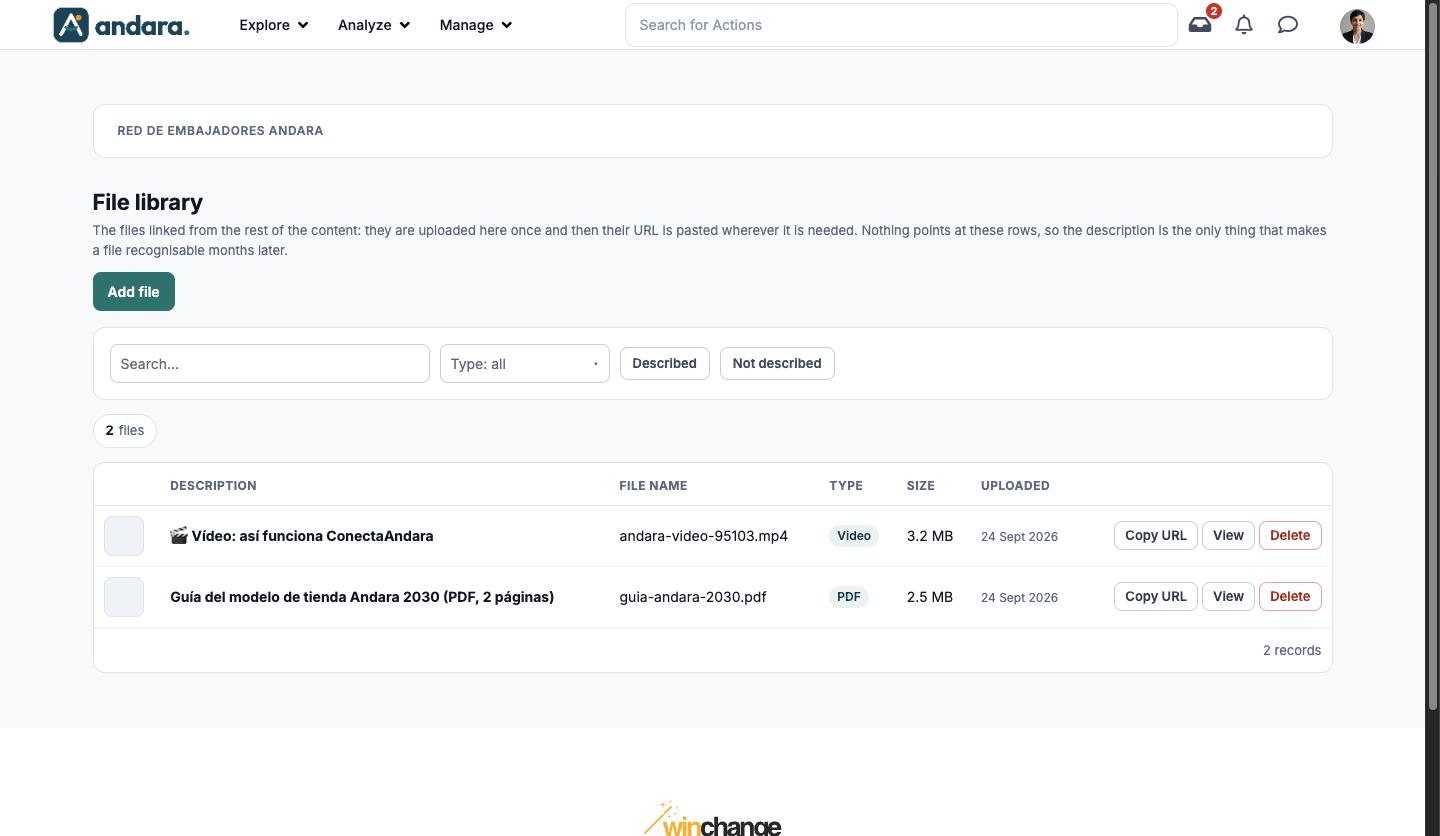
This is where you keep the files linked from the rest of the content: a PDF, a video, a spreadsheet. You upload the file once, copy its URL and paste it into the action, news item or email that needs it.
No content is tied to these rows: the link only exists where you paste it. That is why the description is the only thing that lets you recognise a file months later.
The screen is titled File library.
Where it is: Manage › Journeys › Attachments.
What you see#
| Element | What it shows |
|---|---|
| Add file | Opens the form to upload a file. |
| Search… | Filters the list as you type. |
| Type: all | Keeps a single file type. The options depend on what has been uploaded (in the screenshot, PDF and Video). |
| Described / Not described | Separates files with a description from those nobody can tell the purpose of. |
| N files | How many files match the current filters. |
| Description | The text that identifies the file. |
| File name | The name of the uploaded file. |
| Type | PDF, Video, etc. |
| Size | How much space it takes. |
| Uploaded | When it was uploaded. |
| Copy URL | Copies the file's address so you can paste it wherever you need it. |
| View | Opens the file. |
| Delete | Deletes the file. |
Settings#
| Field | What it does | Values |
|---|---|---|
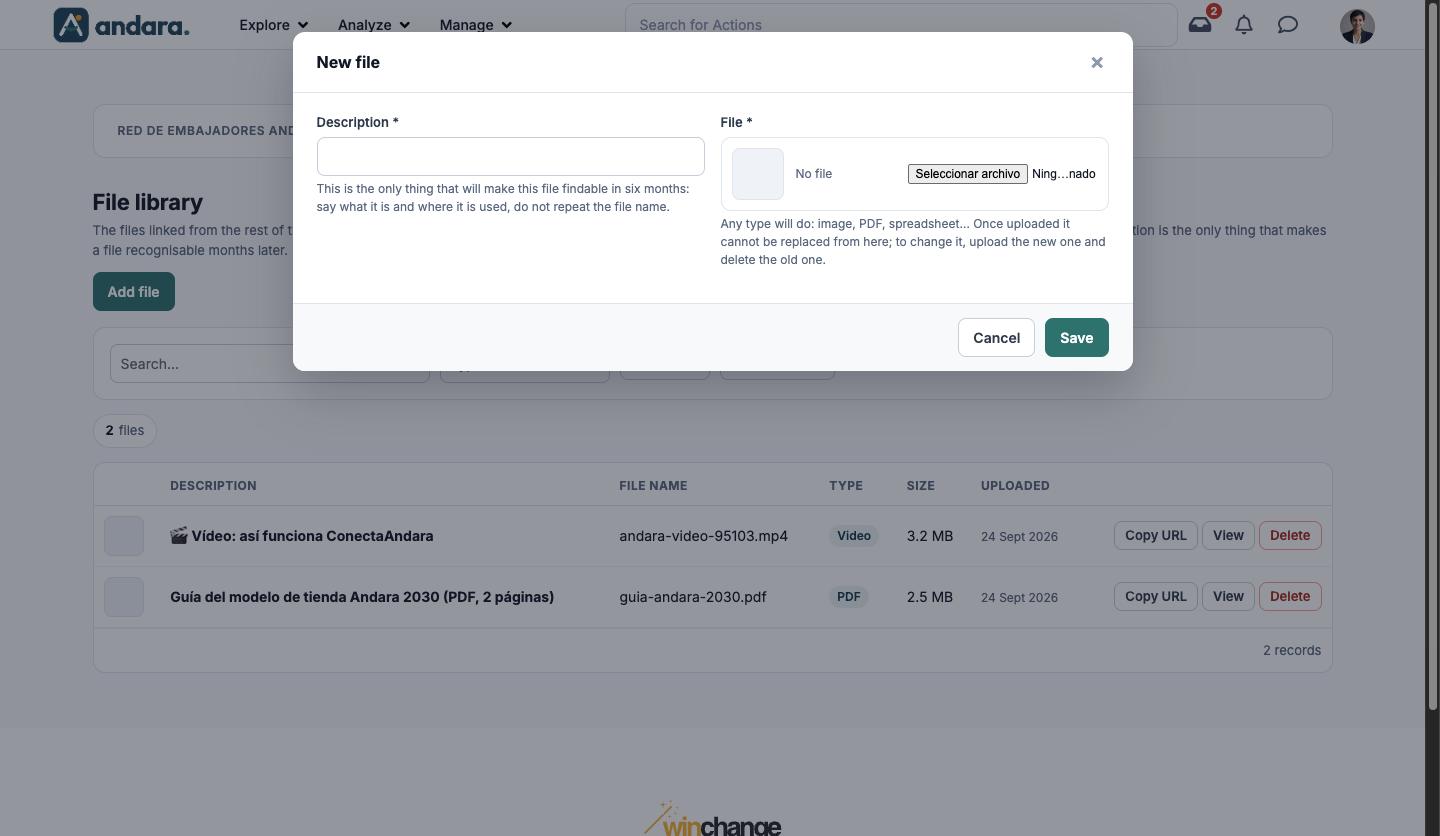
| Description | The only thing that will let you find the file later: say what it is and where it is used, without repeating the file name. | Text. Required. |
| File | The file being uploaded. Once uploaded it cannot be replaced from here. | Any type: image, PDF, spreadsheet… Required. |
Files cannot be edited: there is no Edit button and no way to change the description once saved.
How to#
Upload a file and link to it#
- 1
Open the form
Click Add file.
- 2
Describe and upload
Type the Description, choose the File and click Save.
- 3
Copy the URL
On its row, click Copy URL.
- 4
Paste it
Paste the address into the description of the action, news item or email that should link to it.
Replace a file with a new version#
- 1
Upload the new version
Upload it with Add file and copy its URL.
- 2
Update the links
Replace the old URL in the content that used it.
- 3
Delete the old one
Once nothing uses it, click Delete on its row.
Things to know#
Deleting a file breaks its links. If its URL is pasted into an action, a news item or an email, that link stops working, and there is no way to find out from this screen where it was used.
- A bad description cannot be fixed: it cannot be edited. If you get it wrong, upload the file again with the right description and delete the first one.
- Use the Not described filter now and then to find files nobody can place.
- In the English app, the file picker button still reads "Seleccionar archivo".
Related#
- Materials and action presentation: what the library is for.
- Actions: where the links are pasted.
- Action Displays: the other support screen for actions.