What it is for#
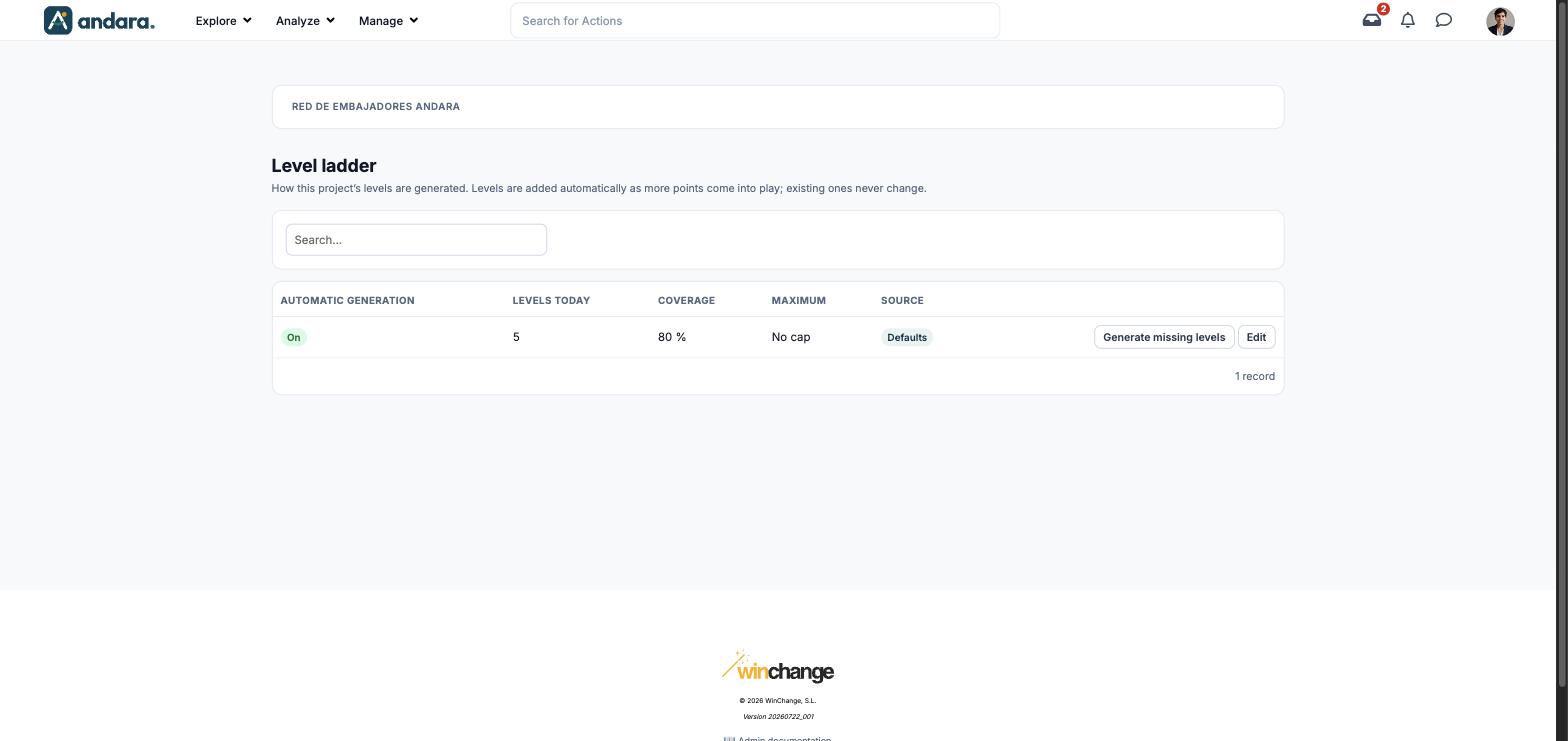
This is where you decide how the project's level ladder is built. Levels are not created by hand: they are added automatically as more points come into play, and existing ones never change. What you set are the rules for creating the next ones.
Where it is: Manage › Configuration › Level ladder.
What you see#
The name of the project you are in appears at the top.
| Element | What it shows |
|---|---|
| Search… | Filters the list as you type. |
| Automatic generation | On if new levels are added automatically. |
| Levels today | How many levels the project already has. |
| Coverage | What share of the points that can be earned the top level asks for. |
| Maximum | The cap on levels. No cap if there is none. |
| Source | Where the values come from. Defaults if they have not been changed. |
| Generate missing levels | Creates right away the levels that match the points in play, without waiting. |
| Edit | Opens the settings. |
Settings#
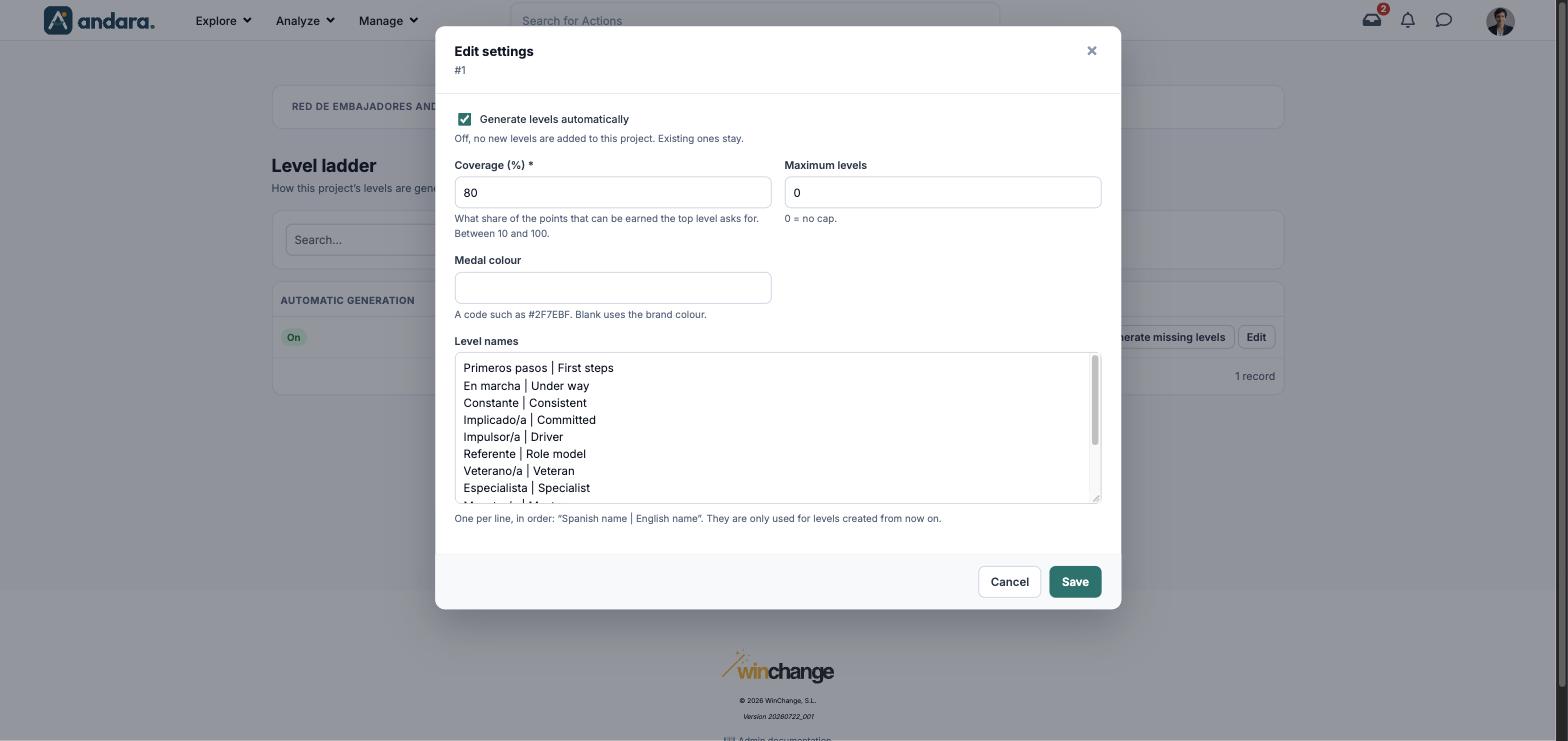
The form is titled Edit settings.
| Field | What it does | Values |
|---|---|---|
| Generate levels automatically | When off, no new levels are added to this project. Existing ones stay. | Tick box. Ticked in the demo. |
| Coverage (%) | What share of the points that can be earned the top level asks for. | Required. Number between 10 and 100. 80 in the demo. |
| Maximum levels | The largest number of levels the project can reach. | Number. 0 = no cap. |
| Medal colour | The colour of the level medals. | A colour code such as #2F7EBF. Blank uses the brand colour. |
| Level names | What each level is called, in order. They are only used for levels created from now on. | One per line, in the format “Spanish name | English name”. |
The default names are: First steps, Under way, Consistent, Committed, Driver, Role model, Veteran, Specialist, Master, Ambassador, Legend and Icon, each with its Spanish version.
How to#
Change the level names#
- 1
Open the settings
Press Edit.
- 2
Write the names
Under Level names, one level per line:
Nombre | Name. The order of the lines is the order of the levels. - 3
Save
Press Save. The new names are used for levels created from now on.
Freeze the ladder#
- 1
Open the settings
Press Edit.
- 2
Turn generation off
Untick Generate levels automatically and press Save. Current levels stay and no more are added.
Things to know#
- Levels already created never change. Changing coverage, colour or names only affects the ones created later.
- High coverage makes the top levels almost unreachable: the top level asks for that share of all the points that can be earned.
- With no cap, the ladder keeps growing as long as more points come into play.
- The Levels tab in Badges says the periodic level update is pending activation, while here generation shows as On.
Related#
- Points, badges and streaks: the programme's points economy.
- Badges: looking up the project's levels.
- Streak: the other progress system.