What it is for#
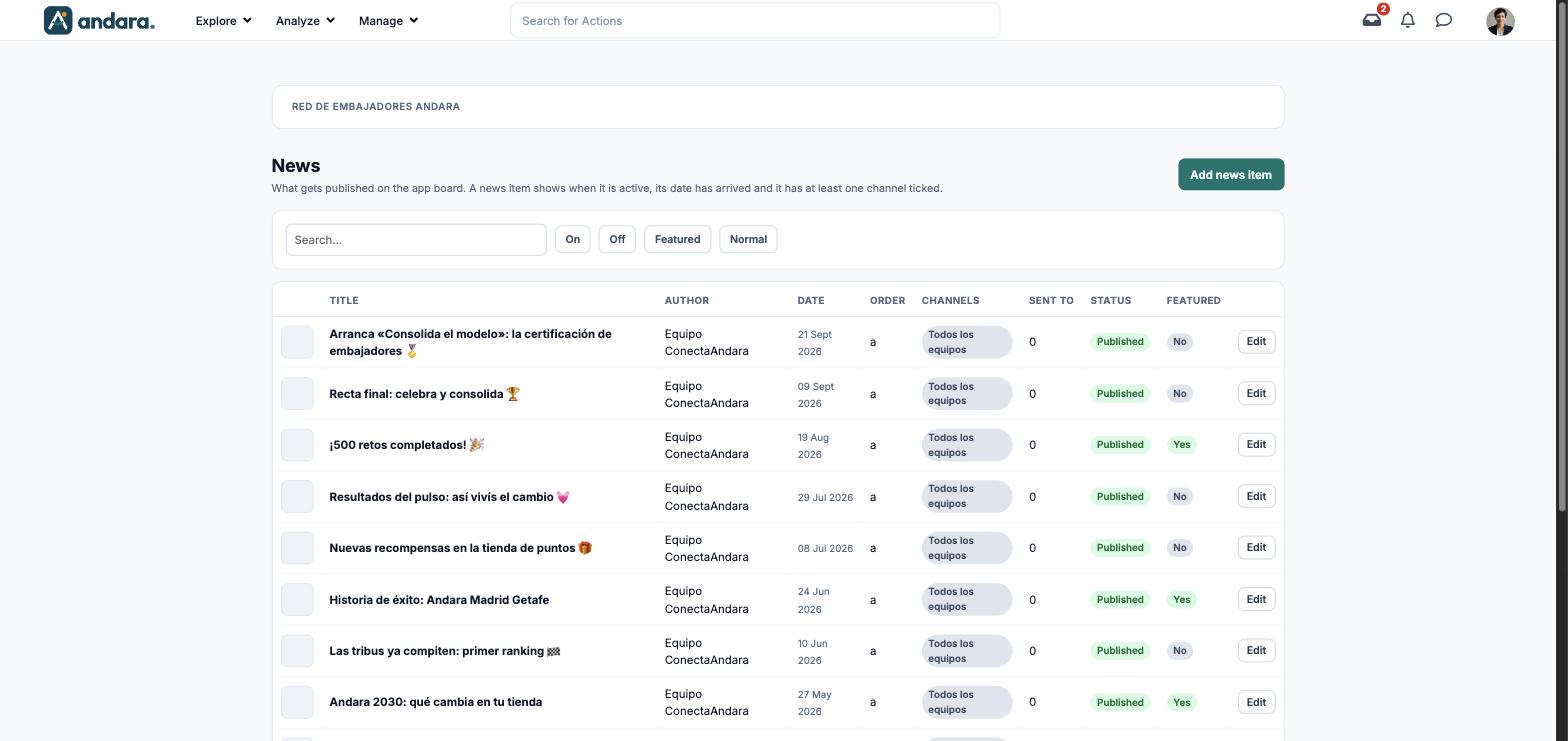
This is where you write and schedule what appears on the app's news board. A news item shows when it is on, its publication date has arrived and it has at least one channel ticked.
The channels, which decide who each item reaches, are created in News Feed.
Where it is: Manage › News › News.
What you see#
The name of the project you are in is shown at the top.
| Element | What it shows |
|---|---|
| Search… | Filters the list as you type. |
| On / Off | Shows only the items that are on, or only those that are off. |
| Featured / Normal | Shows only featured items, or only those that are not. |
| Image | The item image, if it has one. |
| Title | The headline. |
| Author | The byline. |
| Date | Its publication date. |
| Order | The letter that orders items from the same day. |
| Channels | The channels it is published in. |
| Sent to | A count the screen labels this way. In the demo it is 0 for every item. |
| Status | Published once it shows on the board. |
| Featured | Yes or No. |
| Edit | Opens the item form. |
| Add news item | Opens a blank form. |
Settings#
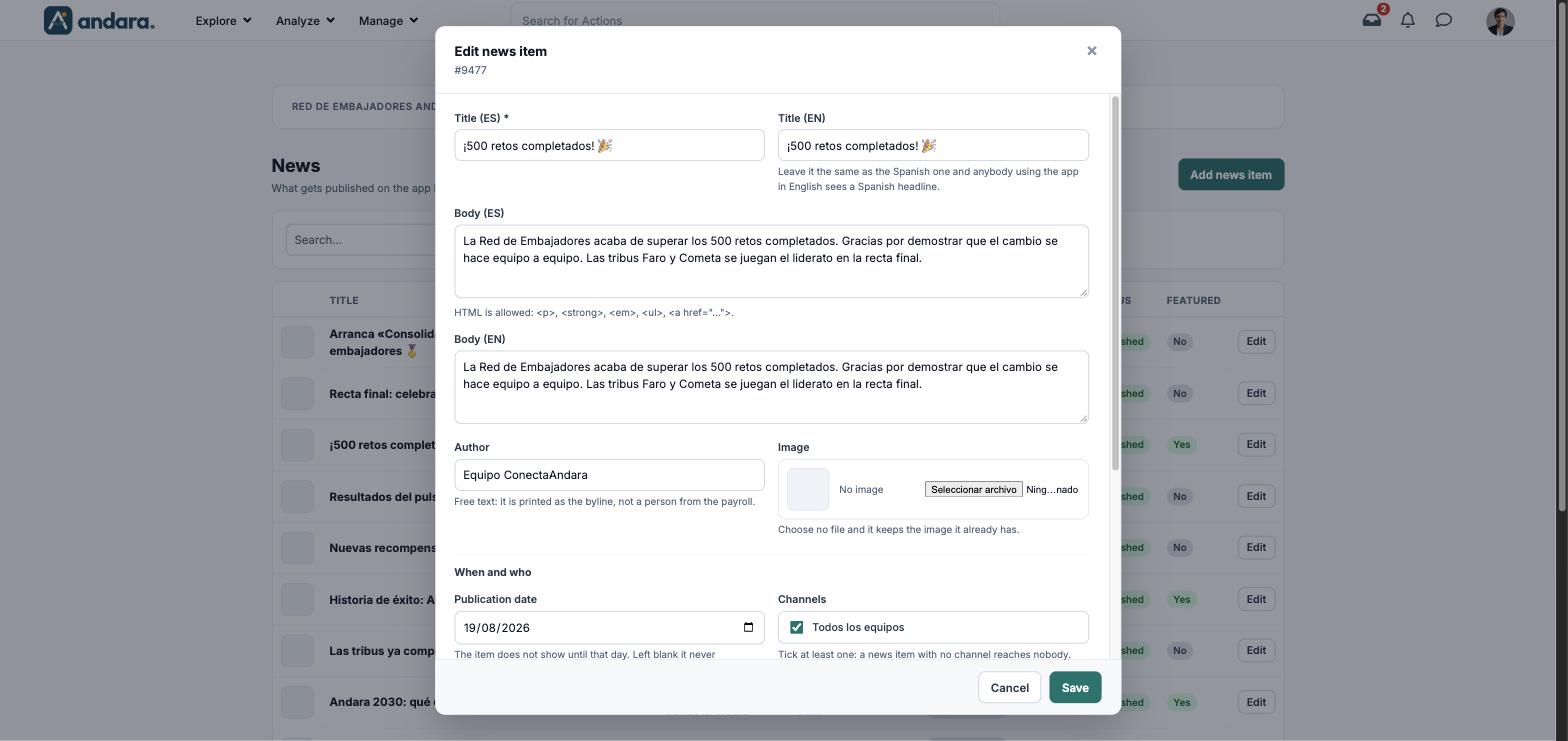
The form is the same to create (New news Item, as the app shows it) and to edit (Edit news item, with its number under the title).
Content#
| Field | What it does | Values |
|---|---|---|
| Title (ES) | The headline in Spanish. | Text. Required. |
| Title (EN) | The headline in English. Leave it the same as the Spanish one and anybody using the app in English sees a Spanish headline. | Text. |
| Body (ES) | The body of the item in Spanish. | Text. HTML is allowed: <p>, <strong>, <em>, <ul>, <a href="…">. |
| Body (EN) | The body in English. | Text, with the same HTML. |
| Author | What is printed as the byline. It is free text, not a person from the payroll. | Free text. |
| Image | The item image. Choose no file and it keeps the image it already has. | Image. |
When and who#
| Field | What it does | Values |
|---|---|---|
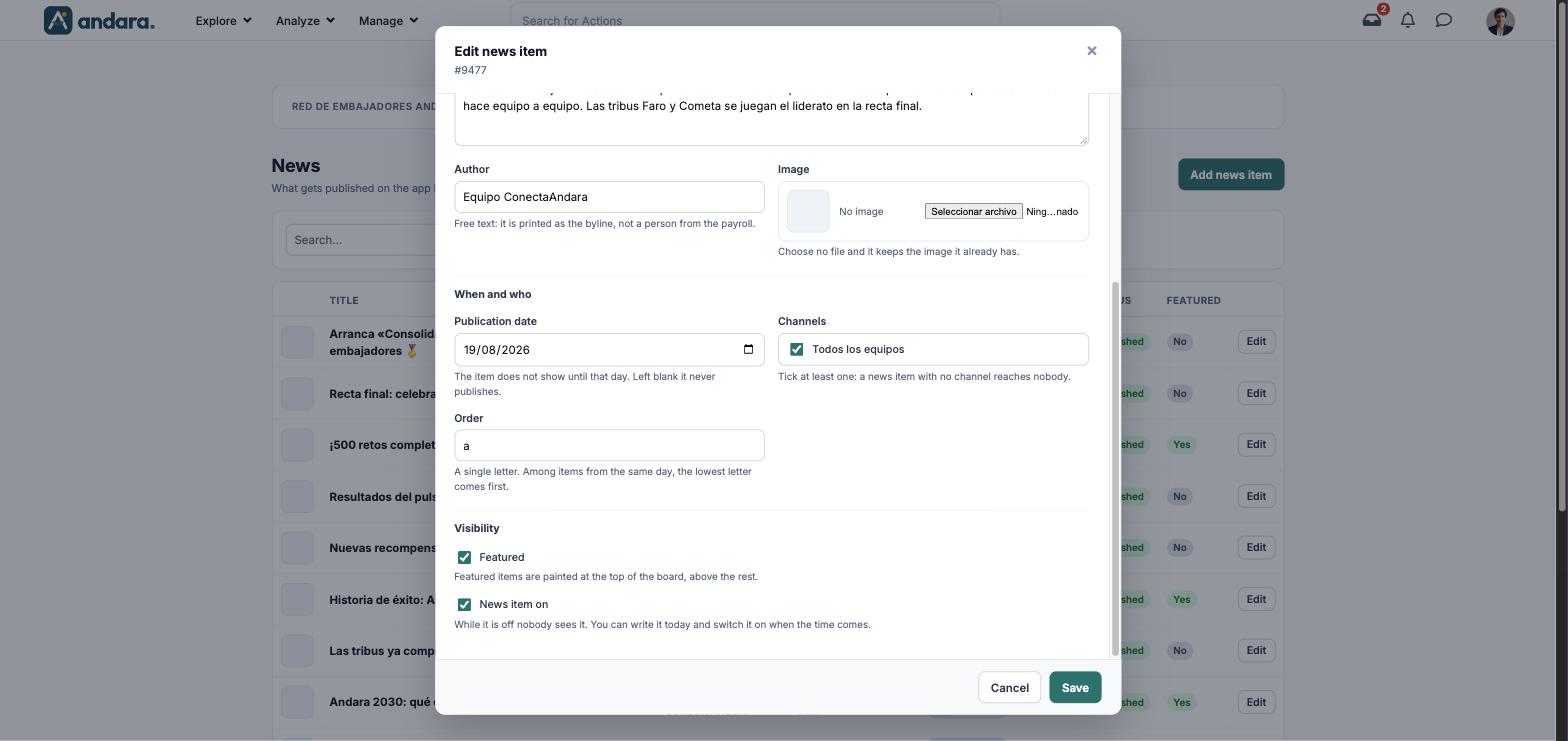
| Publication date | The item does not show until that day. Left blank, it never publishes. | Date. |
| Channels | Who it reaches. Tick at least one: a news item with no channel reaches nobody. | Tick boxes with the channels in News Feed. |
| Order | Among items from the same day, the lowest letter comes first. | A single letter. B in a new item. |
Visibility#
| Field | What it does | Values |
|---|---|---|
| Featured | Featured items are shown at the top of the board, above the rest. | Tick box. Unticked in a new item. |
| News item on | While it is off nobody sees it. You can write it today and switch it on when the time comes. | Tick box. Unticked in a new item. |
How to#
Publish a news item#
- 1
Open a new form
Click Add news item.
- 2
Write the content
Fill in Title (ES) and Body (ES), their English versions and the Author, and pick the Image.
- 3
Decide when and who
Set the Publication date and tick at least one channel under Channels.
- 4
Switch it on and save
Tick News item on (and Featured if it should go at the top) and click Save.
Schedule a news item#
- 1
Write it
Fill in the form as above.
- 2
Set a future date
In Publication date, pick the day it should go out.
- 3
Save
With News item on ticked, it will not show until that day. If you would rather review it first, leave it off and switch it on when the time comes.
Take a news item down#
- 1
Open it
Click Edit on its row.
- 2
Switch it off
Untick News item on and click Save. It disappears from the board.
Things to know#
- An item needs three things to show: switched on, its date reached and at least one channel. If one is missing, it does not show and nothing warns you.
- A new item starts switched off and with no channel. Check both before you save.
- With no publication date it never publishes.
- If you leave the EN title the same as the ES one, anyone using the app in English sees the Spanish headline.
- There is no delete button on this screen: an item is taken down by switching it off.
Related#
- News and communication: what each format is for.
- News Feed: the channels.
- Pop-ups: messages shown when people open the app.