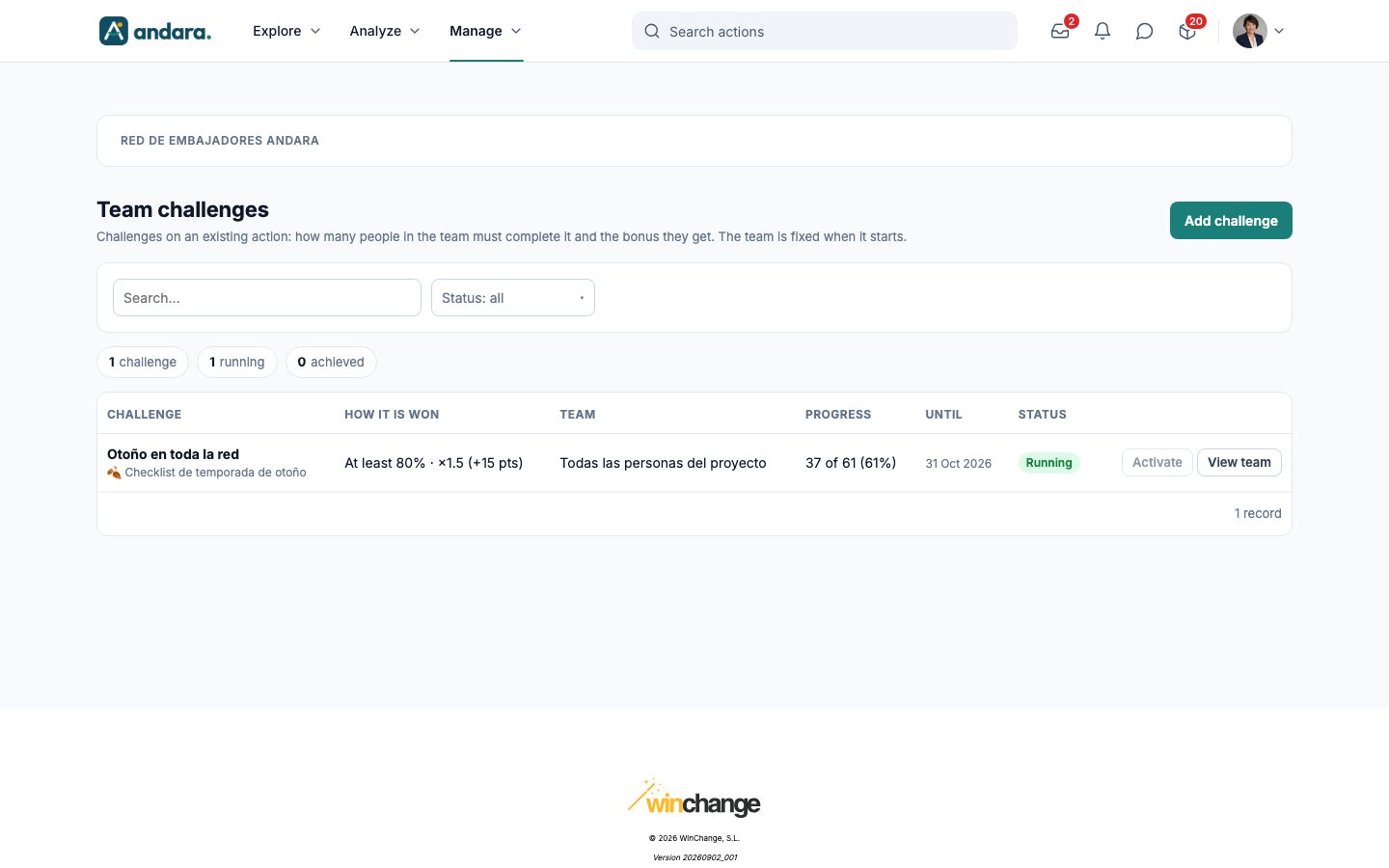
What it is for#
A team challenge turns an individual action into a group goal: the team achieves it when the whole team completes the action, a share of the team does, or, in the simplest mode, a single person does. If the team makes it, everyone who completed the action earns a bonus on top of the action's points.
The challenge does not replace the action: it sits on top of an existing one, which each person completes as usual (test, photo, signature…). Every team member sees the challenge name on Home and in the action itself.
Where it is: Manage › Journeys › Team challenges.
What you see#
| Element | What it shows |
|---|---|
| Add challenge | Opens the form to create a challenge. |
| Search… | Filters by challenge name, action name or team. |
| Status: all | Keeps only the challenges in one status: Draft, Running, Achieved, Not achieved or Cancelled. |
| N challenges / running / achieved | How many challenges match the current filters, how many are running and how many have been achieved. |
| Challenge | The challenge name and, below it, the action it sits on. |
| How it is won | The mode (Whole team, At least N% or One for all) and, if there is a bonus, the multiplier and the extra points per person (for example, ×1.5 (+15 pts)). |
| Team | Who it covers: the whole project, the chosen criteria or how many people were picked by hand. |
| Progress | How many team members have completed the action, out of how many, and the percentage. For a draft, Not started. |
| Until | The deadline. Empty if it never expires. |
| Status | Draft, Running, Achieved, Not achieved or Cancelled. |
| Activate | Starts a draft. Greyed out in any other status. |
| View team | Opens the challenge detail. |
Settings#
New challenge#
Challenges cannot be edited: once saved, to change anything you cancel it and create another. The form has three blocks.
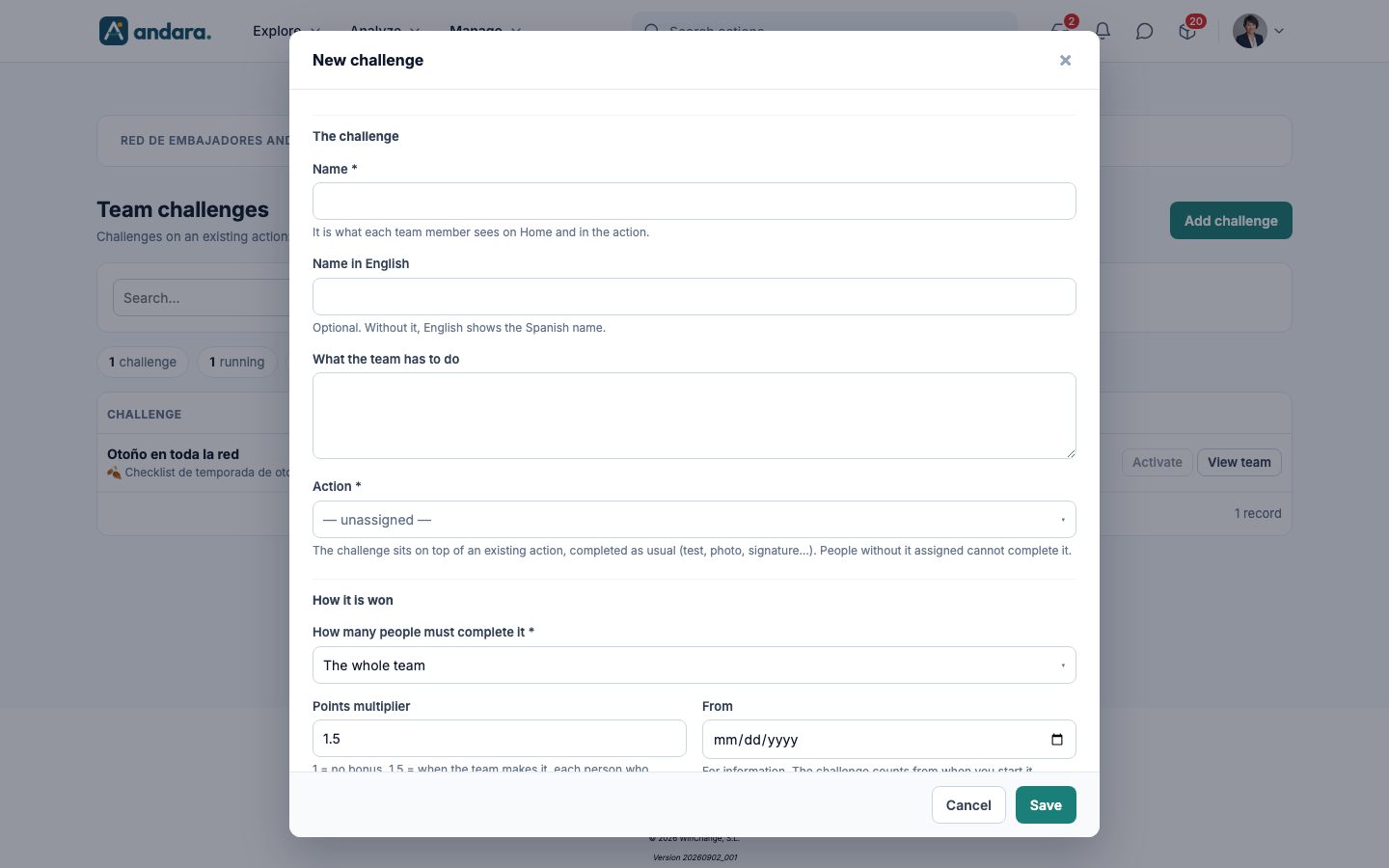
The challenge
| Field | What it does | Values |
|---|---|---|
| Name | What each team member sees on Home and in the action. | Text. Required. |
| Name in English | The name shown with the app in English. Without it, the Spanish name is shown. | Text. Optional. |
| What the team has to do | The explanation of the challenge. Shown in its detail. | Free text. |
| Action | The action the challenge sits on. It is completed as usual; people without it assigned cannot complete it. | One of the project's actions, with its points (switched-off ones are marked (off)). Required. |
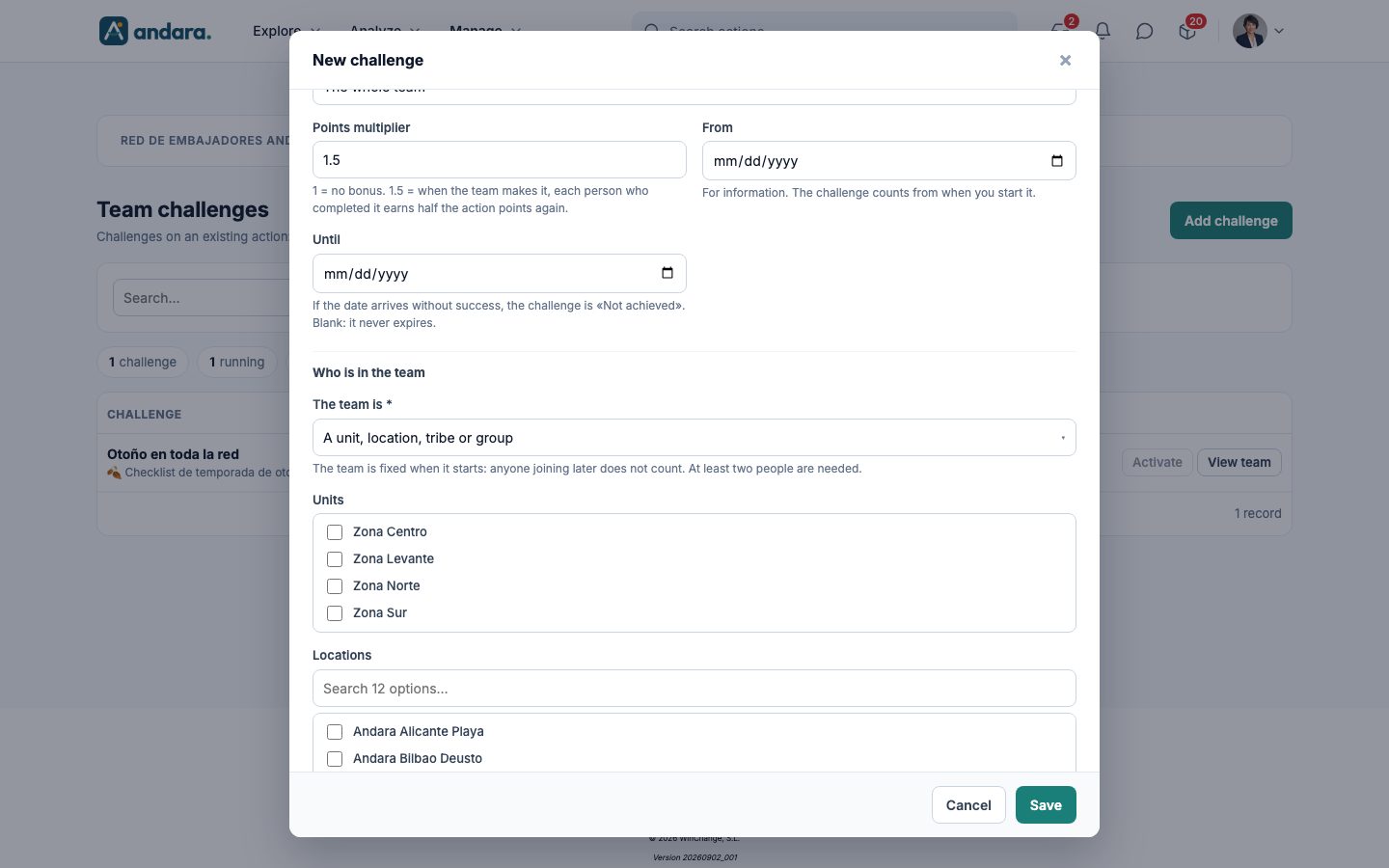
How it is won
| Field | What it does | Values |
|---|---|---|
| How many people must complete it | The condition to achieve the challenge. With One person is enough, as soon as someone completes it the action is completed for the whole team, with its points, and there is no bonus. | The whole team (default), A share of the team, One person is enough (counts for everyone). Required. |
| Share of the team | Only with A share of the team. With 80, in a team of 10, 8 must complete it. | Number between 1 and 100. Default: 80. |
| Points multiplier | The bonus. When the team makes it, each person who completed the action earns the action points multiplied: with 1.5, half as much again. Once you pick the action, the form works out the bonus points per person. Not shown with One person is enough. | Number. 1 = no bonus. Default: 1.5. |
| From | Start date, for information only: the challenge counts from when it is started. | Date. |
| Until | If this date arrives without success, the challenge becomes Not achieved. | Date. Blank: it never expires. |
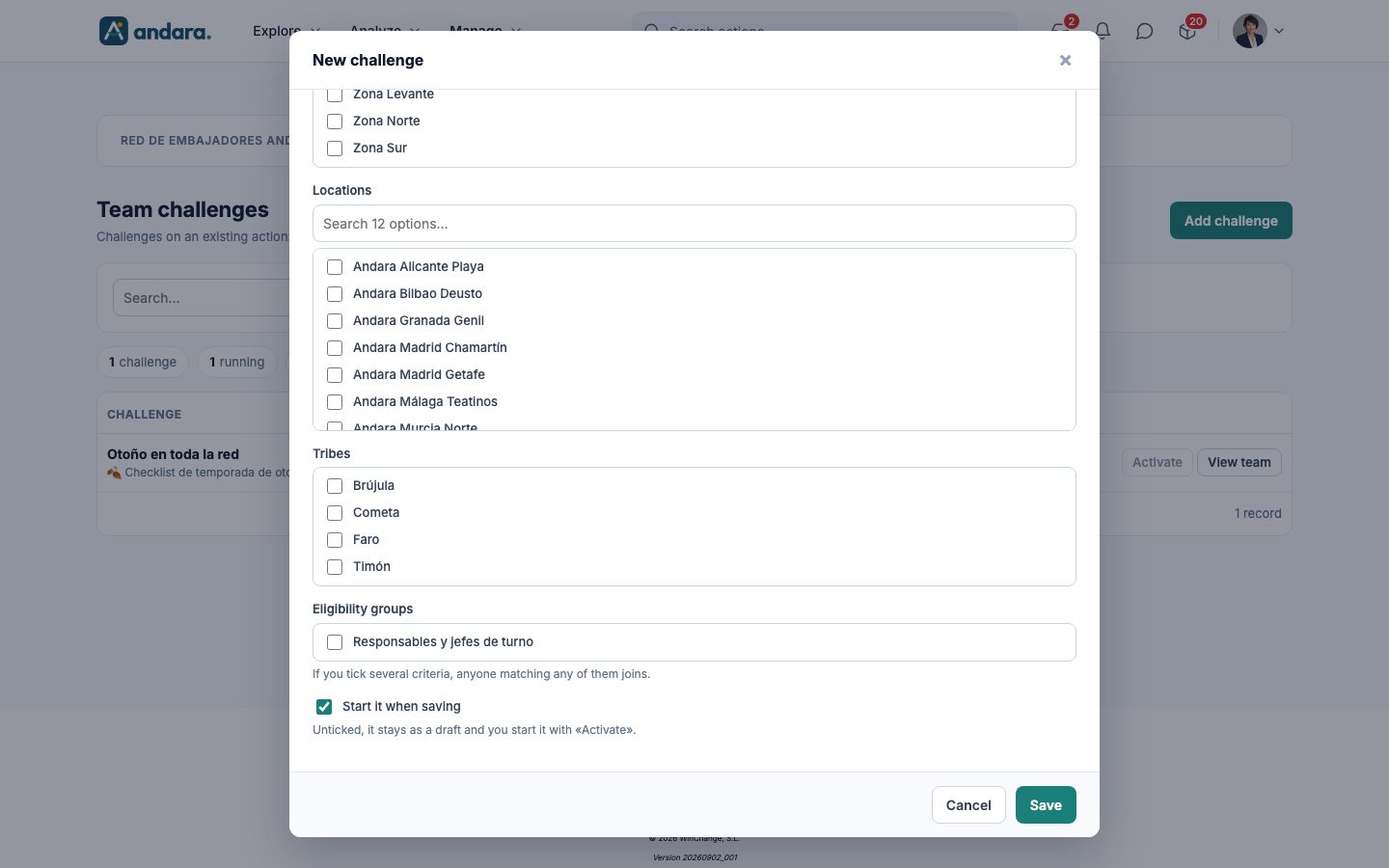
Who is in the team
| Field | What it does | Values |
|---|---|---|
| The team is | How the challenge's people are chosen. The team is fixed when the challenge starts: anyone joining later does not count. At least two people are needed. | A unit, location, tribe or group (default), People I pick one by one, The whole project. Required. |
| Units, Locations, Tribes, Eligibility groups | Only with A unit, location, tribe or group. If you tick several criteria, anyone matching any of them joins. | Tick boxes. At least one must be ticked. |
| People | Only with People I pick one by one. | Tick boxes, with a search by name. At least one must be ticked. |
| Start it when saving | Creates the challenge and starts it in one go. Unticked, it stays as a draft and you start it with Activate. If it cannot be started (for example, because the team is a single person), it is saved as a draft and the app says so. | Tick box. Ticked by default. |
View team#
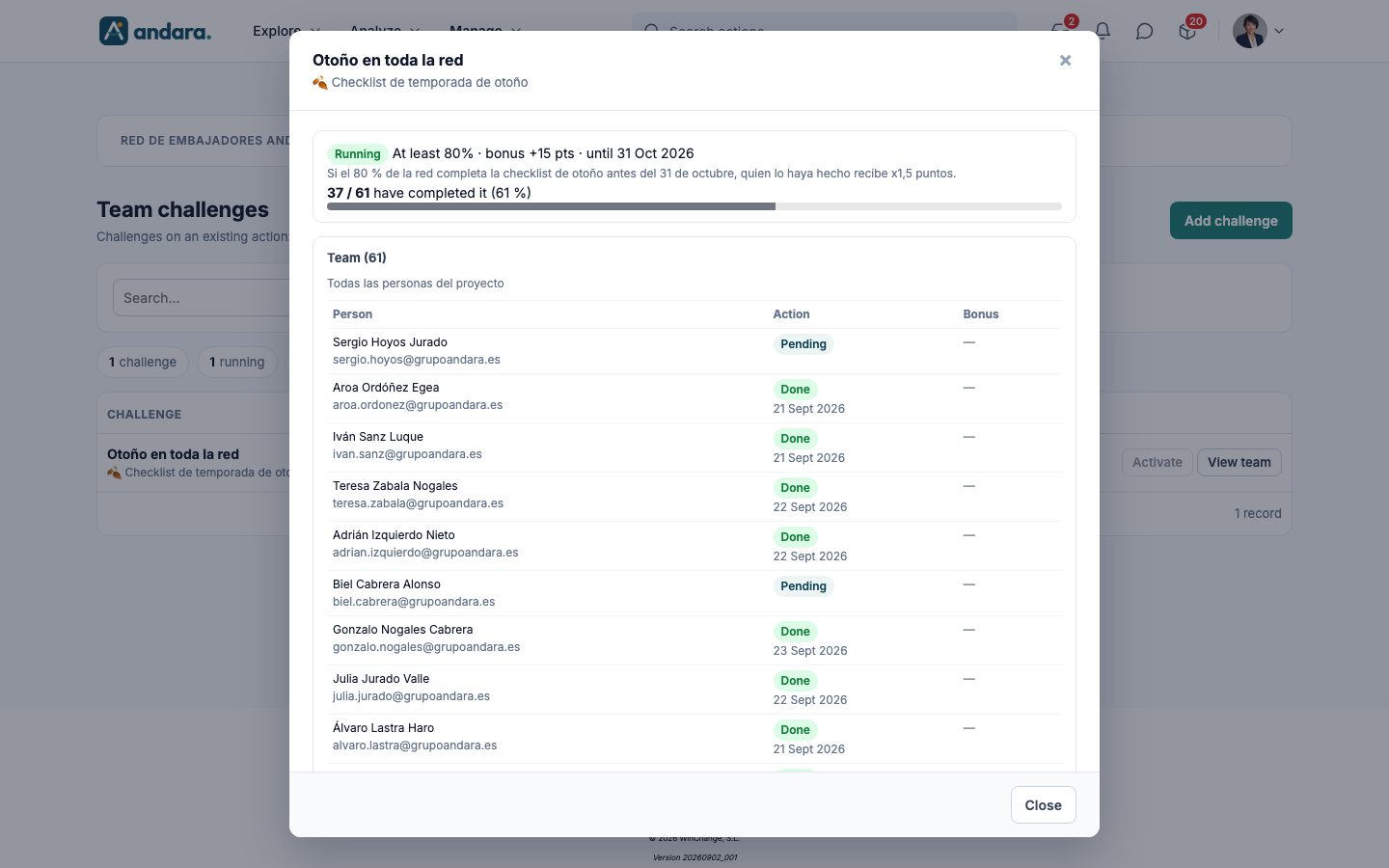
The challenge detail shows its status, the condition, the bonus and the deadline, the explanation and a bar with how many people have completed the action. Below is the Team, with each person, whether their action is Done (with the date) or Pending, and the bonus they have earned.
A draft has no fixed team yet: the list says If you start it now, N people join and shows who they would be.
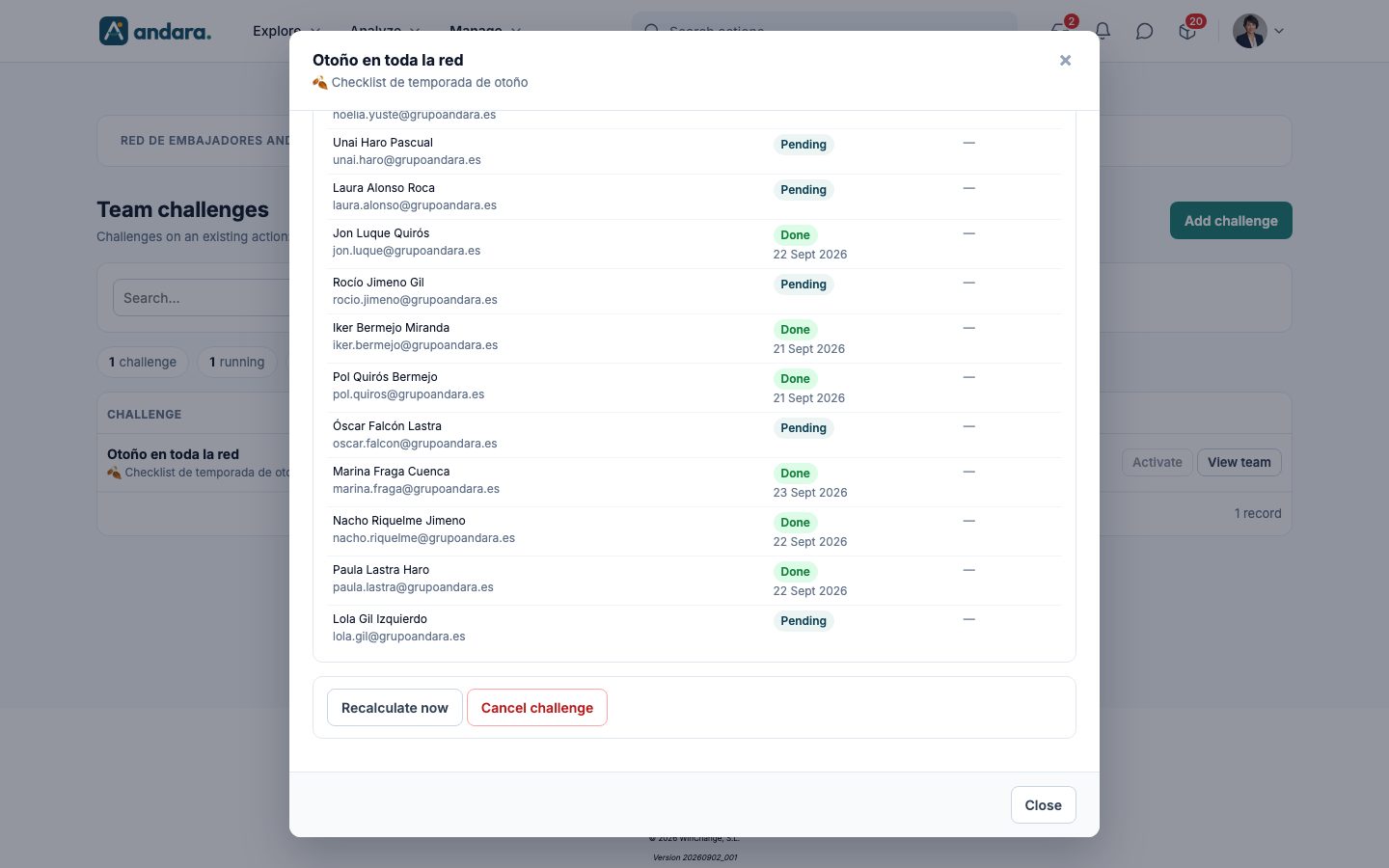
| Button | What it does |
|---|---|
| Start now | On a draft: starts it and fixes the team. |
| Recalculate now | On a running or achieved challenge: counts again who has completed the action and, if the team already meets the condition, pays out the bonus. |
| Cancel challenge | Asks for confirmation. A draft disappears from the list; a running challenge stops counting and disappears from the team's app, but points and bonuses already earned stay. |
How to#
Create a challenge and start it#
- 1
Open the form
Click Add challenge.
- 2
Describe the challenge
Type the Name, explain What the team has to do and pick the Action.
- 3
Set the condition and the reward
Choose How many people must complete it, the Points multiplier and, if you like, an Until date.
- 4
Choose the team
In The team is, choose how it is formed and tick the criteria or the people.
- 5
Save
Leave Start it when saving ticked and click Save. If you untick it, the challenge stays as a Draft.
Review a draft before starting it#
- 1
Open the detail
On the draft's row, click View team and check who would join.
- 2
Start it
Click Start now in the detail, or Activate in the list. From then on the team is fixed.
Cancel a challenge#
- 1
Open the detail
Click View team on its row.
- 2
Cancel it
Click Cancel challenge and confirm with Yes, cancel the challenge.
Things to know#
A challenge cannot be edited. If you got the condition, the bonus or the team wrong, cancel it and create another. Cancelling a running challenge does not take back points or bonuses already paid.
- The team is frozen when it starts: anyone who joins the unit, location or group afterwards does not count for that challenge.
- A challenge needs at least two people. If the team is a single person, the app will not start it; the reason comes back in Spanish («Un reto de equipo necesita al menos dos personas»).
- People without the action assigned cannot complete it, even if they are in the team. Before starting the challenge, check that the action reaches the whole team.
Related#
- Actions: the action the challenge sits on.
- Journeys and actions: how actions fit into the path.
- Eligibility Groups, Organisations, Locations and Tribes: the criteria used to form the team.