What it is for#
This is where you decide the tabs of the app menu: which view each one opens, what it is called, its icon, its position and who sees it. You choose the label and the icon; the view is one the app already has, or a link to an external page.
Where it is: Manage › Configuration › App menu.
What you see#
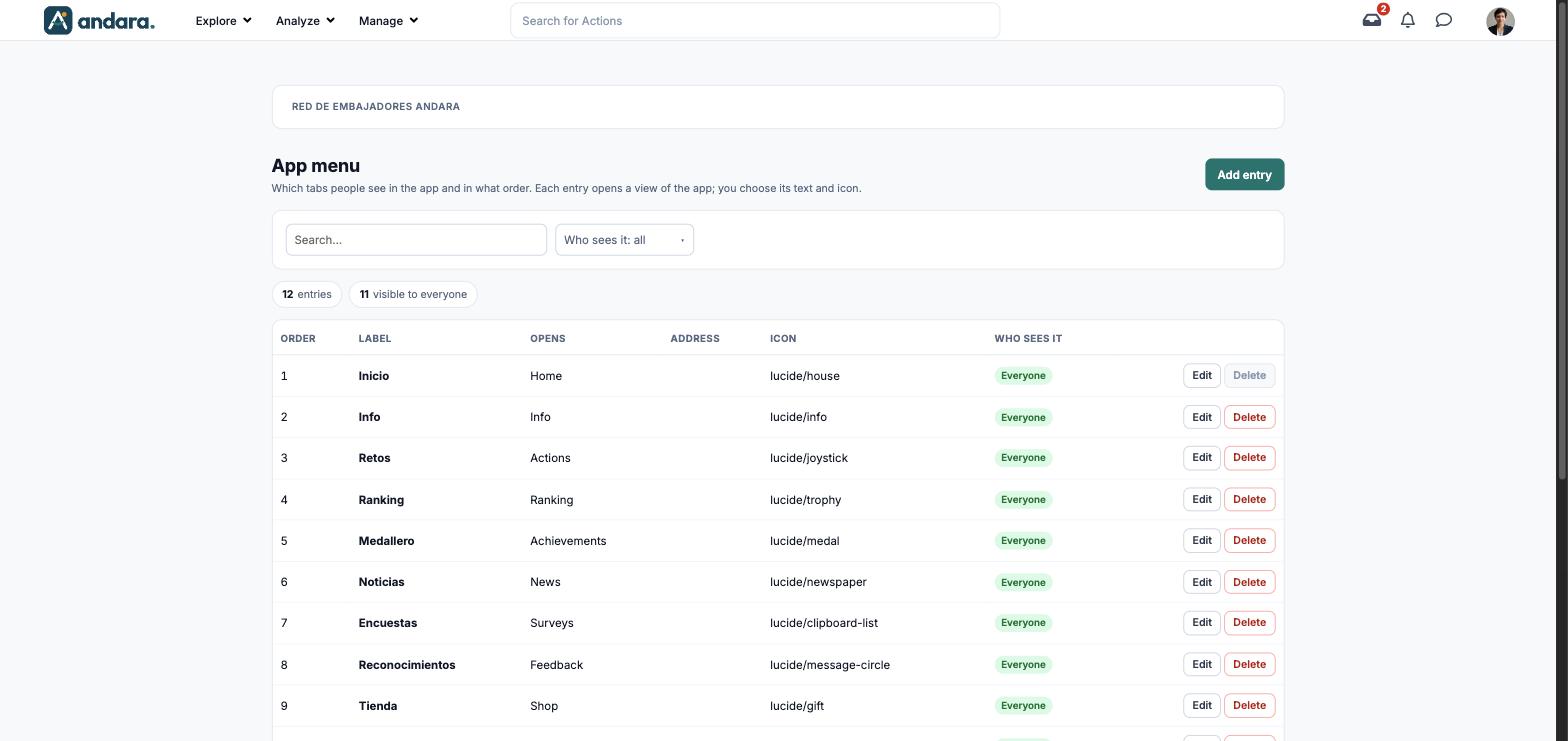
The name of the project you are in appears at the top.
| Element | What it shows |
|---|---|
| Search… | Filters the list as you type. |
| Who sees it: all | Keeps only the entries for Everyone, Admins only or Managers only. |
| N entries / N visible to everyone | How many entries the menu has and how many anyone can see. |
| Order | The tab's position. 1 is the first. |
| Label | The tab's name as shown in the app (the Spanish label is listed). |
| Opens | The app view it leads to. |
| Address | The page it leads to, for external links only. |
| Icon | The icon, with its name in the Lucide library (for example lucide/house). |
| Who sees it | Everyone, Admins only or Managers only. |
| Edit | Opens the entry's form. |
| Delete | Removes the entry from the menu. Disabled for Home. |
| Add entry | Opens a blank form. |
Settings#
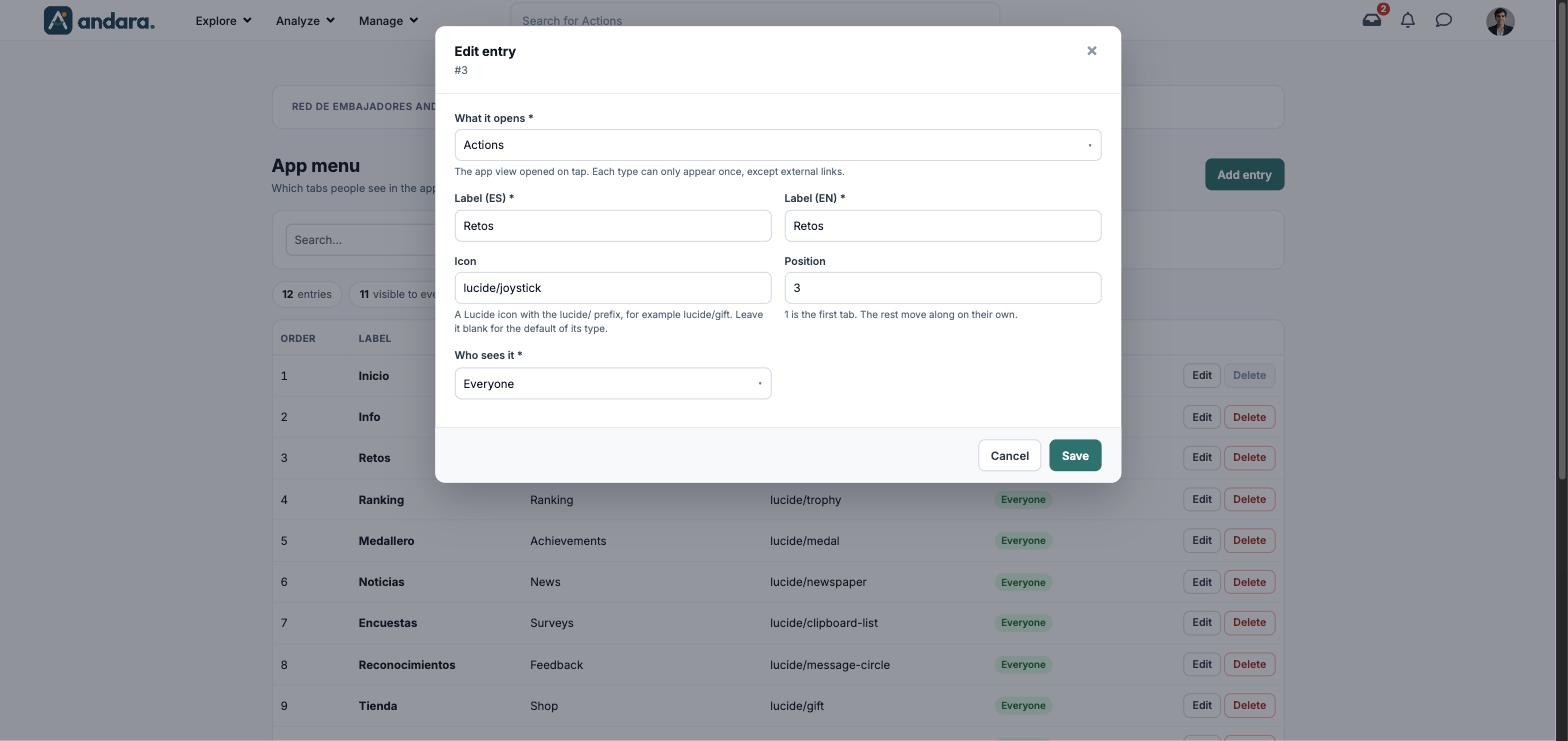
The form is the same to create (New entry) and to edit (Edit entry, with its number under the title).
| Field | What it does | Values |
|---|---|---|
| What it opens | The app view opened when the tab is tapped. Each type can only appear once, except external links. | Required. Home, Info, Actions, Ranking, Achievements, News, Surveys, Feedback / recognition, Shop, Directory, Dashboards, Team, Assistant (client chatbot) or External link. Default: — unassigned —. |
| Label (ES) | The tab's name in Spanish. | Text. Required. |
| Label (EN) | The tab's name in English. | Text. Required. |
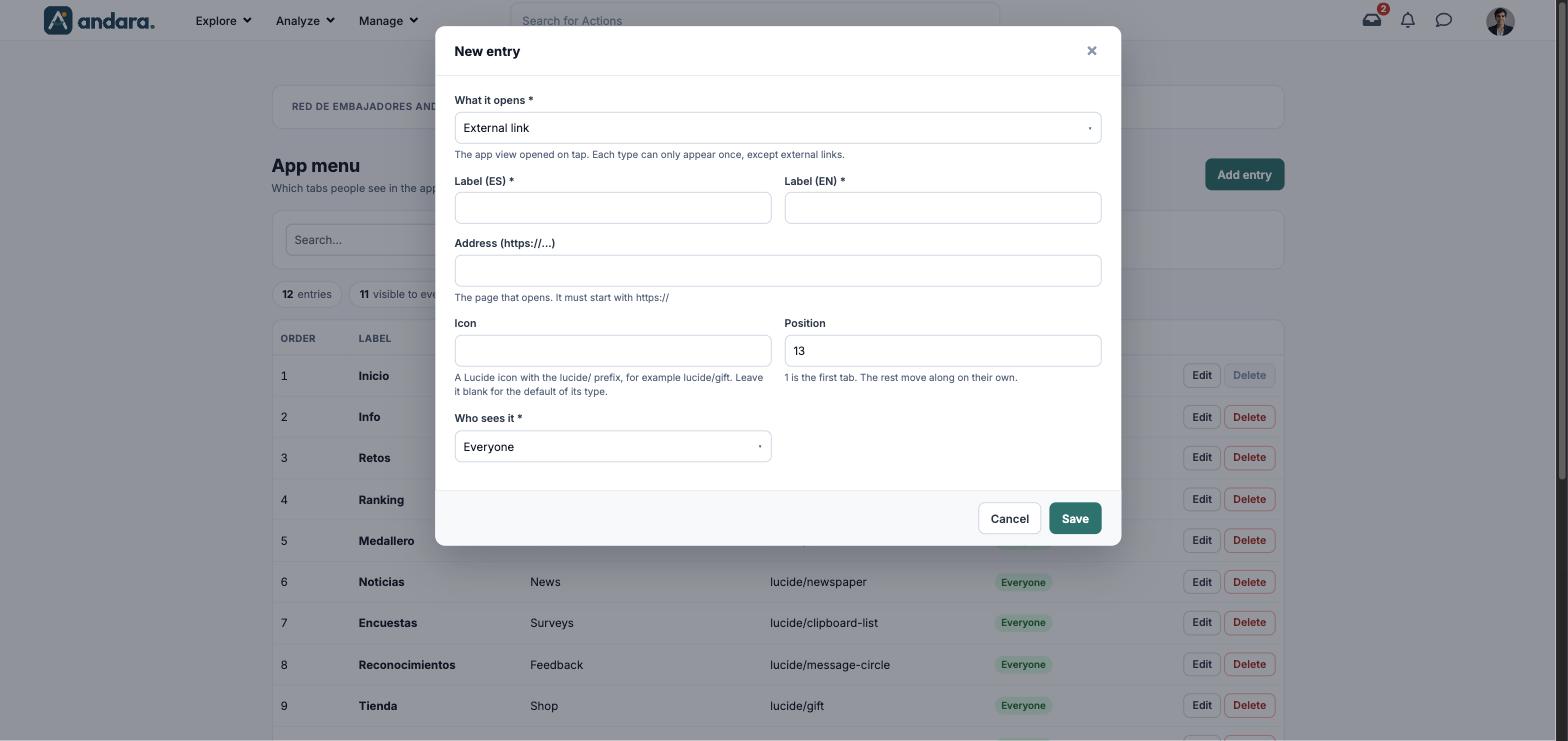
| Address (https://…) | The page that opens. Only shown for External link. | Web address. It must start with https://. |
| Icon | The tab's icon. | Name of a Lucide icon with the lucide/ prefix, for example lucide/gift. Blank uses the default for its type. |
| Position | Where the tab goes. The rest move along on their own. | Number. 1 is the first. A new entry gets the next free one. |
| Who sees it | Which people get the tab. | Required. Everyone, Admins only or Managers only. |
How to#
Add a link to an external page#
- 1
Open a new form
Press Add entry.
- 2
Choose the type
Under What it opens, choose External link. Address (https://…) appears.
- 3
Fill in the entry
Type Label (ES), Label (EN) and the Address. Add an Icon if you want.
- 4
Place it and save
Choose the Position and Who sees it, and press Save.
Rename or reorder a tab#
- 1
Open it
Press Edit on its row.
- 2
Change label or position
Edit Label (ES) and Label (EN), or set another Position. The other tabs move along on their own.
- 3
Save
Press Save.
Things to know#
- Home cannot be removed: the menu always needs a Home entry.
- Each view can only appear once. Only external links can repeat.
- A tab for Admins only or Managers only is hidden from everyone else, even though the view exists.
- The label is required in both languages: an entry cannot be saved in Spanish only.
Related#
- Project home page: what people see on the home tab.
- Company settings: the modules switched on or off for the whole company.
- Branding and languages: how the app presents itself.