What it is for#
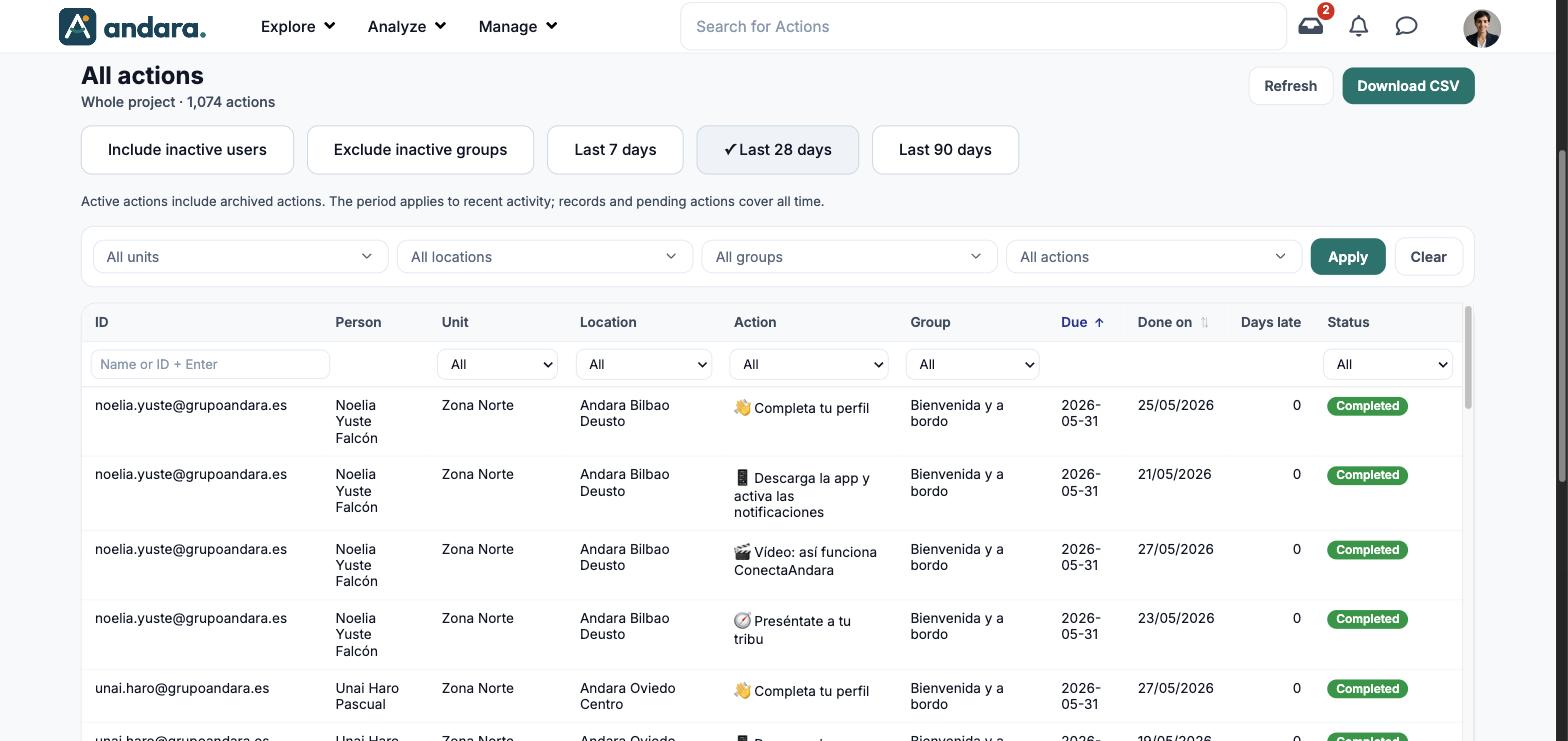
Here you have every action assigned to every person, one per row: when it is due, when it was done, how many days late it is and what status it is in. It is the detail underneath the bars of Aggregated Action Progress.
Use it to look up a specific case (a person, an action) and to export a filtered list to a spreadsheet.
Where it is: Analyze › Actions Follow-up › Actions Detail Report.
What you see#
| Element | What it shows |
|---|---|
| All actions | The title, with the scope (Whole project) and the number of assigned actions underneath. |
| Refresh | Requests the data again. |
| Download CSV | Downloads the list as a file you can open in a spreadsheet. |
| Include inactive users, Exclude inactive groups, period | The same toggles as in the other follow-up panels (see Filters). |
| General filters | All units, All locations, All groups and All actions, with Apply and Clear. |
| ID | The person's email. |
| Person | First and last name. |
| Unit, Location | Where the person is placed. |
| Action, Group | The assigned action and its action group. |
| Due | The deadline. By default the table is sorted by this column, oldest first (↑). |
| Done on | The date it was completed. Empty if not yet. It can be sorted (⇅). |
| Days late | How many days past the deadline. |
| Status | Where the action stands, with a coloured label. |
| Pagination | At the bottom: "1–50 of 1,074 · page 1 of 22", with Previous and Next. |
Metrics#
There are no cards or charts: the screen is the list. The only counts are the total of assigned actions in the header and the number of rows in the footer, which changes with the filters.
| Metric | What it measures | How it is calculated |
|---|---|---|
| Actions in the header | How many assigned actions are in scope. | One per person and action. |
| Days late | How far past the deadline each row is. | Days since Due. 0 if it is on time. |
Filters#
There are two levels: the general filters at the top, which recalculate the list, and the ones in the table's header row, which narrow it down further.
| Filter | What it does | Values |
|---|---|---|
| All units, All locations, All groups, All actions | Narrow the scope of the list. They take effect with Apply; Clear sets them back to "all". | Drop-downs with search. Default: all. |
| Include inactive users | Counts people who can no longer sign in to the app. | Toggle. Default: off. |
| Exclude inactive groups | Leaves out the actions of deactivated action groups. | Toggle. Default: off. |
| Last 7 days / 28 days / 90 days | The window for recent activity. Records and pending actions cover all time. | Default: Last 28 days. |
| Name or ID + Enter | Searches by the person's name or email. It runs when you press Enter. | Text. |
| Unit, Location, Action, Group (in the table) | Keep a single unit, location, action or group. | Drop-down with All and the project's list. Default: All. |
| Status (in the table) | Keeps the rows in one status. | All; four general statuses (Completed, Pending, Overdue, Rejected) and, below them, the detailed statuses: Completed, Pending execution, Pending approval, Optional, open, Delayed, Returned, Rejected. Default: All. |
| Sorting | Click Due or Done on to sort by that date. | Ascending or descending. |
How to#
Find a person's actions#
- 1
Type their name
In Name or ID + Enter, type the name or email and press Enter.
- 2
Narrow it down if needed
Pick a Status in the table header, for example Pending approval.
Export a list to a spreadsheet#
- 1
Narrow the scope
Pick units, locations, groups or actions at the top and click Apply.
- 2
Filter the table
Use the drop-downs in the table header to keep what you need.
- 3
Download
Click Download CSV.
Things to know#
- The ID column shows the person's email, not a number.
- When you sort by Done on, actions not yet completed go to the end, because they have no date.
- Active actions include archived ones, as in the other follow-up panels.
- Each row is one action for one person: someone with ten assigned actions takes up ten rows.
Related#
- Aggregated Action Progress: the same actions, as charts.
- Detailed Action Progress: each manager's team.
- Action Assignments: where actions are handed out.
- The manager's panel.