What it is for#
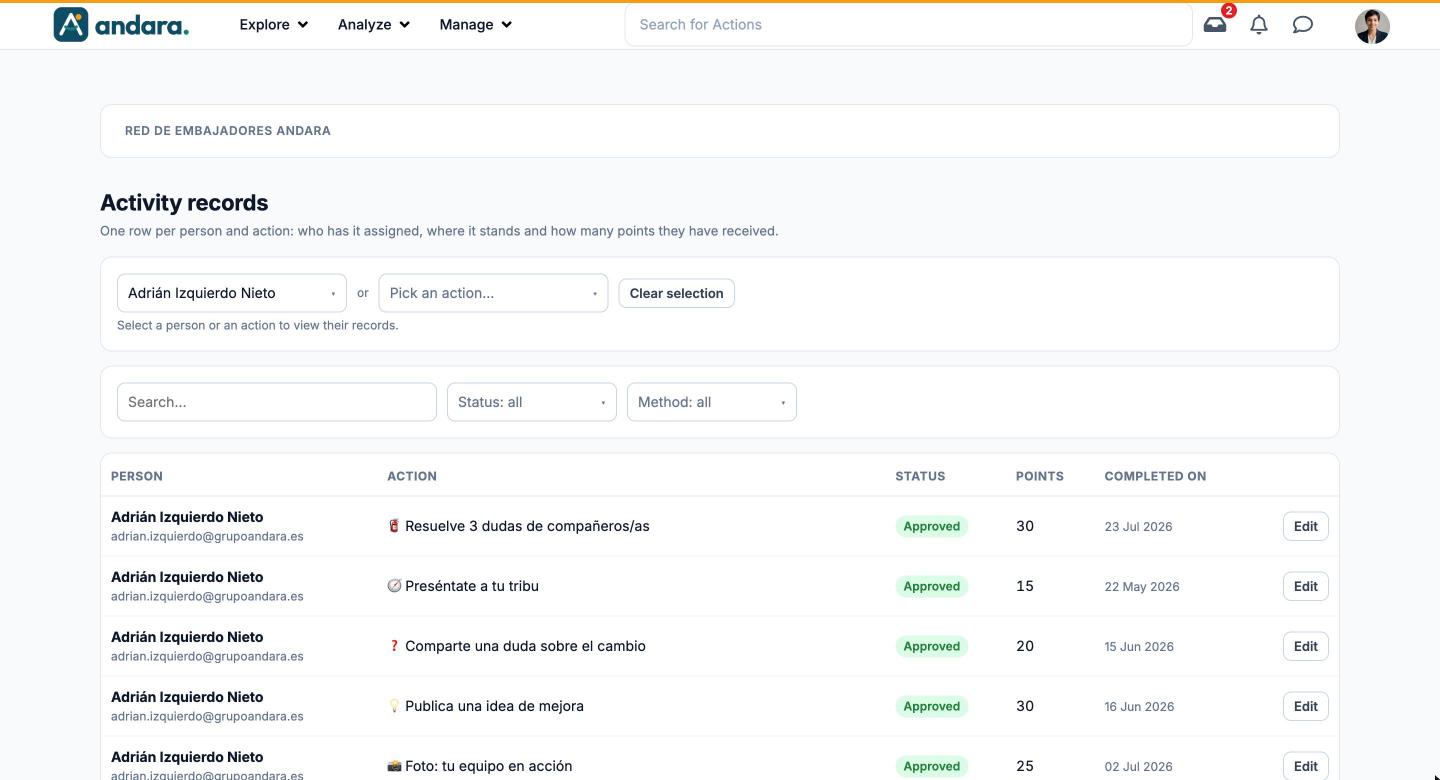
This is where you look up and correct activity records: one row for each person and each action they have assigned, with the status it is in and the points they have received. It helps you piece together a specific case ("why are these points not counting?") and correct a record by hand.
In the app the screen is called Activity records. New actions are not assigned from here.
Where it is: Manage › Users › Action Assignments.
What you see#
| Element | What it shows |
|---|---|
| Pick a person… | Drop-down with the people in the project. Once you pick one, you see all their actions. |
| Pick an action… | Drop-down with the actions in the project. Once you pick one, you see everyone who has it. You use one or the other, not both. |
| Clear selection | Clears the chosen person or action so you can start another query. |
| Search… | Filters the rows as you type. |
| Status: all | Keeps only the records in one status: Assigned, Awaiting approval, Approved, Rejected, Sent back or Voided. |
| Method: all | Keeps only the actions completed in a given way: Manager approval, Numeric code, Self-approval, Test, Validation or Video completion. |
| Person | Name and email. |
| Action | The action in the record. |
| Status | Where it stands. |
| Points | The record's points. |
| Completed on | The date it was completed. |
| Edit | Opens the record to correct it. |
Settings#
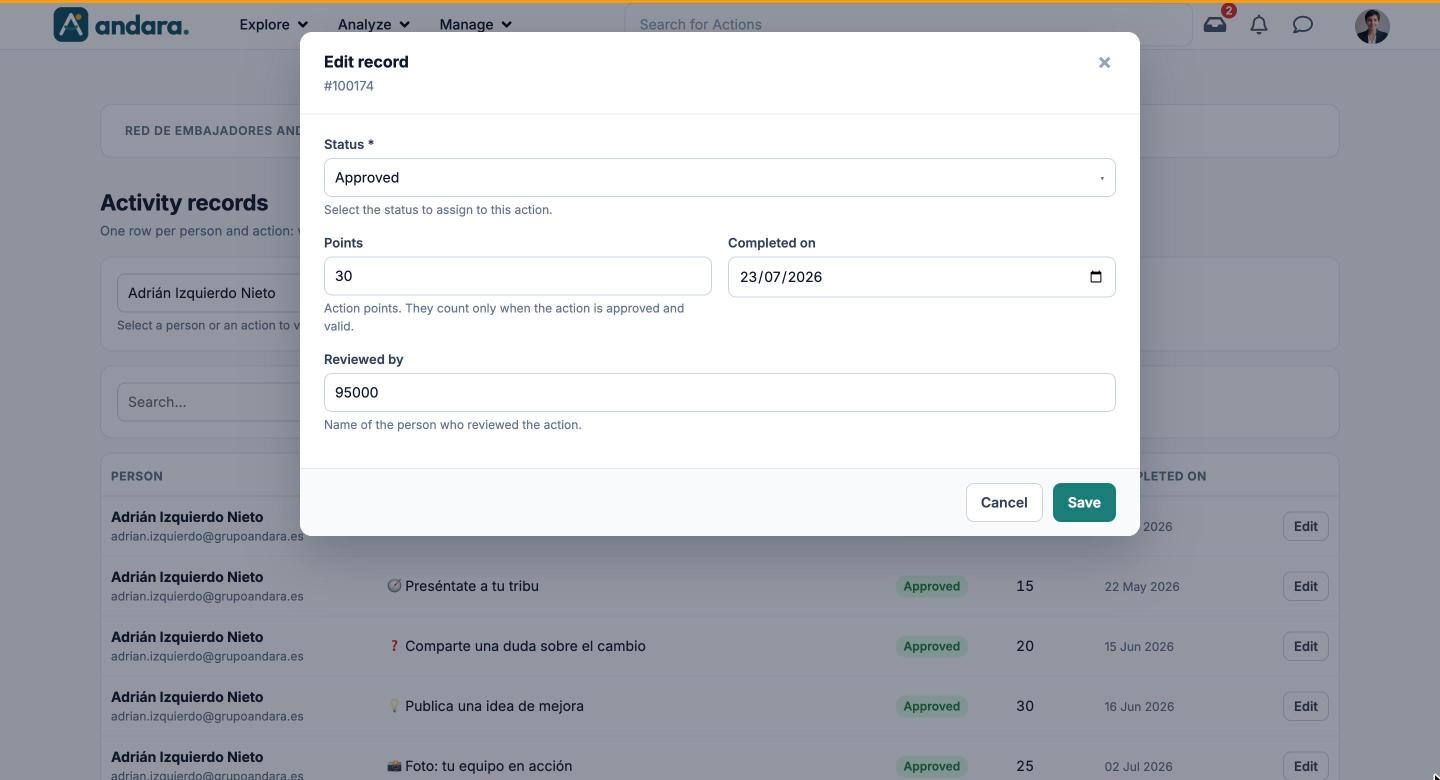
Clicking Edit opens Edit record, with the record number under the title.
| Field | What it does | Values |
|---|---|---|
| Status | The record's status for this person and this action. | Assigned, Awaiting approval, Approved, Rejected, Sent back or Voided. Required. |
| Points | The action's points for this person. They count only when the record is Approved and valid. | Number. |
| Completed on | The date it was marked as completed. | Date. |
| Reviewed by | Who reviewed the action. | Text. |
How to#
Look up a person's actions#
- 1
Pick the person
Under Pick a person…, select their name.
- 2
Narrow it down
Use Status to see, for example, only what is Awaiting approval.
- 3
Review
Check the status, points and date of each action.
Correct a record#
- 1
Find it
Pick the person or the action and find the row.
- 2
Open it
Click Edit.
- 3
Correct it
Change Status, Points or Completed on.
- 4
Save
Click Save.
Things to know#
- Points only count when the record is approved. Points on a record in any other status do not add up.
- This screen is for corrections, not for day-to-day work. Anything awaiting approval is approved or rejected in the Inbox.
- Nothing loads until you pick a person or an action. It is not a fault: the screen starts empty on purpose.
Related#
- Journeys and challenges: how actions are assigned and completed.
- Approvals and moderation: the normal route to approve or reject.
- Points, badges and streaks: how points count.
- User Eligibility Groups: who gets each action.