What it is and what it's for#
Some challenges are not accepted automatically: someone has to look at them. And some comments and recognitions are held back by the AI before they are published. All of that is handled in one place, the Inbox, a side panel that opens from the icons in the top bar, next to your photo. The red number on each icon is what you have pending of that type.
| Icon | What it opens |
|---|---|
| Approvals (the tray) | Actions someone has submitted that are waiting for your decision, and any peer validations you have been asked for. |
| Notifications (the bell) | Your notices from the last 30 days: recognitions, mentions, replies. Nothing to decide. |
| Comments to moderate (the speech bubble) | Moderation: comments and recognitions the AI has held back and that are not published. |
| Orders to process (the box) | Shop redemptions waiting for you to prepare them. |
All four open the same panel. At the top, a drop-down switches type (Approvals · N, Orders · N…) and All brings everything pending together, grouped by type. When nothing of a type is left, the panel says so. The screen is described in detail in Inbox.
Who sees what: the project's administrators see every approval, moderation and order. A manager (the manager of an organisation) only has the Approvals and Notifications icons, and in Approvals they only see the submissions of the people in their organisations. Nobody can approve their own actions. See The manager's panel.
Besides the inbox there are three supporting screens under Manage, for when you need the history and not just what is pending: Comments, AI Actions Approval and Blocked Users.
How to set it up#
1. Decide which actions need approval#
The approval queue is not configured from the inbox: it builds itself from each action's completion method. If you choose manager approval, every person who submits it creates a pending entry. See Journeys and challenges.
Before launching a journey with many manually approved actions, warn the managers. If nobody approves, the action stays pending and the points are never credited.
2. Make sure someone can approve#
A pending submission can be resolved by the project's administrators and by the manager of the person's organisation. If you want each manager, rather than the central team, to handle approvals, every person has to be in an organisation with a Manager assigned. You can check this in Organisations, which has filters for organisations with and without a manager.
Before a large campaign, filter the organisations without a manager. Whatever the people in those organisations submit only reaches the administrators' inbox.
3. Review what the AI decides#
On an action with manager approval you can switch on automatic AI approval and write its criteria. If the AI approves the submission, the action is completed; if not, a person reviews it. What it decides is recorded in Manage › Journeys › AI Actions Approval, a screen showing what it approved and what it rejected, and why.
If no action in the project has automatic approval switched on, the screen only shows a notice saying the project has no AI-moderated actions. Details in AI Actions Approval.
What the AI approves is closed; what it rejects is not: it keeps waiting for a person to resolve it in the inbox.
Day-to-day use#
Approve, send back or reject an action#
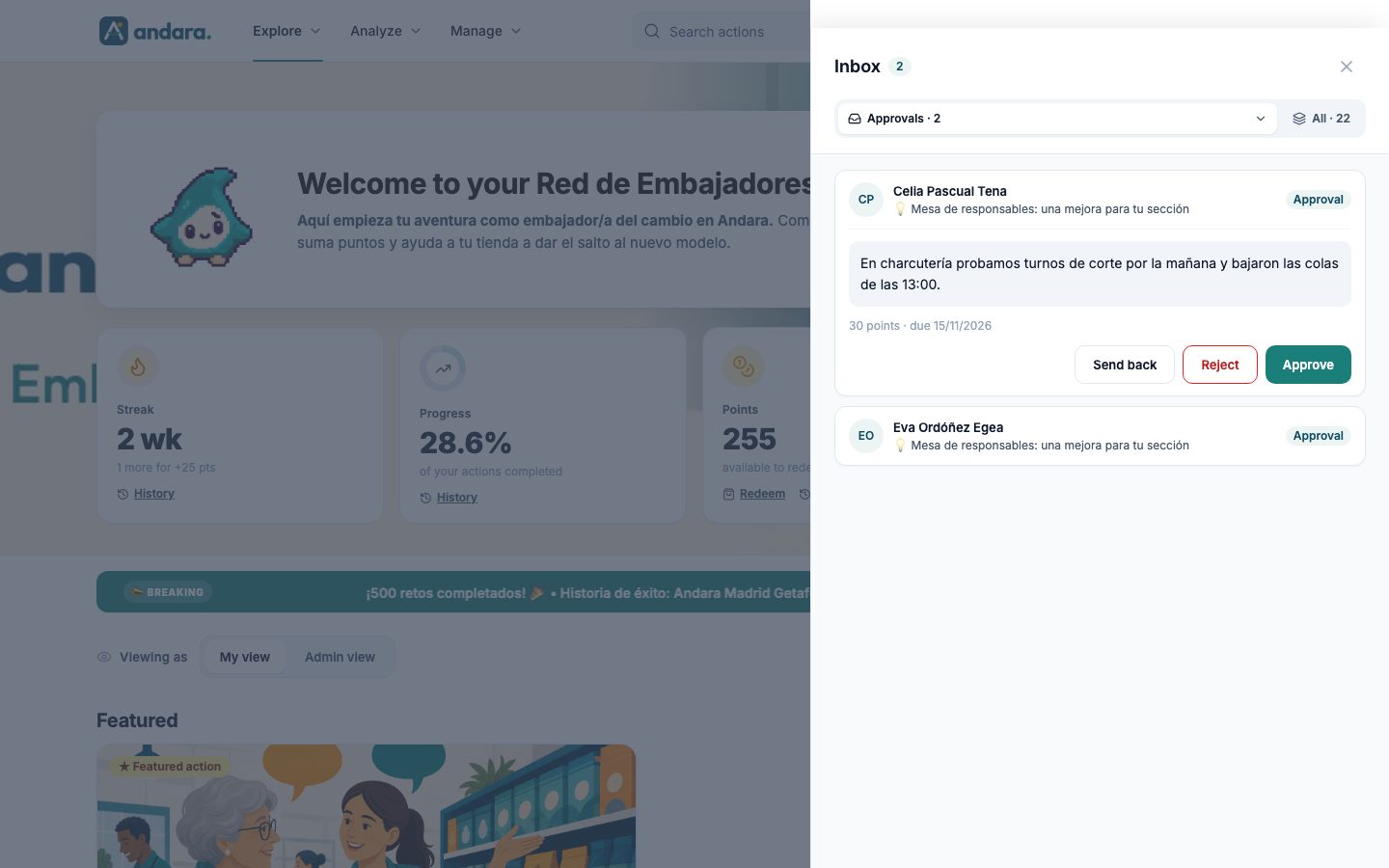
In Approvals, each row shows the person, the name of the action and the Approval label. Clicking it expands it with what the person wrote when submitting, the points and the due date, and three buttons:
| Button | What happens |
|---|---|
| Approve | The points are credited immediately and the action becomes completed. If the submission has comments, the inbox asks which ones you want to make public; by default they are private. |
| Send back | A required field opens asking what they should fix or add. The person sees it on their action and in their notifications, the action reopens and they can fix it and resubmit. |
| Reject | The action is closed with no points and cannot be submitted again. It does not ask for a reason. |
As soon as you decide, the row is no longer pending.
If you want the person to fix it, use Send back, not Reject: rejection is final and explains nothing.
Moderate what the AI holds back#
Every comment (on actions and on news) and every recognition is checked by the AI when it is sent. Whatever the AI finds doubtful is not published and goes into Moderation. Each row shows the full text and the Flag reason, which is the reason the AI gave.
| Decision | What happens |
|---|---|
| Publish | The content becomes visible where it belongs. |
| Do not publish | The content stays removed. |
Until someone decides, the content is hidden. An unreviewed moderation amounts to censorship by default: empty this queue daily, not once a week.
Look through the comment history#
Manage › Users › Comments gathers everything written in the project: comments on actions, those on the approval record, those on news items and the recognitions on the wall. You can filter by type, by status (for example Unanswered or hidden ones) and by period, and it opens on the last 90 days. From there you open each thread to reply and hide what should not be seen; hiding does not delete and can be undone. Details in Comments.
For an aggregate view of what is being said, see Comments dashboard.
Unlock an account#
An account locks itself after several failed sign-in attempts. Locked accounts appear in Blocked Users (Manage › Security › Blocked Users). Unblock resets the attempts to zero and gives the person access again immediately.
Before unblocking, check in Signons & Attempted Signons what happened. Someone locked out by password attempts can unlock themselves by recovering their password; someone locked out by verification codes cannot. See Security and auditability.
Frequently asked questions#
What happens if someone's manager leaves the company?
Assign another Manager to their organisation in Organisations. In the meantime, pending submissions stay in the administrators' inbox, and they can resolve them.
An overdue action is still pending approval. Can it still be approved?
If the submission is still in the inbox, yes: approving it credits the points even if the deadline has passed. Lateness can reduce the points if your company has a Late penalty (%) set in Company settings.
I rejected something by mistake. Can it be undone?
Not from the inbox: rejection closes the action and the person cannot resubmit it. If it needs compensating, review their points in Point adjustments and redemptions. Next time, Send back is the option that lets them fix it.
Can I approve several requests at once?
No. Each row is decided one by one, precisely so that each gets looked at. If you pile up hundreds of pending items, consider whether that action should be completed another way or with automatic AI approval.
Does the employee see who approved, sent back or rejected them?
They see that their action has changed status and, if you send it back, what you wrote. Who decided is recorded in the panel.
Can automatic AI approval get it wrong?
Yes, which is why AI Actions Approval exists. Review it by sampling during the first weeks of each new action and, if it is not getting it right, refine its criteria or turn automatic approval off for that action.
Limits and caveats#
- The queue does not expire or escalate by itself. Nothing tells a manager they have not logged in for weeks. Follow-up is yours: the admin dashboard on the home page tells you how many approvals are pending.
- Held content stays hidden until someone decides. There is no automatic publishing after a period of time.
- Reject takes no reason and cannot be undone. The explanation goes with Send back, or in the action's comment thread.
- Unblocking an account does not change the password. If the person still cannot remember it, they will have to recover it.
- Decisions are recorded with name and date. Treat them for what they are: an auditable trail of who validated what.