What it is for#
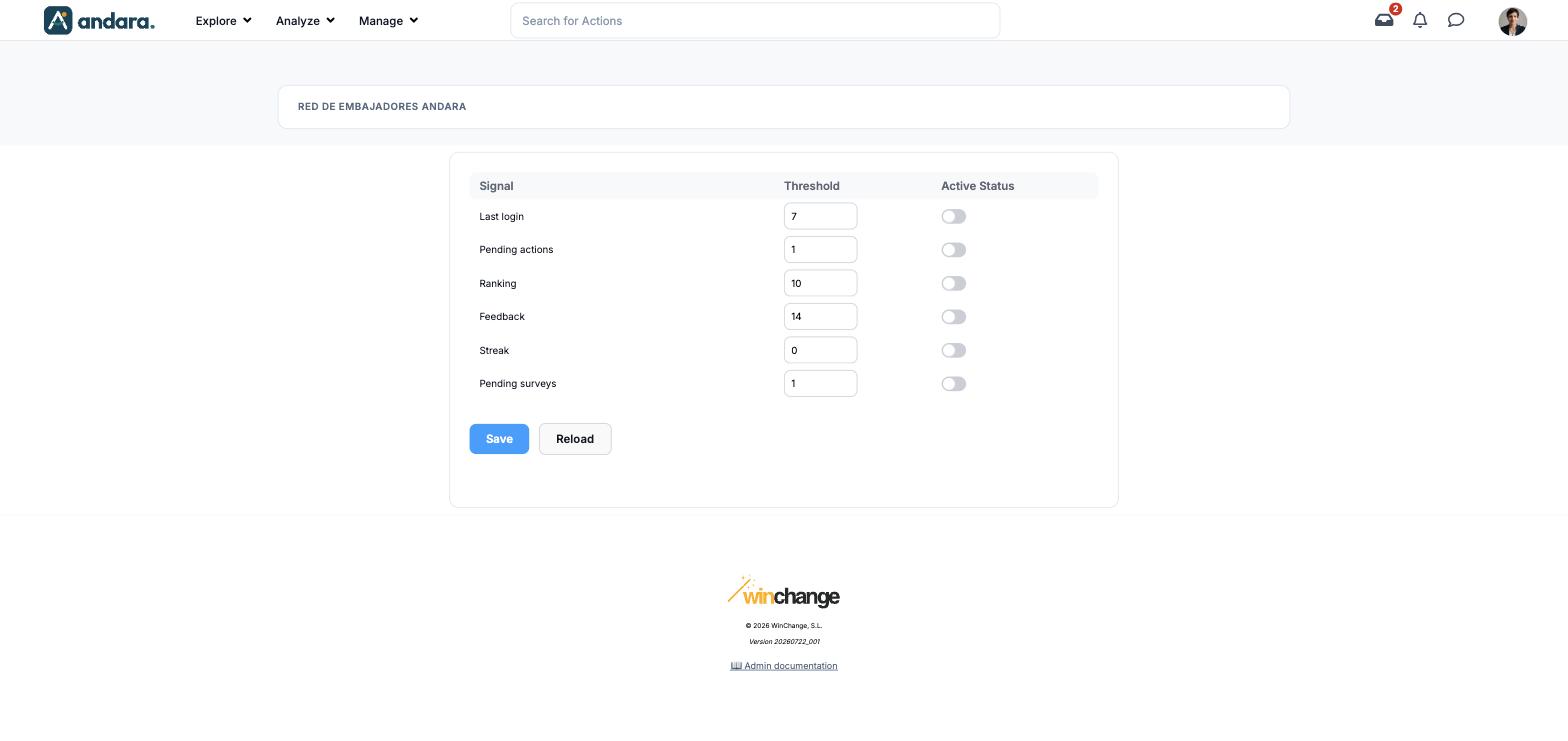
This is where you decide which situations deserve a smart push message and from what point. Each row is a signal (days without signing in, pending actions, ranking position…) with its threshold and a switch to use it or not.
Rules only take effect if smart notifications are switched on in Push Notification Settings.
Where it is: Manage › Notifications › Push Notification rules.
What you see#
The name of the project you are in appears at the top: the rules belong to that project.
| Element | What it shows |
|---|---|
| Signal | The situation being watched. |
| Threshold | The number from which the signal fires. |
| Active Status | Whether the signal is taken into account. |
| Save | Stores the thresholds and switches of the whole table. |
| Reload | Loads the stored values again. |
Settings#
The six signals are fixed: they cannot be added or removed, only their threshold changed and switched on or off.
| Field | What it does | Values |
|---|---|---|
| Last login | Notifies anyone who has not signed in for at least as many days as the threshold. | Number of days. 7 in the demo. |
| Pending actions | Notifies anyone with at least as many pending actions as the threshold. | Number of actions. 1 in the demo. |
| Ranking | Notifies anyone at that ranking position or lower. | Position. 10 in the demo. |
| Feedback | Notifies anyone with no recognition activity for at least as many days as the threshold. | Number of days. 14 in the demo. |
| Streak | Notifies anyone whose ongoing streak is at risk of breaking. | Number. 0 in the demo. |
| Pending surveys | Notifies anyone with at least as many unanswered surveys as the threshold. | Number of surveys. 1 in the demo. |
| Active Status (on each row) | When off, the signal triggers no messages even if it is met. | Switch. All off in the demo. |
One person can meet several signals at once; the message they receive focuses on one of them.
How to#
Adjust a rule#
- 1
Change the threshold
Type the new value in the signal's Threshold column.
- 2
Turn it on
Switch it on under Active Status.
- 3
Save
Press Save. If you make a mistake before saving, Reload loads the stored values again.
Things to know#
- Rules do nothing on their own. You also need the master switch and smart notifications turned on in Push Notification Settings.
- A low threshold multiplies the messages. With Last login at 1, anyone who skips a day gets a notification; people end up withdrawing permission.
- It only reaches people who have the app with notifications allowed. See Push Subscriptions.
- Signal names are shown in English in both versions of the interface.
Related#
- Push Notification Settings: the general switches and the tone.
- Smart Push Notification Log: which messages went out and why.
- Notifications and email: the ways to reach people.