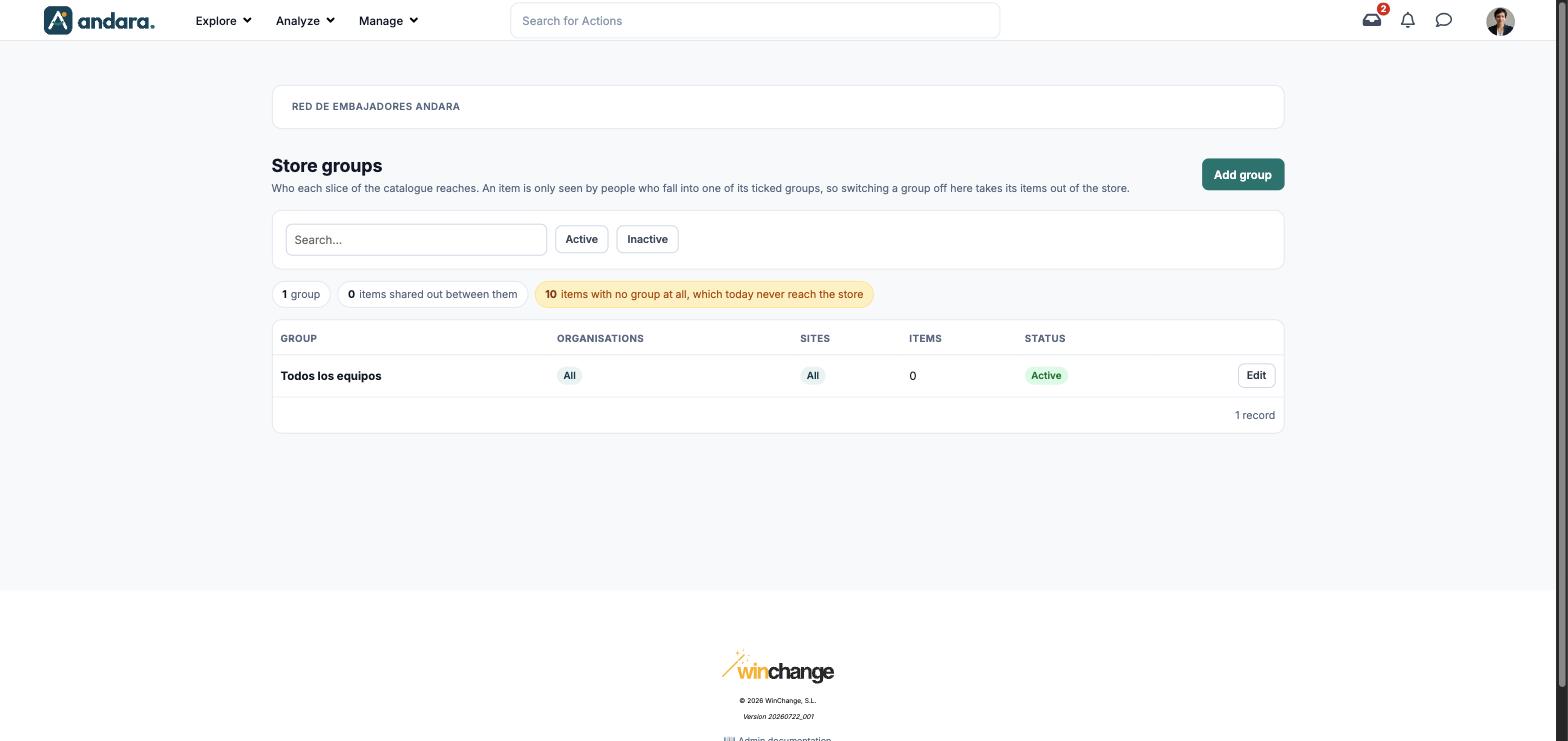
What it is for#
A store group decides who sees a part of the catalogue: each group covers some organisations and some sites, and each store item ticks the groups it belongs to. That way you can have rewards for the whole workforce and others only for one region or a few sites.
Switching a group off here takes the items that depend on it out of the store.
Where it is: Manage › Rewards › Store Groups.
What you see#
The name of the project you are in is shown at the top.
| Element | What it shows |
|---|---|
| Search… | Filters the list as you type. |
| Active / Inactive | Shows only the groups that are on, or only those that are off. |
| N group | How many groups match the current filters. |
| N items shared out between them | How many catalogue items are assigned to some group. |
| N items with no group at all, which today never reach the store | Yellow warning with the items that have no group ticked. |
| Group | The group name. |
| Organisations | The organisations it covers, or All if it has not been narrowed down. |
| Sites | The sites it covers, or All if it has not been narrowed down. |
| Items | How many catalogue items have this group ticked. |
| Status | Active or inactive. |
| Edit | Opens the group form. |
| Add group | Opens a blank form. |
Settings#
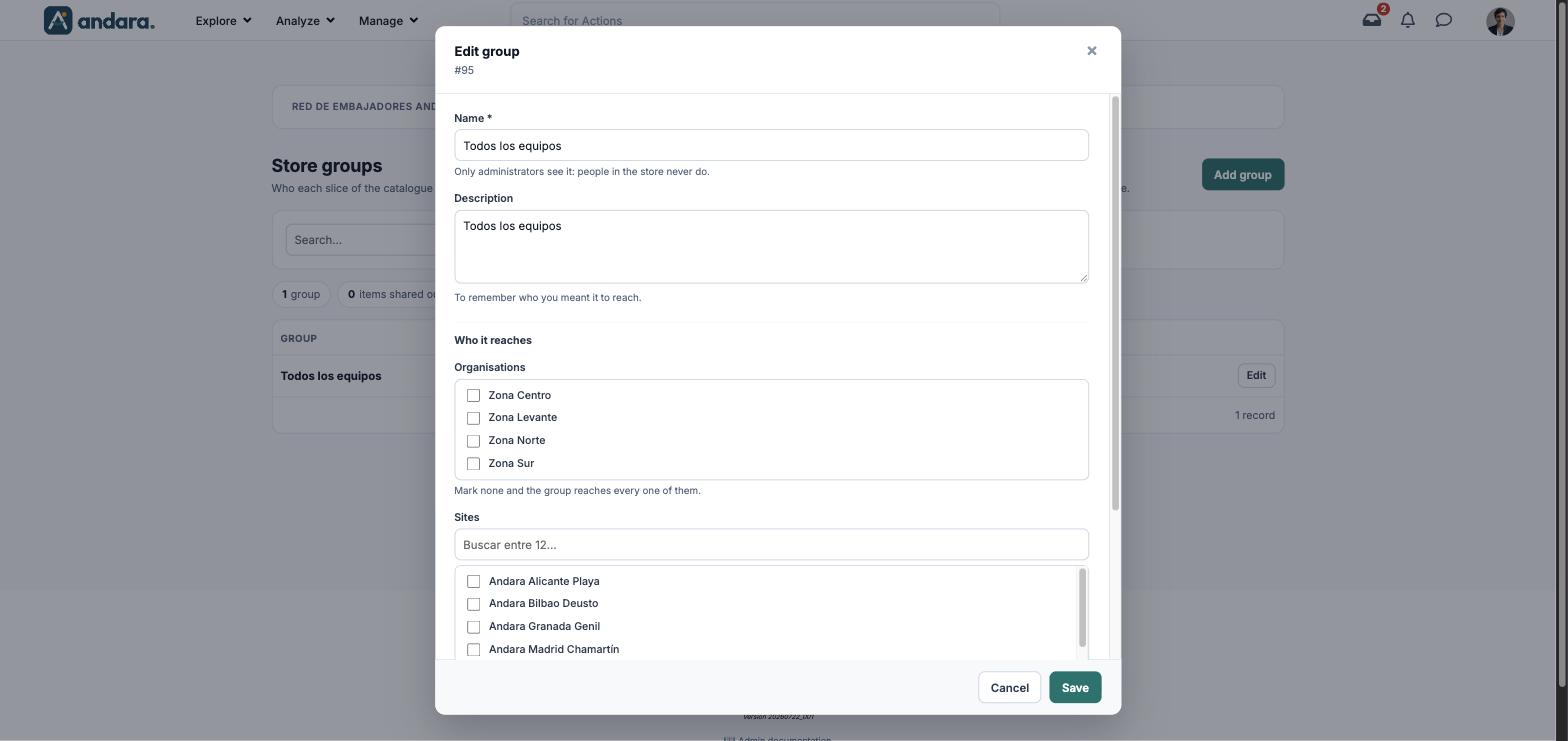
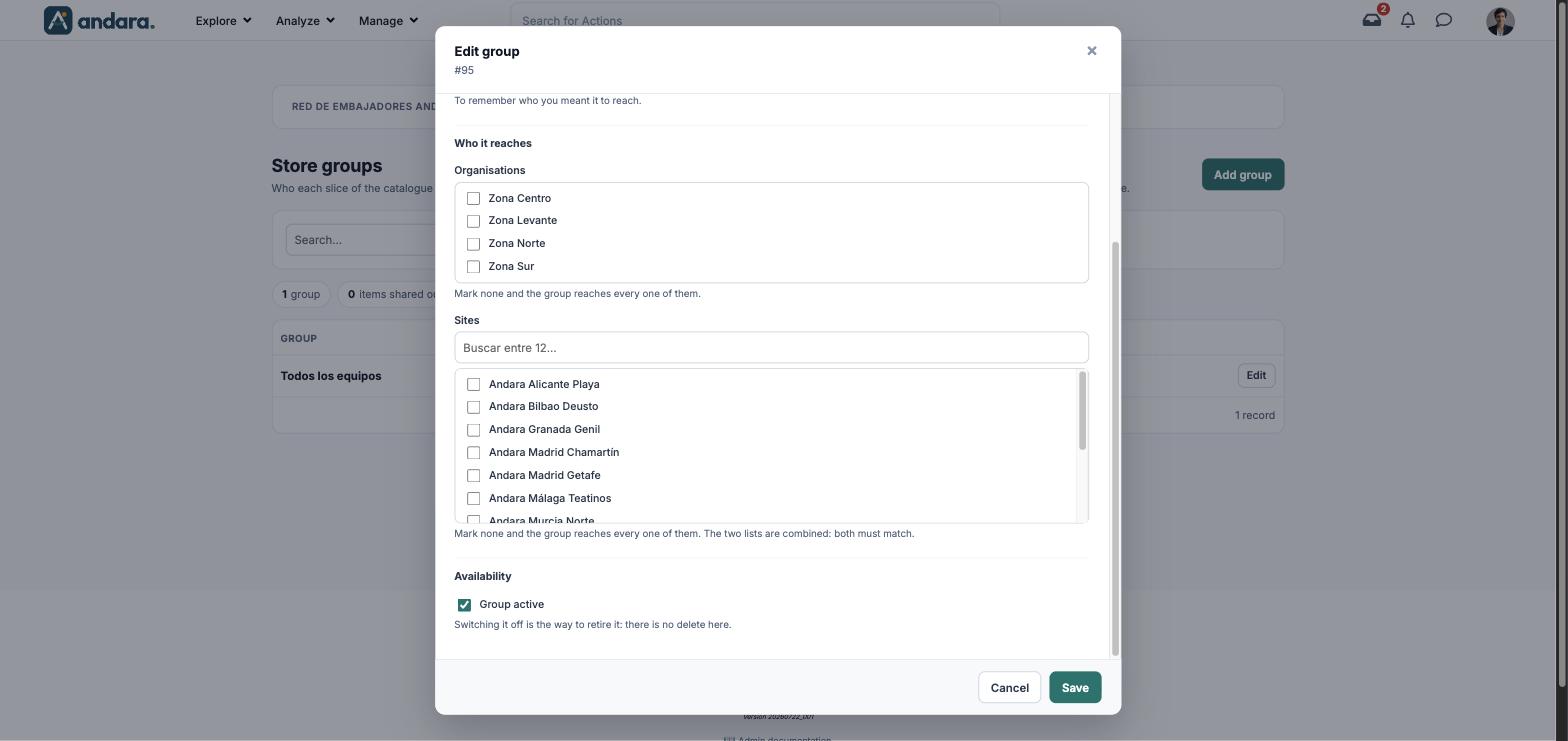
The form is the same to create (New group) and to edit (Edit group, with its number under the title).
| Field | What it does | Values |
|---|---|---|
| Name | Identifies the group. Only administrators see it: people using the store never do. | Text. Required. |
| Description | A note to remember who you meant the group to reach. | Free text. |
| Organisations | The organisations the group covers. With none ticked, it covers all of them. | Tick boxes with the project's organisations. Several or none. |
| Sites | The sites it covers. With none ticked, it covers all of them. The two lists are combined: a person has to match both. | Tick boxes with the sites, with a search box. Several or none. |
| Group active | Switches the group on or retires it. Switching it off is the way to retire it: there is no delete on this screen. | Tick box. Ticked by default. |
How to#
Create a group for one region#
- 1
Open a new form
Click Add group.
- 2
Name it
Type the Name and, if you like, a Description saying who it is for.
- 3
Narrow the reach
Tick the Organisations and, if needed, the Sites. Remember that the two lists are combined.
- 4
Save
Click Save.
- 5
Assign items
In Store Items, open each item that should show in this region and tick the group under Store groups.
Retire a group#
- 1
Open it
Click Edit on its row.
- 2
Switch it off
Untick Group active and click Save. Its items stop showing in the store.
Things to know#
- Switching a group off takes its items out of the store. Check the Items column before you do it.
- Organisations and sites are combined. If you tick one region and a site from another region, the group reaches nobody.
- There is no delete button on this screen: a group is retired by unticking Group active.
- The counter at the top flags items with no group at all. Read it alongside the item form, which says that an item with no groups ticked is seen by the whole project.
Related#
- Store and redemptions: how groups, items and redemptions fit together.
- Store Items: where each item picks its groups.
- Organisations and Locations.