What it is for#
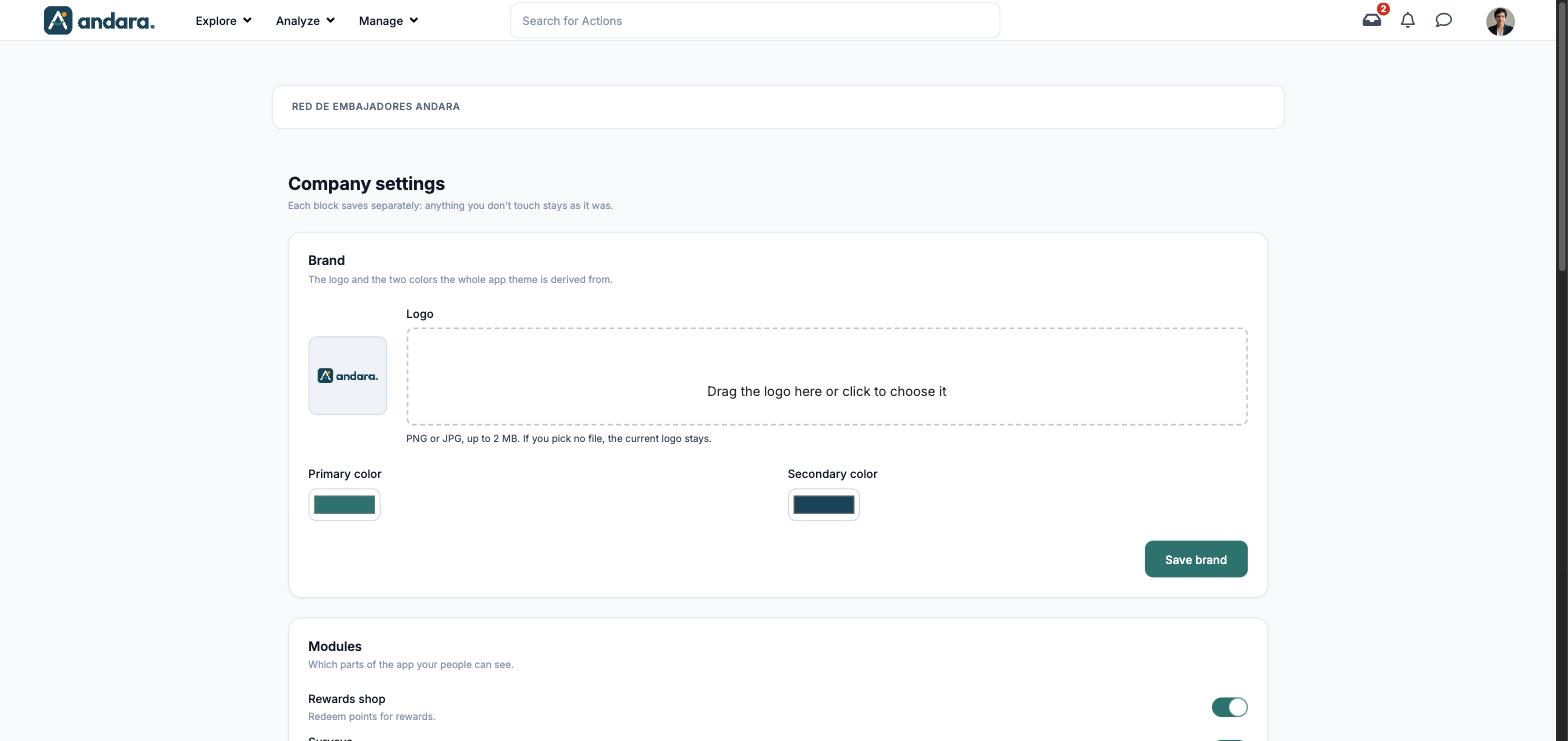
This is where you set what all your company's projects share: the app's logo and colours, which modules people see, two points rules, which email domains people can sign up with and which languages the app is in.
The screen has five blocks and each one is saved separately with its own button: anything you don't touch stays as it was.
Where it is: Manage › Configuration › Company settings.
What you see#
| Element | What it shows |
|---|---|
| Brand | The logo and the two colours the whole app theme is derived from. |
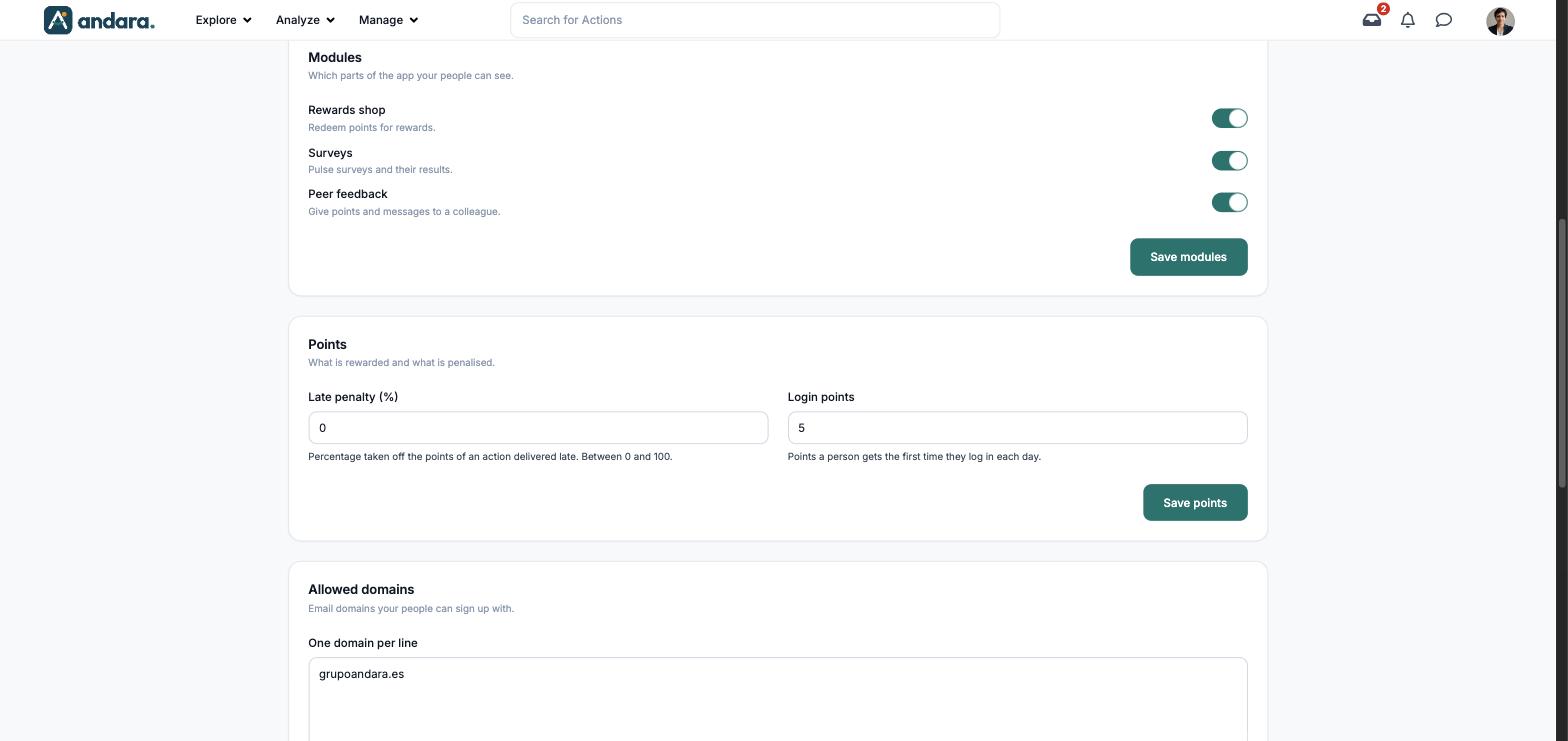
| Modules | Which parts of the app your people can see. |
| Points | What is rewarded and what is penalised. |
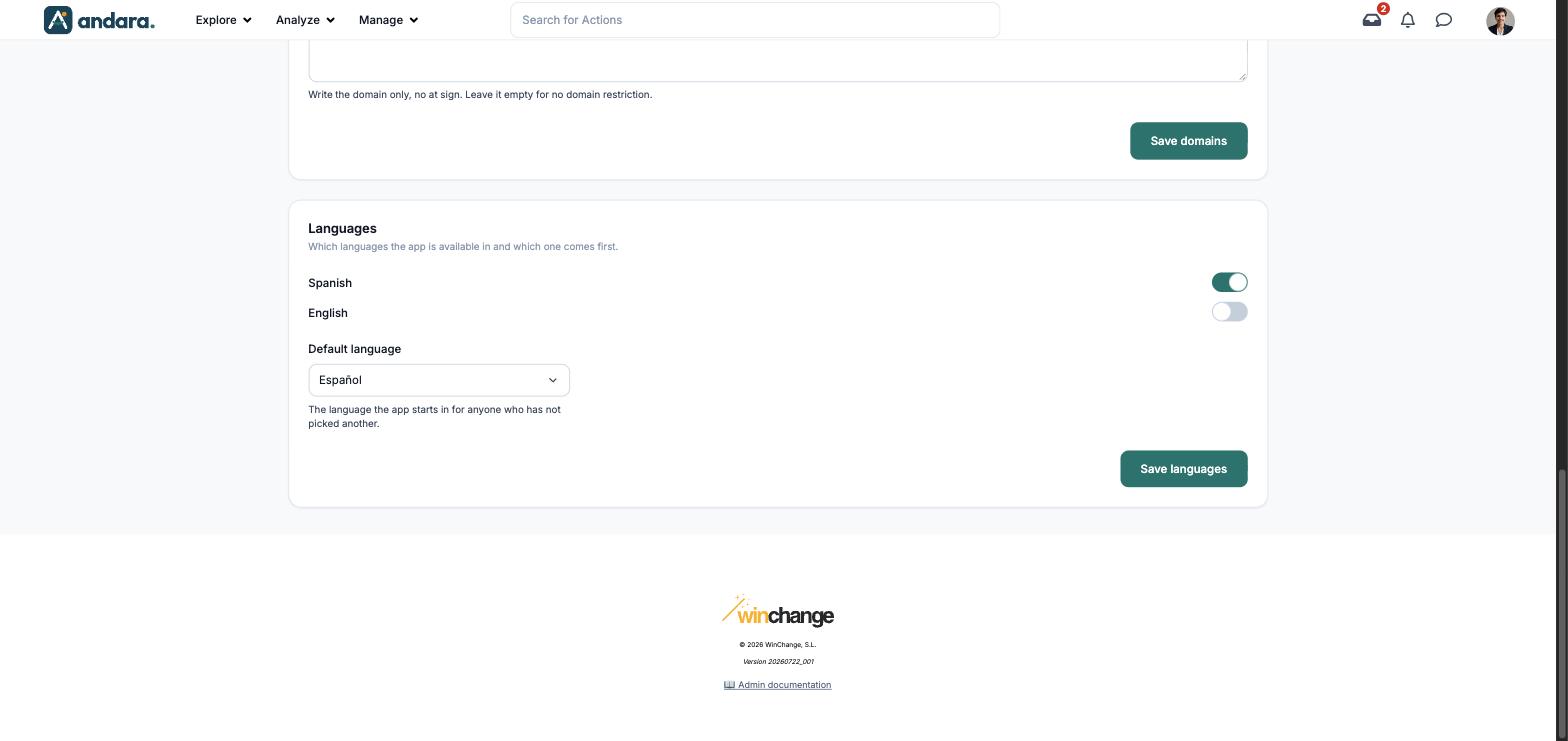
| Allowed domains | Which email domains people from your company can sign up with. |
| Languages | Which languages the app is available in and which one comes first. |
Settings#
Brand#
| Field | What it does | Values |
|---|---|---|
| Logo | The app logo. The current one is shown on the left; to change it, drop a file on Drag the logo here or click to choose it. | PNG or JPG, up to 2 MB. If you pick no file, the current logo stays. |
| Primary color | One of the two colours the whole app theme is derived from. | Colour picker. |
| Secondary color | The second theme colour. | Colour picker. |
Stored with Save brand.
Modules#
| Field | What it does | Values |
|---|---|---|
| Rewards shop | Redeem points for rewards. When off, the shop disappears for the whole company. | Switch. On in the demo. |
| Surveys | Pulse surveys and their results. | Switch. On in the demo. |
| Peer feedback | Give points and messages to a colleague. | Switch. On in the demo. |
Stored with Save modules.
Points#
| Field | What it does | Values |
|---|---|---|
| Late penalty (%) | Percentage taken off the points of an action delivered late. | Number between 0 and 100. 0 = no penalty. |
| Login points | Points a person gets the first time they log in each day. | Number. 5 in the demo. |
Stored with Save points.
Allowed domains#
| Field | What it does | Values |
|---|---|---|
| One domain per line | The email domains people from your company can sign up with. | Text: one domain per line, no at sign (for example miempresa.com). Empty = no domain restriction. |
Stored with Save domains.
Languages#
| Field | What it does | Values |
|---|---|---|
| Spanish | The app can be used in Spanish. | Switch. |
| English | The app can be used in English. | Switch. |
| Default language | The language the app starts in for anyone who has not picked another. | Español or English. |
Stored with Save languages.
How to#
Change the logo and colours#
- 1
Upload the logo
Drop the file on the Logo area or click it to choose one.
- 2
Pick the colours
Click Primary color and Secondary color and choose each one.
- 3
Save the block
Press Save brand. The other blocks are not touched.
Turn a module off#
- 1
Switch it off
Under Modules, turn its switch off.
- 2
Save
Press Save modules. It disappears for every project in the company.
Things to know#
Each block has its own button. If you change two blocks and only press one button, the change in the other block is not saved.
- Everything on this screen affects every project at once. For what changes from one project to another, use Project home page.
- The colours tint the whole app. With a very light or very saturated colour, check that text on top of it is still readable.
- Allowed domains filter sign-up, not access: restricting them does not remove anyone already inside.
- The default language drop-down shows the Spanish option as «Español», not "Spanish" as the switch above does.
Related#
- Branding and languages: bringing the app into your brand.
- Getting started: the order to get the company ready.
- Projects and Project home page: what is set per project.