What it is for#
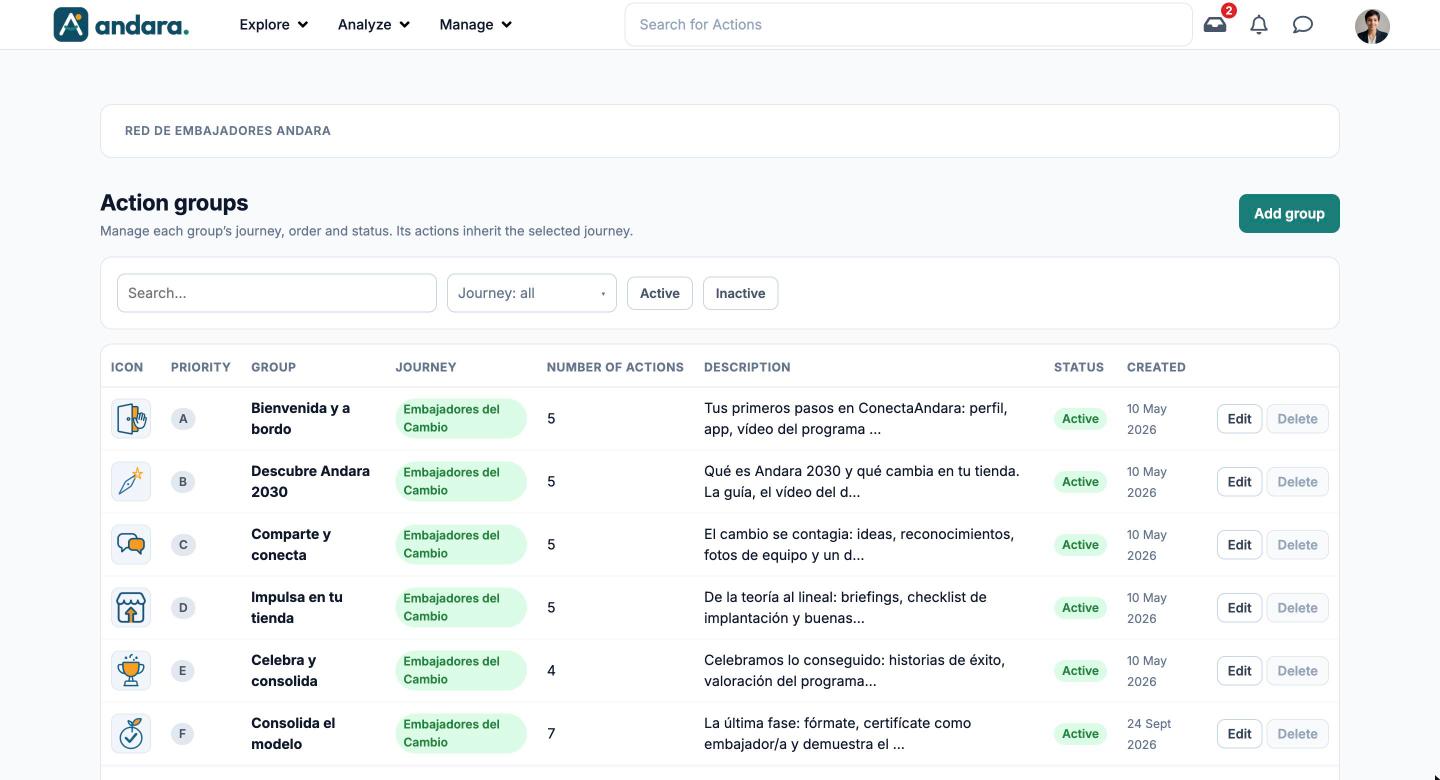
This is where you manage action groups: the thematic blocks that give a journey its rhythm, such as a welcome or a consolidation phase. For each group you decide which journey it belongs to, the order it appears in and whether it is switched on.
A group's actions inherit its journey: if you move the group to another journey, its actions move with it.
Where it is: Manage › Journeys › Action Groups.
What you see#
| Element | What it shows |
|---|---|
| Search… | Filters the list as you type. |
| Journey: all | Shows only the groups of one journey. |
| Active / Inactive | Shows only the groups that are switched on, or only those switched off. |
| Icon | The group's image. |
| Priority | The value that sets the order. |
| Group | The name. |
| Journey | The journey it belongs to. |
| Number of actions | How many actions it contains. |
| Description | The start of the description. |
| Status | Active or Inactive. |
| Created | When it was created. |
| Edit | Opens the group's form. |
| Delete | Deletes the group. Only enabled for groups with no actions, history or linked content; otherwise it is greyed out. |
| Add group | Opens a blank form. |
Settings#
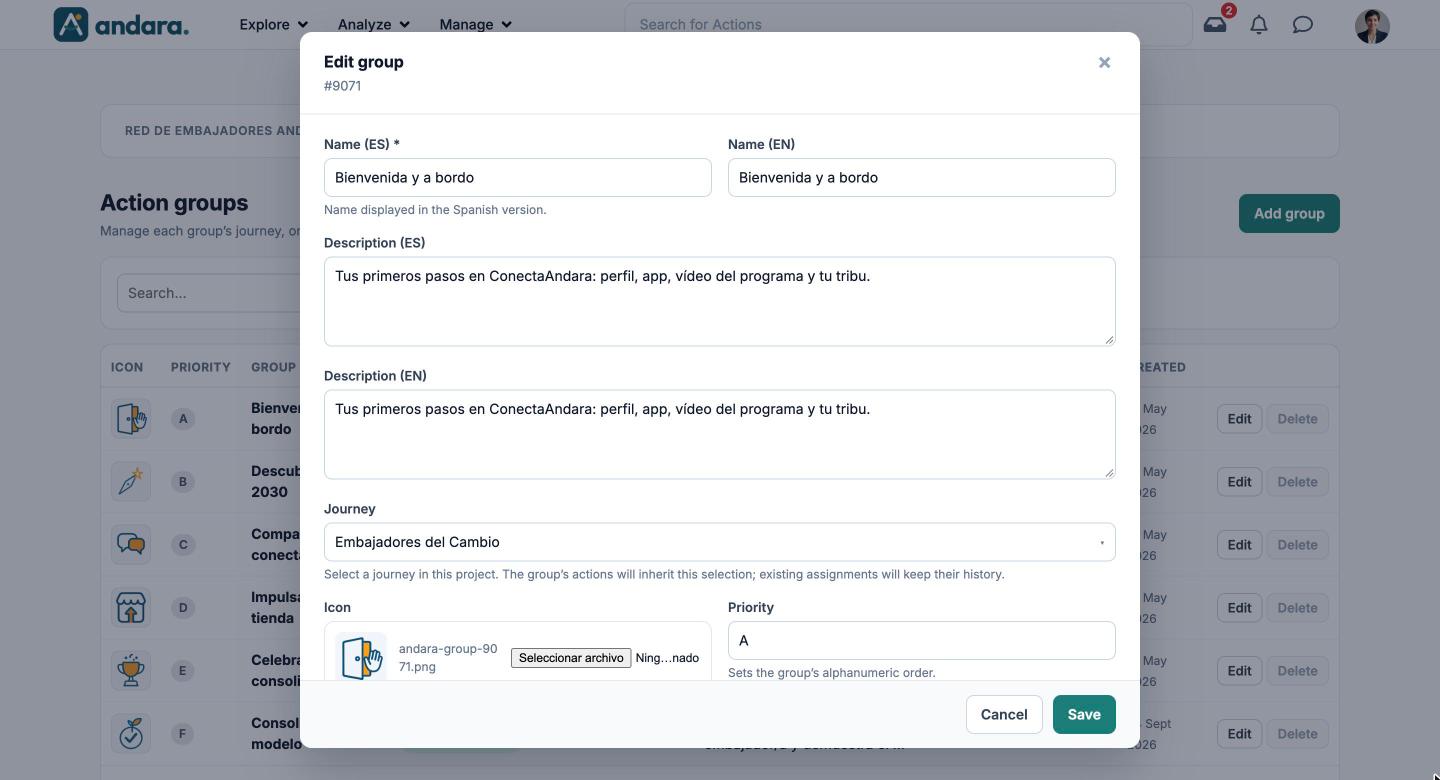
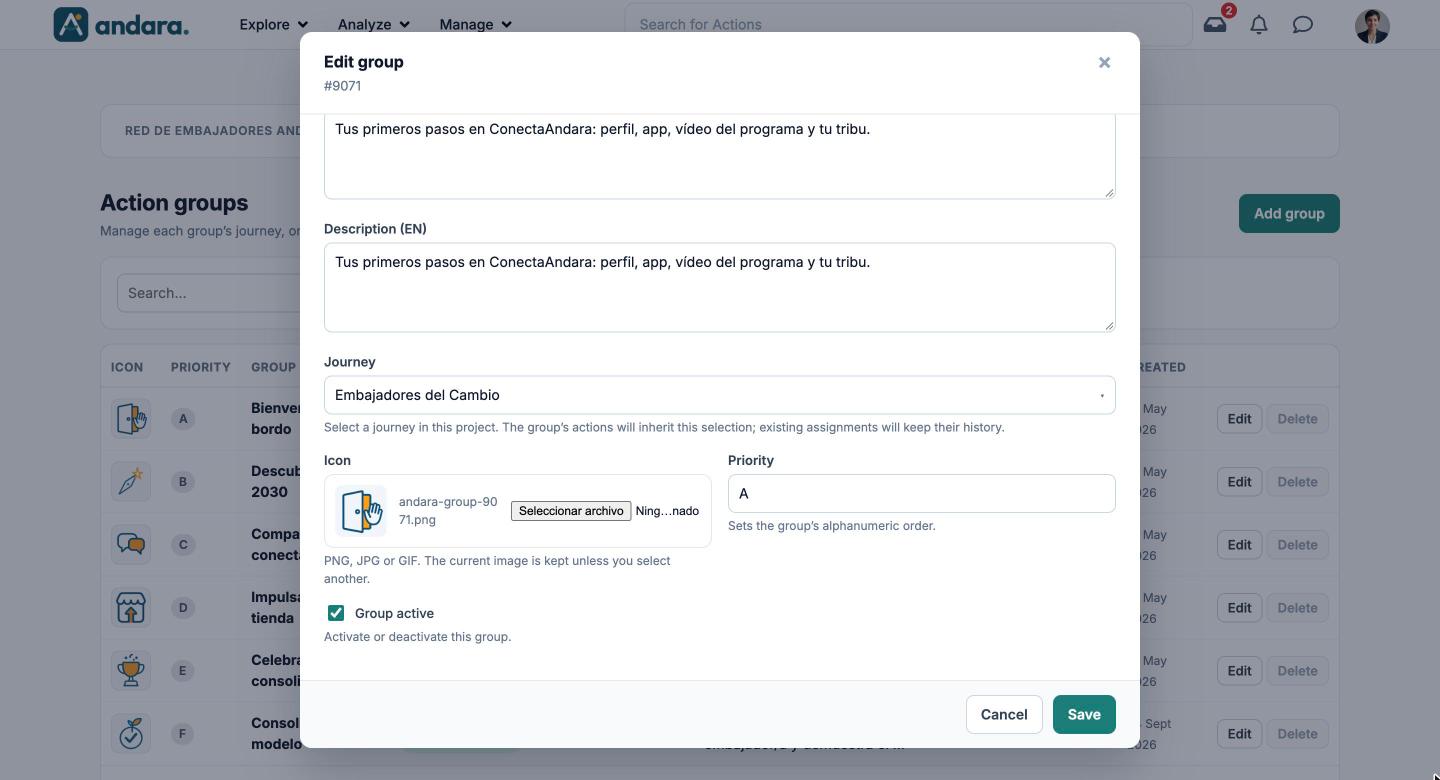
The form is the same to create (New group) and to edit (Edit group, with the group's number under the title).
| Field | What it does | Values |
|---|---|---|
| Name (ES) | The name displayed in the Spanish version. | Text. Required. |
| Name (EN) | The name in the English version. | Text. |
| Description (ES) | What the block contains. | Free text. |
| Description (EN) | The description in English. | Free text. |
| Journey | The project journey it belongs to. The group's actions inherit this selection; existing assignments keep their history. With no journey, the form warns that the group and its actions will have no journey. | One of the Journeys, or — unassigned —. Default when creating: unassigned. |
| Icon | The group's image. When editing, the current one is kept unless you select another. | PNG, JPG or GIF image. Required when creating. |
| Priority | Sets the group's alphanumeric order. | Text. Use letters (A, B, C…) or zero-padded numbers. |
| Group active | Activates or deactivates the group. | Checkbox. Ticked by default. |
How to#
Create a group#
- 1
Open a blank form
Click Add group.
- 2
Fill in the details
Name (ES), the English name if you need it, and the descriptions.
- 3
Assign it
Choose its Journey and a Priority that puts it in place.
- 4
Add the icon and save
Upload the Icon (it is required) and click Save. Actions are assigned to it from Actions.
Move a group to another journey#
- 1
Open it
Click Edit on its row.
- 2
Change the journey
Pick the new one in Journey and click Save. Its actions move to the new journey; what people had already done is kept.
Things to know#
- Only empty groups can be deleted. If it has actions, history or linked content, Delete is disabled: switch it off with Group active instead.
- Changing a group's journey takes all its actions with it.
- Priority sorts as text, just like journeys: "10" comes before "2".
Related#
- Journeys and actions: what groups are for.
- Journeys and Actions.
- Actions Assistant: draft a whole group with AI.