What it is for#
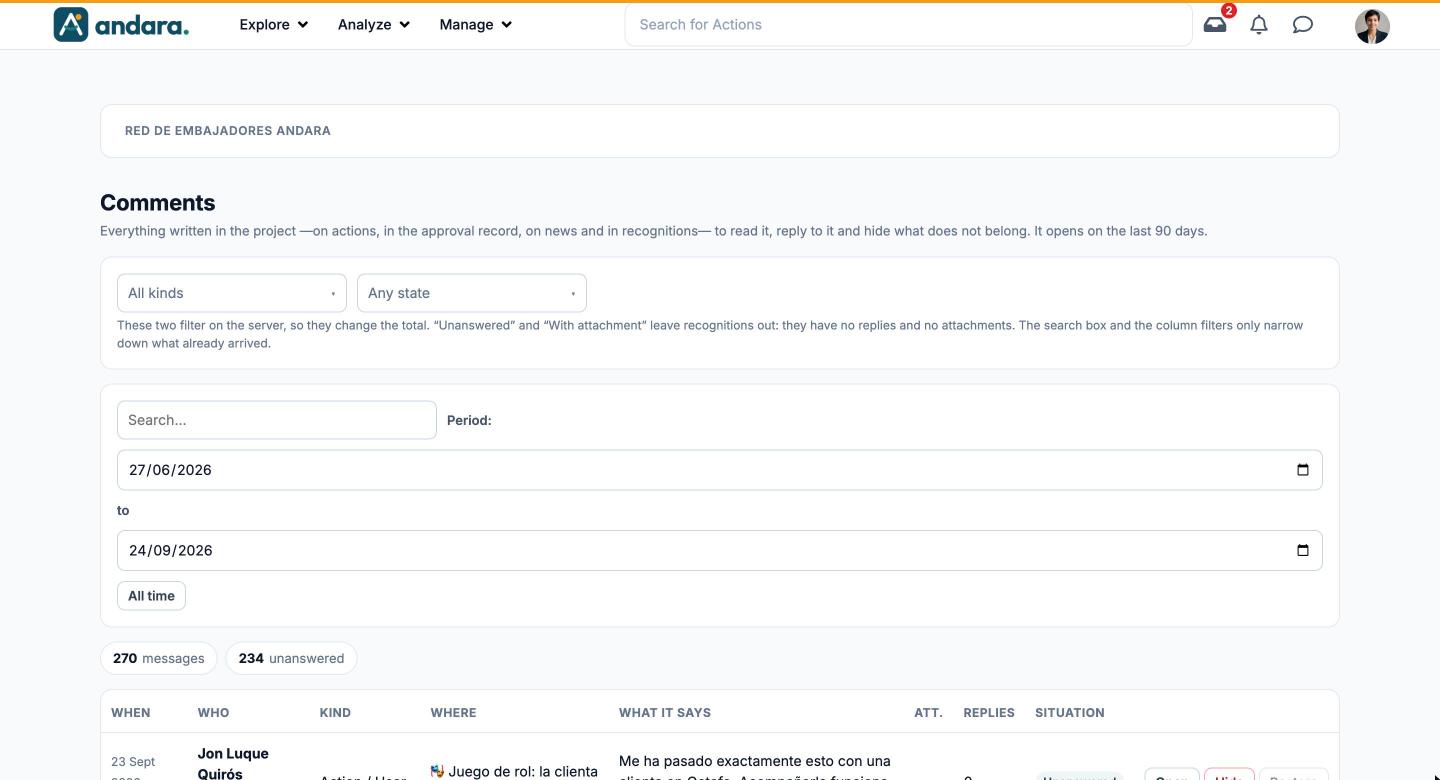
This is everything written in the project: comments on actions, comments in the approval record, comments on news and recognitions on the wall. From this tab you read them, reply to them and hide whatever should not be seen.
It opens on the last 90 days.
Where it is: Manage › Users › Comments.
What you see#
| Element | What it shows |
|---|---|
| All kinds | Filters by where it was written: Action / User (public comments on an action), Action / Approval (an action's approval record), News or Recognition. |
| Any state | Filters by situation: Unanswered, Awaiting review, Hidden or With attachment. Unanswered and With attachment leave recognitions out, because they have no replies and no attachments. |
| Search… | Narrows down what has already loaded as you type. |
| Period | Start and end dates. By default, the last 90 days. |
| All time | Removes the date limit. |
| Counters | How many messages there are and how many are unanswered, with the filters applied. |
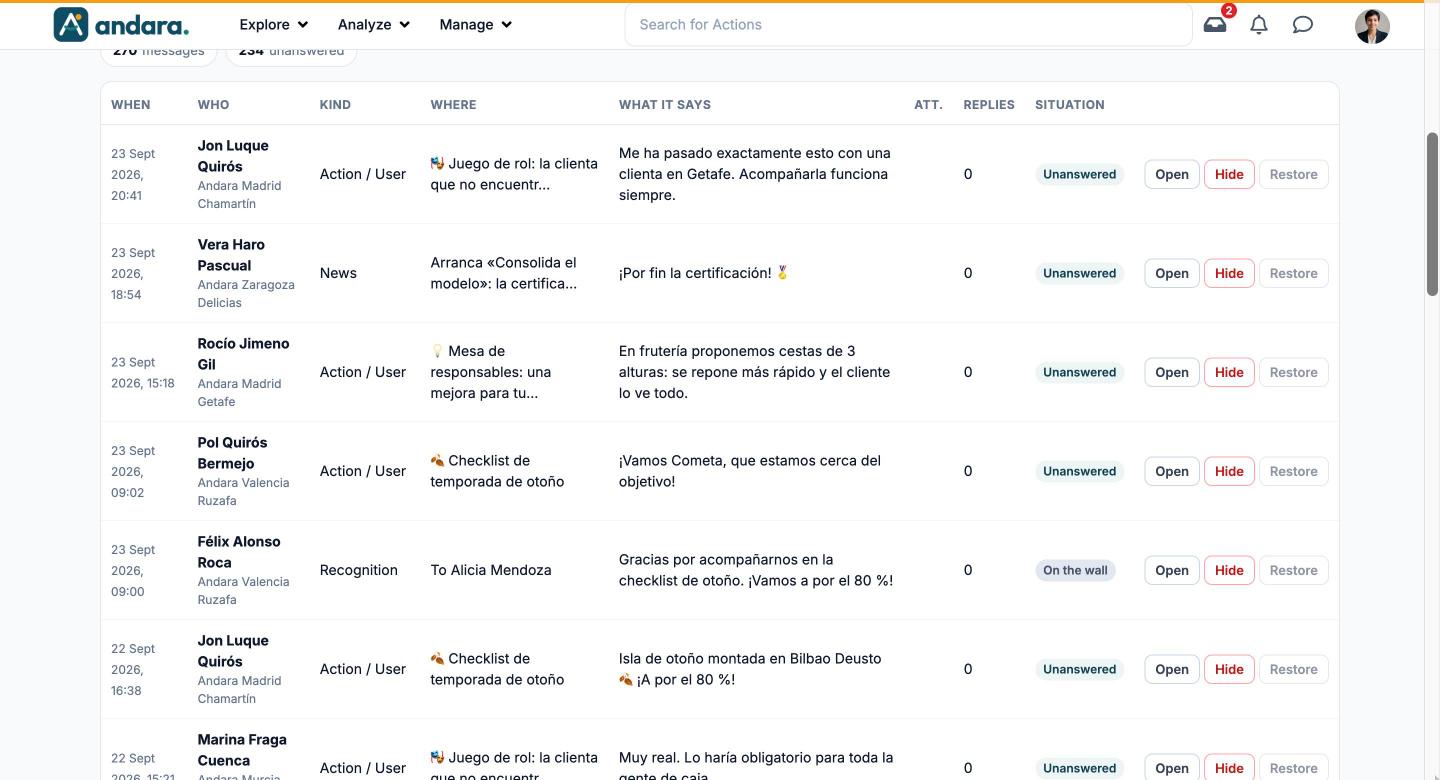
| When | Date and time. |
| Who | Author and their site. |
| Kind | Where it was written. |
| Where | The action or the news item, or who the recognition is for. |
| What it says | The text. |
| Att. | Whether it has an attachment. |
| Replies | How many replies it has. |
| Situation | For example Unanswered or, for recognitions, On the wall. |
| Open | Opens the thread to read it in full and reply. |
| Hide / Restore | Takes the message out of the app or puts it back. Only the one that makes sense is available: Restore is greyed out if the message is already visible. |
| Previous / Next | Turn the page at the bottom of the list. |
Settings#
The thread#
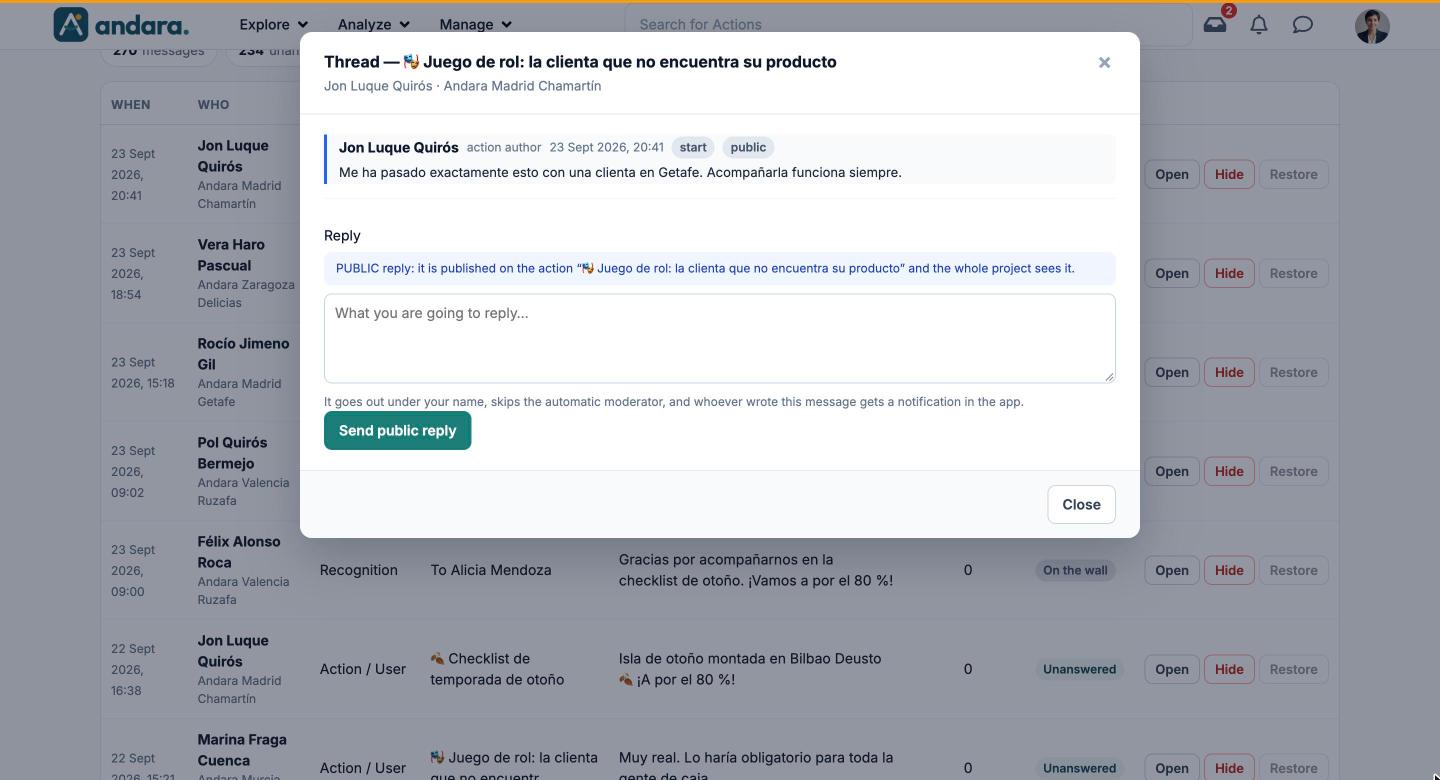
Clicking Open shows the whole thread: each message with its author, their role (for example action author or approver), the date and two tags, start if it opens the thread and public or private.
| Field | What it does | Values |
|---|---|---|
| Reply | Your answer. It goes out under your name, skips the automatic moderator, and whoever wrote the message gets a notification in the app. | Free text. |
| Send public reply | On public comments, such as those on an action, it publishes your reply where the thread is and the whole project sees it. | Button. |
| Send private reply | On comments in the approval record, your reply goes to that record: the person who did the action and the approvers see it, and the rest of the project does not. | Button. |
The blue notice above the box tells you, before you type, whether your reply will be public or private.
Recognitions open the same way but cannot be replied to: they are public, they appear on the wall and they can only be taken down with Hide on their row.
How to#
Reply to what is unanswered#
- 1
Filter
Under Any state, choose Unanswered.
- 2
Open the thread
Click Open on the row.
- 3
Check who will see it
Read the blue notice: public or private reply.
- 4
Reply
Type under Reply and click Send public reply or Send private reply.
Hide a message that does not belong#
- 1
Find it
Use the search box or the kind and period filters.
- 2
Hide it
Click Hide on its row. It stops showing in the app.
- 3
If you get it wrong
Use the Hidden filter to find it and put it back with Restore.
Things to know#
- Your reply skips the automatic moderator and goes out under your name. Read it again before sending.
- The kind and state filters change the total; the search box only narrows down what has already loaded. If you are looking for something old, widen the period first or click All time.
- Hiding does not delete. The message stays in this tab and can be restored.
- Anything people report is decided under Moderations, in the Inbox.
Related#
- Approvals and moderation: the report and approval workflow.
- Comments dashboard: analysis of what people are saying.
- Peer recognition: how recognitions on the wall work.