What it is for#
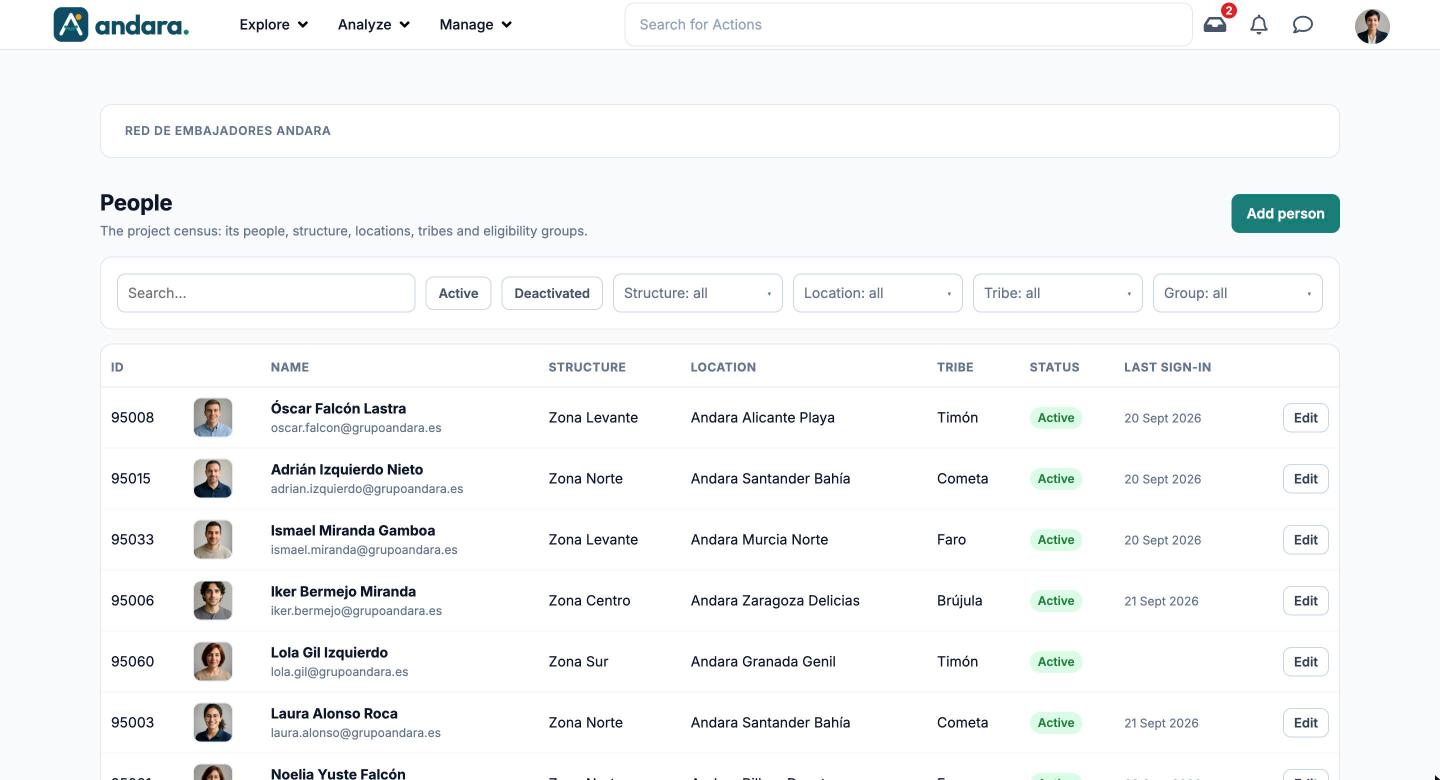
This is the project census: every person who can sign in to the app, with their profile. From this tab you add someone, fix their details, decide where they sit in the structure and remove their access when they leave.
What you put in the profile decides what content reaches them: structure, location, tribe and eligibility groups are what target actions and rewards.
Where it is: Manage › Users › Users.
What you see#
| Element | What it shows |
|---|---|
| Search… | Filters the list by name or email as you type. |
| Active / Deactivated | Shows only people with access, or only people whose access has been removed. |
| Structure, Location, Tribe, Group | Drop-downs to narrow the census down. They combine with each other and with the search box. |
| ID | The person's internal number in WinChange. It is the one shown at the top of their profile. |
| Name | Photo, full name and email. |
| Structure, Location, Tribe | Where they are placed. Empty means they have no assignment. |
| Status | Active if they can sign in; Deactivated if not. |
| Last sign-in | The last time they signed in. Empty if they never have. |
| Edit | Opens their profile. |
| Add person | Opens a blank profile to add someone. |
Settings#
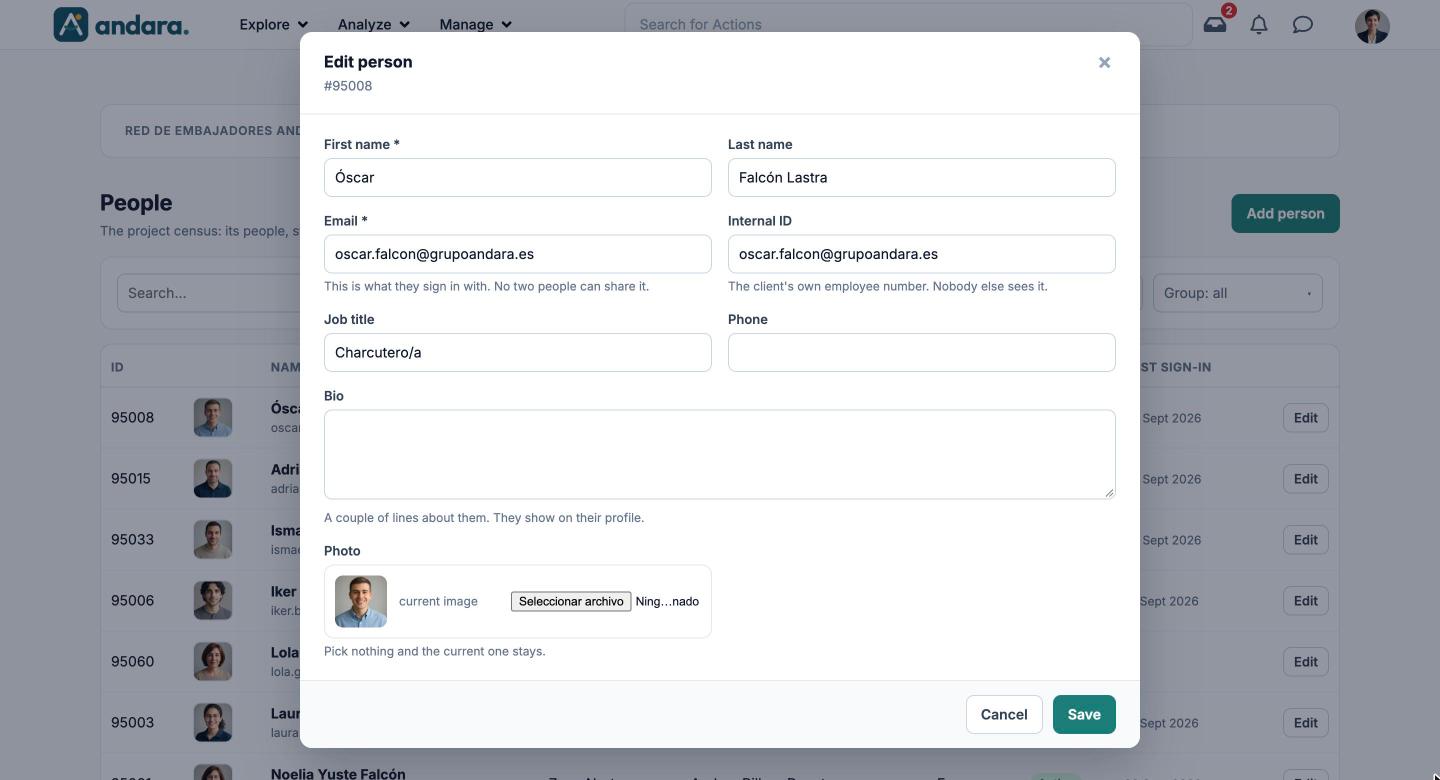
A person's profile has three blocks. It is the same form to add someone (New person) and to edit them (Edit person).
Personal details#
| Field | What it does | Values |
|---|---|---|
| First name | How others see them: in the ranking, the directory, recognitions and comments. | Text. Required. |
| Last name | Shown next to the first name. | Text. |
| What they sign in with. No two people can share it. | Email. Required and unique. | |
| Internal ID | Your company's employee number, to match your own systems. Nobody else sees it. | Free text. |
| Job title | Shown on their profile and in the directory. | Free text. |
| Phone | Contact detail on the profile. | Free text. |
| Bio | A couple of lines about them, shown on their profile. | Free text. |
| Photo | Their profile picture. If you pick nothing, the current one stays. | Image. Without a photo, their initial is shown. |
Where they are#
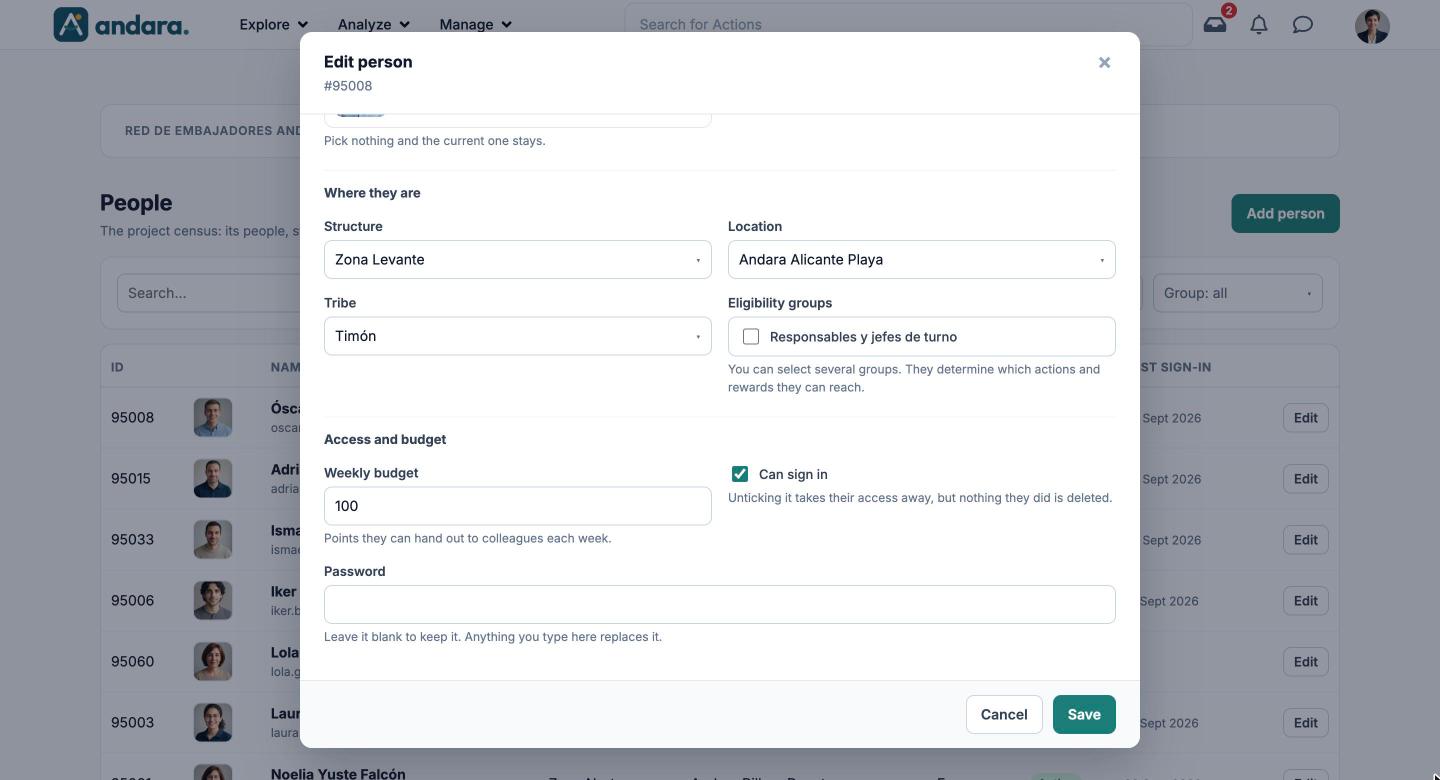
| Field | What it does | Values |
|---|---|---|
| Structure | Their unit within the organisation. It targets content and reports, and it is what managers use to see their team. | One from Organisations, or — unassigned —. |
| Location | Their workplace. It targets content and reports by location. | One from Locations, or — unassigned —. |
| Tribe | The community they belong to within the programme. | One from Tribes, or — unassigned —. |
| Eligibility groups | Decide which actions and rewards reach them, on top of their structure and location. | Tick boxes: any number of groups, or none. |
Access and budget#
| Field | What it does | Values |
|---|---|---|
| Weekly budget | The points they can hand out to colleagues each week on the recognition wall. | Number of points. |
| Can sign in | Unticking it takes their access away, but nothing they did is deleted. They move to Deactivated. | Tick box. Ticked by default. |
| Password | When adding someone, it is the password they will use the first time (required). When editing, leave it blank to keep it: anything you type replaces theirs. | Text. |
How to#
Add a person#
- 1
Open a blank profile
Click Add person.
- 2
Fill in the details
At least First name, Email and Password.
- 3
Place them
Choose Structure, Location and Tribe, and tick their Eligibility groups. Without a placement they only get untargeted content.
- 4
Save
Click Save. The person shows up in the list as Active and can sign in straight away.
Remove someone who is leaving#
- 1
Open their profile
Find them and click Edit.
- 2
Remove access
Untick Can sign in and click Save.
- 3
Check
With the Deactivated filter you will see them in the list. Their history, points and recognitions are kept; if they come back, just tick the box again.
Things to know#
- The email is the identity. If you change it, from then on the person signs in with the new one.
- Moving someone to another structure or location changes what reaches them and who sees them as part of their team. Actions waiting for approval move to the new manager.
- The password you type here replaces theirs without telling them. Only do it when the person asks.
- For adding many people at once, do not use this screen: go to Pre-users and see Bulk sign-up and eligibility.
- Roles (admin, manager…) are not given here but in Roles.
Related#
- Users and access: the full life cycle of an account.
- Pre-users, Organisations, Locations, Tribes and Eligibility Groups.
- Blocked users: accounts locked after failed sign-in attempts.