What it is for#
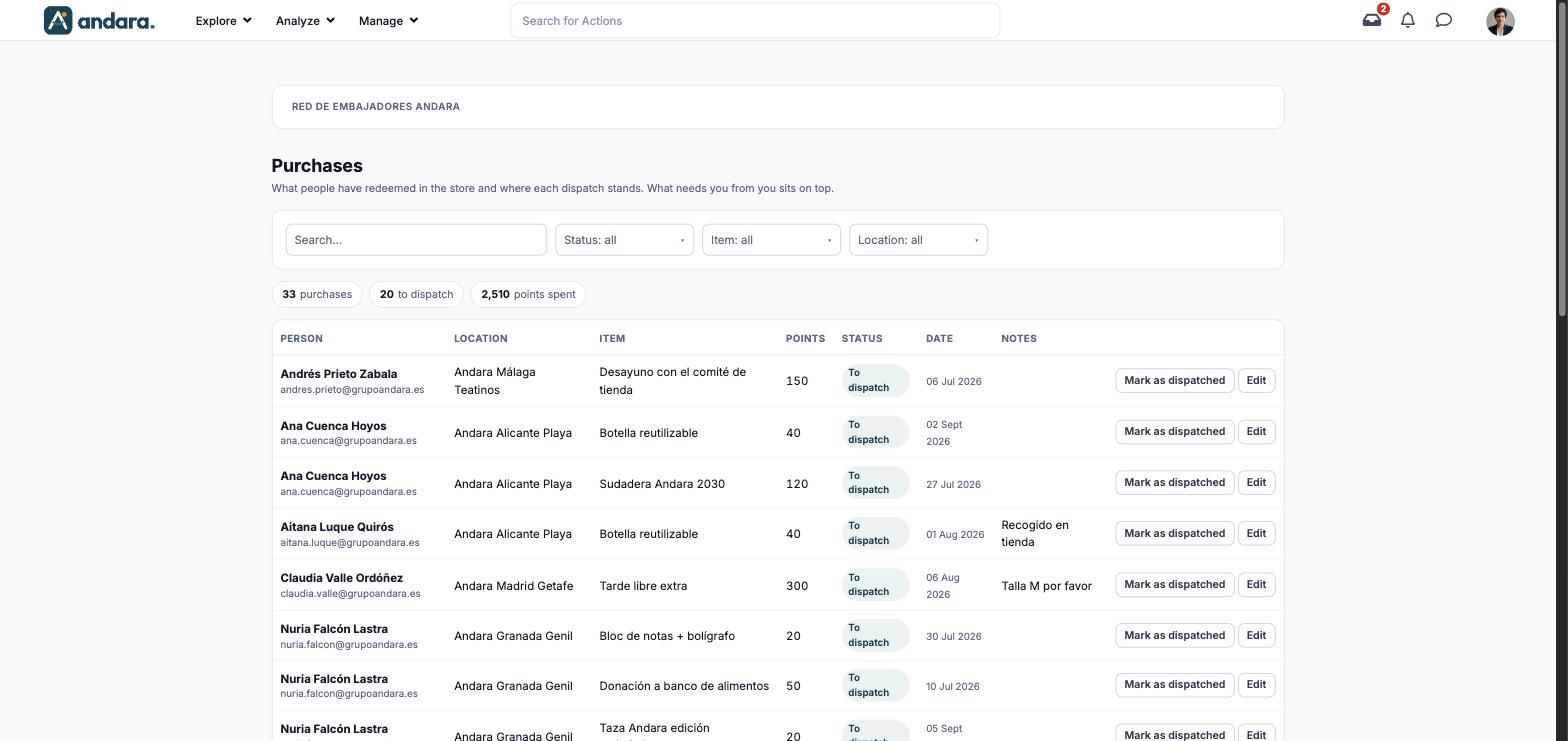
This is where you follow every store redemption from the moment the person asks for it until it reaches them: who bought it, from which location, which item, for how many points and where the dispatch stands. The screen is titled Purchases and puts at the top whatever is waiting on you.
The most common task is marking as dispatched what you have already sent, with a single button on the row.
Where it is: Manage › Rewards › Purchases.
What you see#
The name of the project you are in is shown at the top.
| Element | What it shows |
|---|---|
| Search… | Filters the list as you type. |
| Status: all | Shows only purchases in one status: To dispatch, Cancellation requested, Cancelled after dispatch, Dispatched or Other status. |
| Item: all | Shows only purchases of one item. |
| Location: all | Shows only purchases by people at one location. |
| N purchases | How many purchases match the current filters. |
| N to dispatch | How many are waiting for you to send them. |
| N points spent | The points those purchases add up to. |
| Person | Name and email of whoever redeemed. |
| Location | Their workplace. |
| Item | What they redeemed. |
| Points | What they paid. |
| Status | To dispatch, Dispatched or another status. |
| Date | When they redeemed it. |
| Notes | The purchase's internal notes. |
| Mark as dispatched | Moves the purchase to dispatched without opening the form. |
| Edit | Opens the purchase form. |
The list is split into pages, with buttons to move between them.
Settings#
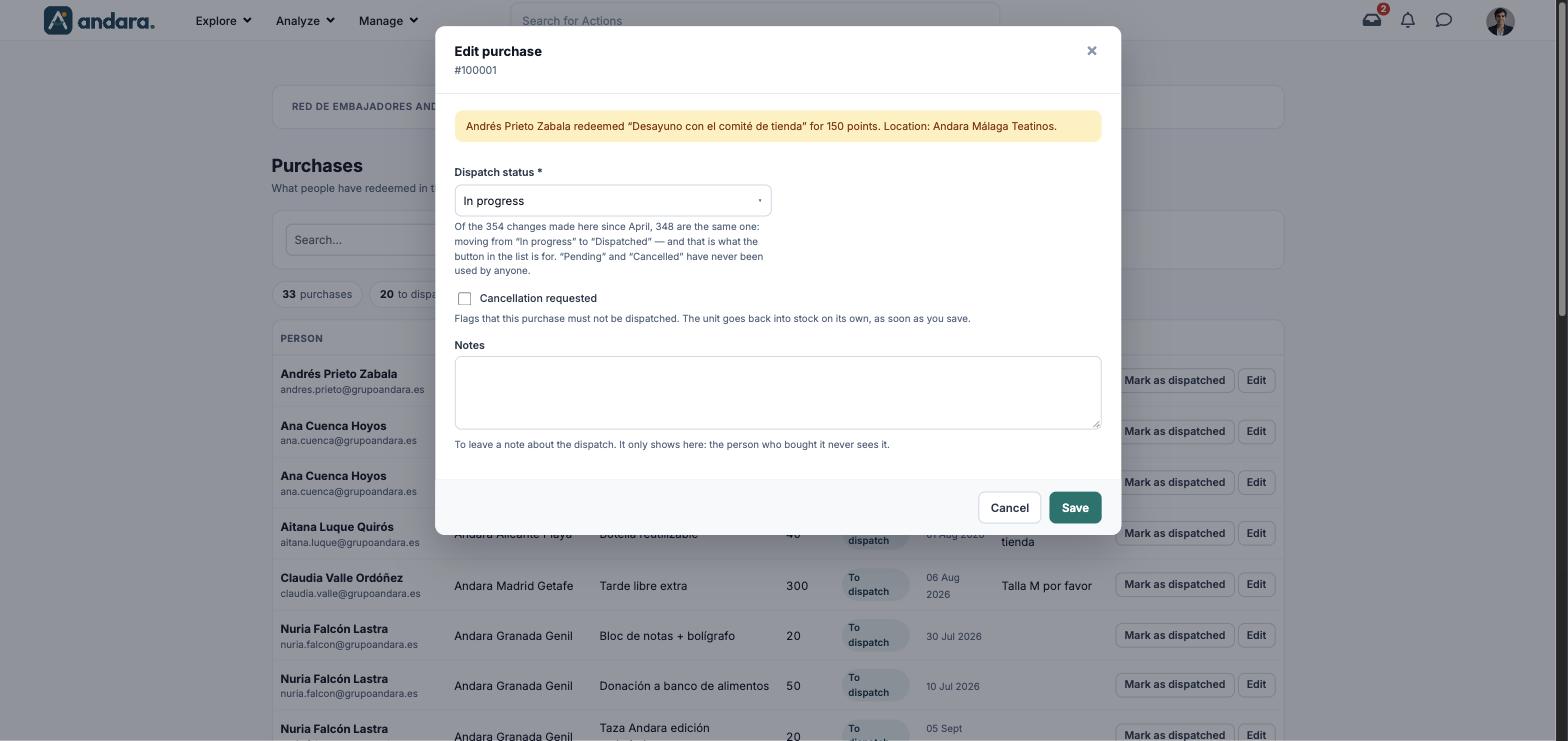
The Edit purchase form shows its number under the title and a summary at the top: who redeemed what, for how many points and at which location. Purchases are not created here: they are born when someone redeems in the store.
| Field | What it does | Values |
|---|---|---|
| Dispatch status | Where the dispatch stands. The form itself points out that nearly every change is moving from In progress to Dispatched, and that the button in the list is there for that. | Drop-down: — unassigned —, Pending, In progress, Dispatched, Received, Cancelled. Required. |
| Cancellation requested | Flags that this purchase must not be dispatched. The unit goes back into stock on its own as soon as you save. | Tick box. |
| Notes | To leave a note about the dispatch. It only shows here: the person who bought it never sees it. | Free text. |
How to#
Mark as dispatched what you have sent#
- 1
Filter what is pending
In Status: all, choose To dispatch.
- 2
Mark the purchase
Click Mark as dispatched on its row.
Void a purchase that will not be sent#
- 1
Open the purchase
Click Edit on its row.
- 2
Flag it
Tick Cancellation requested and, if you like, explain why in Notes.
- 3
Save
Click Save. The unit goes back into the item's stock.
- 4
Check the points
This form says nothing about refunding points. If the person should get them back, see Point adjustments and redemptions.
Things to know#
- Notes are internal. The person who bought the item does not see them: do not use them to write to them.
- Cancellation requested puts the unit back in stock. The form says nothing about the points: check them before you consider the purchase settled.
- The list and the form name the statuses differently: the list says To dispatch where the form says In progress.
- Purchases are neither deleted nor created on this screen.
Related#
- Point adjustments and redemptions: following orders and correcting points.
- Store and redemptions: the full redemption flow.
- Store Items: the catalogue and its stock.