What it is for#
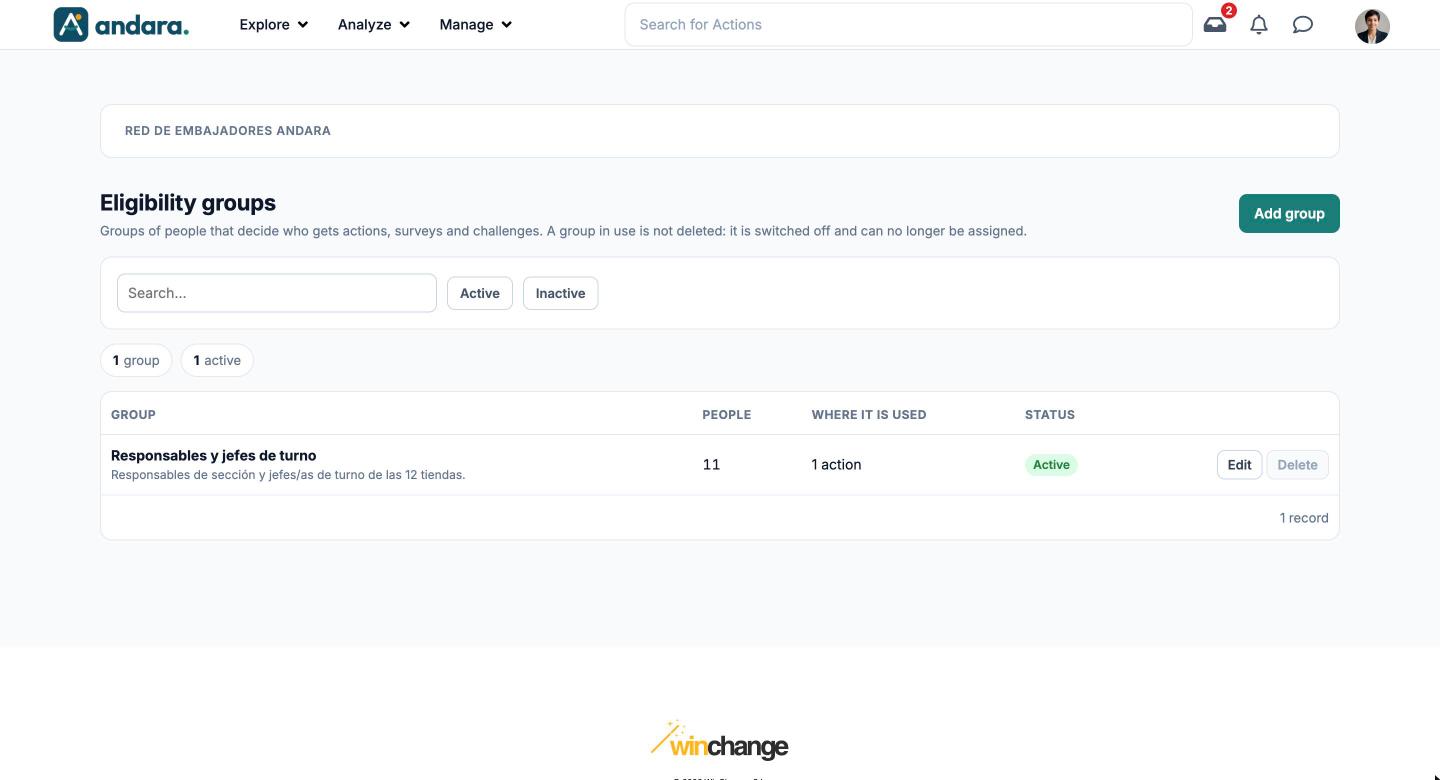
This is where you create eligibility groups: sets of people you define yourself, using a criterion that is not in the org chart or the site map (a group of staff, a roll-out wave, a job profile). They decide who gets actions, surveys and challenges.
A person can be in several groups at once. A group that is already in use cannot be deleted: it is switched off and can no longer be assigned.
Where it is: Manage › Users › User Eligibility Groups.
What you see#
| Element | What it shows |
|---|---|
| Add group | Opens a blank form to create a group. |
| Search… | Filters the list as you type. |
| Active / Inactive | Shows only active or only inactive groups. |
| Counters | How many groups there are and how many are active. |
| Group | Name and, underneath, the description. |
| People | How many people are in the group. |
| Where it is used | How many actions, surveys or challenges use it, for example 1 action. |
| Status | Active or Inactive. |
| Edit | Opens the group's form. |
| Delete | Deletes the group. It is greyed out while the group is in use; hovering over it explains why. |
Settings#
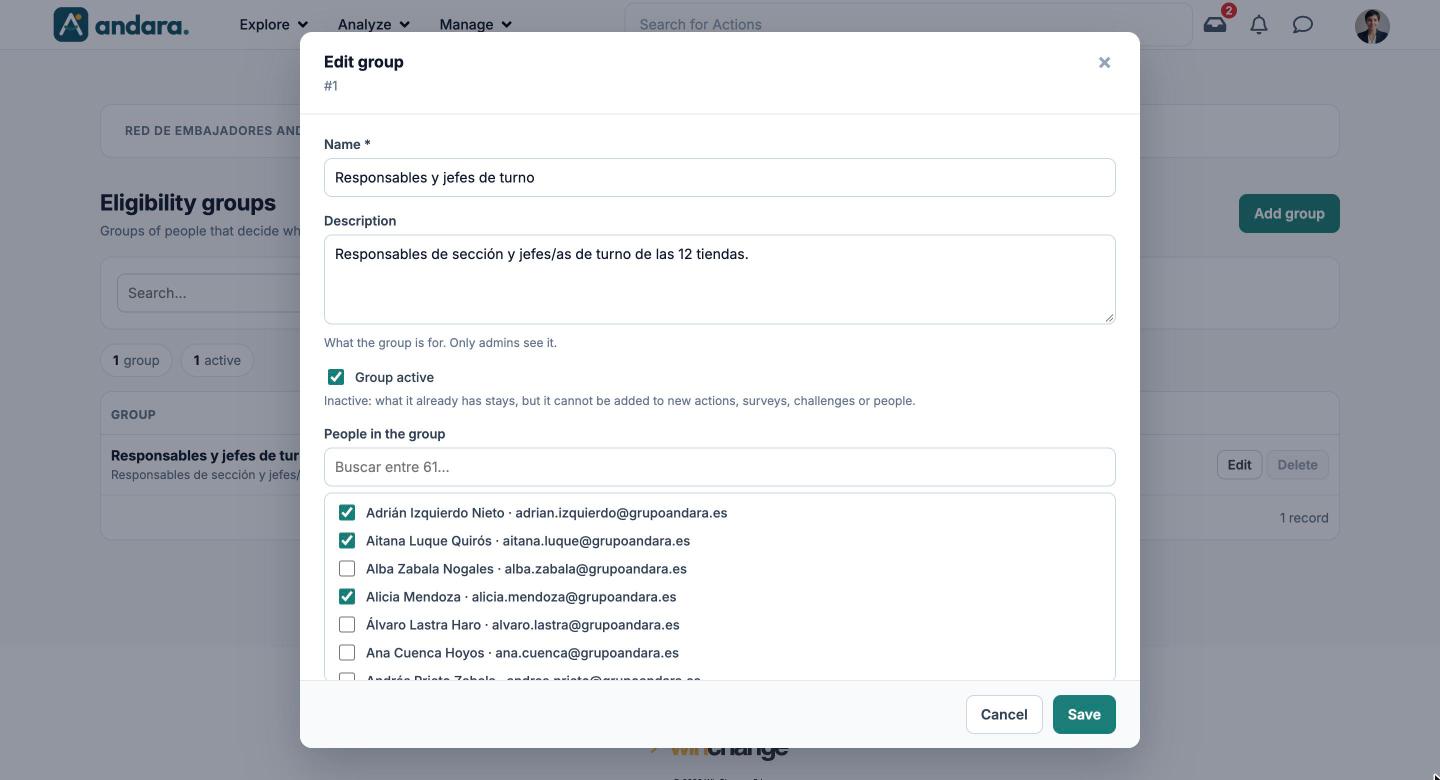
A group's form is the same to create it and to edit it (Edit group).
| Field | What it does | Values |
|---|---|---|
| Name | What the group is called. It is what you pick when targeting an action, a survey or a challenge. | Text. Required. |
| Description | What the group is for. Only admins see it. | Free text. |
| Group active | If you untick it, what it already has stays, but the group cannot be added to new actions, surveys, challenges or people. | Tick box. Ticked by default. |
| People in the group | Who belongs to the group. Tick each person in the list; the search box above filters by name or email. Changing the list does not hand out actions straight away. | Tick boxes, one per person in the project. |
How to#
Create a group#
- 1
Open a blank form
Click Add group.
- 2
Name and describe it
A Name that makes sense when targeting, and a Description that explains the criterion.
- 3
Tick the people
Under People in the group, search by name or email and tick each person.
- 4
Save
Click Save. The group can now be used to target actions, surveys and challenges.
Retire a group that is in use#
- 1
Open its form
Click Edit on its row.
- 2
Switch it off
Untick Group active and click Save. What it already had stays, but it cannot be added to anything new.
- 3
Delete it once it is free
When nothing uses it any more, the Delete button becomes available.
Things to know#
- Changing who is in the group does not hand out actions straight away. The form itself says so.
- A group in use cannot be deleted. The Delete button stays greyed out until no action, survey or challenge uses it.
- You can also tick a person's groups from their profile, in Users, under Eligibility groups.
Related#
- Bulk onboarding and eligibility: when groups are worth using and how to prepare them.
- Users: each person's groups, from their profile.
- Journeys and challenges: how an action is targeted.