What it is for#
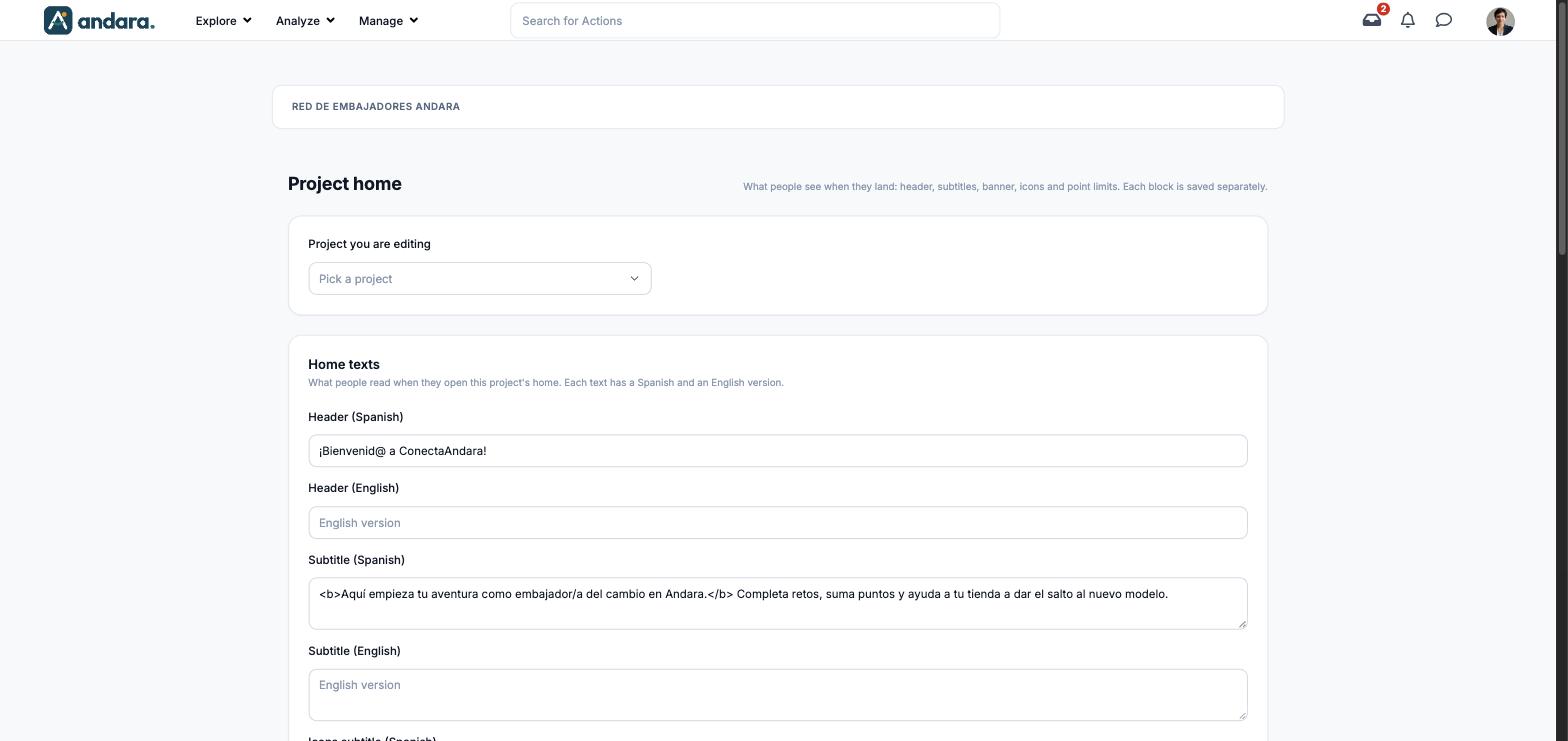
This is where each project's home is prepared: the welcome headline, the text under it, the wide header image, the row of icons and the point limits. The screen is titled Project home.
First you choose the project you are going to edit. Then four blocks appear and each one is saved separately with its own button.
Where it is: Manage › Configuration › Project home page. You also get here with Edit home from Projects.
What you see#
| Element | What it shows |
|---|---|
| Project you are editing | The drop-down with the company's projects (Pick a project when nothing is chosen). |
| Home texts | Header and subtitles, in Spanish and English. |
| Point limits | The project's point budget and limit. |
| Banner | The current header image and the area to upload another. |
| Home icons | The row of icons, with their image, title and order. |
Settings#
Home texts#
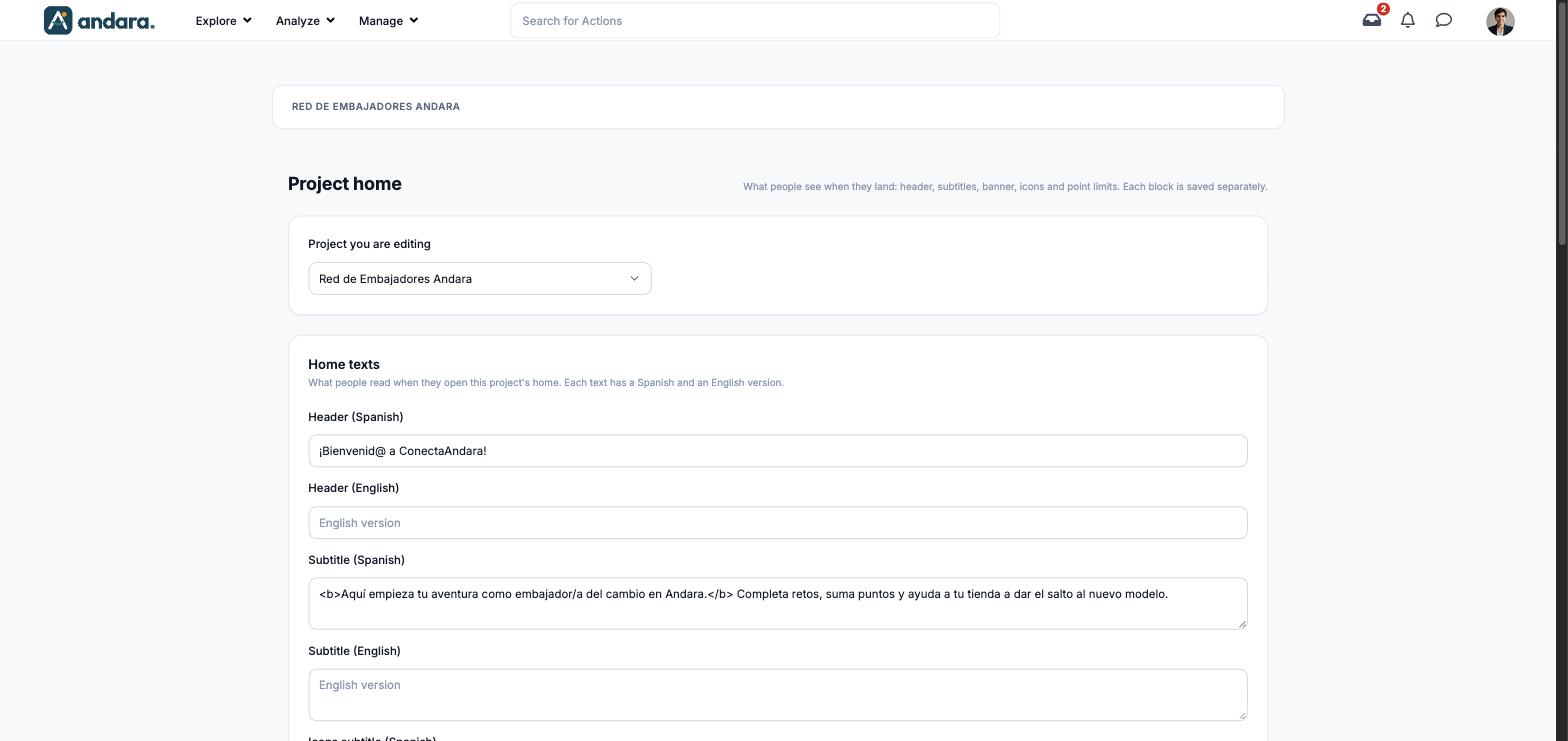
Each text has a Spanish and an English version.
| Field | What it does | Values |
|---|---|---|
| Header (Spanish) | The home's welcome headline. | Text. |
| Header (English) | The headline in English. | Text. |
| Subtitle (Spanish) | One line explaining what the programme is about, under the headline. | Long text. Bold with <b>…</b> is allowed. |
| Subtitle (English) | The subtitle in English. | Long text. |
| Icons subtitle (Spanish) | The text above the row of icons. | Text. |
| Icons subtitle (English) | That text in English. | Text. |
Stored with Save texts.
Point limits#
| Field | What it does | Values |
|---|---|---|
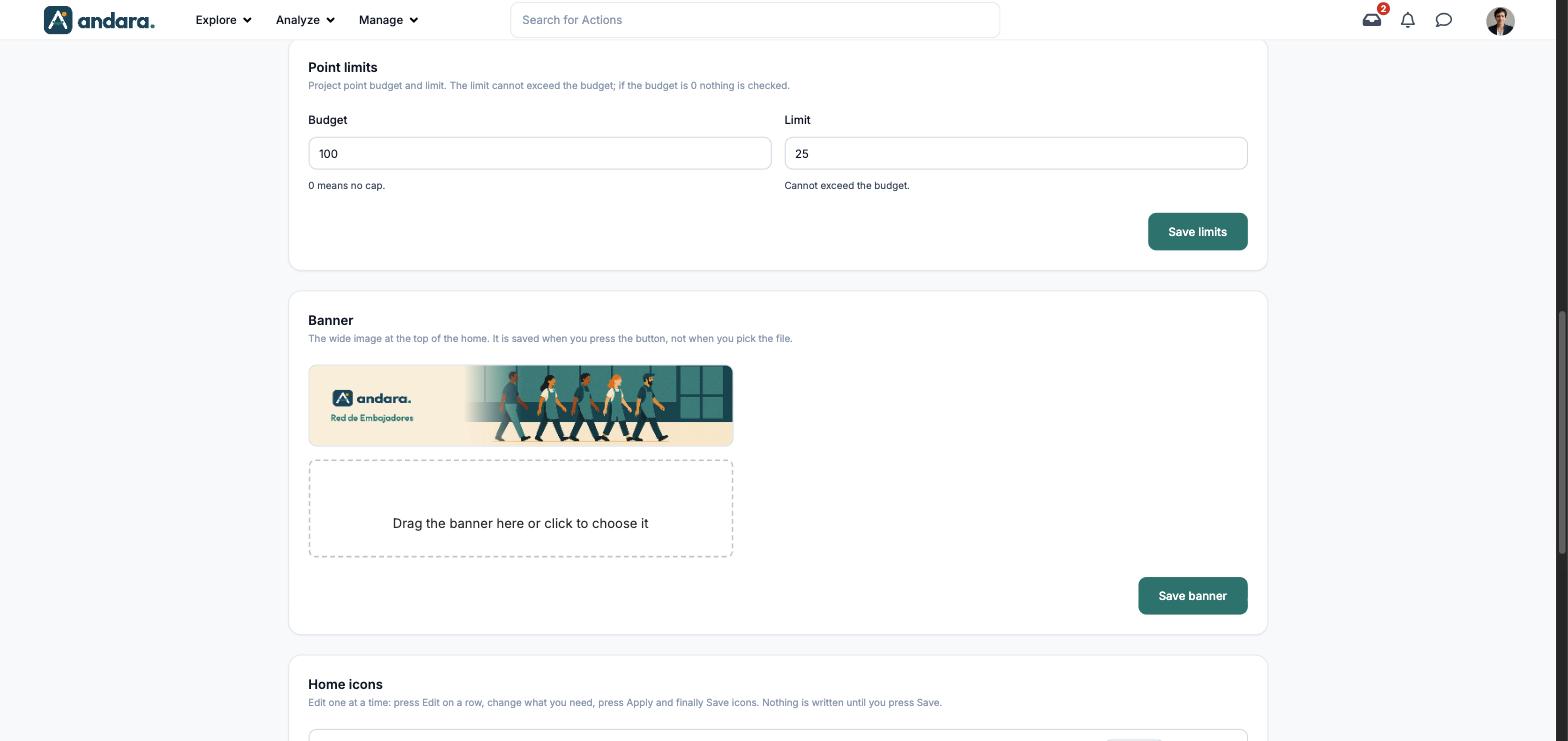
| Budget | The project's point budget. | Number. 0 means no cap. 100 in the demo. |
| Limit | The project's point limit. It cannot exceed the budget; if the budget is 0 nothing is checked. | Number. 25 in the demo. |
Stored with Save limits.
Banner#
| Field | What it does | Values |
|---|---|---|
| Banner | The wide image at the top of the home. The current one is shown, with the Drag the banner here or click to choose it area below. | Image. |
It is saved when you press Save banner, not when you pick the file.
Home icons#
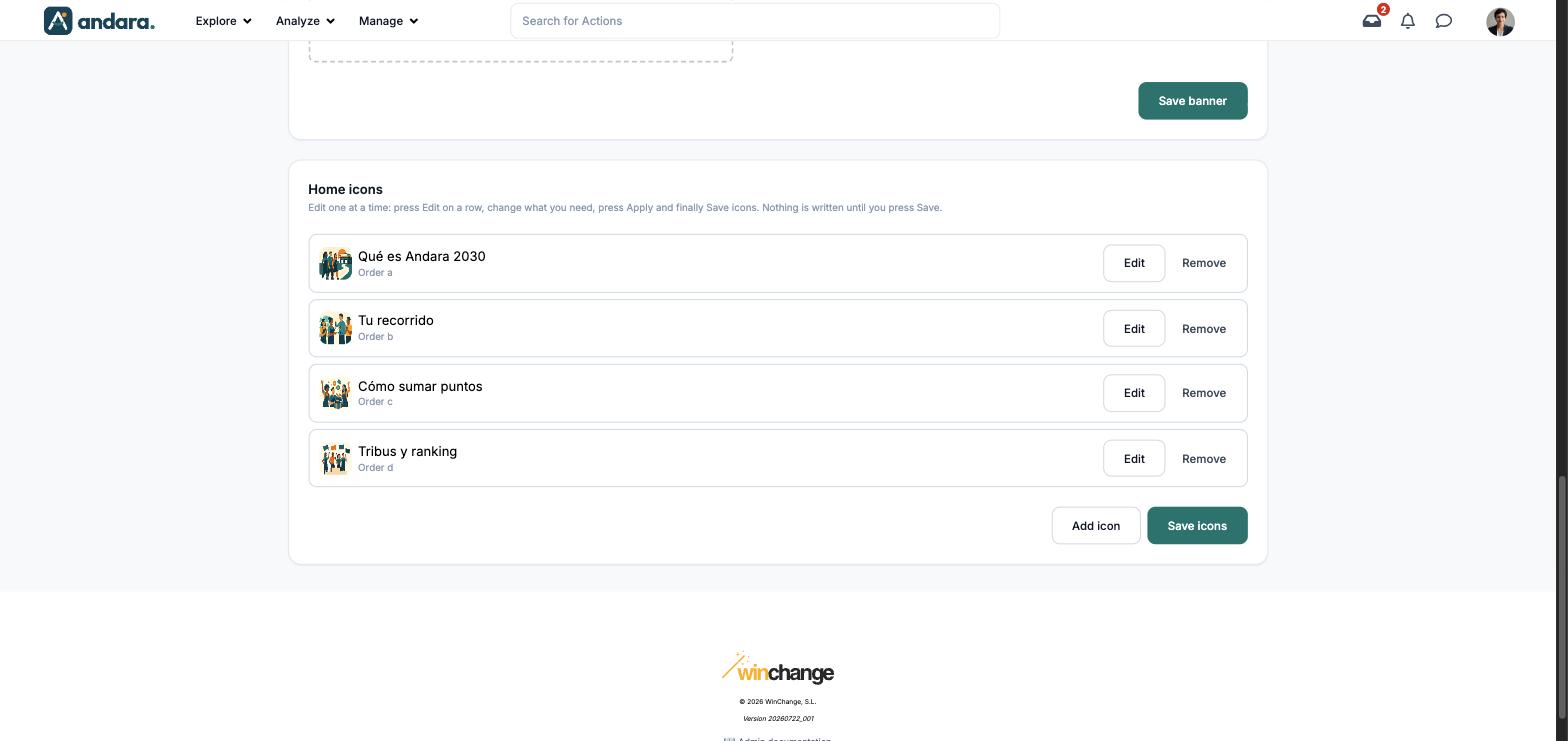
Each row is an icon with its image, title and Order (a letter: a, b, c…). Edit opens its form below the list, Remove takes it out of the row and Add icon opens a blank form.
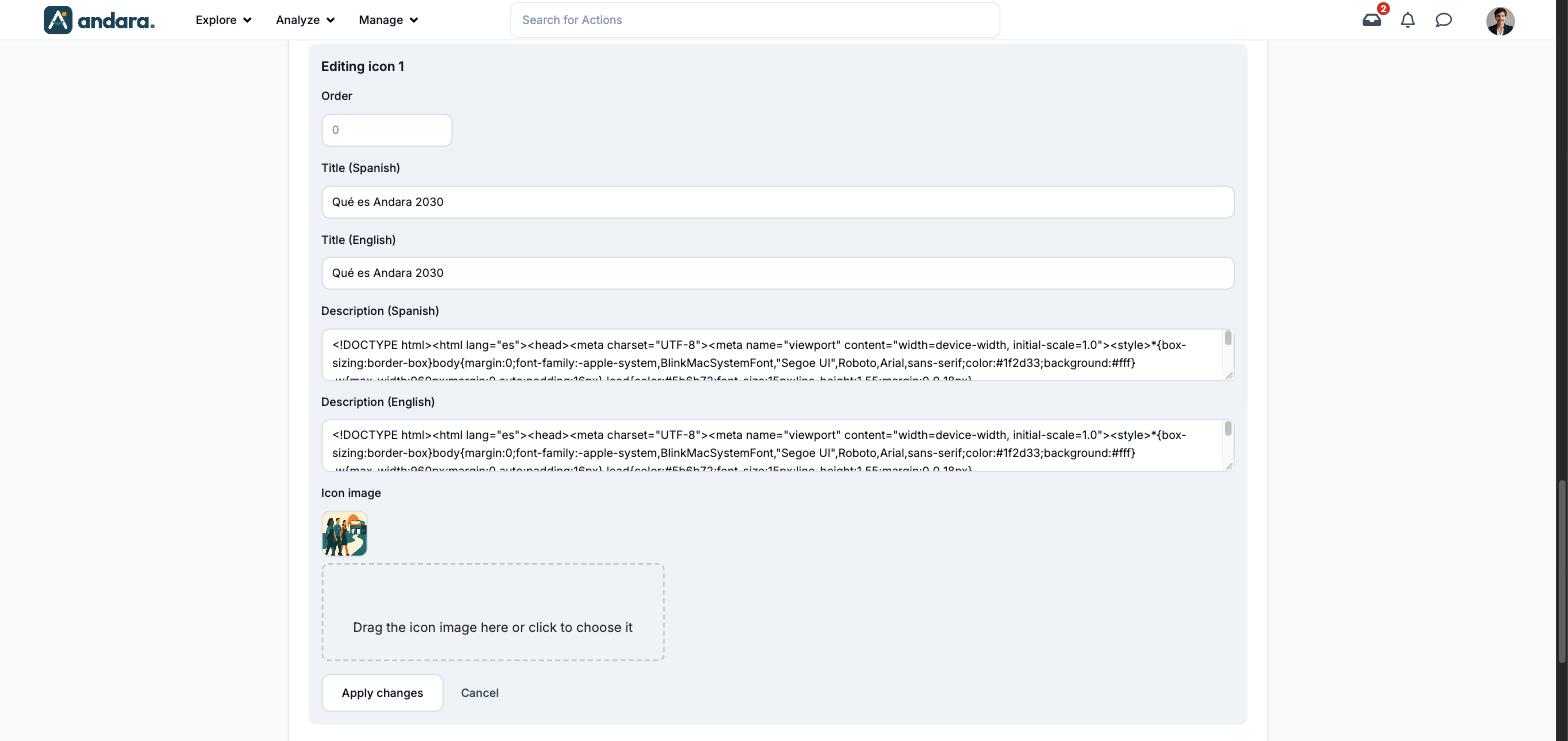
| Field | What it does | Values |
|---|---|---|
| Order | The icon's position in the row. | The list shows it as a letter; the form field is numeric and appears empty. |
| Title (Spanish) | The icon's name. | Text. |
| Title (English) | The name in English. | Text. |
| Description (Spanish) | The icon's supporting text. | Long text. In the demo it holds a complete HTML page. |
| Description (English) | The supporting text in English. | Long text. |
| Icon image | The icon's picture. The current one is shown with the area to upload another. | Image. |
Apply changes puts the change in the list and Cancel discards it. Nothing is written until you press Save icons.
How to#
Prepare a project's home#
- 1
Pick the project
Under Project you are editing, choose the project.
- 2
Write the texts
Fill in Header and Subtitle in both languages and press Save texts.
- 3
Upload the banner
Choose the image and press Save banner.
- 4
Save the limits
Check Budget and Limit and press Save limits.
Change an icon#
- 1
Open it
Press Edit on its row.
- 2
Change what you need
Title, description or image, then press Apply changes.
- 3
Save the row
Press Save icons. Nothing is written until then.
Things to know#
For icons, Apply changes does not save: it only stages the change in the list. If you leave without pressing Save icons, it is lost. The same goes for Remove.
- Each block has its own save button. Saving the texts does not save the banner, and vice versa.
- The English version is not filled in automatically. In the demo, the English header and subtitle are empty.
- The screen does not explain what the budget and limit apply to. Peer recognition describes a budget and a per-recognition limit with this same relationship.
- Arriving via Edit home does not keep the project selected: pick it in the drop-down.
Related#
- Branding and languages: the app's brand and each project's home.
- Projects: creating and activating projects.
- App menu: the tabs people see.