What it is for#
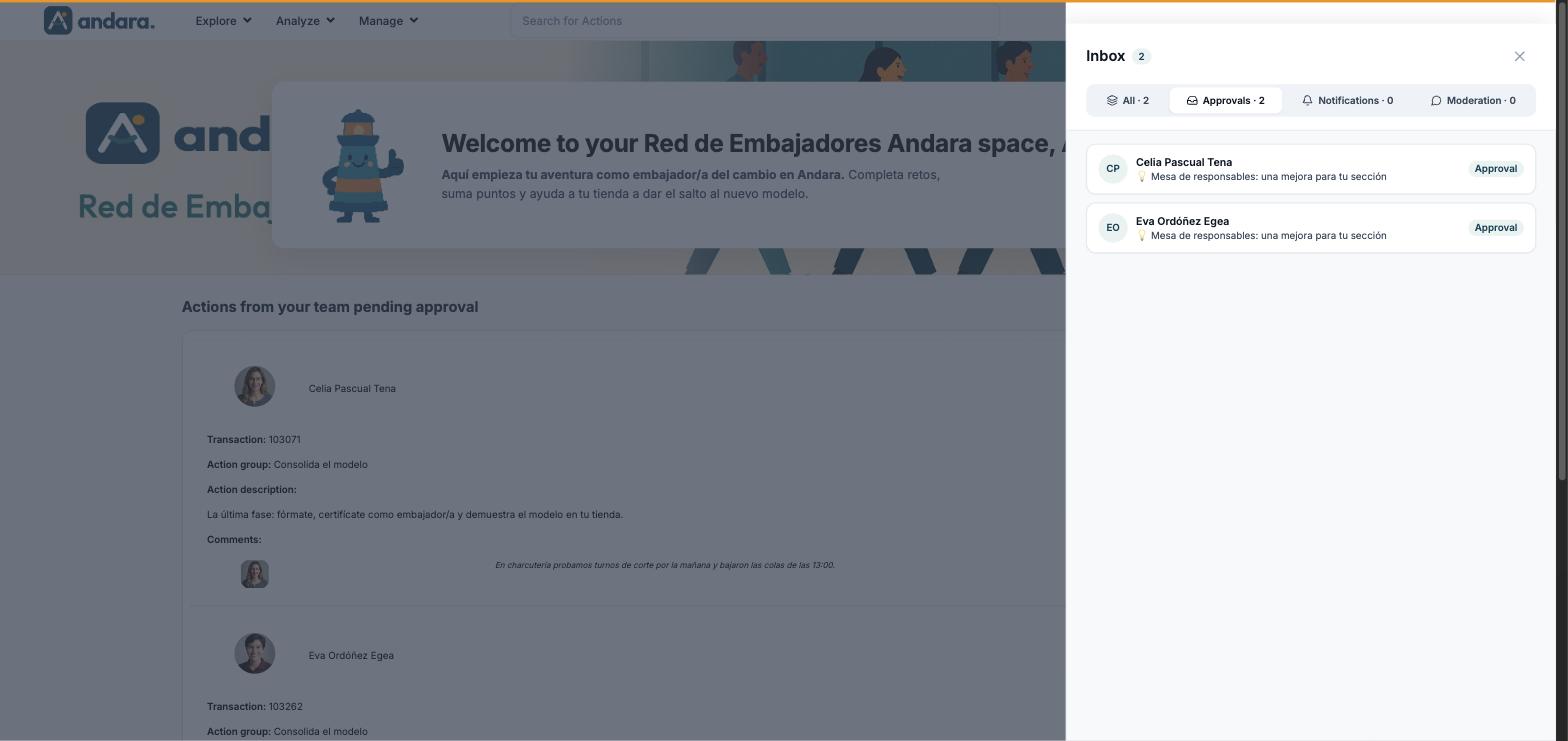
The inbox gathers what is waiting for you: your team's actions pending approval, comments and recognitions someone has reported, and new comments. It opens as a side panel from any screen.
It only holds what is pending. The history of comments is in Comments and what the AI decides is in AI Actions Approval.
Where it is: top bar › inbox icon (the first of the three icons next to your photo). The red number on the icon is what you have pending.
What you see#
| Element | What it shows |
|---|---|
| Inbox and number | The panel title and how many items the open tab holds. |
| All | Everything pending together. |
| Approvals | Actions someone in your team has marked as done that await your decision. |
| Notifications | New comments. Nothing to decide. |
| Moderation | Reported comments and recognitions waiting for you to decide whether they are published. |
| Number on each tab | How many items it holds. |
| Row | The person's initials and name, the action name and a label with the type (Approval). Clicking it expands it. |
| × | Closes the panel. |
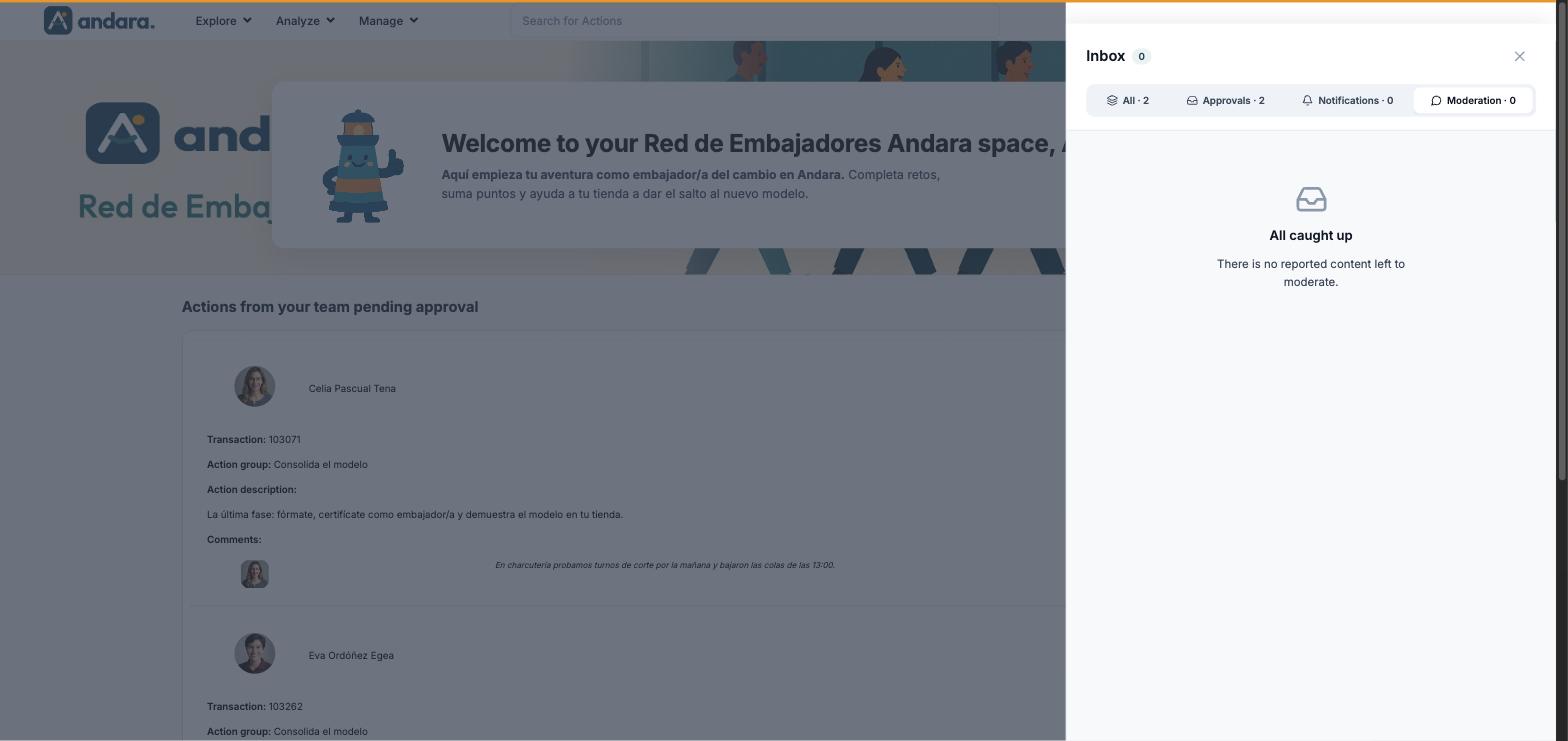
When a tab is empty it shows All caught up, with a text that depends on the tab: There is no reported content left to moderate. under Moderation and You have no new comments. under Notifications.
Settings#
The inbox is not configured: it fills itself. An action reaches Approvals when its completion method requires approval and someone in your team submits it; that is decided in Actions.
Approval detail#
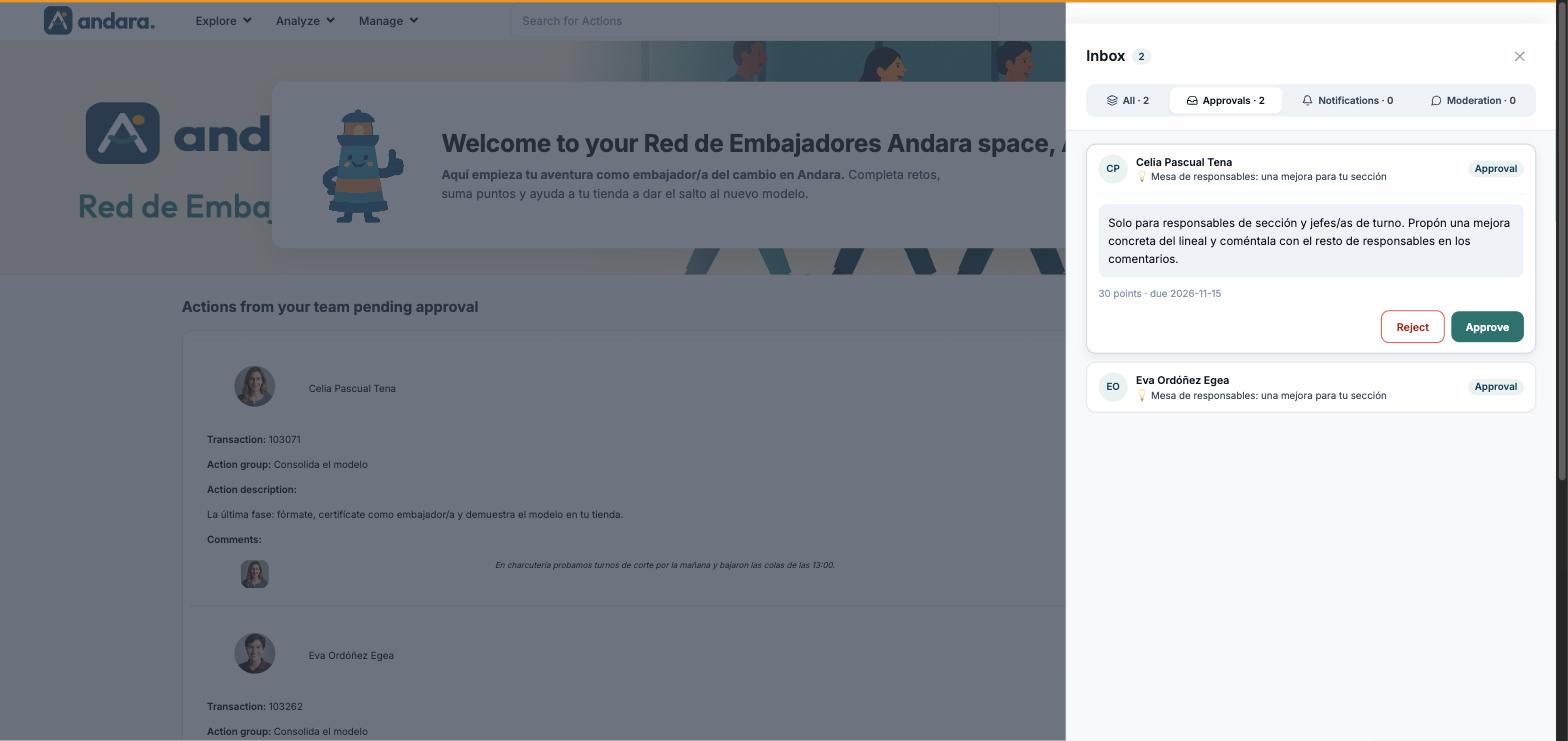
| Element | What it shows |
|---|---|
| Description | The action's text, as the person sees it. |
| N points · due YYYY-MM-DD | The points the action gives and its deadline. |
| Approve | Accepts the action. |
| Reject | Does not accept it. |
Pending approvals page#
Besides the panel, the inbox has a full page, with the project's welcome at the top and the list Actions from your team pending approval.
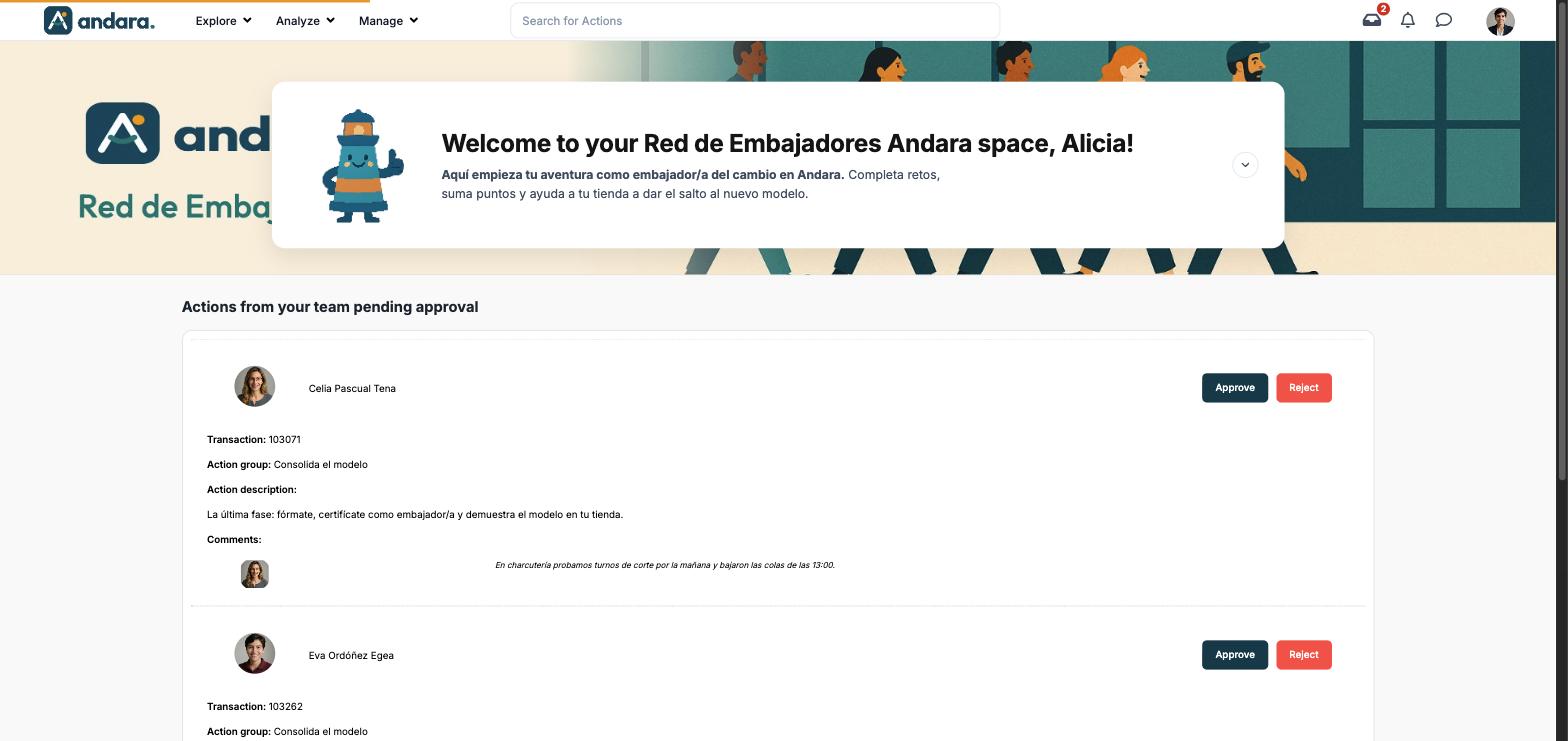
| Element | What it shows |
|---|---|
| Photo and name | Who submitted the action. |
| Approve / Reject | The same decisions as in the panel. |
| Transaction | The record number of that submission. |
| Action group | The group the action belongs to. |
| Action description | The action's text. |
| Comments | What the person wrote when submitting it, with their photo. |
How to#
Review and decide an approval#
- 1
Open the inbox
Click the inbox icon in the top bar and go to Approvals.
- 2
Expand the row
Click the person to see the description, points and deadline.
- 3
Decide
Press Approve or Reject. To see what they wrote when submitting it, use the inbox page, which shows the Comments.
Things to know#
- Approve and Reject take effect immediately. Check the description and comments first.
- An unreviewed report keeps the content hidden. Empty Moderation often.
- The panel takes a few seconds to appear: the screen darkens first and then it opens.
- The number on the icon and the one in the title do not always match: the title's number follows the tab you have open.
Related#
- Approvals and moderation: how the approval queue and reports work.
- Comments: the history of everything written.
- AI Actions Approval: what the AI approves or rejects.