What it is for#
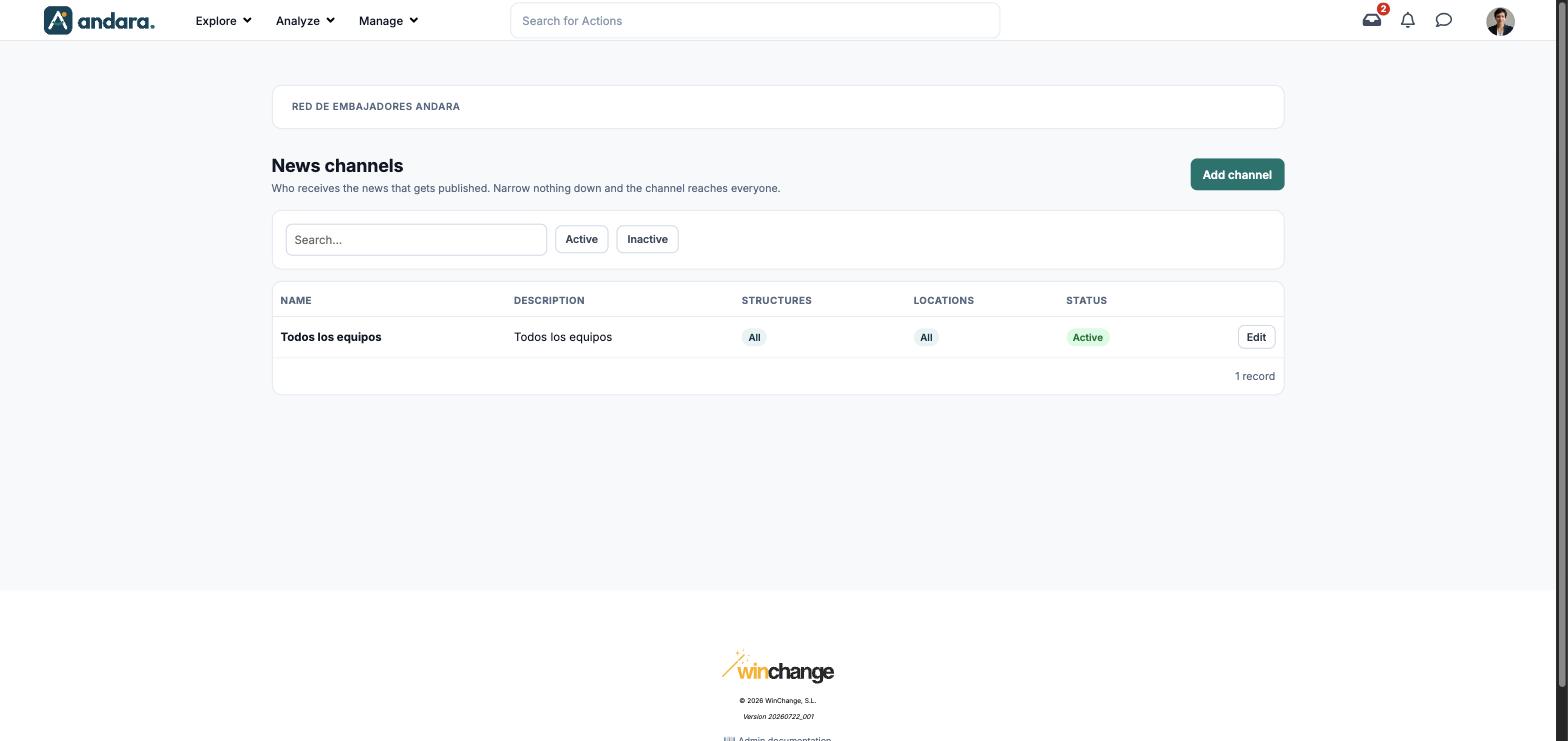
A channel decides who receives the news. Each news item is published in one or more channels, and each channel covers some structure groups and some locations. If you narrow nothing down, the channel reaches the whole workforce. The screen is titled News channels.
You need at least one channel for a news item to reach anyone.
Where it is: Manage › News › News Feed.
What you see#
The name of the project you are in is shown at the top.
| Element | What it shows |
|---|---|
| Search… | Filters the list as you type. |
| Active / Inactive | Shows only the channels that are on, or only those that are off. |
| Name | The channel name. |
| Description | The channel description. |
| Structures | The structure groups it covers, or All if it has not been narrowed down. |
| Locations | The locations it covers, or All if it has not been narrowed down. |
| Status | Active or inactive. |
| Edit | Opens the channel form. |
| Add channel | Opens a blank form. |
Settings#
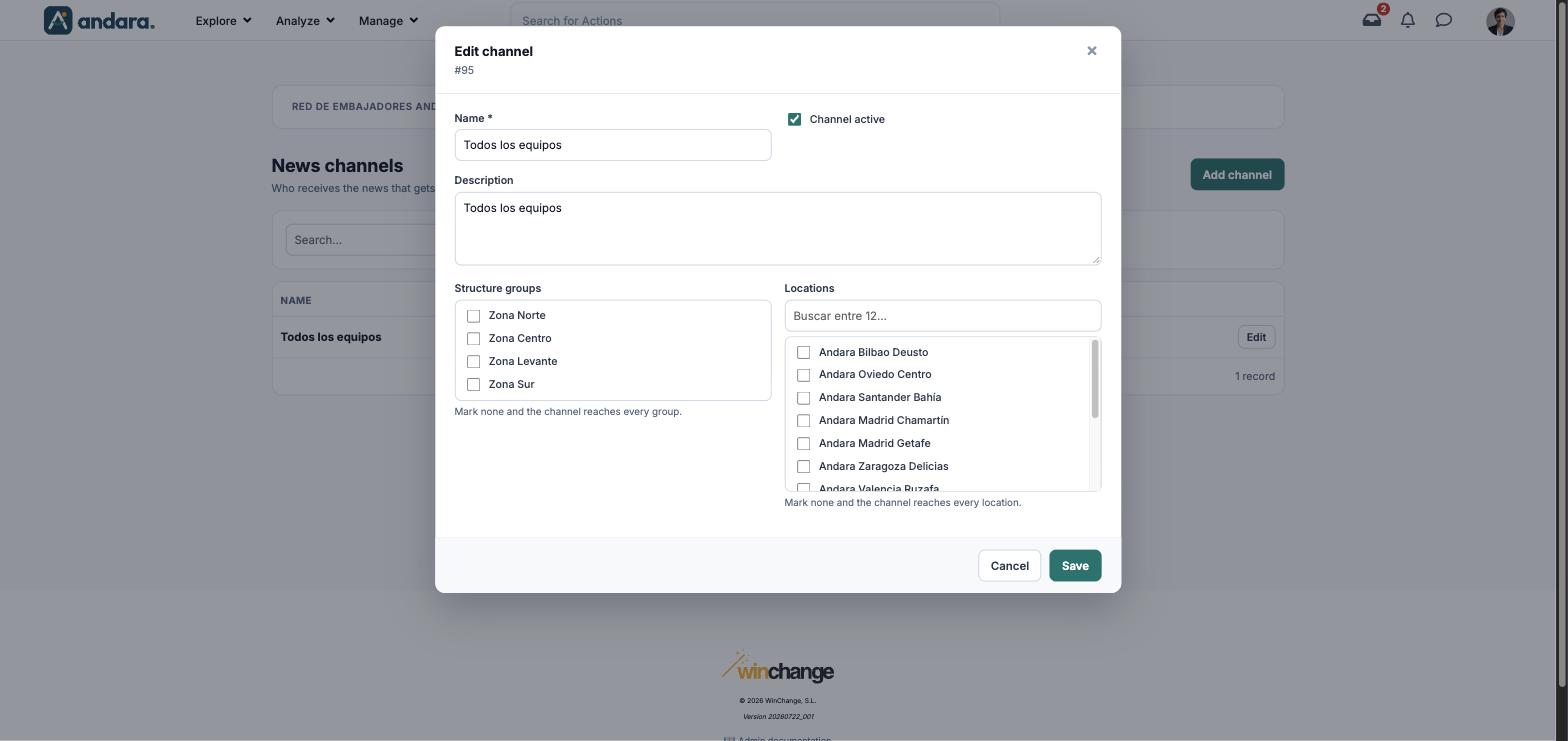
The form is the same to create (New channel) and to edit (Edit channel, with its number under the title).
| Field | What it does | Values |
|---|---|---|
| Name | Identifies the channel. It is the name you pick under Channels when you publish a news item. | Text. Required. |
| Channel active | Switches the channel on or off. | Tick box. Ticked by default. |
| Description | Explains what the channel is for. | Free text. |
| Structure groups | The organisation groups it reaches. With none ticked, it reaches every group. | Tick boxes with the groups in Organisations. Several or none. |
| Locations | The locations it reaches. With none ticked, it reaches every location. | Tick boxes with the locations, with a search box. Several or none. |
How to#
Create a channel for part of the workforce#
- 1
Open a new form
Click Add channel.
- 2
Name it
Type the Name and a Description.
- 3
Narrow who it reaches
Tick the Structure groups and the Locations. Leave them unticked to reach everyone.
- 4
Save
Click Save. You can now pick it when you publish in News.
Switch a channel off#
- 1
Open it
Click Edit on its row.
- 2
Switch it off
Untick Channel active and click Save.
Things to know#
- A channel that is not narrowed down reaches the whole workforce. Check the groups and locations before you publish something that is not for everyone.
- There is no delete button on this screen: a channel is retired by unticking Channel active.
- The list calls Structures what the form calls Structure groups: they are the same thing.
Related#
- News and communication: channels, news and notices.
- News: where each news item picks its channels.
- Organisations and Locations.