What it is for#
This is where you switch on the project's smart notifications: push messages that the app writes by itself, with artificial intelligence, for each person based on what is happening to them (they have not signed in for days, they have pending actions, their streak is at risk…). Which situations count is decided in Push Notification rules.
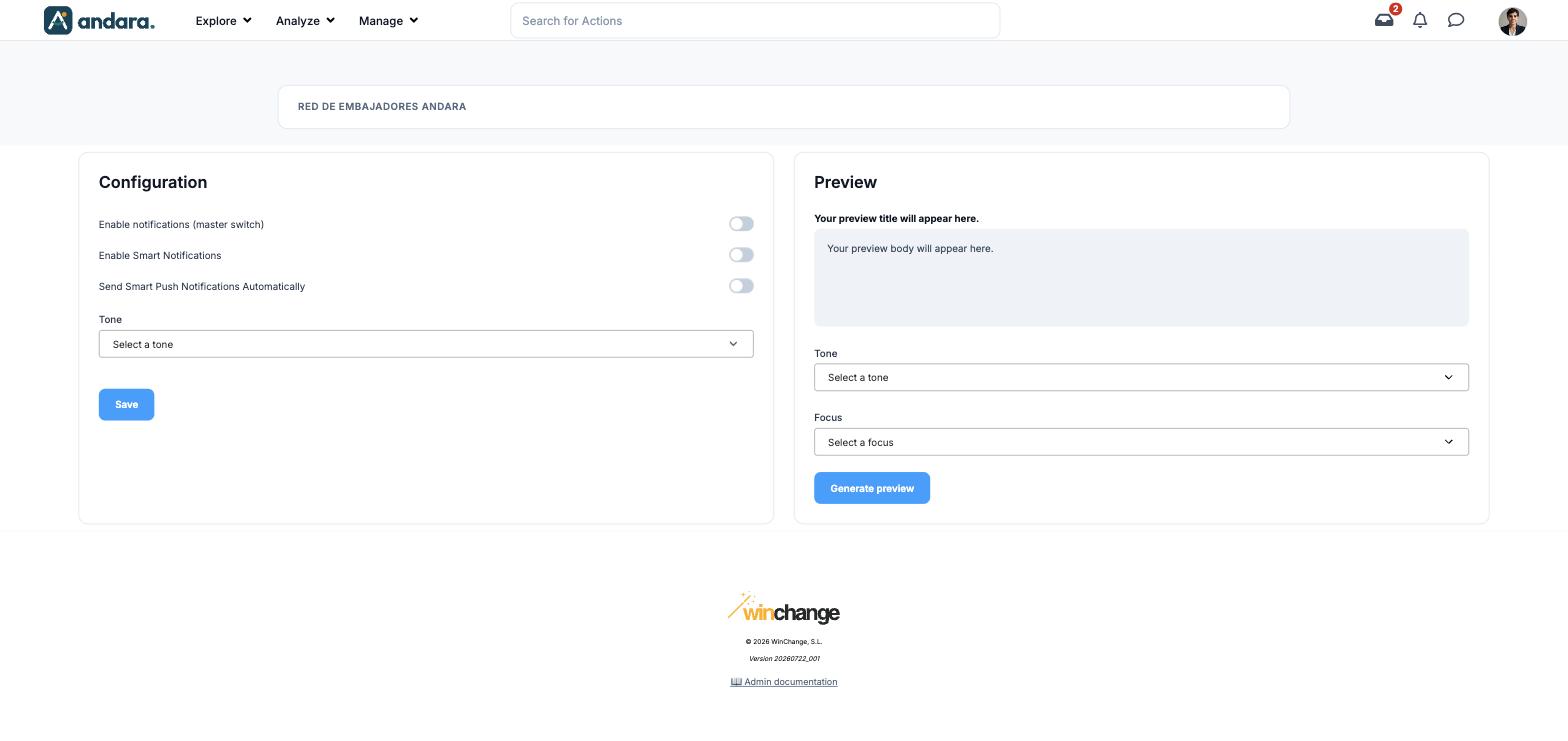
On the right there is a preview, so you can see how a message sounds with a given tone and focus before you switch anything on.
Where it is: Manage › Notifications › Push Notification Settings.
What you see#
The name of the project you are in appears at the top: the settings belong to that project.
| Element | What it shows |
|---|---|
| Configuration | The three switches and the tone the messages are written in. |
| Preview | A sample message: title in bold and body below. Until you generate one it reads Your preview title will appear here. |
Settings#
Configuration#
| Field | What it does | Values |
|---|---|---|
| Enable notifications (master switch) | When off, no smart notification is written or sent in this project, whatever the other two say. | Switch. Off in the demo. |
| Enable Smart Notifications | The app writes messages for the people who meet a rule. On without the third switch, messages are prepared but not sent: they stay in the log as not sent. | Switch. Off in the demo. |
| Send Smart Push Notifications Automatically | The written messages are actually sent to the phone of anyone who has the app with notifications allowed. | Switch. Off in the demo. |
| Tone | The style the messages are written in. | Serio, Motivador or Jovial (serious, motivating, cheerful; the options are shown in Spanish). Empty: Select a tone. |
Changes in this block are stored with Save.
Preview#
| Field | What it does | Values |
|---|---|---|
| Tone | The tone for the sample. | Serio, Motivador or Jovial. |
| Focus | The topic of the sample message. | Acciones pendientes, Ranking, Racha, Feedback or Encuestas (pending actions, ranking, streak, feedback, surveys). |
Generate preview writes a sample message in the box above. It helps you pick a tone; it sends nothing to anyone.
How to#
Try a tone before switching it on#
- 1
Pick tone and focus
Under Preview, choose a Tone and a Focus.
- 2
Generate the sample
Press Generate preview and read the title and body. Try another tone if you are not convinced.
Switch smart notifications on in stages#
- 1
Check the rules
In Push Notification rules, turn on only the signals you want to use.
- 2
Turn on writing without sending
Turn on Enable notifications (master switch) and Enable Smart Notifications, choose the Tone and press Save.
- 3
Review what would have gone out
Smart Push Notification Log shows the prepared messages and why they were not sent.
- 4
Turn sending on
Once you are happy with what is written, turn on Send Smart Push Notifications Automatically and press Save.
Things to know#
- Without the master switch nothing goes out, even if the other two are on.
- Sending only reaches people who have the app with notifications allowed. You can see who they are in Push Subscriptions.
- The texts are written by AI, person by person. There is no fixed text to review beforehand: the preview and the log are how you keep control.
- The Tone and Focus options are shown in Spanish even with the interface in English.
Related#
- Notifications and email: the different ways to reach people.
- Push Notification rules: which situations trigger a message.
- Smart Push Notification Log: what has been prepared and sent.