What it is for#
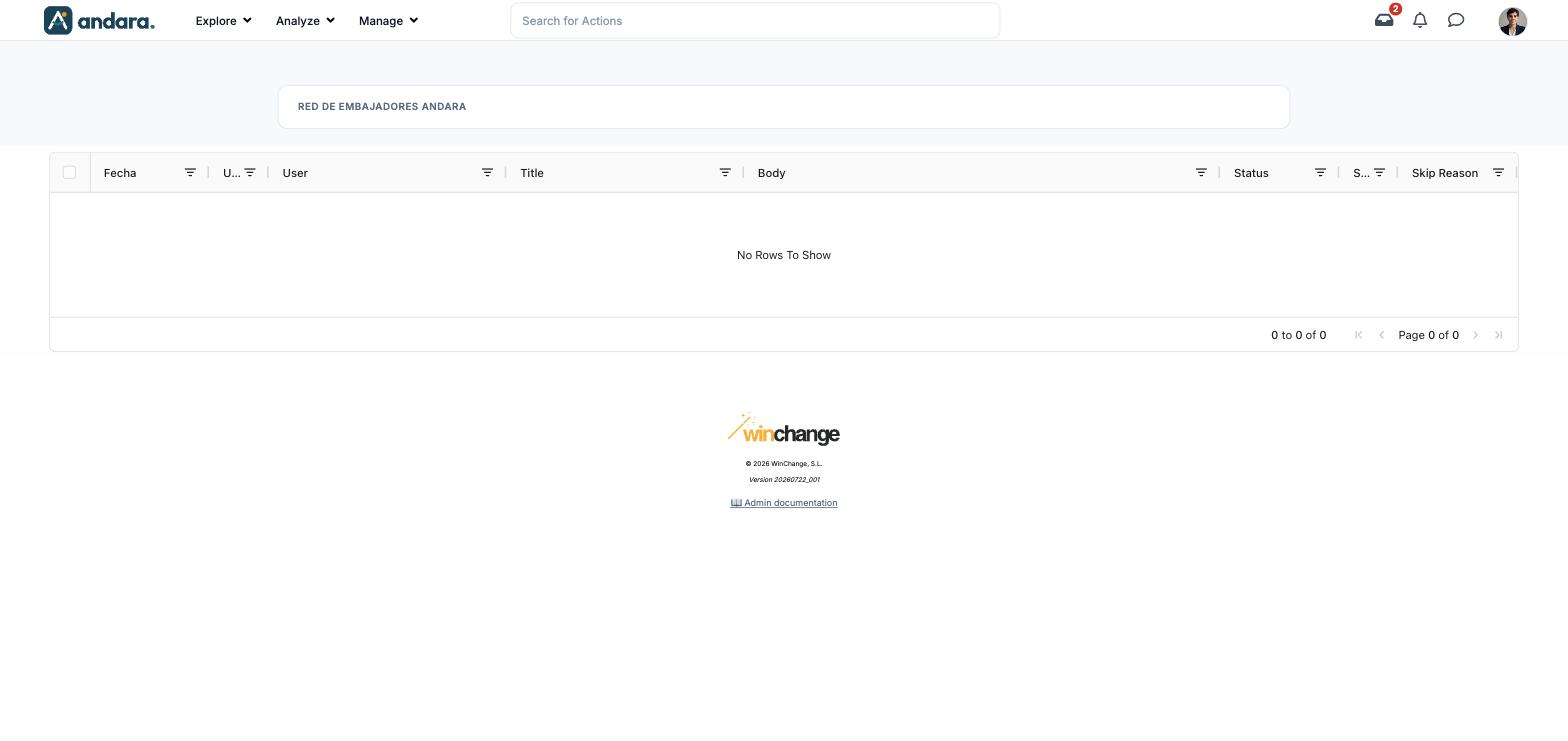
Every smart message the app has written for someone is recorded here: the date, the person, the title and the text, and whether it was sent or why not. It is how you review what the AI is saying on behalf of the programme.
It only covers smart notifications. Messages you send by hand from Send Push Notifications do not appear here.
Where it is: Manage › Notifications › Smart Push Notification Log.
What you see#
The name of the project you are in appears at the top.
| Element | What it shows |
|---|---|
| Tick box | Selects rows in the table. |
| Fecha | When the message was prepared (the heading stays in Spanish). |
| User ID | The person's internal number. It is cut short on screen. |
| User | The person's name. |
| Title | The message title. |
| Body | The message text. |
| Status | Whether the message was sent or stayed prepared without sending. |
| Sent | Whether it was actually sent. It is cut short on screen. |
| Skip Reason | Why it was not sent: for example, automatic sending is off or the person has no subscription. |
| Column filter | The icon next to each heading filters by that column. |
| Pagination | Bottom right, with the arrows to change page. |
In the demo the table is empty (No Rows To Show): smart notifications are switched off.
Settings#
There is nothing to configure: it is a lookup screen. What gets generated is decided in Push Notification Settings and Push Notification rules.
How to#
Review messages before turning sending on#
- 1
Turn writing on without sending
In Push Notification Settings, turn on the master switch and smart notifications, but leave automatic sending off.
- 2
Read what was prepared
Come back here and go through Title and Body. Skip Reason will show they were not sent because sending is off.
- 3
Decide
If the tone does not fit, change it in the settings. If you are happy, turn automatic sending on.
Things to know#
- Each message is written by AI for a specific person. No two are the same: review a wide sample, not just the first one.
- An unsent message is not an error. Skip Reason tells you whether it was the sending setting or the person being unable to receive messages.
- The date heading is in Spanish (Fecha) and two headings are cut short.
Related#
- Push Notification Settings: turning writing and sending on.
- Push Notification rules: which situations generate a message.
- Push Subscriptions: who can receive them.