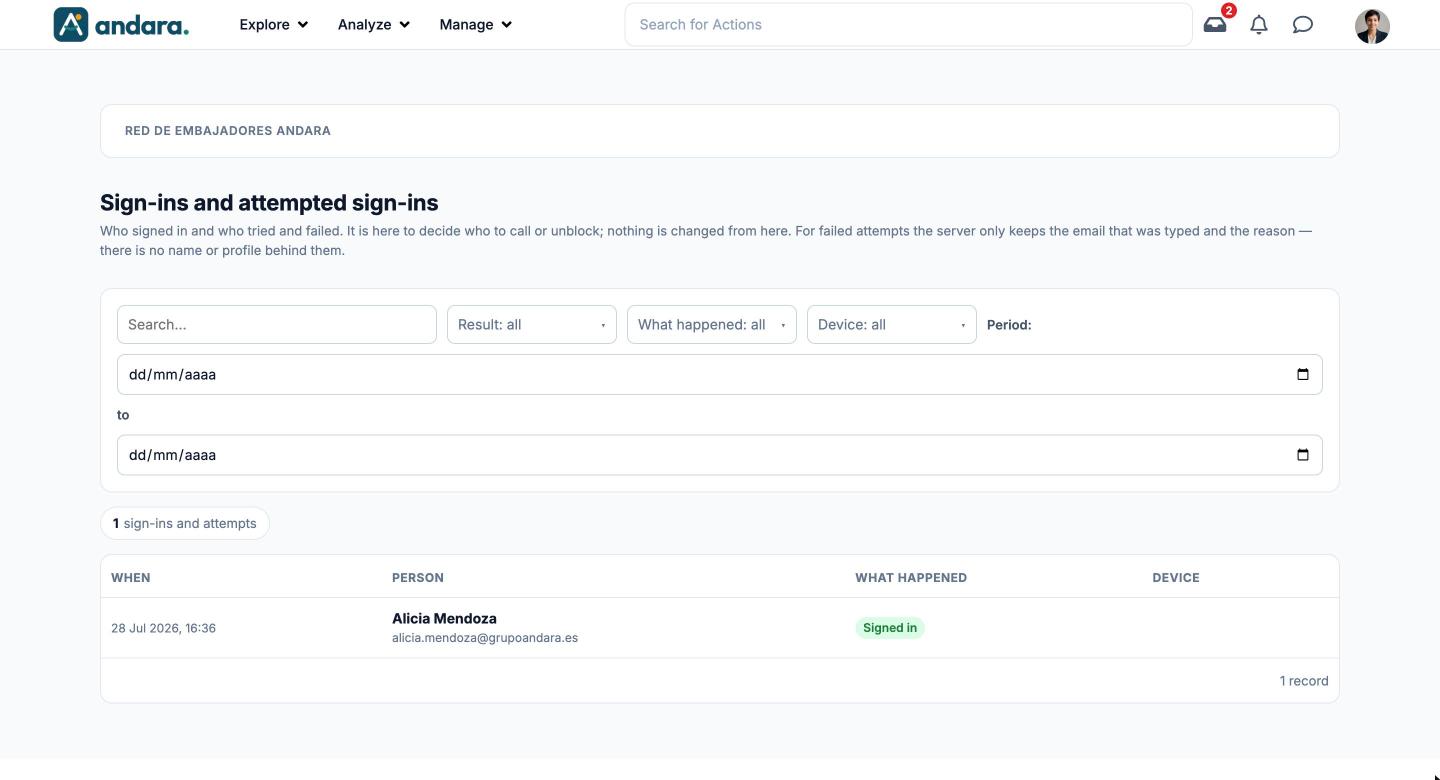
What it is for#
This is where you see who has signed in to the app and who tried and failed, and why. It helps you decide who to call or unblock when someone says they cannot get in.
It is a read-only screen: nothing is changed from here. For failed attempts only the email that was typed and the reason are kept, so there is no name or profile behind them. In the app the screen is called Sign-ins and attempted sign-ins.
Where it is: Manage › Security › Signons & Attempted Signons.
What you see#
| Element | What it shows |
|---|---|
| Search… | Filters the list as you type. |
| Result: all | Keeps only sign-ins with one result: Signed in, Code pending (the password was right but the verification code was not entered) or Did not get in. |
| What happened: all | Keeps only one reason: Signed in, Waiting for the code, Wrong password, Account not verified, Account blocked, Email not on file, Wrong code or Code expired. |
| Device: all | Keeps only sign-ins from Desktop, Mobile or Tablet. |
| Period | Start and end dates. It opens on the last week. |
| All time | Removes the date limit. |
| Counter | How many sign-ins and attempts there are with the filters applied. |
| When | Date and time of the attempt. |
| Person | Name and email. For a failed attempt with an email not on file, only the typed email. |
| What happened | The result or the reason it failed. |
| Device | What kind of device it came from. |
If there is no sign-in in the chosen period, you see Nobody signed in or tried to in this period: widen the dates or click All time.
Settings#
This tab has nothing to configure: it is read-only. The filters at the top are the only way to narrow down what you see.
How to#
Find out why someone cannot sign in#
- 1
Look the person up
Type their email in Search…. If nothing shows, click All time.
- 2
Check the reason
Read the What happened column for their latest attempts.
- 3
Act on the reason
Account blocked: unblock it in Blocked Users. Email not on file: they are typing an email other than the one on their profile. Wrong password: not blocked yet, but the attempts are adding up.
Review failed sign-ins over a period#
- 1
Set the dates
Enter the start and end under Period.
- 2
Keep only the failures
Under Result, choose Did not get in.
- 3
Look for patterns
Many attempts in a row on different accounts are worth reviewing with the team.
Things to know#
- It opens on the last week only. If the list is empty, it does not mean nobody signed in: widen the period.
- An attempt with an email not on file has no profile behind it. It is usually someone getting their address wrong.
- Nobody is unblocked from here. That is done in Blocked Users.
Related#
- Security and auditability: account lockout, two-factor authentication and what gets logged.
- Blocked Users: giving access back to a blocked account.
- Users: each person's profile.