What it is for#
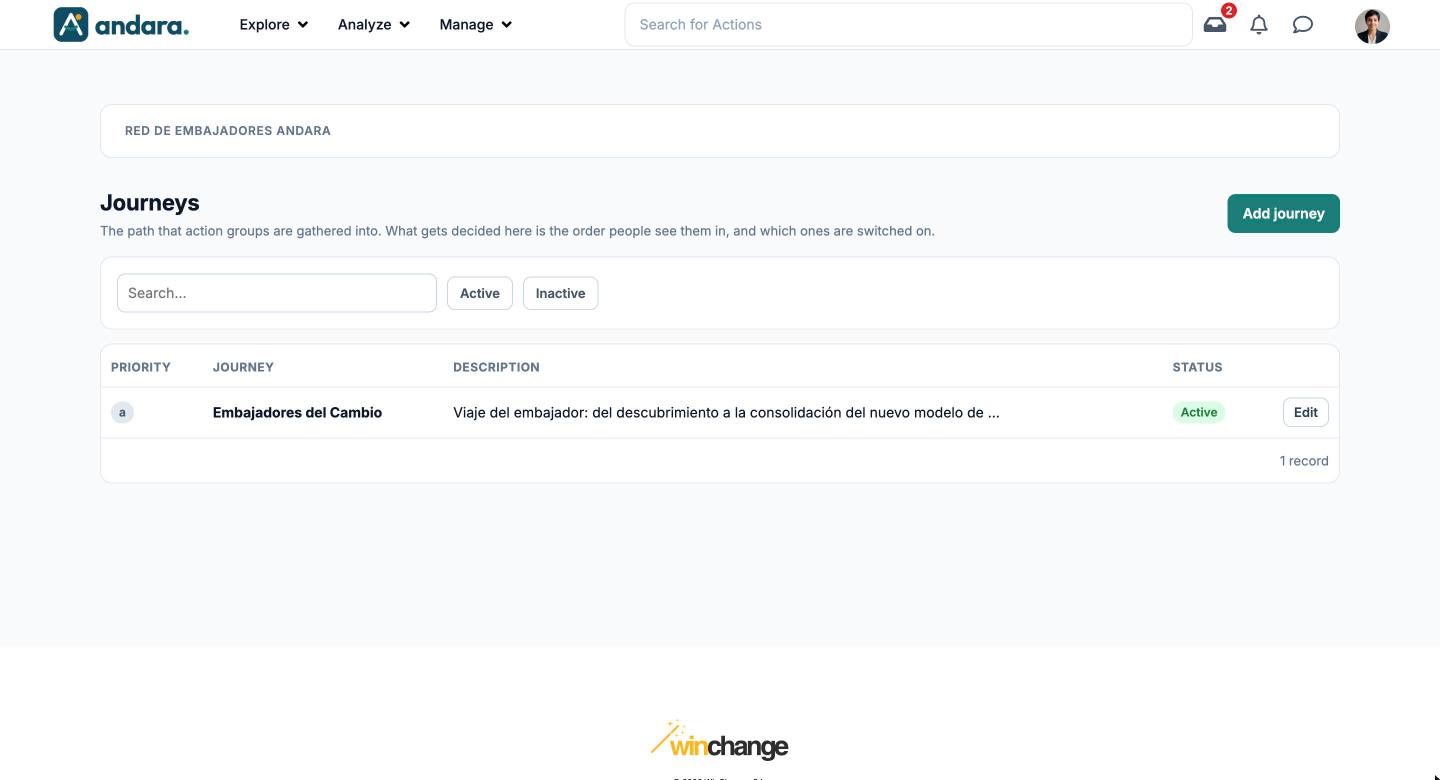
This is where you create and order the project's journeys: the path that action groups are gathered into. What gets decided here is the order people see them in, and which ones are switched on.
A journey does not hold actions directly: actions belong to a group, and the group to a journey. Groups are assigned to their journey from Action Groups.
Where it is: Manage › Journeys › Journeys.
What you see#
| Element | What it shows |
|---|---|
| Search… | Filters the list as you type. |
| Active / Inactive | Shows only the journeys that are switched on, or only those switched off. |
| Priority | The value that sets the order. |
| Journey | The name. |
| Description | The start of the description. |
| Status | Active or Inactive. |
| Edit | Opens the journey's form. |
| Add journey | Opens a blank form. |
Settings#
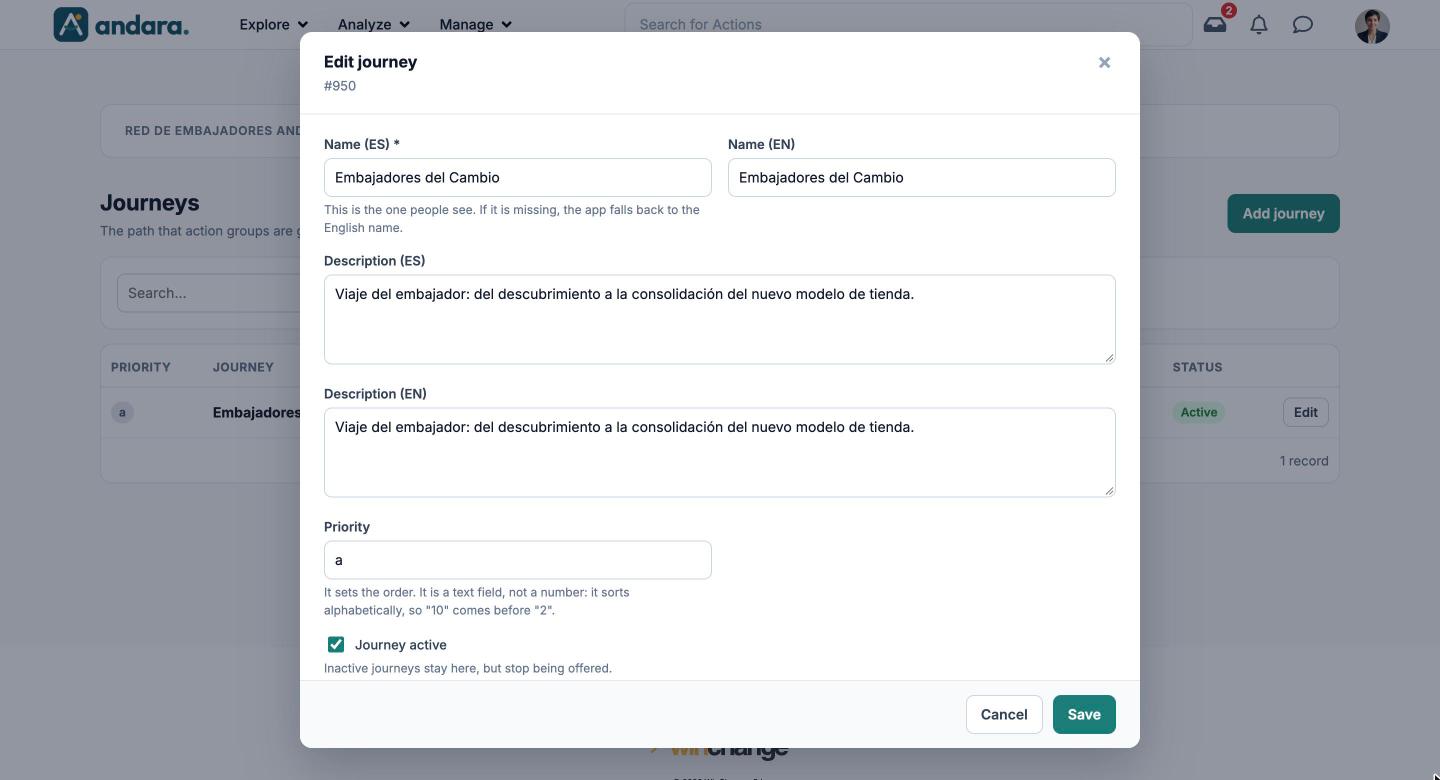
The form is the same to create (New journey) and to edit (Edit journey, with the journey's number under the title).
| Field | What it does | Values |
|---|---|---|
| Name (ES) | The name people see with the app in Spanish. The help text warns: if it is missing, the app falls back to the English name. | Text. Required. |
| Name (EN) | The name for people using the app in English. | Text. |
| Description (ES) | Explains the goal of the journey. | Free text. |
| Description (EN) | The description in English. | Free text. |
| Priority | Sets the order. It is a text field, not a number: it sorts alphabetically, so "10" comes before "2". When creating, if you leave it empty the form warns that the journey goes to the top of the list. | Text. Use letters (a, b, c…) or zero-padded numbers (01, 02…). |
| Journey active | Inactive journeys stay in this list, but stop being offered in the app. | Checkbox. Ticked by default. |
How to#
Create a journey#
- 1
Open a blank form
Click Add journey.
- 2
Name it
Fill in Name (ES) and, if some people use the app in English, Name (EN). Add the descriptions.
- 3
Place it
Type a Priority that puts it where it belongs among the others.
- 4
Save
Click Save. Then go to Action Groups and assign its groups.
Switch a journey off#
- 1
Open it
Click Edit on its row.
- 2
Deactivate it
Untick Journey active and click Save. You will find it afterwards with the Inactive filter.
Things to know#
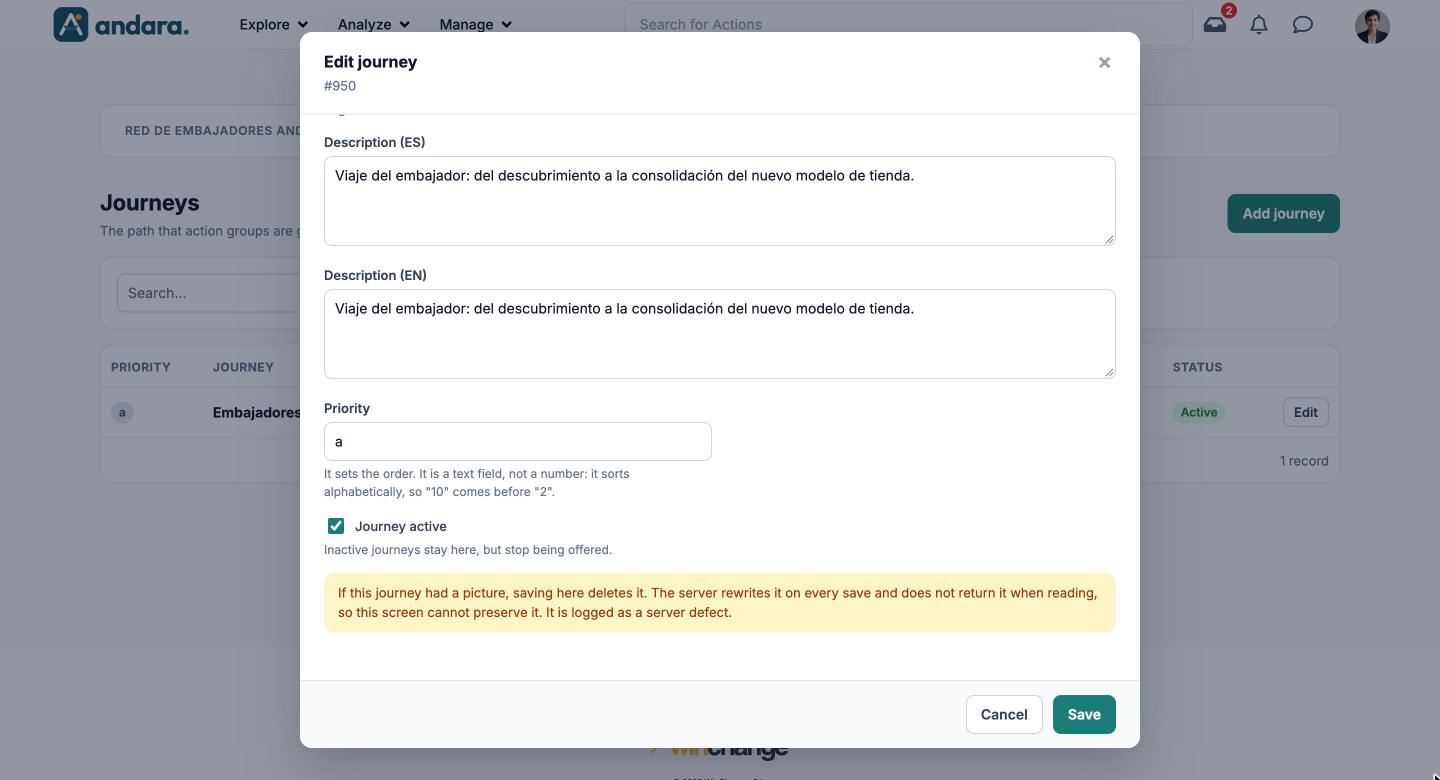
Saving from this form deletes the journey's picture, if it had one. The form itself warns about it when editing: the screen cannot preserve it and it is logged as a defect. If your journey has a picture, do not edit it here until this is fixed.
- Priority sorts as text. "10" comes before "2"; use letters or zero-pad.
- There is no delete here. To retire a journey, deactivate it.
- The Spanish name is the required one, but if some people use the app in English, fill in the English one too.
Related#
- Journeys and actions: how the path is organised.
- Action Groups: the blocks inside each journey.
- Actions: the challenges that award points.
- Actions Assistant: draft a whole journey with AI.