What it is for#
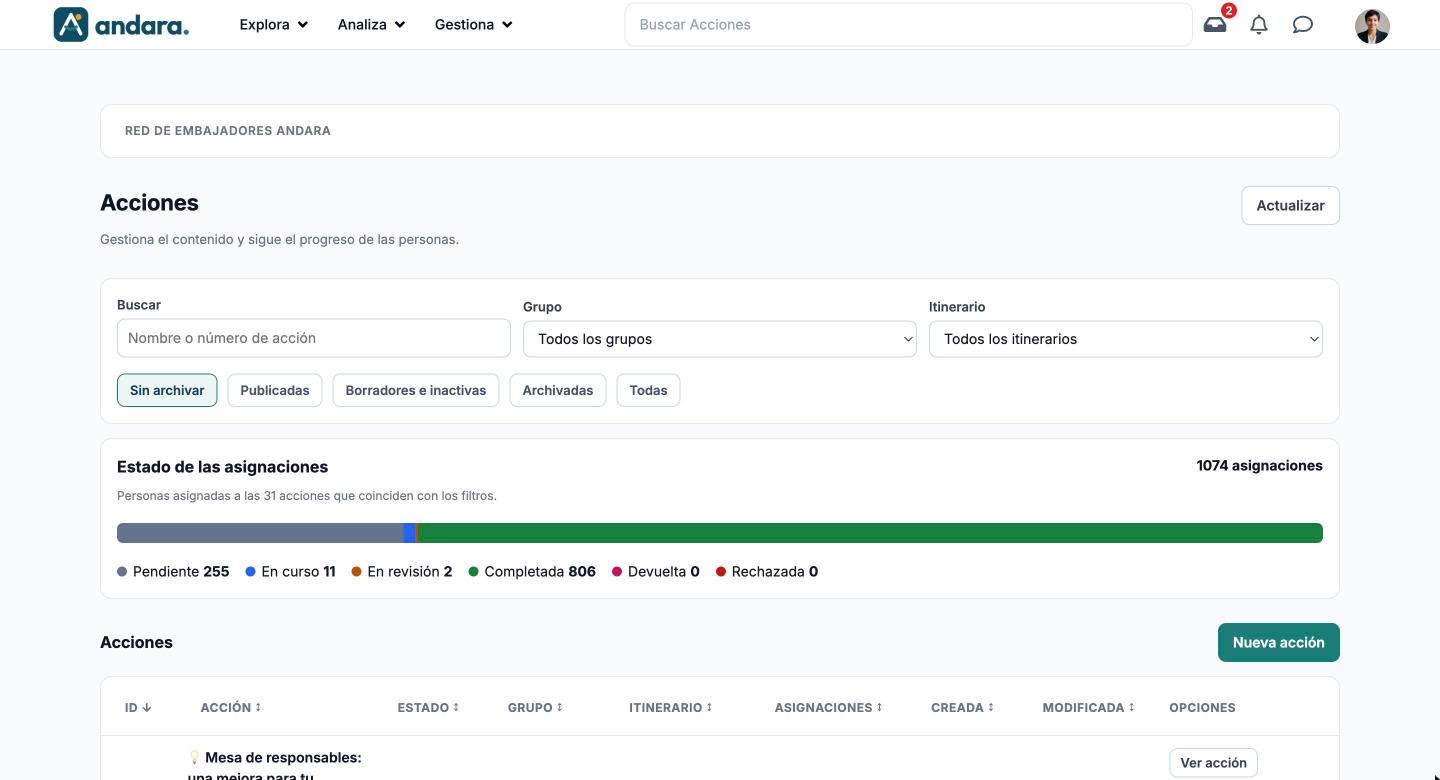
This is where actions are created and maintained: the specific challenges each person completes, and the only thing that awards points. Each action is edited in a four-step form: Datos básicos (basic details), Contenido (content), Cómo se completa (how it is completed) and Asignación (assignment).
The screen also gives you a snapshot of progress: the Estado de las asignaciones bar counts where the people assigned to the filtered actions are.
This screen is only available in Spanish, even with the app in English. The labels below are written as they appear, with their meaning.
Where it is: Manage › Journeys › Actions.
What you see#
| Element | What it shows |
|---|---|
| Actualizar (Refresh) | Reloads the list and the counters. |
| Buscar (Search) | Filters by action name or number as you type. |
| Grupo / Itinerario (Group / Journey) | Keep only the actions in one group or journey. Default: all groups and all journeys. |
| Sin archivar, Publicadas, Borradores e inactivas, Archivadas, Todas | Status filters: not archived, published, drafts and inactive, archived, all. Sin archivar is selected on entry. |
| Estado de las asignaciones | Bar with the assignments of the filtered actions, split into pending, in progress, under review, completed, sent back and rejected, with the total at the top right. |
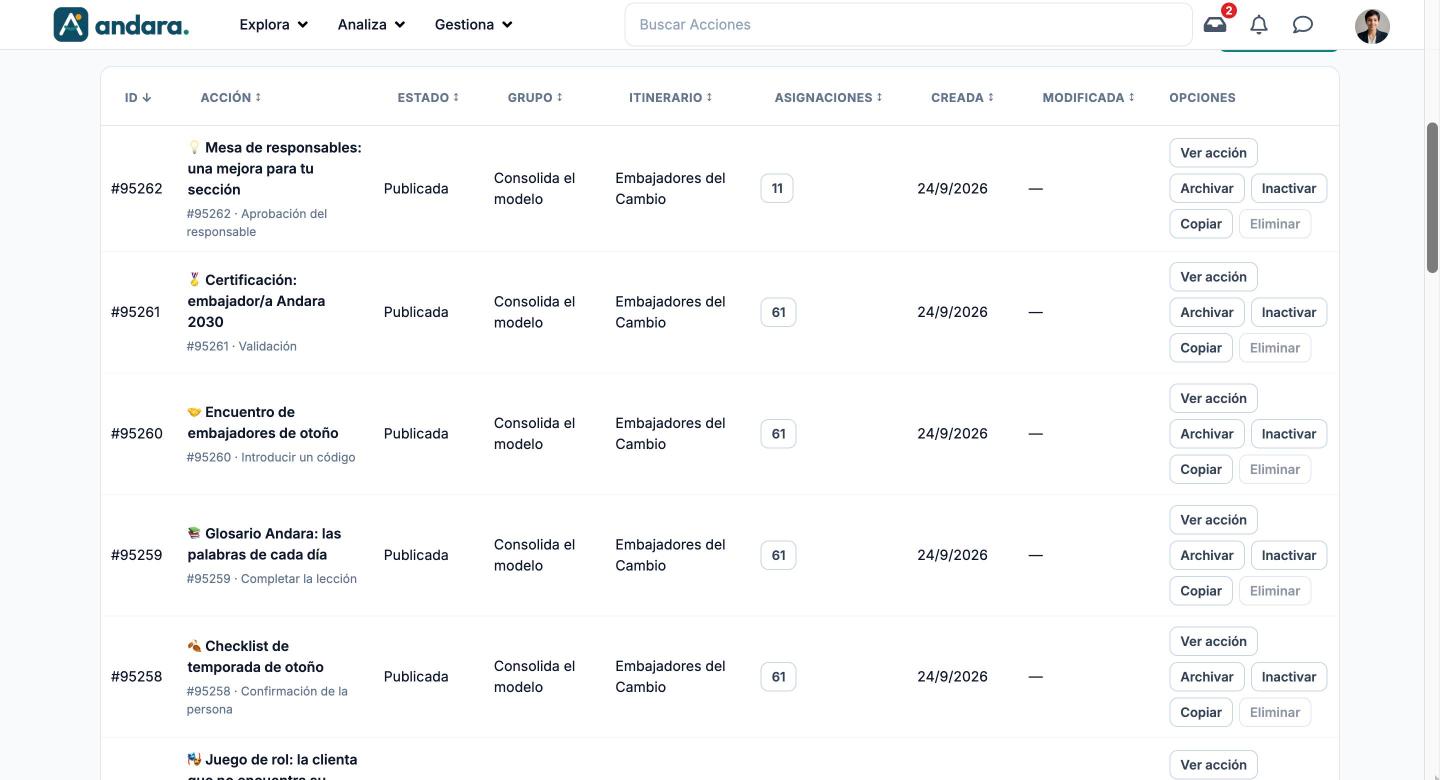
| ID | The action number. The list is sorted by ID, newest first; every column can be sorted. |
| Acción | The name and, below it, the number and the completion method (for example, Aprobación del responsable, manager approval). |
| Estado | Publicada (published), Borrador (draft) or Archivada (archived). |
| Grupo / Itinerario | Where the action sits. The journey is always its group's. |
| Asignaciones | How many people have it assigned. |
| Creada / Modificada | Created and last modified dates. — if unknown. |
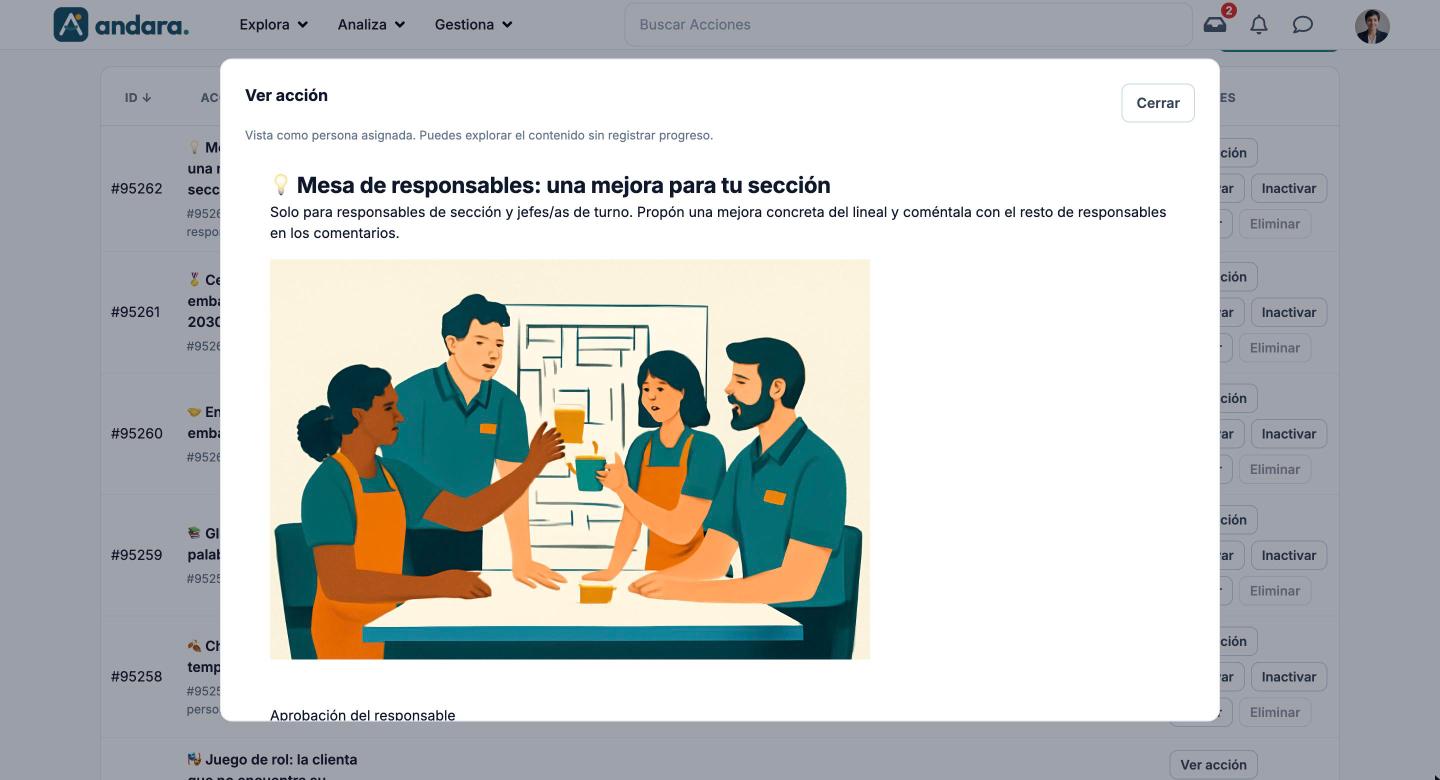
| Ver acción (View action) | Opens the action as an assigned person would see it, without recording progress or points. |
| Archivar / Restaurar | Removes the action from the usual list, or brings it back (as inactive). |
| Inactivar | Published actions only: hides it without archiving it. |
| Copiar | Creates a copy of the action. |
| Eliminar | Deletes the action. Only enabled for actions with no history; greyed out for the rest. |
| Nueva acción | Creates a new draft. |
Settings#
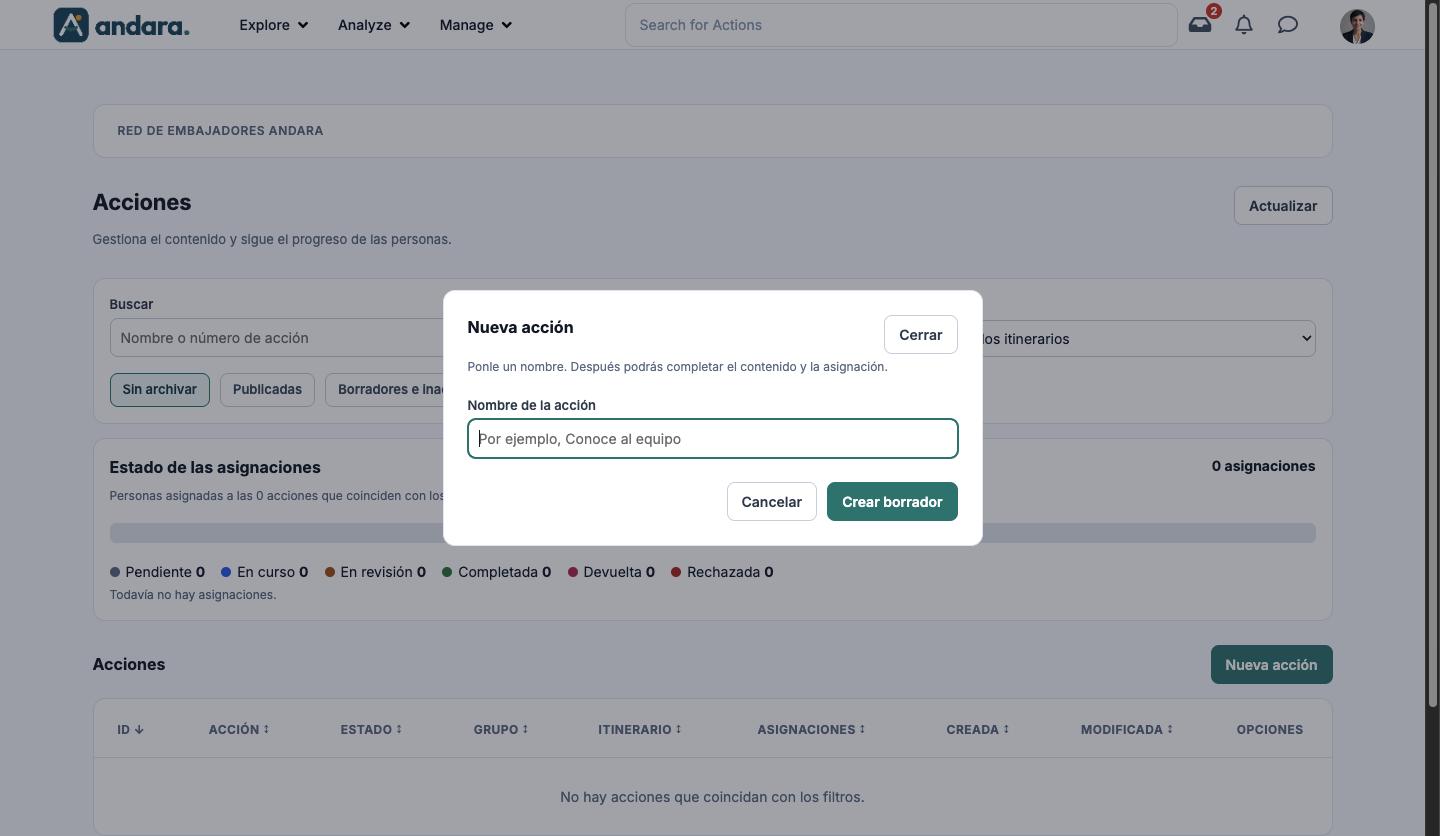
New action#
| Field | What it does | Values |
|---|---|---|
| Nombre de la acción (action name) | The name it starts with. Crear borrador (create draft) creates the action as a draft and opens its form so you can fill in the rest. | Text. Required (up to 250 characters). |
The action form has Ver acción and Volver al listado (back to list) at the top, with the number, status and dates, and a fixed bar at the bottom that says whether there are unsaved changes, with Descartar (discard), Guardar cambios (save changes) and Siguiente (next; Guardar y siguiente if you changed something). On the last step, if the action is a draft, Publicar acción (publish action) appears.
1. Basic details (Datos básicos)#
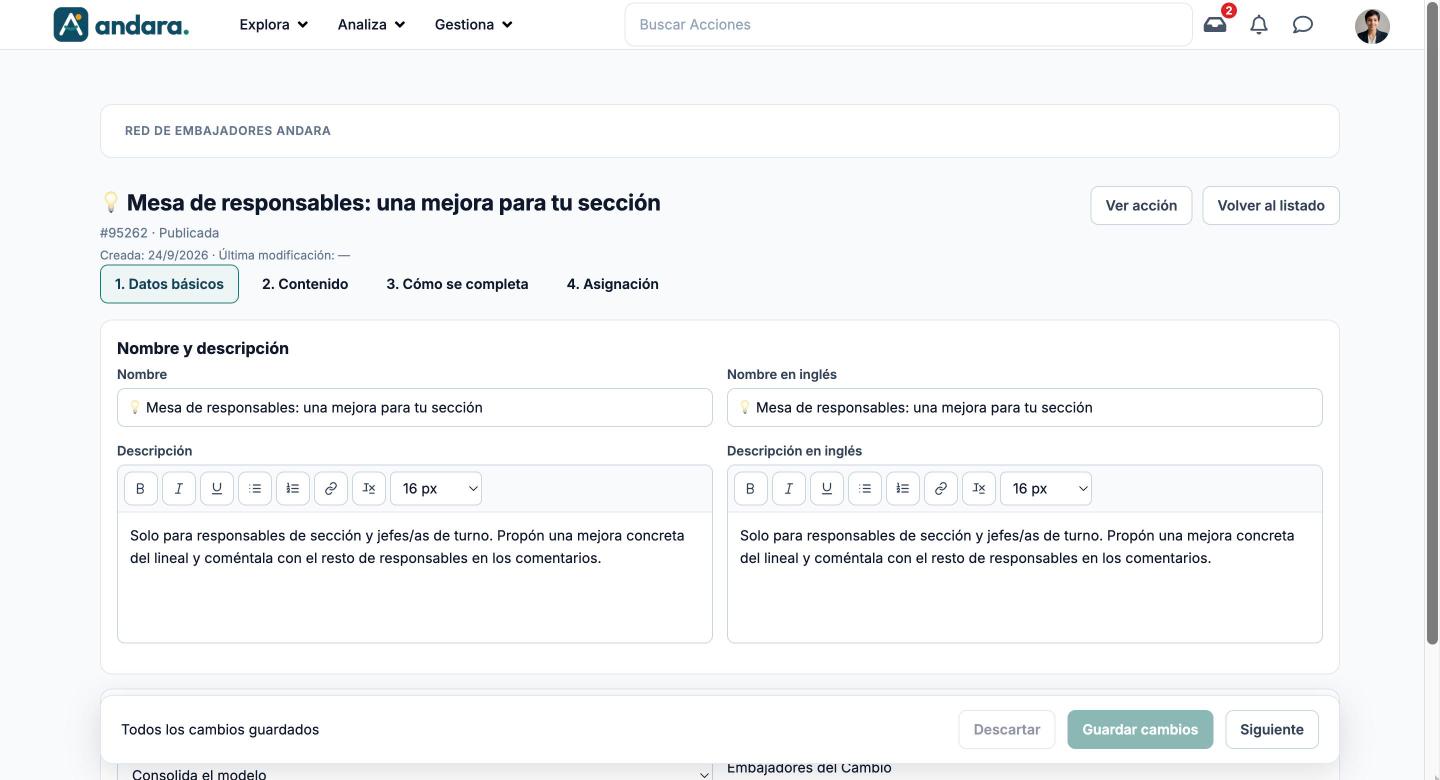
| Field | What it does | Values |
|---|---|---|
| Nombre | The title people see in the Spanish version. | Text. |
| Nombre en inglés | The title in the English version. | Text. |
| Descripción | What the person has to do. Supports bold, italics, underline, lists, links and font size. | Formatted text. Default size: 16 px. |
| Descripción en inglés | The description in English. | Formatted text. |
| Grupo de acciones | The group the action belongs to. | One from Action Groups, or Sin grupo (no group). |
| Itinerario | Not chosen: it is the group's journey. | Read-only. |
2. Content (Contenido)#
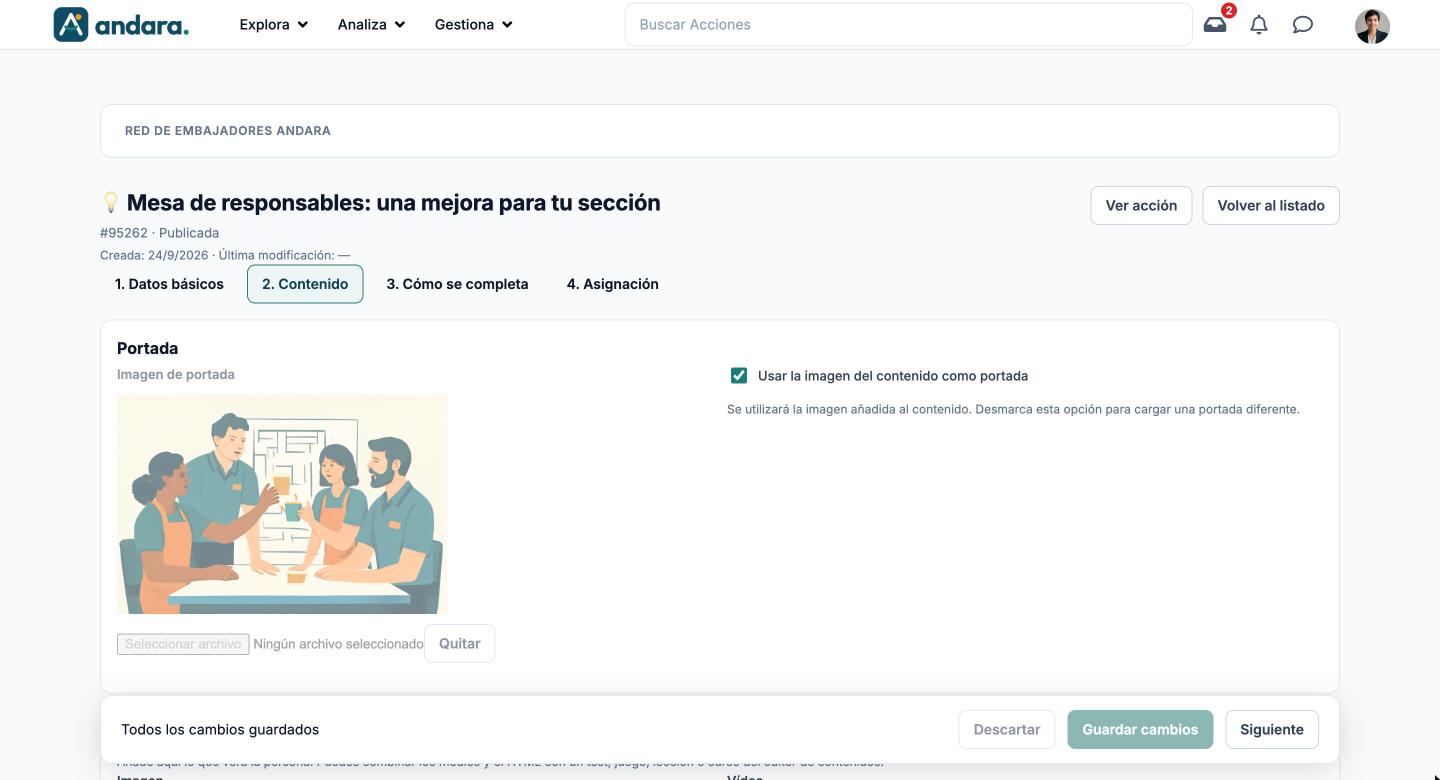
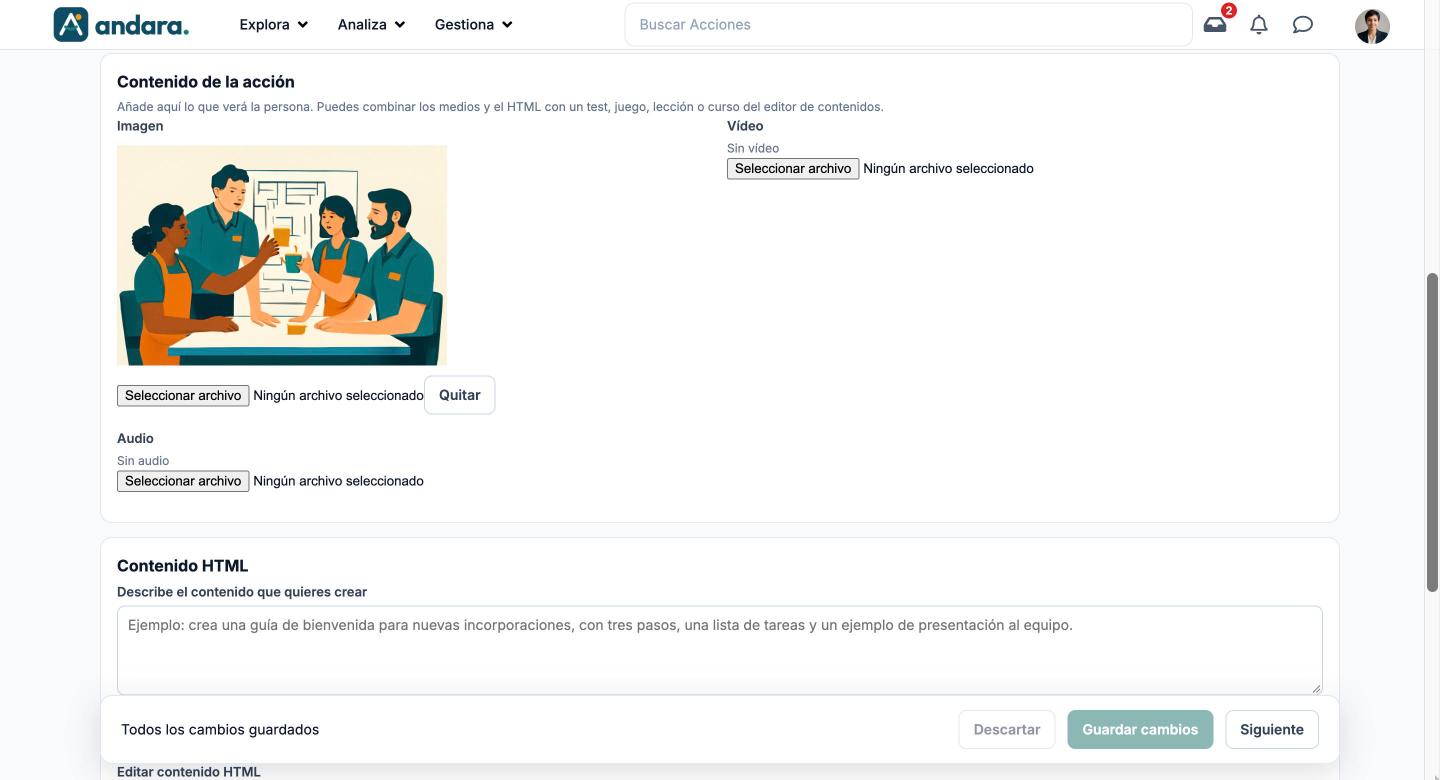
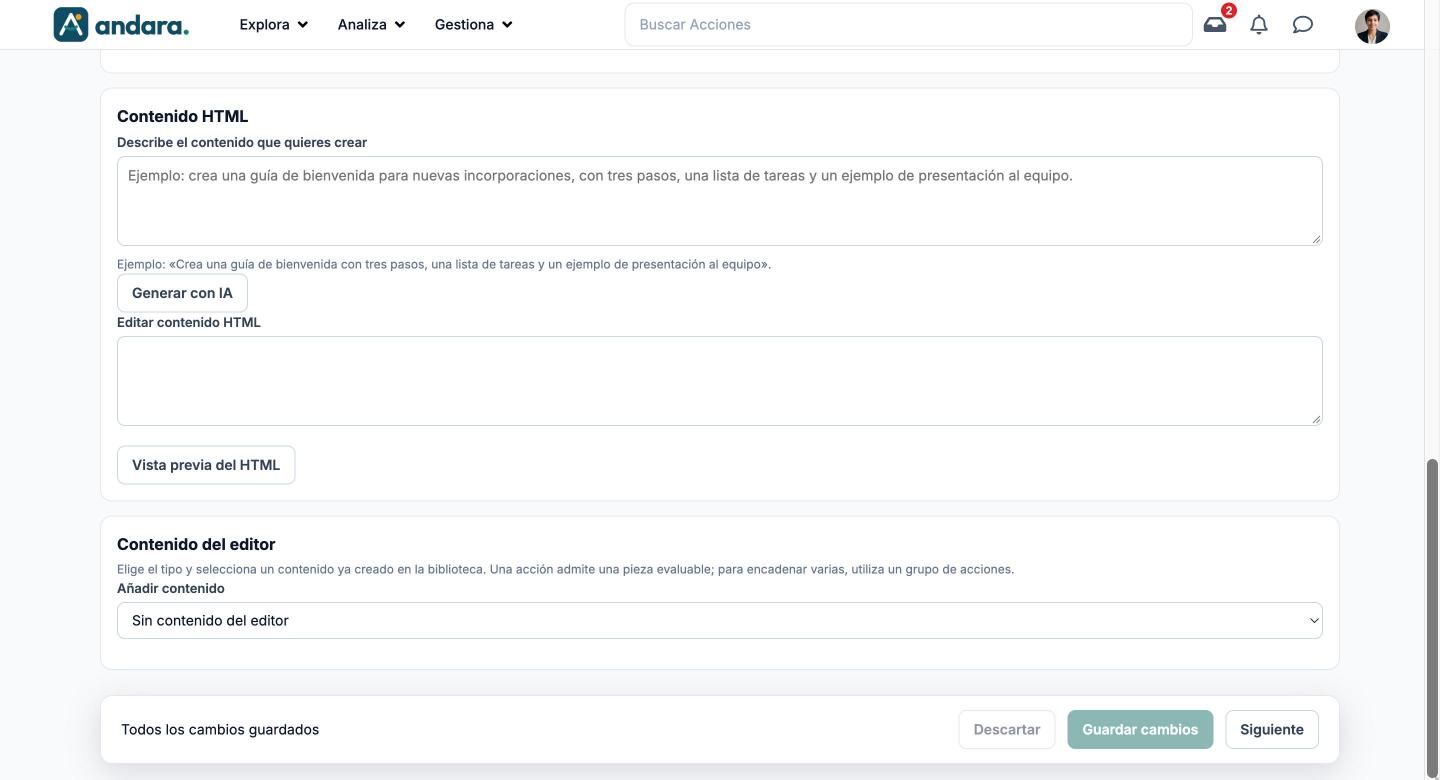
| Field | What it does | Values |
|---|---|---|
| Imagen de portada (cover image) | The image on the action card. | Image. Disabled while the next box is ticked. |
| Usar la imagen del contenido como portada | Uses the content Imagen as the cover. Untick it to upload a different cover. | Tick box. |
| Imagen, Vídeo, Audio | Material the person sees inside the action. They can be combined. Quitar removes the current one. | One file of each type. |
| Describe el contenido que quieres crear | An instruction for the AI to write the HTML content. Generar con IA (generate with AI) shows you the result to review before using it. | Free text. |
| Editar contenido HTML | The HTML content shown in the action. Vista previa del HTML shows how it looks. | HTML. |
| Añadir contenido (add content) | A library piece the person does inside the action. An action takes a single assessable piece; to chain several, use an action group. Choosing a type switches the step 3 completion method to the matching one. | Sin contenido del editor (none, default), Test, Juego o contenido interactivo (game or interactive content), Lección (lesson), Curso SCORM, Protocolo (protocol). |
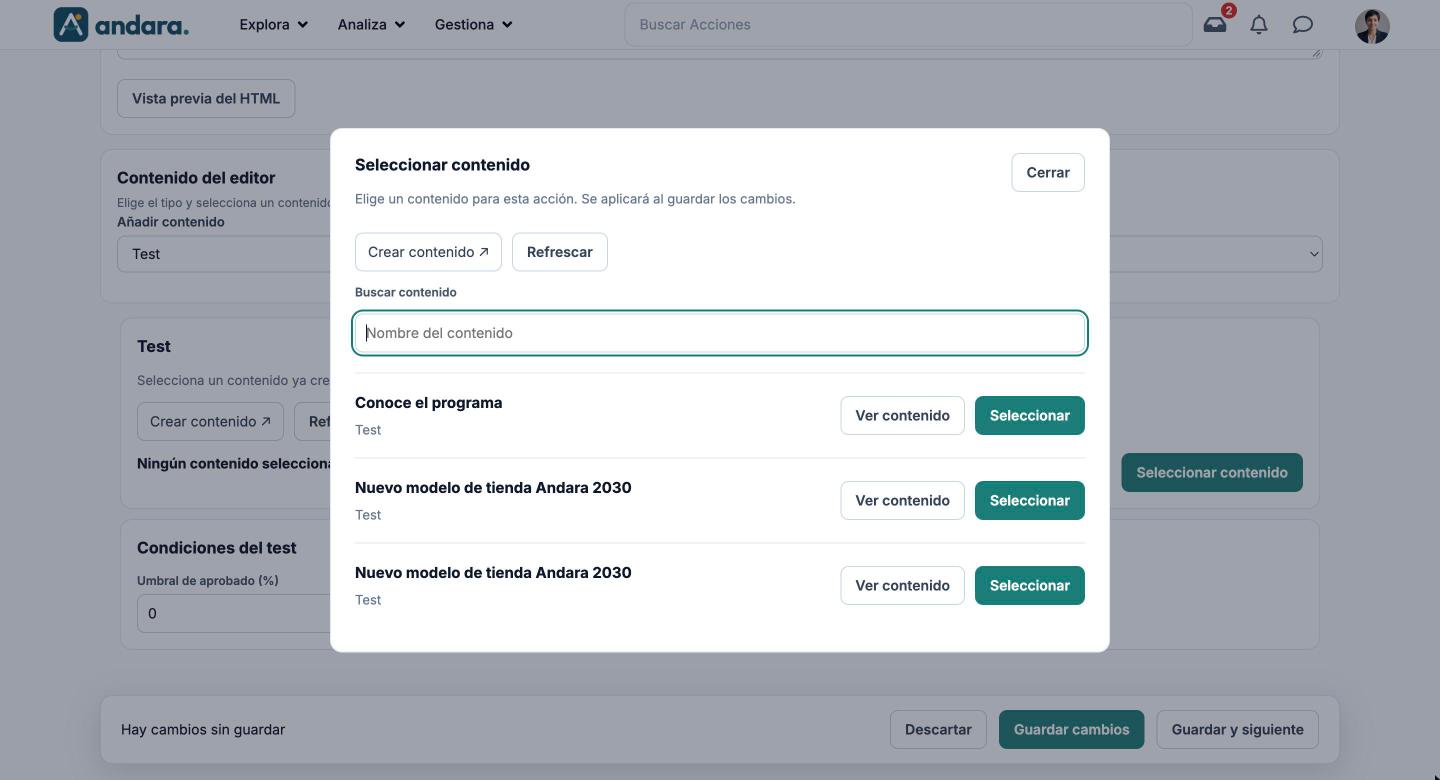
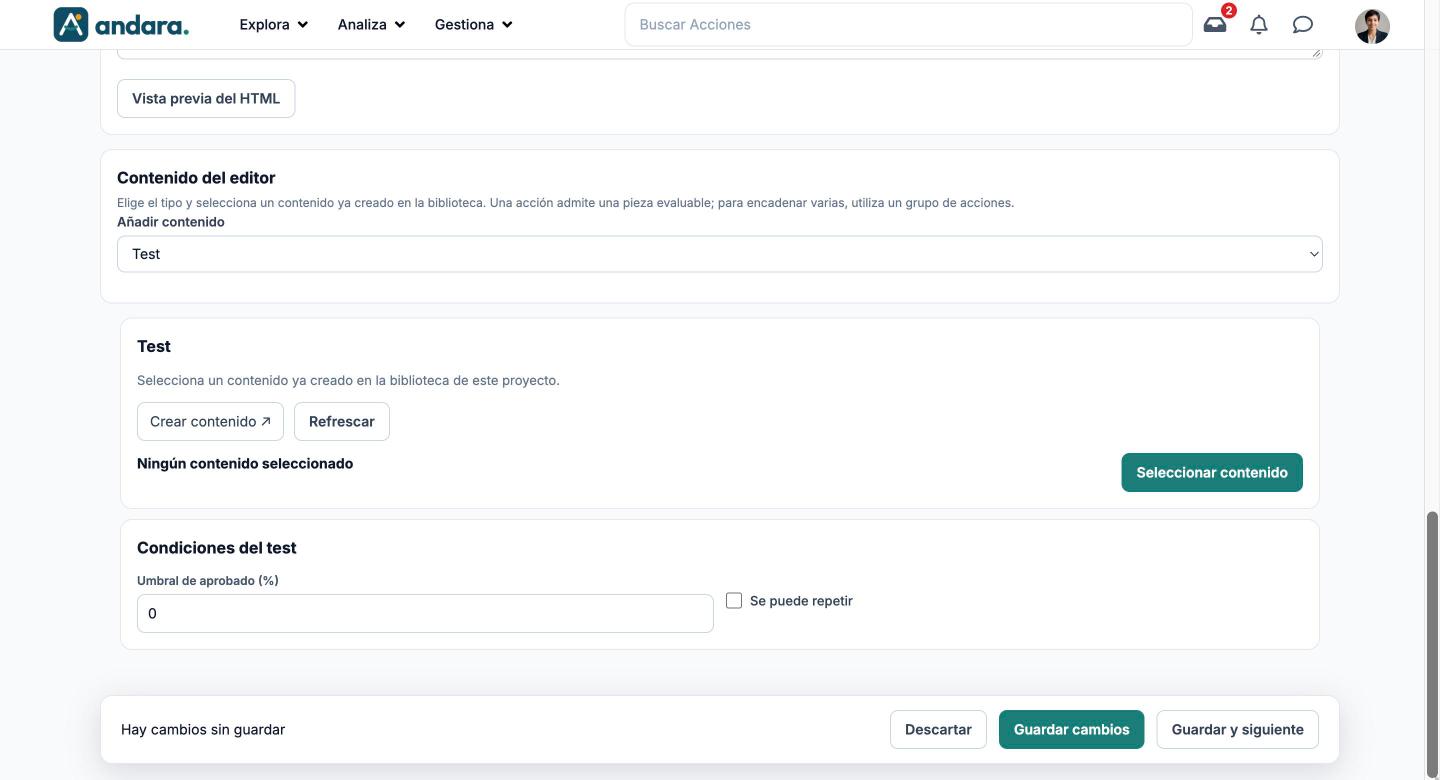
Choosing a type adds a block with Crear contenido ↗ (opens the Content Library in another tab), Refrescar (brings in what you just created without leaving the action) and Seleccionar contenido, which opens the library search:
| Field | What it does | Values |
|---|---|---|
| Seleccionar contenido (select content) | Picks the piece. Ver contenido previews it before you choose; the choice is applied when you save. | A piece of the chosen type from the same project. |
| Umbral de aprobado (%) (pass mark, test) | Minimum score to pass the test in this action. The same test can require different marks in different actions. | Number from 0 to 100. Default: 0. |
| Se puede repetir (can be retaken, test) | Lets people take the test again. | Tick box. Unticked by default. |
| Umbral de aprobado (%) (other types) | This action's pass mark; the piece keeps its own conditions. | Number from 0 to 100. |
| Revisar contenido › Ver contenido | Opens the chosen piece so you can check it. | — |
3. How it is completed (Cómo se completa)#
| Field | What it does | Values |
|---|---|---|
| La acción se completa al (the action is completed when) | Decides what has to happen for the action to count as done. Test, video and course options only appear if step 2 has that content; confirmation, approval and validation are always there. | See the next table. |
| Permitir la aprobación automática con IA | Only with Aprobación del responsable. If the AI approves the submission, the action is completed; if not, the manager reviews it. What the AI decides shows up in AI Actions Approval. | Tick box. |
| Criterios de aprobación (approval criteria) | Only with the previous box ticked: what the submission must meet to be approved. | Free text. |
| Código de validación (validation code) | Only with Introducir un código: the code the person has to type. | Text. |
| Enlace de la actividad (activity link) | Only with Acceder a un enlace: the address that opens. | URL. |
If the action uses a library piece, the step warns that library changes are shared with every action that uses it.
| Completion method | When it appears |
|---|---|
| Confirmación de la persona (person's confirmation) | Always. |
| Aprobación del responsable (manager approval) | Always. |
| Aprobación de un administrador (admin approval) | Always. |
| Validación (validation) | Always. |
| Introducir un código (enter a code) | Always. |
| Acceder a un enlace (open a link) | Always. |
| Firmar (sign) | Always. |
| Completar el perfil (complete the profile) | Always. |
| Completar una acción compartida (complete a shared action) | Always. |
| Superar el test (pass the test) | With a Test in step 2. |
| Ver el vídeo completo (watch the whole video) | With a Vídeo in step 2. |
| Completar el juego o contenido interactivo | With a game or interactive content. |
| Completar la lección | With a lesson. |
| Completar el curso SCORM | With a SCORM course. |
| Completar el protocolo | With a protocol. |
An action with a test, game or SCORM and a manual completion method (for example, Aprobación del responsable) is not completed when the content is finished: it still needs the approval.
4. Assignment (Asignación)#
Who gets the action? (¿Quién recibe la acción?)
| Field | What it does | Values |
|---|---|---|
| Todas las personas del proyecto / Solo las personas que cumplan estos criterios | Everyone in the project, or only people who meet the criteria. | Single choice. |
| Estructura organizativa, Ubicaciones, Tribus, Grupos de elegibilidad | Only with the second option. The person must meet every list you tick. | Several per list, from Organisations, Locations, Tribes and Eligibility Groups. |
New starters and changes (Altas y cambios de destinatarios)
| Field | What it does | Values |
|---|---|---|
| Nuevas altas en la plataforma | Assigns the action to anyone who joins the project and meets the criteria. | Tick box. |
| Personas que empiezan a cumplir los criterios | Assigns or reactivates the action when someone's structure, location, eligibility group or tribe changes. | Tick box. Unticked by default. |
| Personas que dejan de cumplir los criterios | Removes the assignment without deleting progress or history. If unticked, people keep the action. | Tick box. Unticked by default. |
These changes are not instant: assignments are updated automatically from time to time.
Review current assignments (Revisar las asignaciones actuales): with the action published and saved, Ver cambios de asignación works out how many people it will add, remove or reactivate, and Aplicar estos cambios carries it out.
Dates (Fechas)
| Field | What it does | Values |
|---|---|---|
| Fechas relativas a la asignación | Replaces fixed dates with deadlines counted from when each person gets the action. | Tick box. |
| Fecha de inicio / Fecha límite | When it can be started and when it is due, the same for everyone. | Date. |
| Mostrar a partir del día | From when the action is visible. Fixed dates only. | Date. |
| Días hasta poder empezar / Días de plazo | With relative dates: how many days after assignment it can be started and how many days there are to complete it. | Number of days. |
Reward (Recompensa)
| Field | What it does | Values |
|---|---|---|
| Puntos (points) | The points the person earns for completing the action. | Number. |
| Insignia (badge) | The badge earned for completing it. | One from Badges, or Sin insignia. |
| Recompensas vinculadas (linked rewards) | Store rewards linked to completing the action. Automatic delivery is not available yet. | Several, from the project's active rewards. |
Advanced options (Opciones avanzadas), a collapsible section
| Field | What it does | Values |
|---|---|---|
| Prioridad | The action's order. | Text. |
| Categorías | The categories it is classified under. | Several, from Action categories. |
| Acciones que hay que completar antes (prerequisites) | Keeps the action locked until the ones you tick are completed. Search by ID, name, group or journey. | Several actions from the project. |
| Destacar en el inicio | Shows the action as featured on the home screen. | Tick box. |
| Acción opcional | Does not count towards the progress percentage. | Tick box. |
| Estado de la acción (action status) | Publicar acción makes it visible to assigned people; Inactivar acción hides it temporarily; Archivar acción removes it from the usual list (Restaurar como inactiva brings it back). History is always kept. | Buttons. |
How to#
Create an action#
- 1
Create the draft
Click Nueva acción, type the action name and click Crear borrador. Its form opens.
- 2
Basic details
Fill in the name and description in both languages and choose the group. Click Guardar y siguiente.
- 3
Content
Add a cover, image, video, audio or HTML and, if needed, a library piece in Añadir contenido.
- 4
How it is completed
Choose the method in La acción se completa al and fill in the field it asks for (code, link, AI criteria).
- 5
Assignment
Decide who gets it, the dates and the Puntos. Save.
- 6
Publish and assign
Click Publicar acción. Then, under Revisar las asignaciones actuales, click Ver cambios de asignación and Aplicar estos cambios.
Retire an action without losing its history#
- 1
Find it
Look it up in the list.
- 2
Hide or archive it
Inactivar hides it temporarily; Archivar takes it out of the usual list. Either way, what people already did is kept.
Things to know#
- Saving or publishing does not assign the action. Assignments only change with Aplicar estos cambios or through the new starters and changes rules.
- Library pieces are shared: editing a test or a game changes every action that uses it. The pass mark, on the other hand, belongs to each action.
- Only actions with no history can be deleted. Archive the rest. Deleting asks for confirmation and cannot be undone.
- If a completion method stops matching the content (for example, you remove the video from a Ver el vídeo completo action), the form will not save until you pick another.
- This screen is only in Spanish, even with the app in English.
Related#
- Journeys and actions: how the path is organised.
- Action Groups and Journeys.
- Content Library: the tests and games added in step 2.
- Action Assignments: each person's activity record.