What it is for#
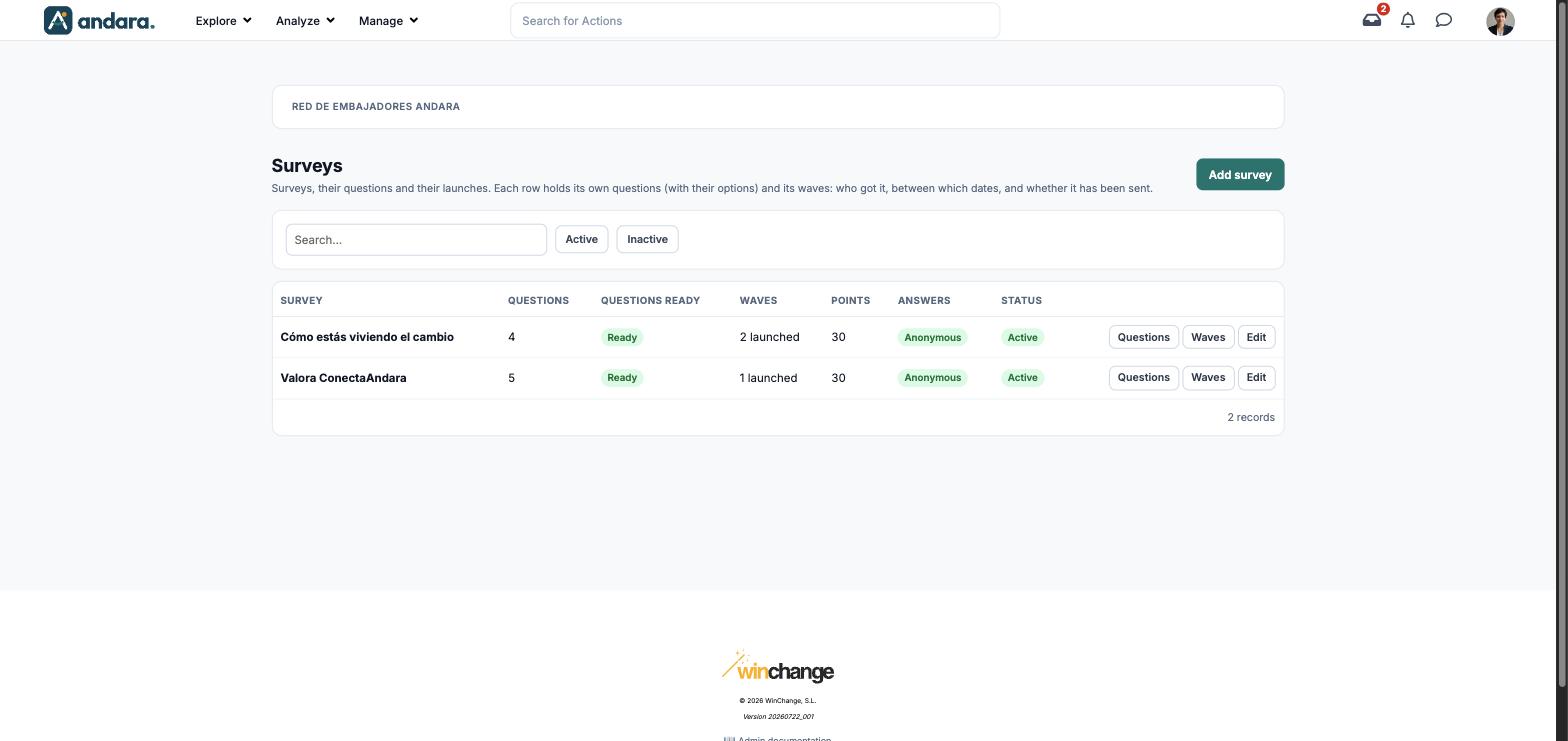
This is where you create opinion surveys and launch them in waves. Each survey holds its own questions (with their options) and its waves: who got it, between which dates, and whether it has been sent. That lets you run the same survey again every so often and compare.
Quizzes with right answers are not built here but in Content Library.
Where it is: Manage › Surveys › Surveys.
What you see#
The name of the project you are in is shown at the top.
| Element | What it shows |
|---|---|
| Add survey | Opens a blank form. |
| Search… | Filters the list as you type. |
| Active / Inactive | Shows only active surveys, or only inactive ones. |
| Survey | The survey name. |
| Questions | How many questions it has. |
| Questions ready | Ready when the questions are prepared for launch. |
| Waves | How many waves have been launched, for example 2 launched. |
| Points | The points for answering it. |
| Answers | Anonymous or named. |
| Status | Active or inactive. |
| Questions (button) | Opens the survey's questions and their options. |
| Waves (button) | Opens the survey's waves. |
| Edit | Opens the survey form. |
Settings#
Survey form#
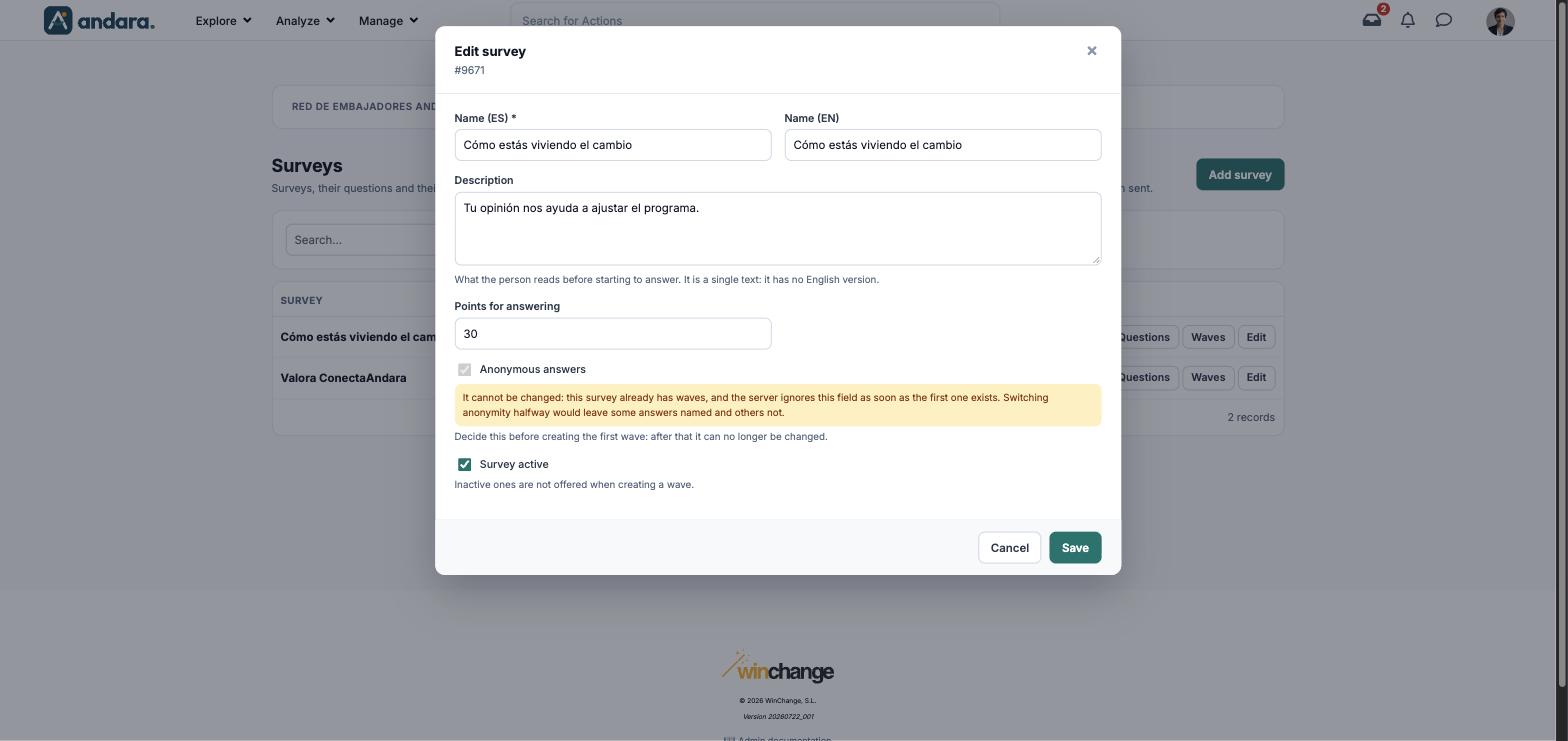
The form is the same to create (New survey) and to edit (Edit survey, with its number under the title).
| Field | What it does | Values |
|---|---|---|
| Name (ES) | The survey name in Spanish. | Text. Required. |
| Name (EN) | The name in English. | Text. |
| Description | What the person reads before starting to answer. It is a single text: it has no English version. | Free text. |
| Points for answering | The points the person gets for answering. | Number. |
| Anonymous answers | Decides whether answers are stored without a name. Decide it before the first wave: once one exists, the tick box locks and a warning explains that switching anonymity halfway would leave some answers named and others not. | Tick box. Ticked by default. |
| Survey active | Inactive surveys are not offered when creating a wave. | Tick box. Ticked by default. |
Questions#
The Questions button opens Questions in “survey”. If the survey has already been launched, a red warning reminds you that answers were created at launch time, one per person and per question: a new question will not show up in waves already launched, and changing the wording of one that has been answered also changes it above the answers given to the old wording.
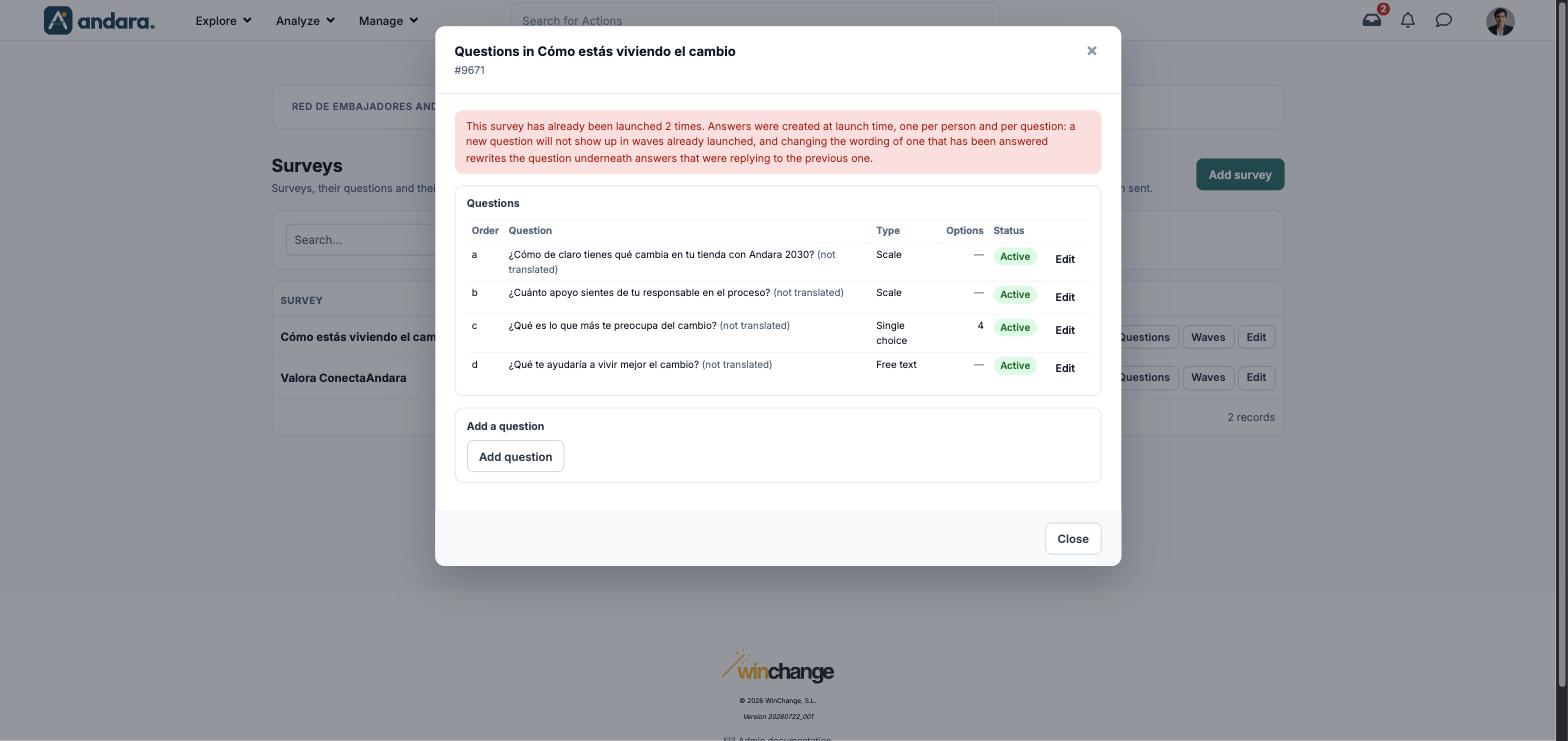
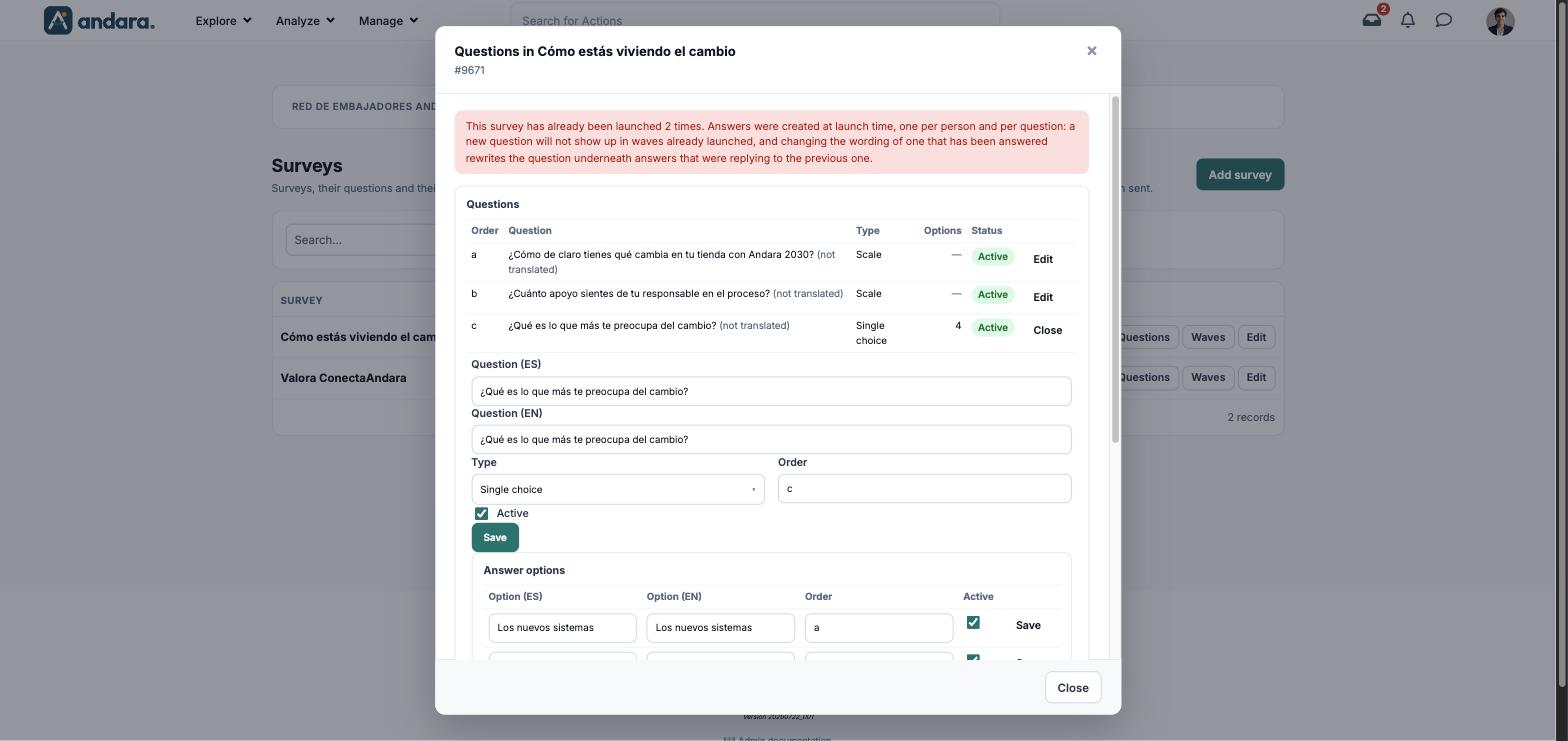
The table shows Order, Question (with (not translated) if it lacks its English version), Type, Options, Status and Edit. Edit opens the question under its row; Close folds it back. To add one, click Add question.
| Field | What it does | Values |
|---|---|---|
| Question (ES) | The wording in Spanish. | Text. |
| Question (EN) | The wording in English. | Text. |
| Type | How it is answered. | Drop-down: Free text, Single choice, Multiple choice, Number, Scale. |
| Order | Its position in the survey. | A single letter. |
| Active | Whether the question is included. | Tick box. |
| Save | Saves this question only. | Button. |
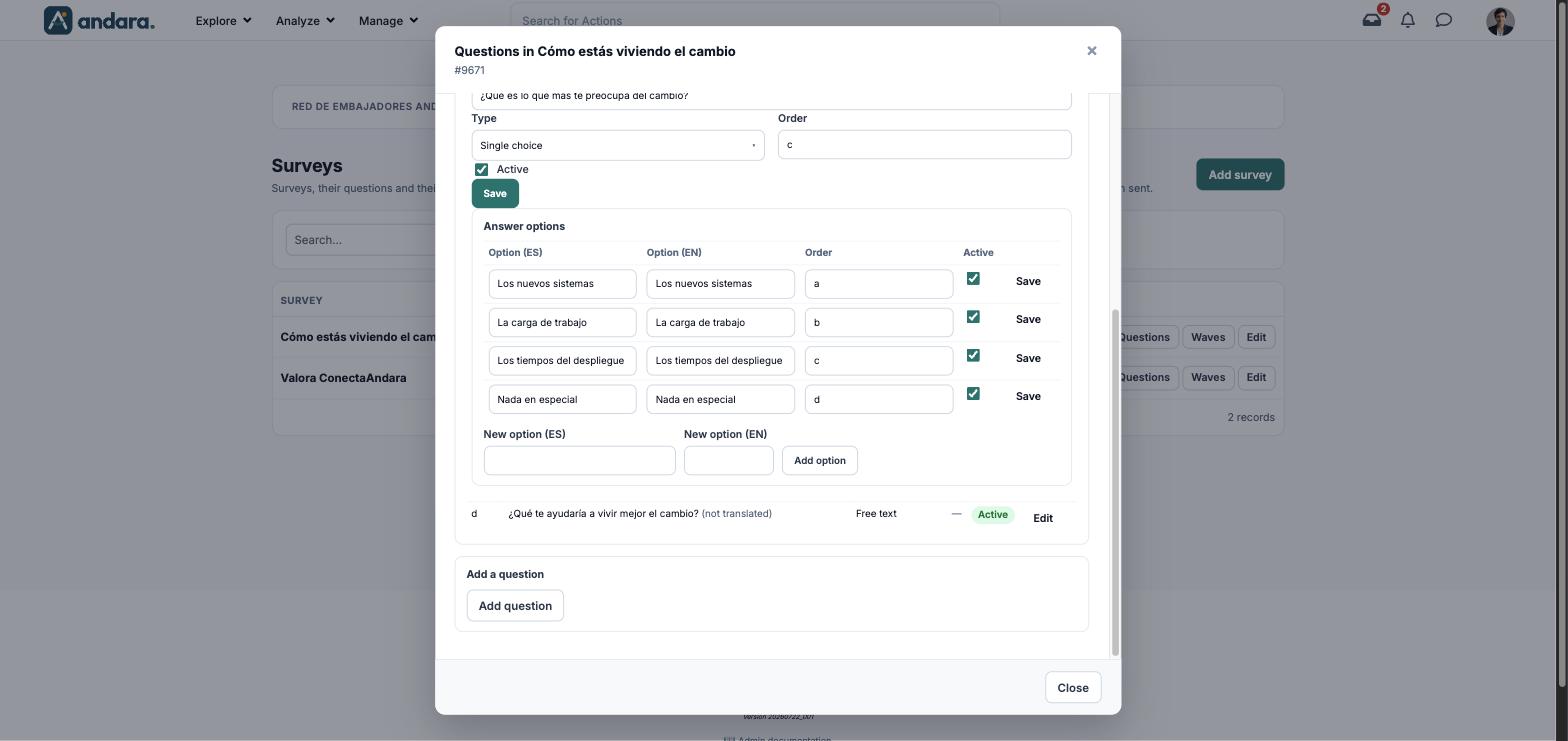
Closed questions also have the Answer options block:
| Field | What it does | Values |
|---|---|---|
| Option (ES) / Option (EN) | The text of each option in both languages. | Text. |
| Order | Its position in the list of options. | A single letter. |
| Active | Whether the option is offered. | Tick box. |
| Save | Saves that option only. | Button on each row. |
| New option (ES) / New option (EN) + Add option | Adds an option to the question. | Text. |
Waves#
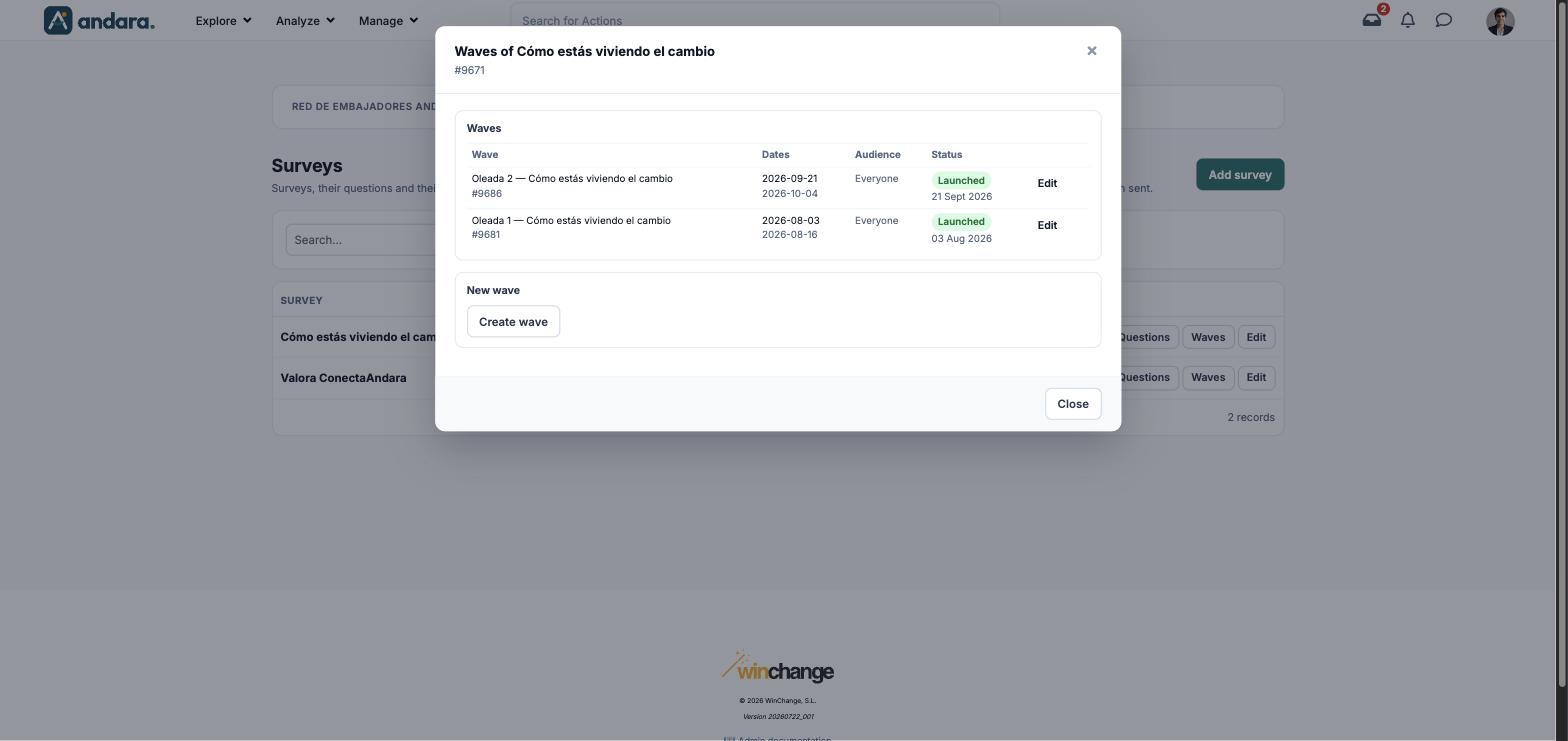
The Waves button opens Waves of “survey”: the list of launches with Wave, Dates, Audience (for example Everyone), Status (Launched and its date) and Edit, and underneath New wave › Create wave.
Edit opens the wave under its row. If it has already been launched, a warning reminds you that its audience was frozen at send time: changing it does not add or remove the survey for anybody.
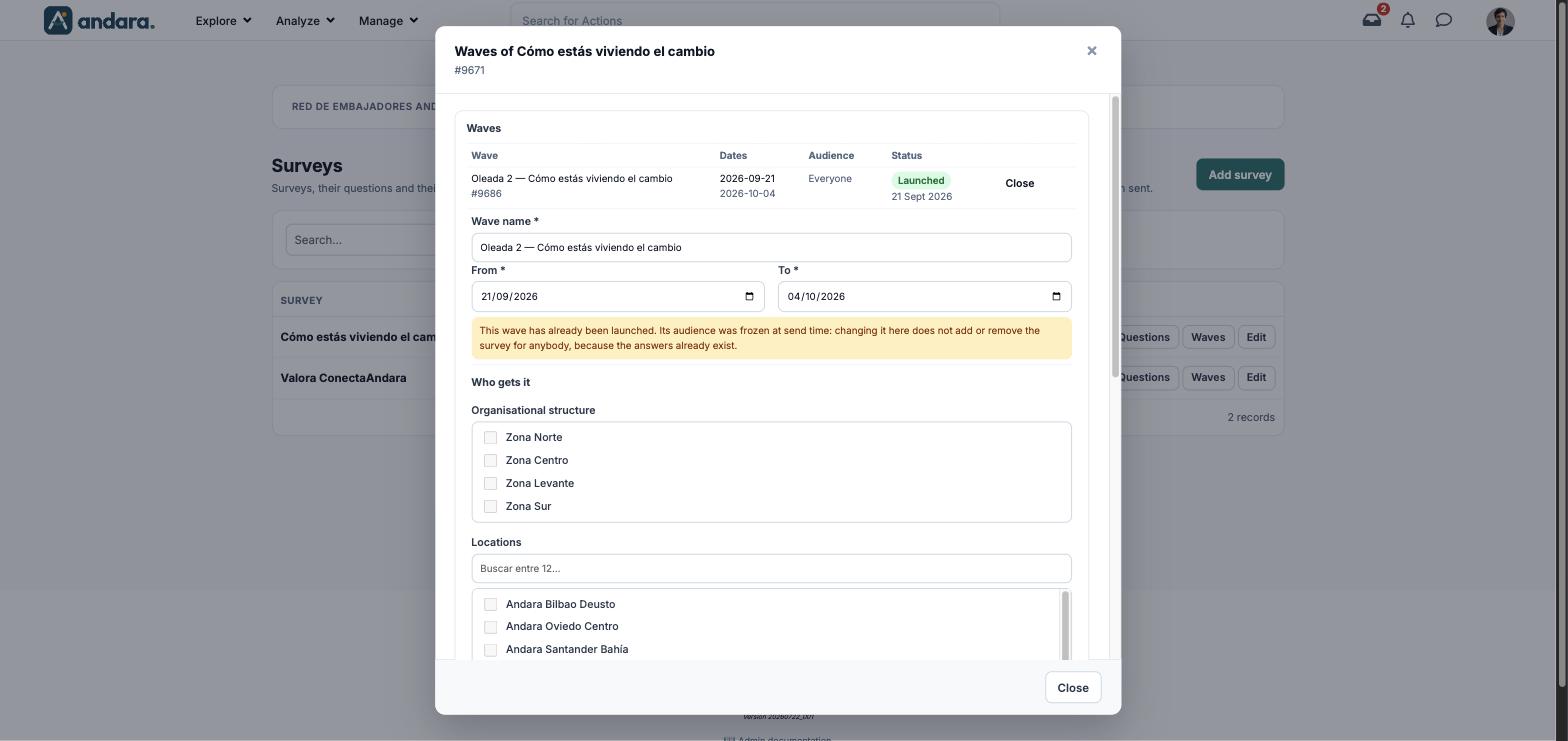
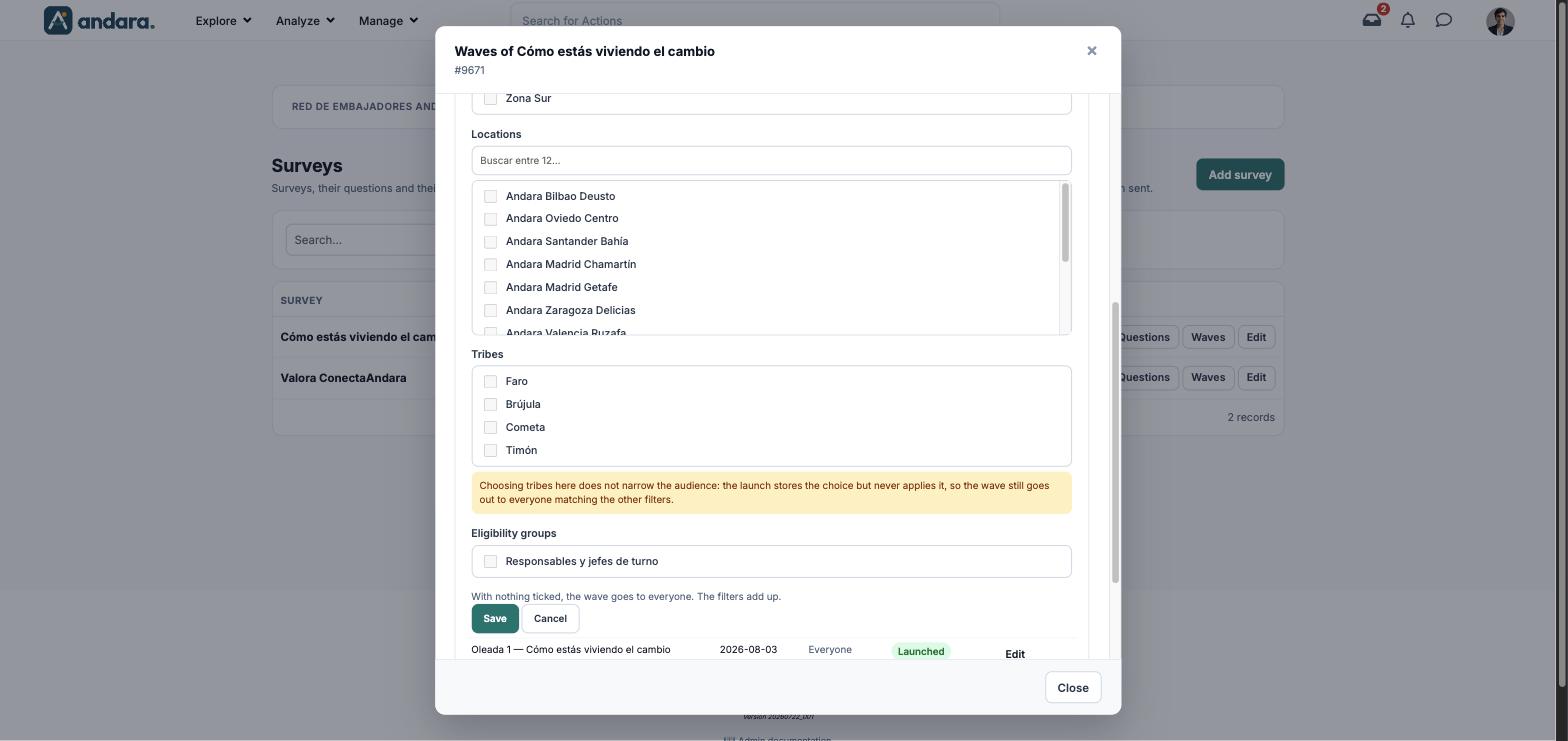
| Field | What it does | Values |
|---|---|---|
| Wave name | Identifies the launch. | Text. Required. |
| From / To | Between which dates the wave is open. | Dates. Required. |
| Organisational structure | Limits the wave to some organisation groups. | Tick boxes. |
| Locations | Limits the wave to some locations. | Tick boxes, with a search box. |
| Tribes | The screen warns that choosing tribes does not narrow the audience: the launch stores the choice but never applies it, and the wave still goes out to everyone matching the other filters. | Tick boxes. |
| Eligibility groups | Limits the wave to some eligibility groups. | Tick boxes. |
With nothing ticked, the wave goes to everyone. According to the screen, the filters add up.
How to#
Create a survey and launch it#
- 1
Create the survey
Click Add survey, type the names, the Description and the Points for answering, and decide now on Anonymous answers. Click Save.
- 2
Add the questions
Click Questions on its row and then Add question. Choose the Type and Order of each one.
- 3
Add the options
For closed questions, type each option in New option (ES) and (EN) and click Add option.
- 4
Launch a wave
Click Waves on its row, then Create wave, and fill in the name, the dates and who gets it.
Fix a question's translation#
- 1
Open the questions
Click Questions on the survey's row.
- 2
Open the question
Click Edit on the question marked (not translated).
- 3
Type the English and save
Fill in Question (EN) and click that question's Save.
Things to know#
Anonymity is decided before the first wave. After that the tick box is locked and there is no way to change it.
- The questions and audience of a launched wave do not change. A new question does not reach waves already launched, and changing the audience of a launched wave affects nobody.
- Rewording a question that has been answered changes the wording above the old answers. If you need to ask something else, create a new question and deactivate the old one.
- Choosing tribes in a wave does not filter. Use structure, locations or eligibility groups.
- Each question and each option is saved separately, with its own Save.
- The survey description only has a Spanish version.
- There is no delete button on this screen: a survey is retired by unticking Survey active, and a question or option by unticking Active.
Related#
- Surveys, quizzes and climate: when to use each tool.
- Survey results: how to read the answers.
- Sentiment Analysis Questions: the daily pulse question.
- User Eligibility Groups and Tribes.