What it is for#
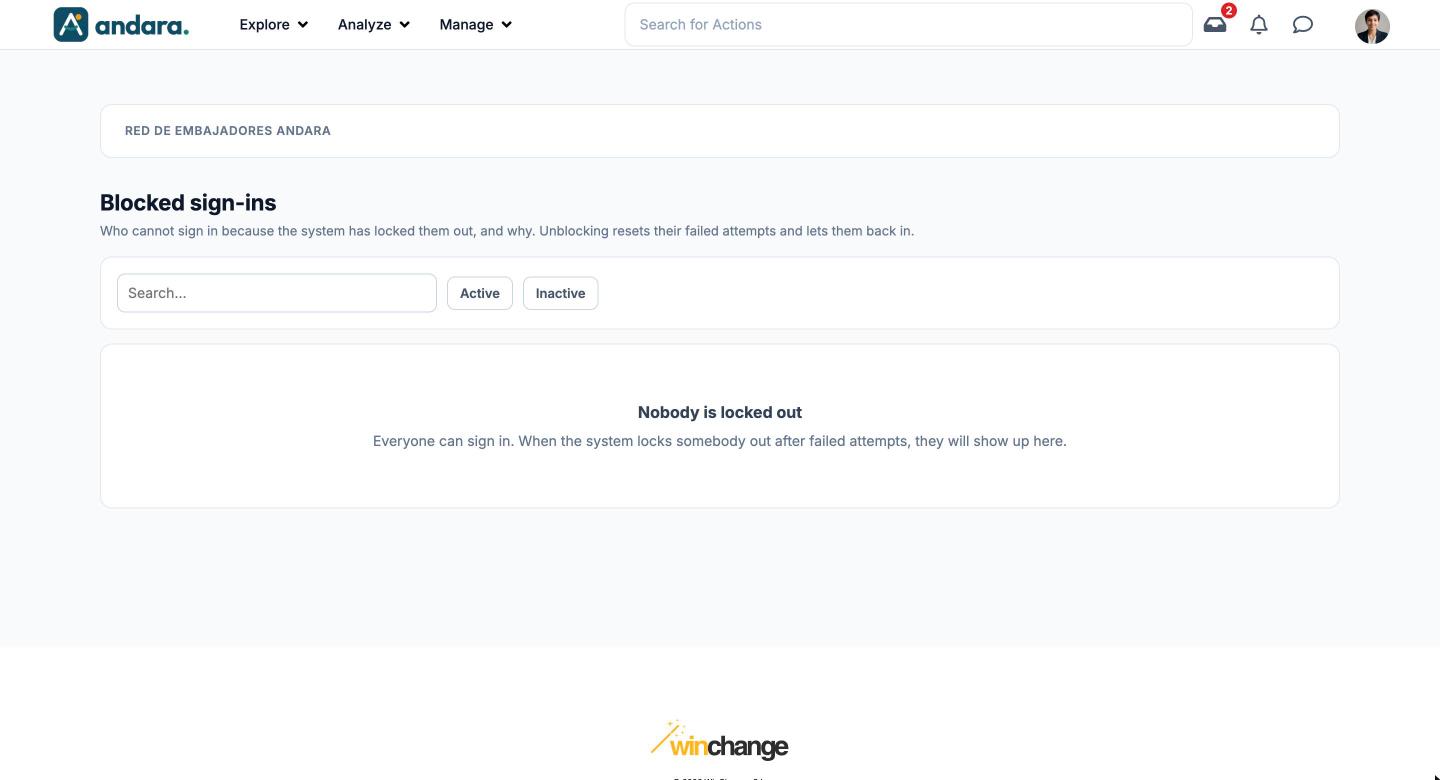
This is where the people who cannot sign in to the app show up, because the system has locked them out, together with the reason. From this tab you unblock them: Unblock resets their failed attempts and lets them back in.
The system locks an account on its own when failed sign-in attempts pile up. In the app the screen is called Blocked sign-ins.
Where it is: Manage › Security › Blocked Users.
What you see#
| Element | What it shows |
|---|---|
| Search… | Filters the list as you type. |
| Active / Inactive | Shows only the locked-out people who are still active in the project, or only those who are already deactivated. |
| Clear filters | Shows up when you use a filter, and undoes it. |
| Unblock | On each locked-out person, resets their failed attempts and gives them their access back. |
| Nobody is locked out | What you see when everyone can sign in. |
Settings#
This tab has no forms: the only action is Unblock. How many failed attempts trigger the lockout is not set from here.
How to#
Let a locked-out person back in#
- 1
Check the reason
Before unblocking, look in Signons & Attempted Signons at what happened. A forgotten password is not the same as many attempts with wrong codes.
- 2
Find them
Type their name or email in Search….
- 3
Unblock
Click Unblock. Their attempts go back to zero and they can sign in again with their usual password.
Things to know#
- Unblocking does not change the password. If the person has forgotten it, they will fail again and be locked out again.
- If someone gets locked out again a few minutes later, stop unblocking and check the reason in Signons & Attempted Signons.
- A deactivated person cannot sign in even if you unblock them. To give them access back, tick Can sign in in Users.
Related#
- Security and auditability: how the lockout after failed attempts works.
- Signons & Attempted Signons: the log of each attempt and its reason.
- Users: activating or deactivating a person.