What it is for#
This is where you create and maintain the project's medals: the recognition a person gets for completing a specific action. Here you define the medal (name, description and picture); the action that awards it is chosen in Actions.
The screen has a second tab, Levels, to look up the project's level ladder.
Where it is: Manage › Rewards › Badges.
What you see#
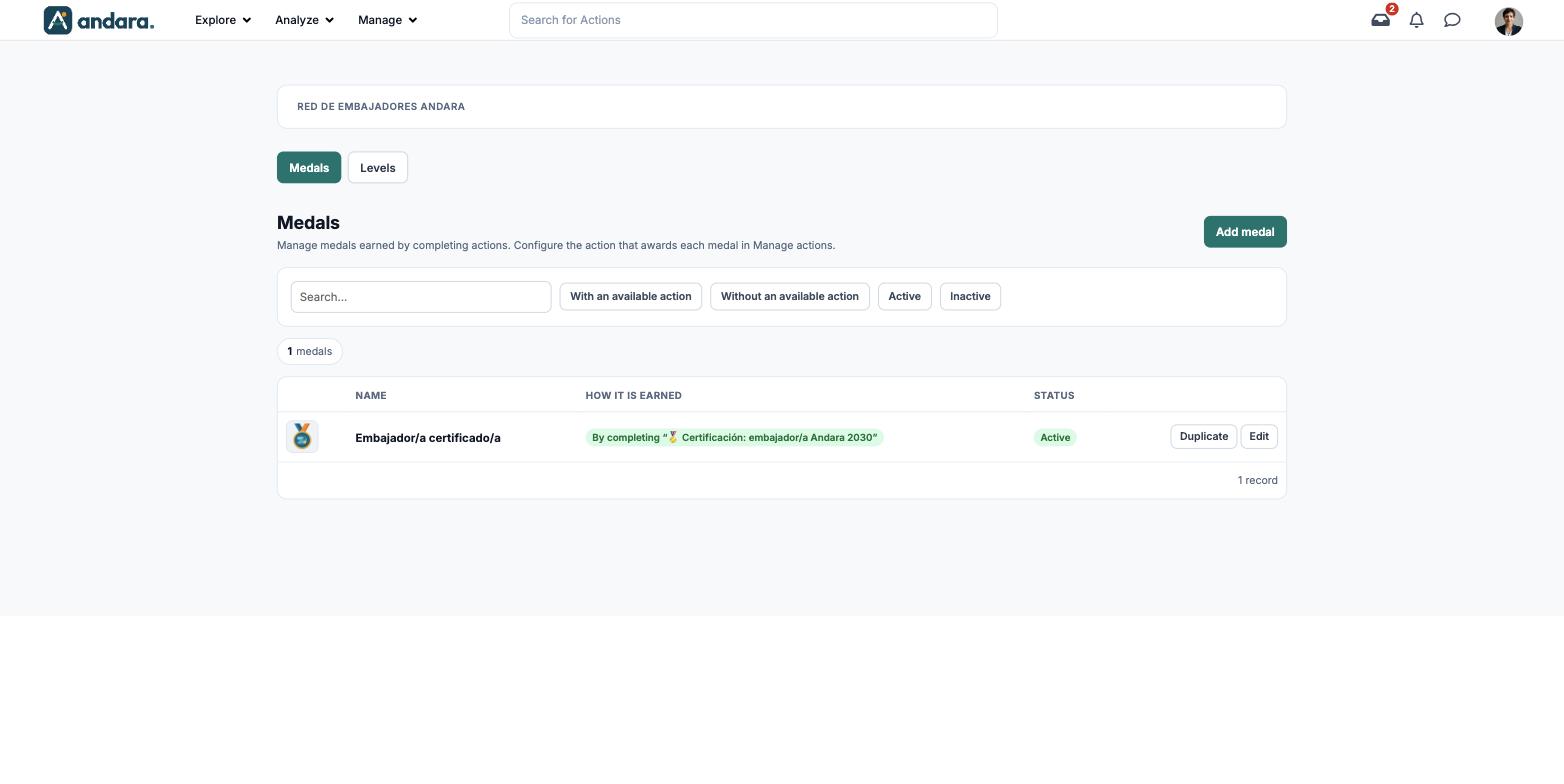
At the top you see the project you are in and two buttons to switch view: Medals and Levels.
Medals#
| Element | What it shows |
|---|---|
| Search... | Filters the list as you type. |
| With an available action / Without an available action | Shows only the medals some action already awards, or only those not yet linked to any action. |
| Active / Inactive | Shows only live medals, or only retired ones. |
| N medals | How many there are with the current filters. |
| Picture | The medal's picture. |
| Name | The medal's name. |
| How it is earned | The action that awards it: "By completing "action name"". |
| Status | Active or Inactive. |
| Duplicate | Opens a new form copying this medal's details. It needs a new picture. |
| Edit | Opens the medal's form. |
| Add medal | Opens a blank form. |
Levels#
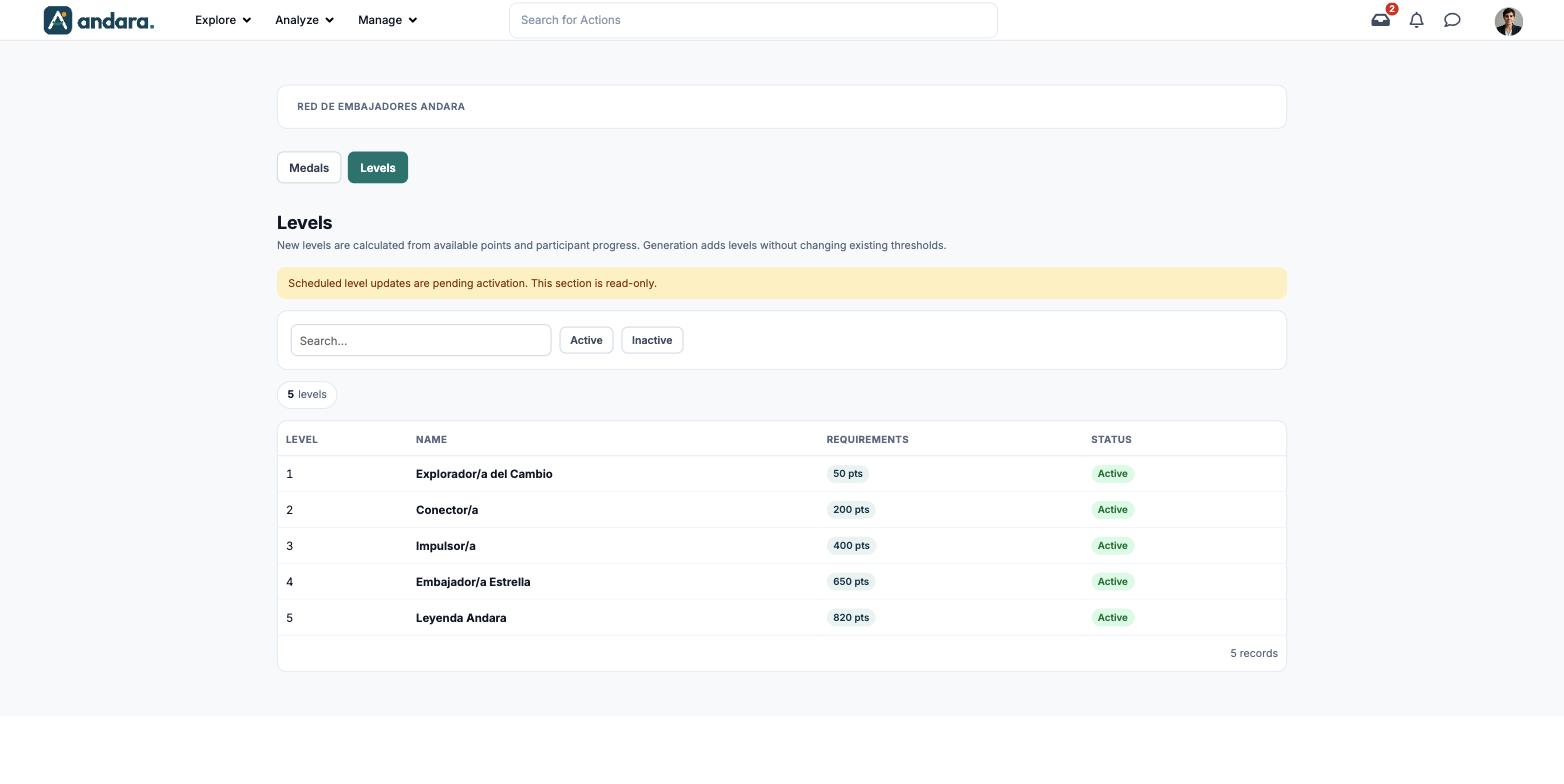
This view is read-only: nothing can be edited here. The on-screen notice says scheduled level updates are pending activation.
| Element | What it shows |
|---|---|
| Search... | Filters the list as you type. |
| Active / Inactive | Shows only live levels, or only switched-off ones. |
| N levels | How many there are with the current filters. |
| Level | The level number, lowest first. |
| Name | The level's name. |
| Requirements | The points needed to reach it. |
| Status | Active or Inactive. |
Settings#
The form is the same to create (New medal) and to edit (Edit medal, with its number under the title).
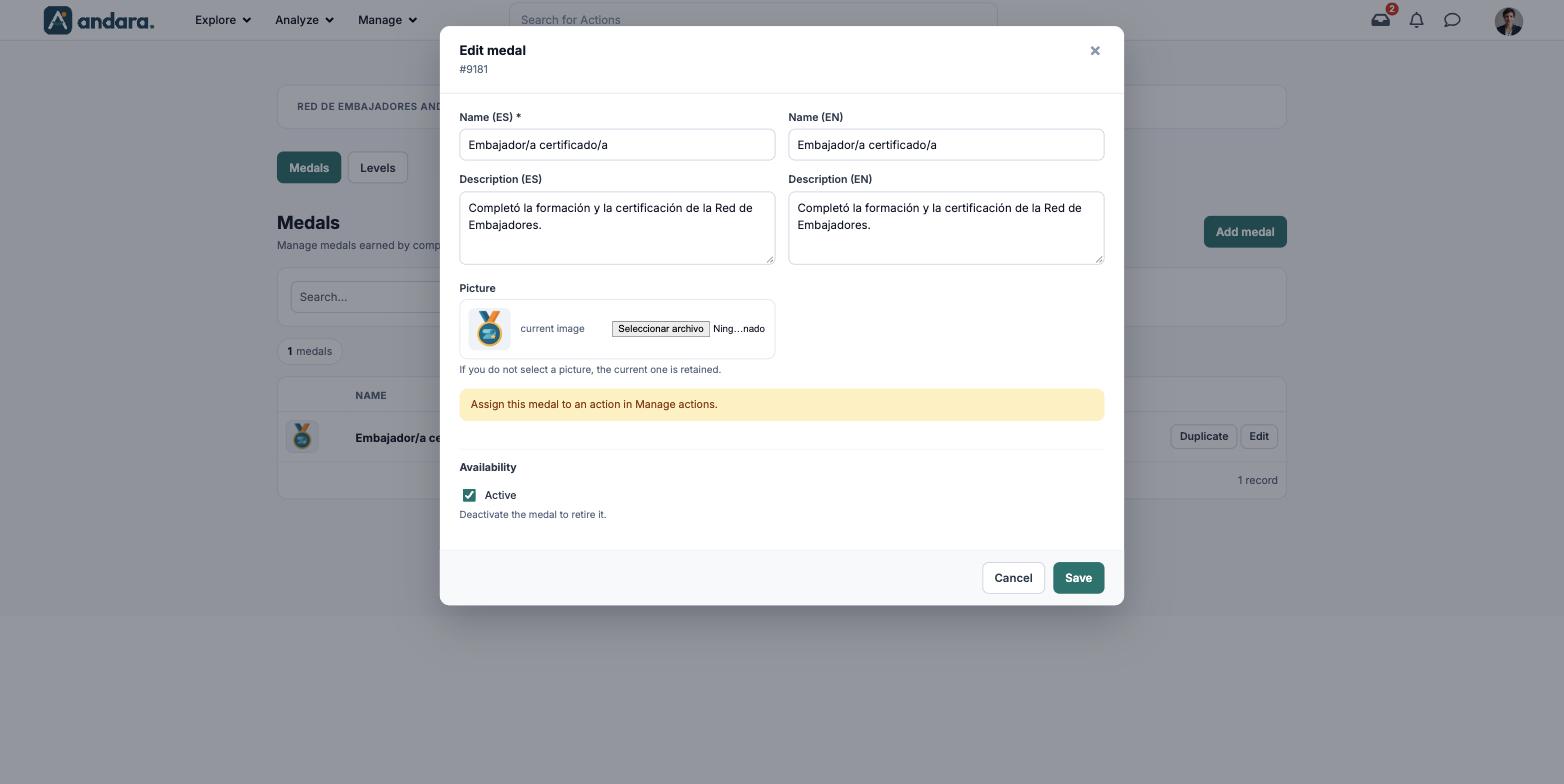
| Field | What it does | Values |
|---|---|---|
| Name (ES) | The medal's name in Spanish. | Text. Required. |
| Name (EN) | The name in English. | Text. |
| Description (ES) | Explains why it is earned, in Spanish. | Free text. |
| Description (EN) | The same explanation in English. | Free text. |
| Picture | The medal's picture. When editing, if you do not select a picture, the current one is kept. | Image. A new or duplicated medal needs one. |
| Active | Keeps the medal live or retires it. | Tick box. Ticked by default. |
A notice on the form reminds you that the medal is linked to an action in Manage actions, that is, in Actions.
How to#
Create a medal and put it into play#
- 1
Open a blank form
Click Add medal.
- 2
Fill in the details
Enter at least Name (ES), add the English version and the description, and pick the Picture.
- 3
Save
Click Save. The medal shows up under the Without an available action filter.
- 4
Link it to an action
In Actions, open the action that should award it and choose it as its medal. From then on, How it is earned shows that action.
Create a medal similar to another#
- 1
Duplicate
Click Duplicate on the row of the medal you want to use as a model.
- 2
Adjust and pick a picture
Change what you need and select a new picture: duplicates require one.
- 3
Save
Click Save.
Retire a medal#
- 1
Open it
Click Edit on its row.
- 2
Deactivate it
Untick Active and click Save.
Things to know#
- The medal does not say how it is earned: the action does. Nobody can earn a medal that no action awards; find them with Without an available action.
- There is no delete button on this screen: a medal is retired by unticking Active.
- The Levels tab is read-only. Levels are set up in Level ladder.
Related#
- Points, badges and streaks: how medals, points and levels fit together.
- Actions: where you choose which medal each action awards.
- Level ladder.