What it is for#
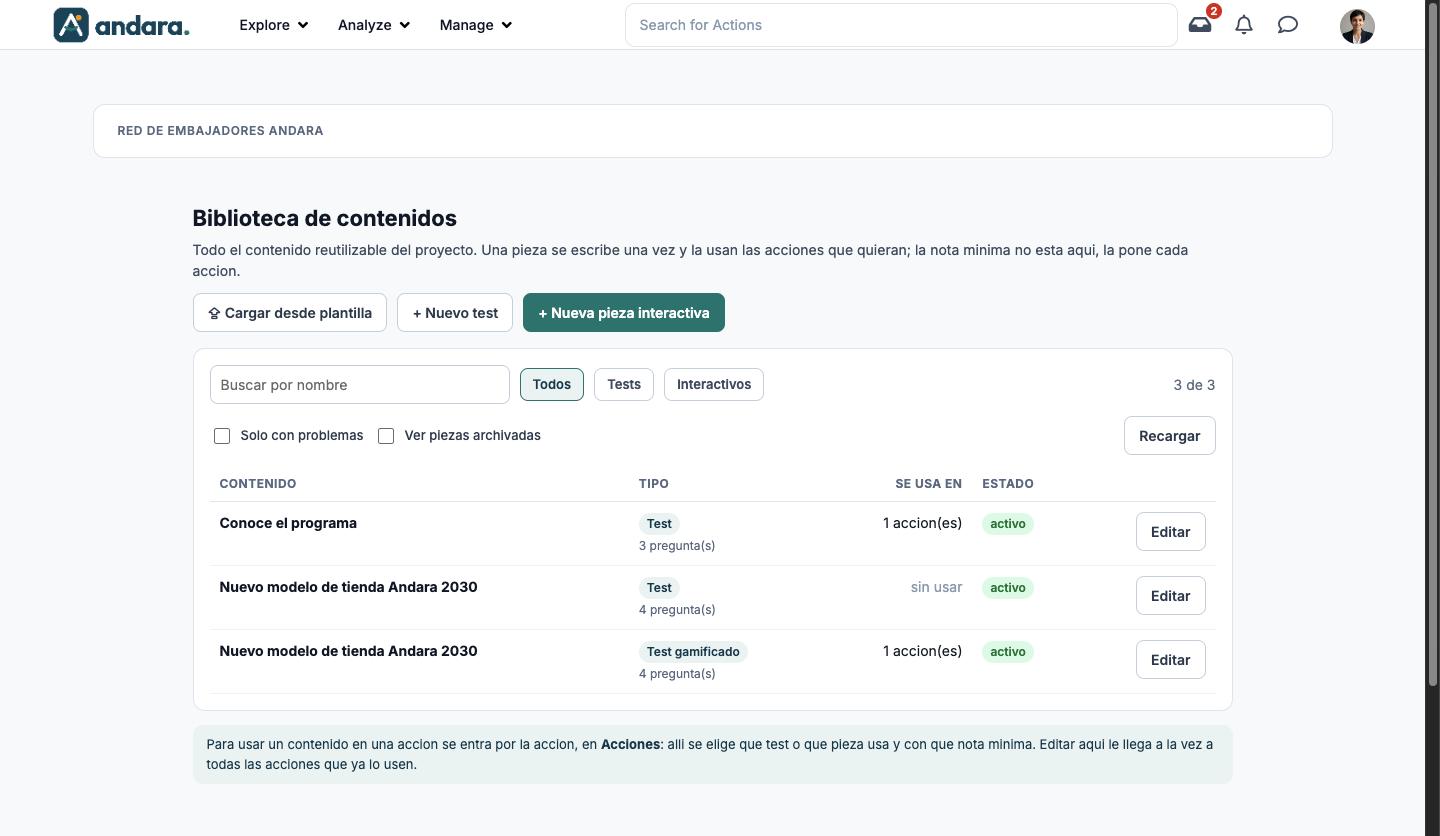
This is where the project's reusable content lives: tests and interactive pieces (games, exercises, role plays, external content). A piece is written once and several actions can use it at the same time.
Nothing is assigned from here: to use a piece you go through the action, in Actions, and choose there which piece it uses and with what pass mark.
This screen is only available in Spanish, even with the app in English. The labels below are written as they appear, with their meaning.
Where it is: Manage › Journeys › Content Library.
What you see#
| Element | What it shows |
|---|---|
| Cargar desde plantilla (load from template) | Creates tests from a spreadsheet. |
| + Nuevo test (new test) | Creates a new test. |
| + Nueva pieza interactiva (new interactive piece) | Opens a blank interactive piece editor. |
| Buscar por nombre (search by name) | Filters the list as you type. |
| Todos / Tests / Interactivos | Keeps a single type of content: all, tests, interactive. |
| N de N | How many items match the current filters, out of the total. |
| Solo con problemas (only with problems) | Keeps only content with something to fix. |
| Ver piezas archivadas (show archived pieces) | Also shows archived pieces. |
| Recargar | Reloads the list. |
| Contenido | The name. |
| Tipo | Test, Test gamificado (gamified test) or the piece type, with the number of questions. |
| Se usa en (used in) | How many actions use it, or sin usar (unused). |
| Estado | activo (active) or not. |
| Editar | Opens the item. |
Settings#
Test#
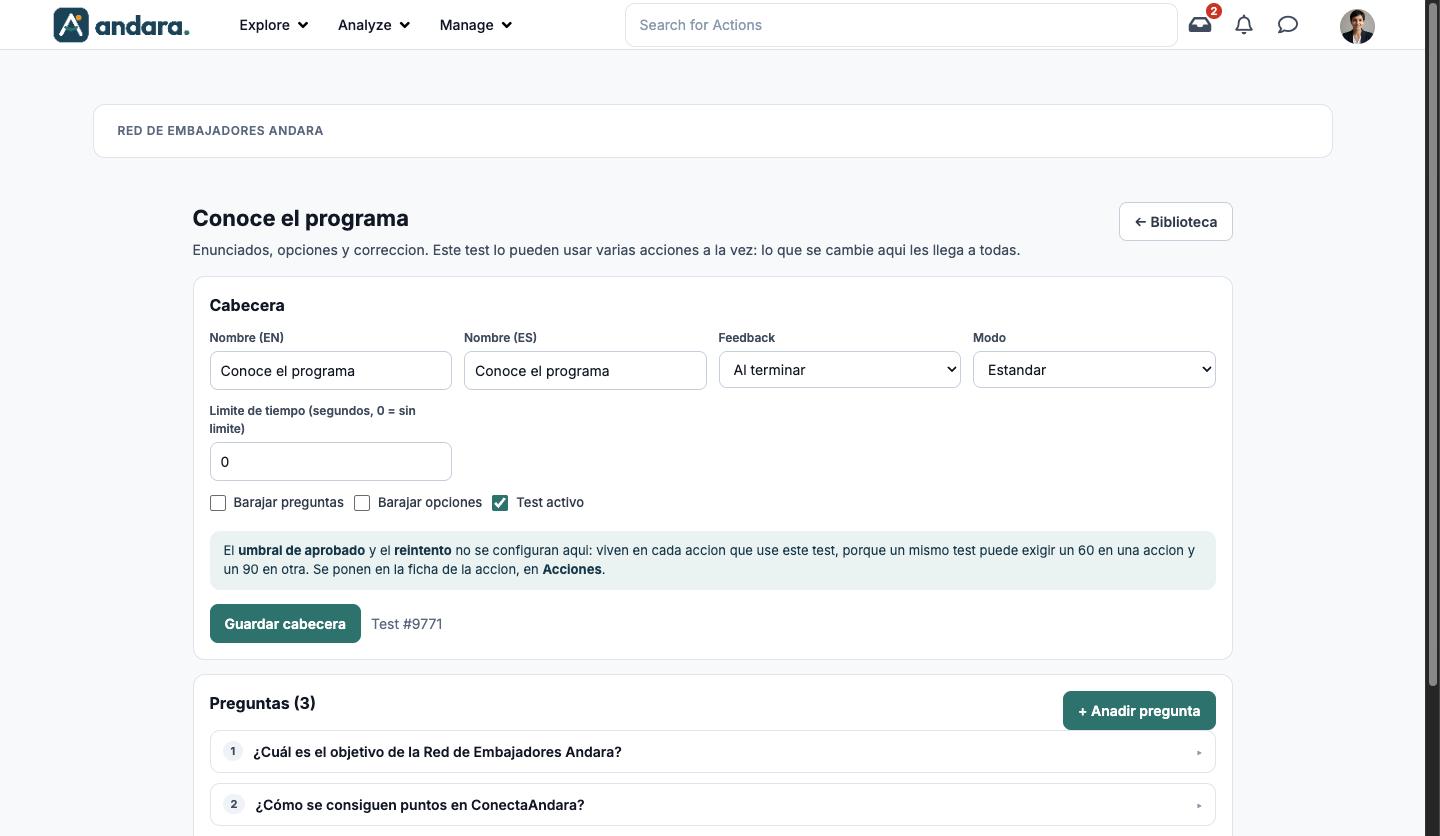
Header (Cabecera)
| Field | What it does | Values |
|---|---|---|
| Nombre (EN) / Nombre (ES) | The test name in each language. | Text. |
| Feedback | When the person sees whether they got it right. | Al terminar (at the end, default), Pregunta a pregunta (question by question), Sin feedback (none). |
| Modo (mode) | How the test is presented. Gamified tests show in the list as Test gamificado. | Estandar (standard, default), Gamificado (gamified). |
| Limite de tiempo (segundos, 0 = sin limite) | Maximum time to take the test. | Number of seconds. Default: 0 (no limit). |
| Barajar preguntas / Barajar opciones | Shuffle the questions or the answers on each attempt. | Tick boxes. Unticked by default. |
| Test activo | Switches the test on or off. | Tick box. Ticked by default. |
The header is saved with its own button, Guardar cabecera. The pass mark and retakes are not set here: each action that uses the test sets them.
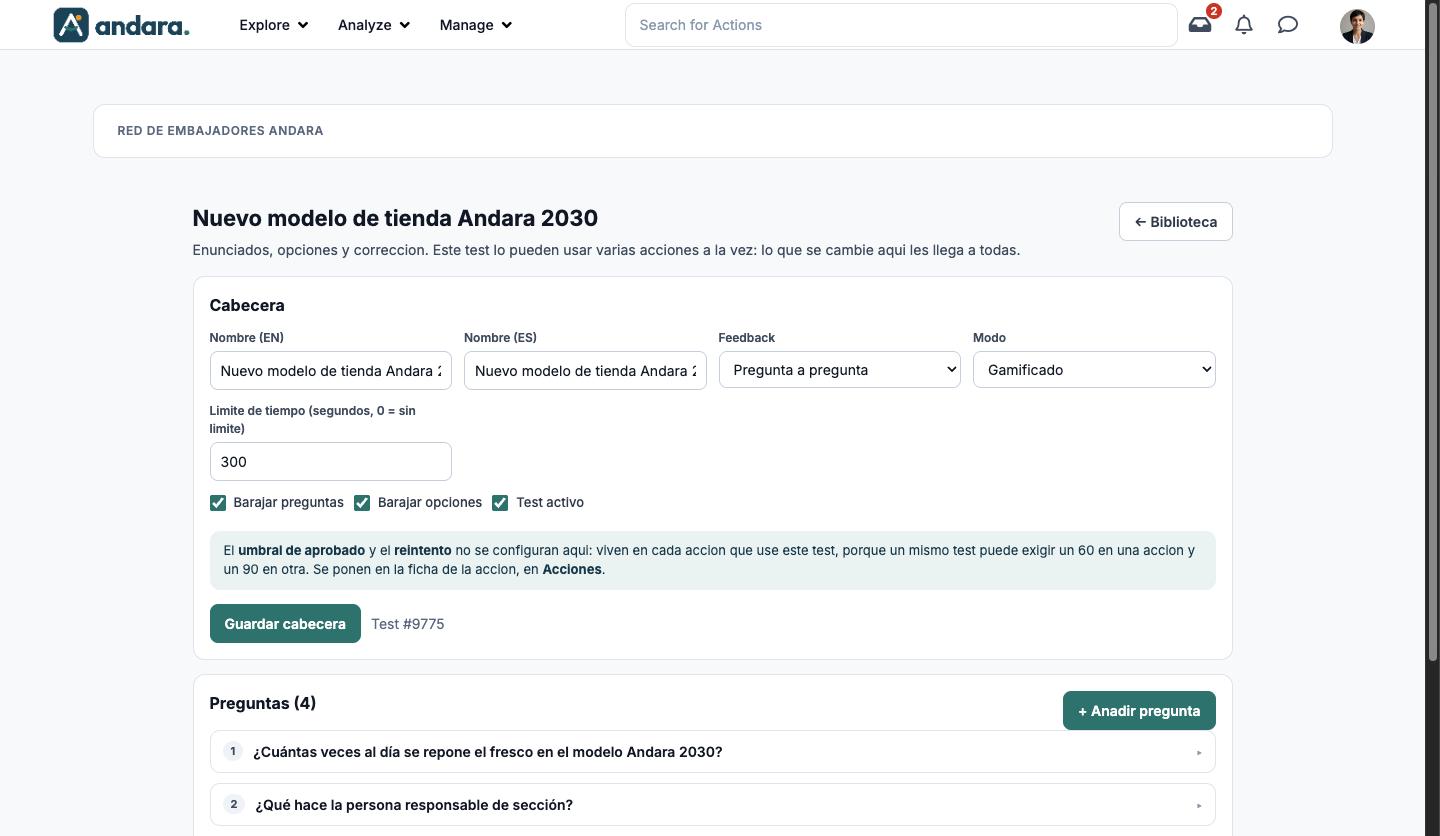
Questions (Preguntas), opened by clicking each one
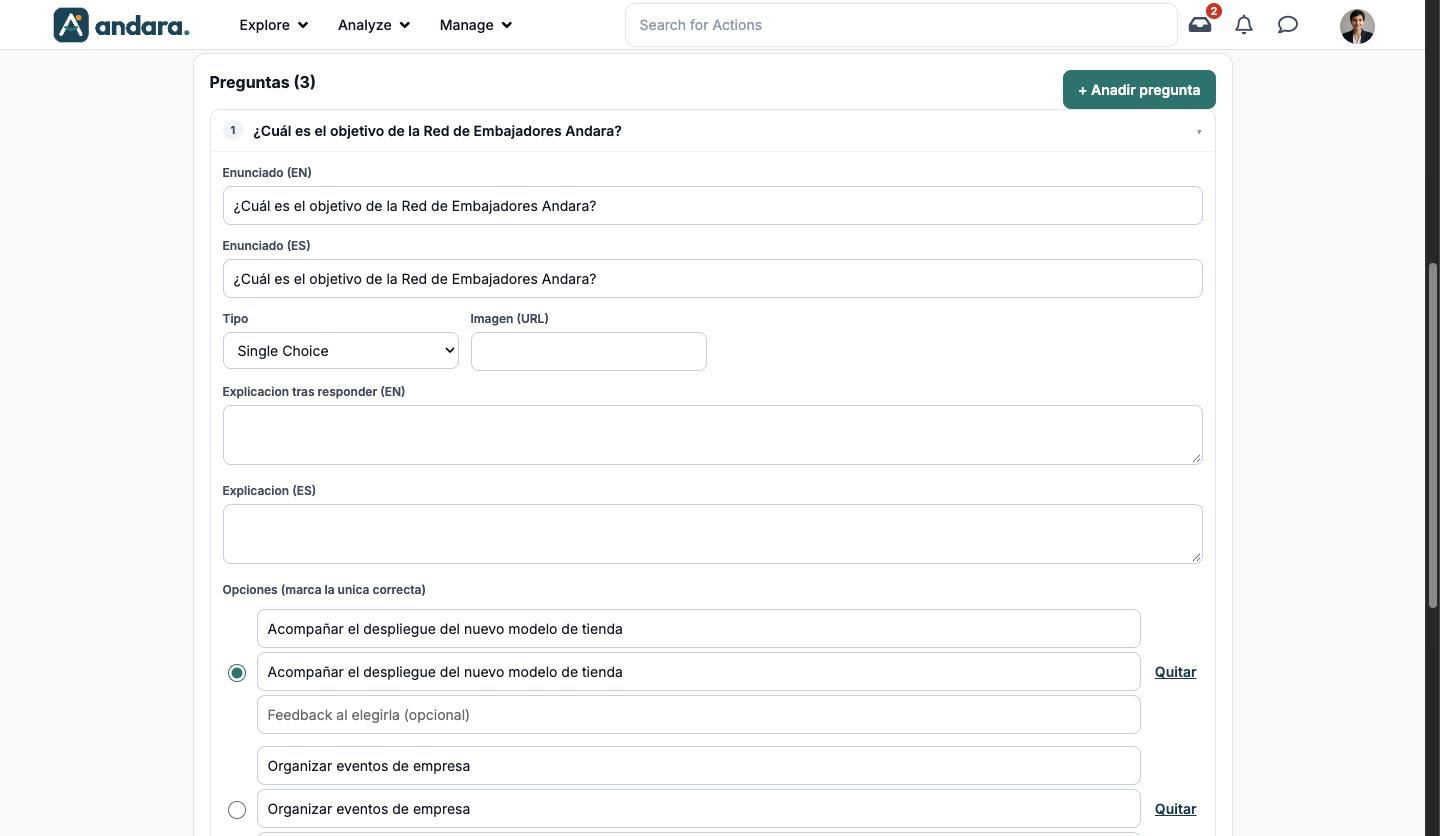
| Field | What it does | Values |
|---|---|---|
| Enunciado (EN) / Enunciado (ES) | The question in each language. | Text. |
| Tipo | How it is answered. | Single Choice, Multiple Choice, Free Text, Number. |
| Imagen (URL) | An image shown with the question. | An image address (for example, copied from Attachments). |
| Explicacion tras responder (EN) / Explicacion (ES) | The text shown after answering. | Free text. |
| Opciones | The possible answers, each in English and Spanish, with an optional Feedback al elegirla (feedback when chosen). Mark the correct one on the left; Quitar removes an option and + Anadir opcion adds one. | Text. |
| Activa | Switches the question on or off. | Tick box. |
Each question is saved with Guardar pregunta and moved with the ↑ and ↓ arrows. + Anadir pregunta adds a new one.
Interactive piece (Pieza interactiva)#
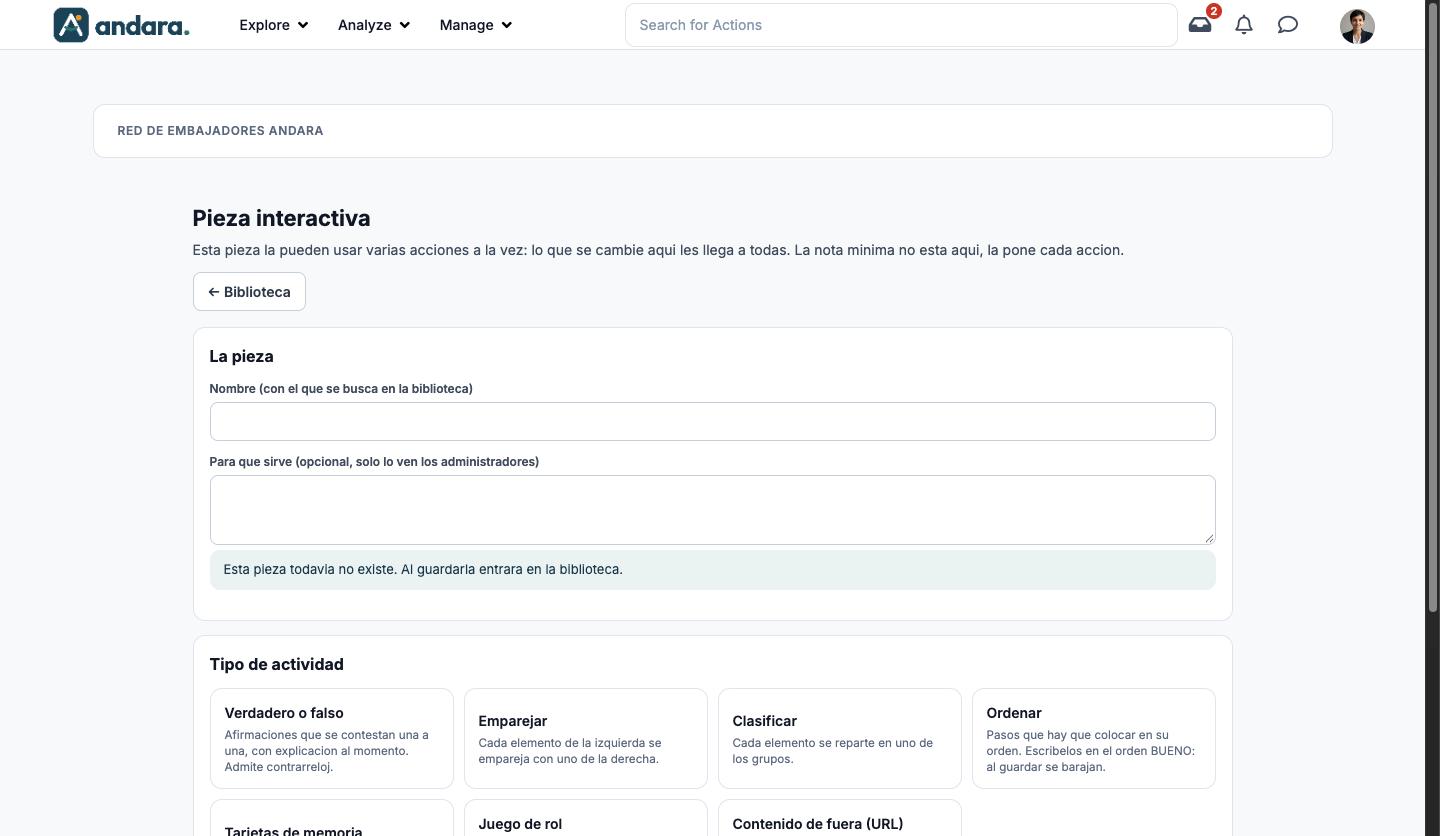
| Field | What it does | Values |
|---|---|---|
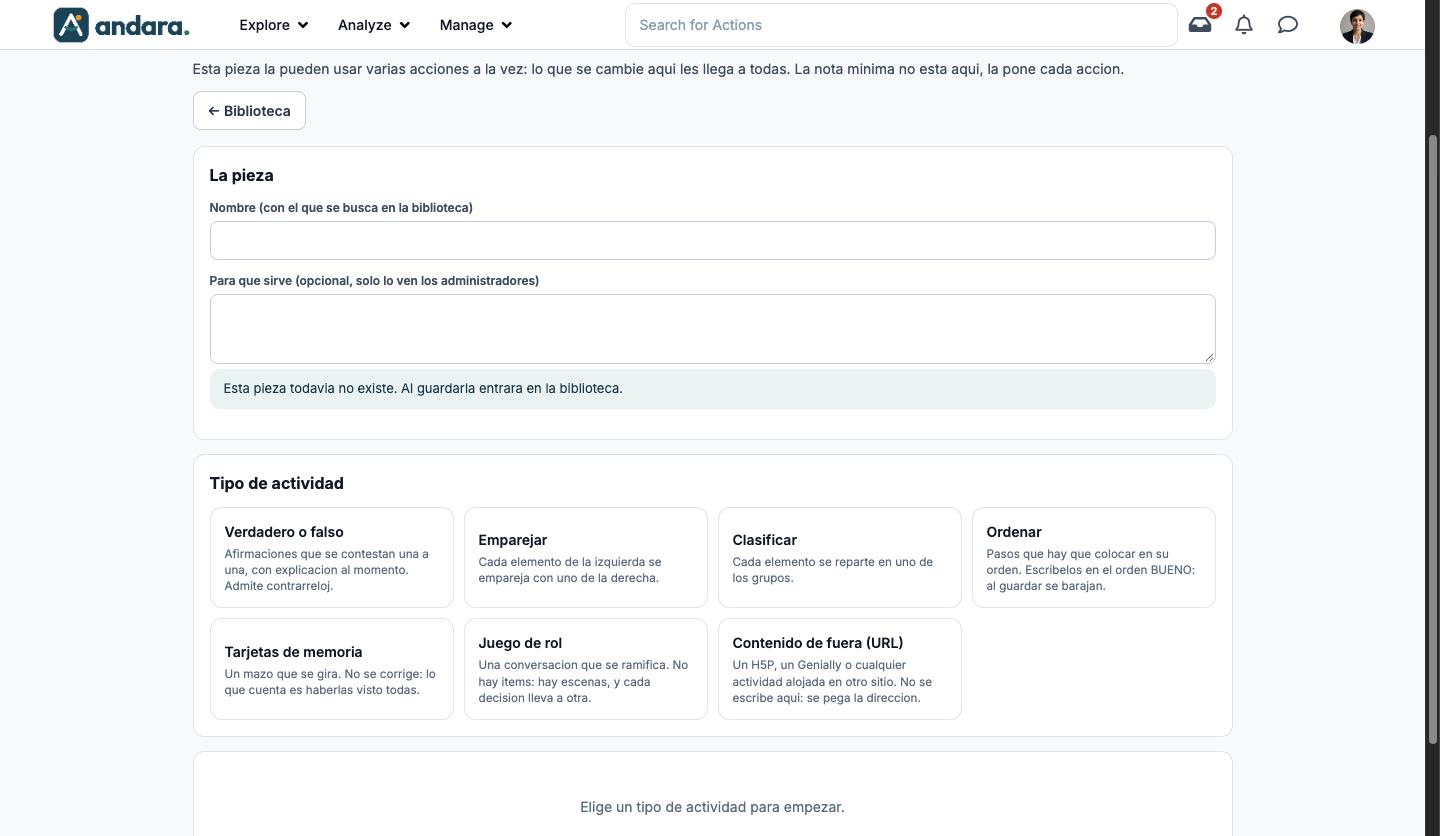
| Nombre (con el que se busca en la biblioteca) | The piece name, used to find it in the library. | Text. |
| Para que sirve (opcional, solo lo ven los administradores) | An internal note only admins see. | Free text. |
| Tipo de actividad (activity type) | What kind of exercise it is. Choosing it shows its fields. | See the next table. |
| Activity type | What it is |
|---|---|
| Verdadero o falso (true or false) | Statements answered one by one, with an explanation straight away. Can be timed. |
| Emparejar (match) | Each item on the left is matched with one on the right. |
| Clasificar (sort) | Each item is placed into one of the groups. |
| Ordenar (order) | Steps to put in order. Write them in the right order: they are shuffled on save. |
| Tarjetas de memoria (flashcards) | A deck that flips. Not marked: what counts is having seen them all. |
| Juego de rol (role play) | A branching conversation in scenes; each decision leads to another. |
| Contenido de fuera (URL) (external content) | An H5P, a Genially or any activity hosted elsewhere: you paste the address. |
A new piece does not exist until you save it; once saved it enters the library.
Load from template (Cargar desde plantilla)#
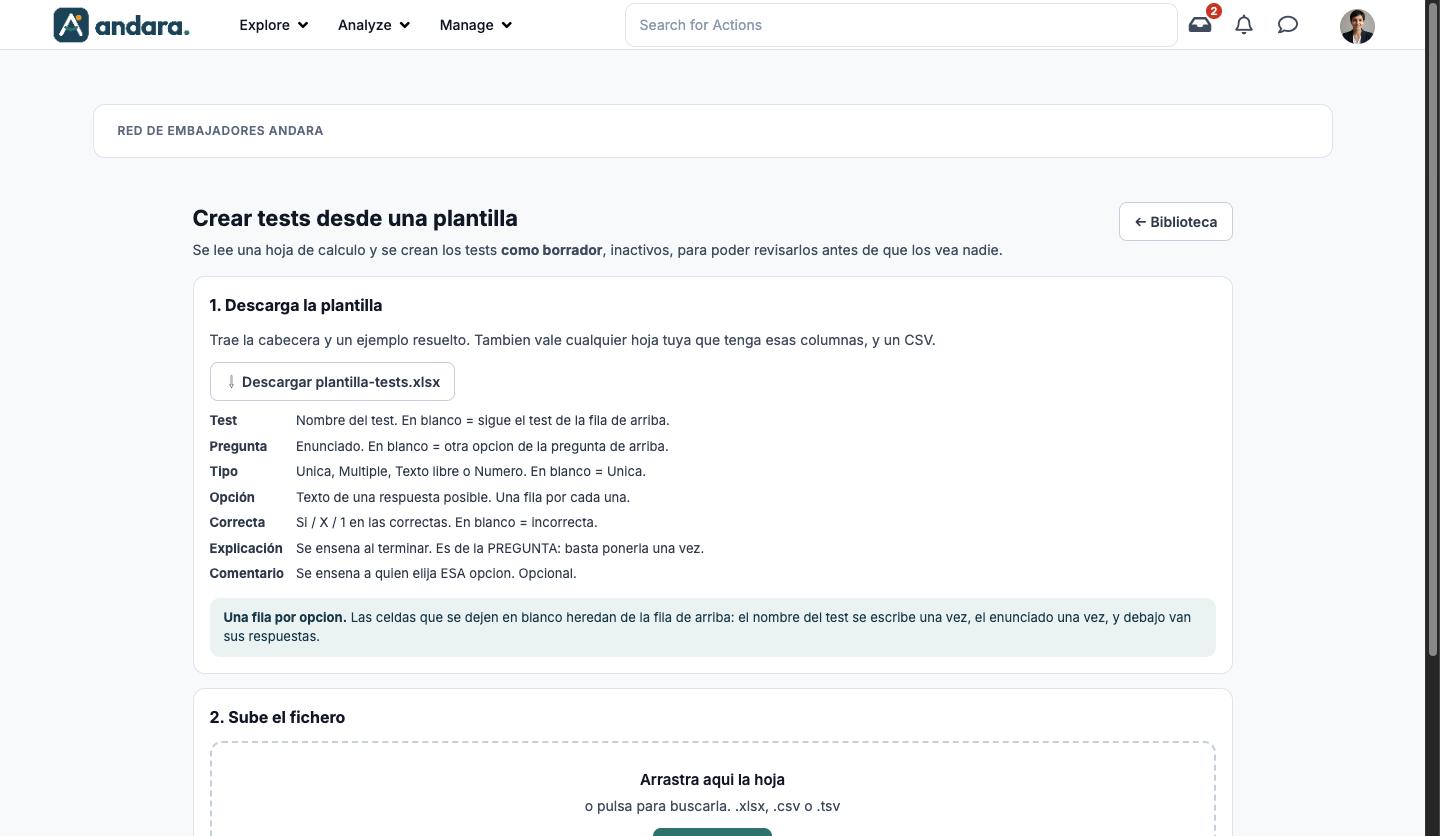
It reads a spreadsheet and creates the tests as drafts, inactive, so you can review them before anyone sees them. Descargar plantilla-tests.xlsx gives you the header row and a worked example. There is one row per option, and blank cells inherit from the row above:
| Column | What goes in it |
|---|---|
| Test | Test name. Blank: same test as the row above. |
| Pregunta | Question wording. Blank: another option for the question above. |
| Tipo | Unica (single), Multiple, Texto libre (free text) or Numero (number). Blank: single. |
| Opción | Text of one possible answer. One row each. |
| Correcta | Si, X or 1 on the correct ones. Blank: incorrect. |
| Explicación | Shown at the end. It belongs to the question: enter it once. |
| Comentario | Shown to whoever picks that option. Optional. |
Drag the file in or pick it with Elegir fichero. It accepts .xlsx, .csv and .tsv; old .xls files cannot be read (save them as an Excel Workbook (.xlsx) first).
How to#
Create tests from a spreadsheet#
- 1
Download the template
Click Cargar desde plantilla and then Descargar plantilla-tests.xlsx.
- 2
Fill it in
One row per option, with Correcta marked on the right answers.
- 3
Upload it
Drag the file in or click Elegir fichero. The tests are created as inactive drafts.
- 4
Review and activate
Open each test with Editar, review it, tick Test activo and click Guardar cabecera.
Use a test in an action#
- 1
Open the action
In Actions, open the action and go to step 2. Contenido.
- 2
Choose the test
In Añadir contenido choose Test, click Seleccionar contenido and pick the test.
- 3
Set the conditions
Fill in Umbral de aprobado (%) and tick Se puede repetir if you want. Save.
Things to know#
- Changes reach every action that uses the piece. Before editing a test in use, check the Se usa en column.
- The pass mark is not here: it lives in each action, because the same test can require 60 in one and 90 in another.
- This screen is only in Spanish, even with the app in English.
Related#
- Surveys and tests: what tests are for.
- Actions: where you choose which content each action uses.
- Journeys and actions: how content fits into the path.